Can You Connect Headphones to Roku TV Easily Today

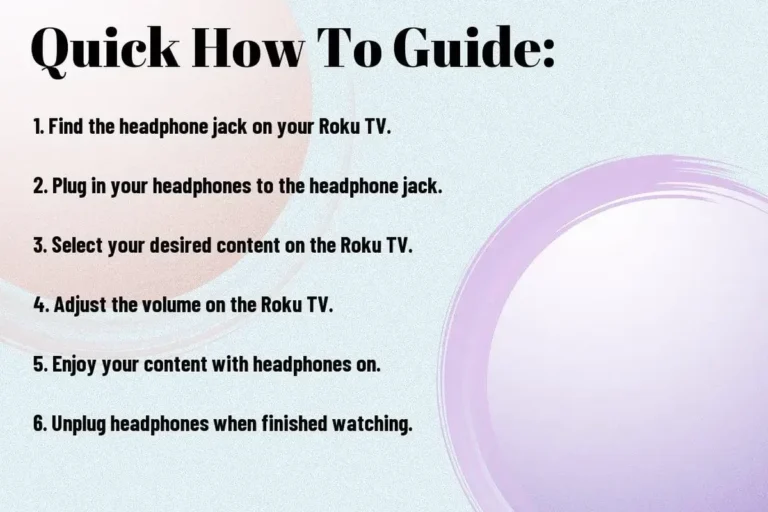
Yes, you can connect headphones to Roku TV in many cases, but the method depends on your model. The easiest options are the Roku app, Bluetooth if supported, or a wireless transmitter.
If you’re asking can you connect headphones to Roku TV, the short answer is yes in many cases, but the method depends on the Roku TV model and the headphones you own. Some setups are simple and free, while others need a small adapter or the Roku mobile app.
For most people, the easiest path is private listening through the Roku app, followed by Bluetooth pairing if your TV supports it. If neither option is available, a wireless transmitter or a headphone jack on the TV or remote can still solve the problem.
- Best free option: Use Roku app private listening when available.
- Best wireless option: Bluetooth works only on supported Roku TVs.
- Best fallback: A wireless transmitter can add headphone support.
- Most stable option: Wired audio is usually the least complicated.
Can You Connect Headphones to Roku TV? What the 2025 Answer Really Means
The 2025 answer is more flexible than a simple yes or no. Roku TV itself does not guarantee one universal headphone method, because audio output options vary by brand, model, and whether you are using a Roku TV or a separate Roku streaming device.
That means the best solution depends on what your TV already includes. Some Roku TVs support private listening through the mobile app, some support Bluetooth headphones, and others rely on a wired port or an external wireless transmitter.
Roku TV and Roku streaming players are not the same thing. Headphone support can change depending on whether the Roku software is built into the television or connected as an external device.
If you want the simplest experience, start by checking the Roku app and your TV’s audio settings. That usually tells you whether you can listen privately without buying anything extra.
Best Ways to Listen Privately on Roku TV: Wired, Wireless, and App-Based Options
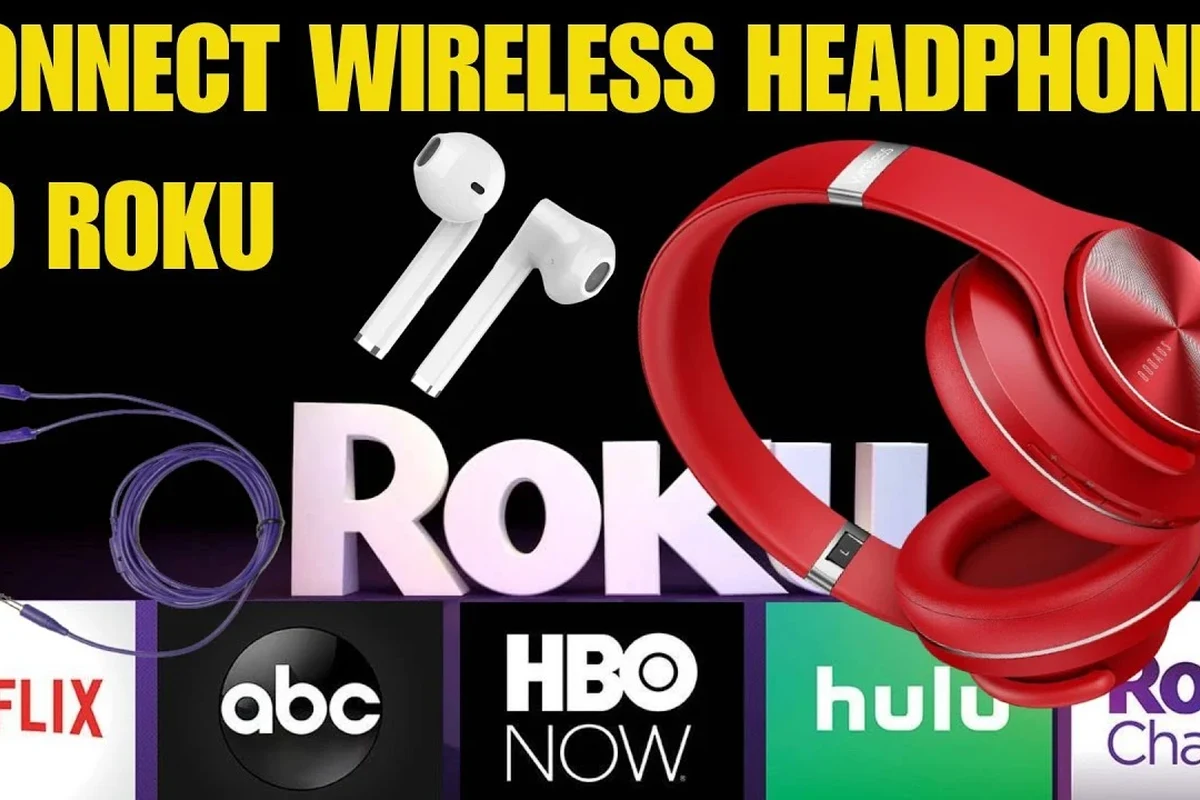
There are four common ways to use headphones with a Roku TV: the Roku mobile app, built-in Bluetooth, a wireless transmitter, or a wired connection when the TV or remote includes a headphone jack. Each method has trade-offs in convenience, sound quality, and latency.
If you also watch on other devices, it can help to understand broader headphone compatibility patterns. For example, our guide on Bluetooth headphones explained simply can make wireless setup less confusing, especially if you are new to pairing and audio streaming.
Using the Roku Mobile App for Private Listening
Private listening through the Roku mobile app is often the easiest option. In supported setups, the TV audio is routed to your phone, and your wired or Bluetooth headphones play the sound from the phone instead of the TV speakers.
This is convenient because it does not require a separate transmitter. It is also a good choice for late-night viewing, apartment living, or anyone who wants a fast setup without opening the TV cabinet.
If your headphones already pair smoothly with your phone, the Roku app can be a low-cost way to watch privately without changing your TV hardware.
Connecting Bluetooth Headphones Through a Roku TV with Built-In Bluetooth
Some Roku TVs support Bluetooth audio directly, but not all do. If your model includes this feature, you can pair Bluetooth headphones in the TV settings and listen without a cable.
This works well for casual viewing and gives you more freedom to move around the room. Still, Bluetooth performance may vary by headphone model, distance, walls, and interference from other wireless devices.
Bluetooth is convenient, but even a small amount of audio delay can be noticeable in movies, gaming, or lip-sync sensitive content.
Using a Roku-Compatible Wireless Headphone Transmitter
If your Roku TV does not support Bluetooth audio, a wireless headphone transmitter is often the most reliable workaround. These devices connect to the TV’s audio output and send sound to compatible wireless headphones or earbuds.
This option is especially useful for older TVs or models without app-based private listening. It can also be a better fit if you want lower latency than standard Bluetooth, though exact results depend on the transmitter and headphone pair you choose.
Not every transmitter works with every TV. Before buying, check whether your Roku TV has optical, USB, HDMI ARC, or 3.5mm audio output support.
Plugging Headphones into the TV or Remote When Available
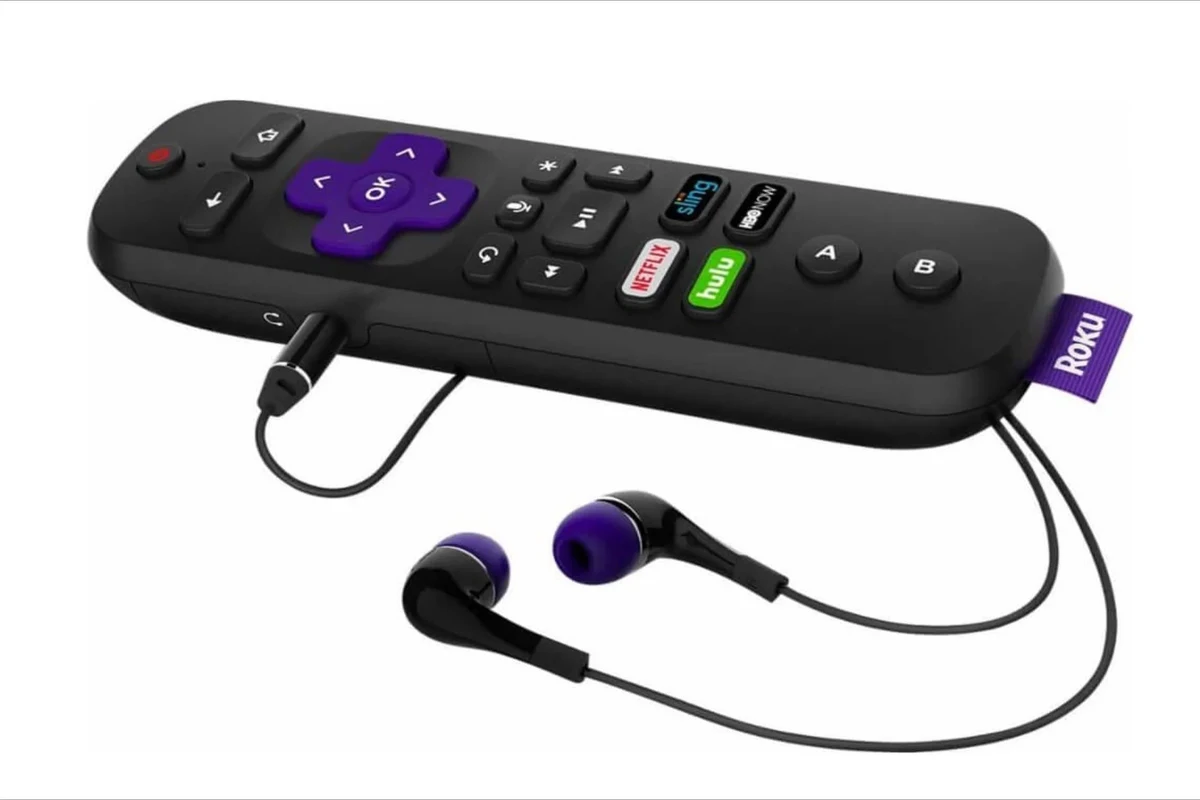
Some TVs still include a 3.5mm headphone jack or USB audio support, and a few Roku remotes may offer a headphone feature depending on the setup. If your TV includes one of these options, wired listening is usually straightforward.
Wired connections are often the simplest for stable sound and zero pairing issues. They can also be a smart choice if you dislike charging batteries or dealing with wireless dropouts.
Which Roku TV Models Support Headphones Best?
The best Roku TV for headphone use is usually the one that already includes the feature you want. Models with app-based private listening, Bluetooth support, or easy audio output options are far more convenient than TVs that need extra accessories.
Roku TV vs Roku Streaming Device: What Changes for Headphone Use
A Roku TV has Roku software built into the television itself. A Roku streaming device is a separate box or stick connected to a different TV, and that distinction matters because headphone support may come from the TV, the Roku app, or the external device setup.
In practice, a Roku TV may give you more integrated options, while a streaming device depends heavily on the television it is plugged into. If the TV lacks audio output flexibility, headphone use can become more complicated.
Built-In Bluetooth vs External Accessories: Compatibility Differences
Built-in Bluetooth is the cleanest option because it avoids extra hardware. However, external accessories can be more universal and may work on TVs that do not support direct Bluetooth audio at all.
If you want the most future-proof setup, compare convenience with compatibility. A built-in feature is easier, but an adapter or transmitter may give you better flexibility across different devices and listening habits.
Step-by-Step Setup Examples for Common Roku Headphone Methods
Once you know which method your TV supports, the setup is usually simple. The main goal is to match the audio path to your headphones, then test volume and sync before settling in for a long watch session.
Example: Private Listening with the Roku App on iPhone or Android
Make sure your phone is on the same Wi-Fi network as the Roku TV, then open the app and connect to the TV.
Look for the private listening or headphone icon in the app and activate it before or during playback.
Use wired or Bluetooth headphones with the phone, then adjust volume from the phone and the app if needed.
Example: Pairing Bluetooth Headphones to a Roku TV
Check the Roku TV menus for Bluetooth pairing or audio output settings, since the exact path can vary by manufacturer.
Follow your headphone instructions and wait for the TV to detect them.
Play a show, check for delay, and raise volume slowly until it feels comfortable.
Example: Connecting a 3.5mm or USB Wireless Transmitter
Use the port your TV supports, such as 3.5mm, optical, USB, or HDMI ARC, depending on the transmitter.
Turn on both devices and follow the pairing process until the connection is stable.
If dialogue feels late or out of sync, try a different transmitter mode or audio output setting.
Common Mistakes That Stop Headphones from Working on Roku TV
Most headphone problems on Roku TV come from small setup issues rather than broken hardware. The most common mistakes are using the wrong input, expecting unsupported Bluetooth features, or leaving audio settings on the wrong output.
Wrong Input, Unsupported Model, or Disabled Audio Output Settings
If the TV does not detect your headphones, check whether the connection method is actually supported. A Roku TV with no Bluetooth audio support will not pair like a phone, and a transmitter will not work unless it is plugged into a compatible output.
Also review the sound menu. Some TVs keep audio routed to the speakers until you manually switch outputs or enable private listening in the app.
Latency, Audio Delay, and Volume Control Problems
Wireless listening can introduce delay, which is most noticeable in gaming and fast dialogue scenes. If the audio feels late, try a different wireless method or a transmitter designed for lower latency.
Volume control can also be confusing because the TV, app, transmitter, and headphones may each have separate levels. Start low and increase gradually so you do not get sudden loud sound.
Listening at high volumes for long periods can cause hearing damage. Keep volume at 60% or below for extended sessions.
How Much It Costs to Add Headphone Support to Roku TV
The cost of headphone support can be almost nothing or a bit more depending on your setup. If the Roku app works for you, the only cost may be the headphones you already own and your phone.
Free Option vs Budget Adapter vs Premium Wireless Headphone Setup
Free is usually the Roku app with private listening, assuming your TV and network support it. A budget adapter or transmitter adds flexibility, while a premium wireless setup may offer better comfort, range, and convenience.
What to Compare: Sound Quality, Range, Battery Life, and Convenience
When comparing options, focus on what matters most to your room and listening habits. Sound quality, wireless range, battery life, and ease of setup can matter more than any single spec on the box.
If you are also shopping for headphones themselves, broader buying guidance can help. Our article on best headphones under 100 is useful if you want a budget-friendly pair for TV, gaming, or everyday use.
Expert Advice: When to Choose Headphones, Speakers, or a Soundbar Instead
Headphones are best when privacy matters, but they are not always the best overall audio upgrade. If you want room-filling sound for family movie night, a soundbar or better TV speakers may be the more natural choice.
Best Use Cases for Late-Night Watching, Gaming, and Shared Living Spaces
Choose headphones for late-night viewing, apartment walls, or any shared space where you do not want to disturb others. They are also a strong pick for gaming when you want closer detail and more direct sound.
For long sessions, comfort matters as much as sound. Over-ear headphones usually feel better than on-ear models for extended TV use, while in-ear earbuds may be the most compact option if you want less bulk.
If you have tinnitus, hearing sensitivity, or pain after short listening sessions, speak with an audiologist before choosing a high-volume or noise-isolating setup.
Final Recap: The Easiest Way to Connect Headphones to Roku TV in 2025
Yes, you can connect headphones to Roku TV in many cases, but the easiest method depends on your exact model. The Roku app is often the simplest free option, Bluetooth is convenient when supported, and a wireless transmitter is the best backup when your TV lacks built-in headphone features.
- Roku app private listening is often the easiest starting point.
- Bluetooth works only on supported Roku TV models.
- Wireless transmitters help when built-in headphone support is missing.
- Wired connections are the most stable when available.
If you are unsure which method fits your setup, check your TV model first, then choose the option that balances simplicity, latency, and comfort. For most readers, that means starting with the Roku app and moving to Bluetooth or a transmitter only if needed.
Frequently Asked Questions
Wireless headphones are more convenient, but wired headphones usually give more stable sound and less delay. The best choice depends on your Roku TV model and whether you care more about freedom or sync.
Yes, noise-cancelling headphones can be a good choice if you want to block room noise and focus on dialogue. Comfort and fit matter too, especially for long movie or gaming sessions.
Closed-back headphones are usually better for private TV listening because they reduce sound leakage and keep outside noise down. Open-back models can sound more spacious, but they are less private and may let room noise in.
Look at comfort, connection type, latency, and how the headphones handle bass and dialogue clarity. Frequency response and driver type can matter, but real-world comfort and sync are often more important for TV use.
Start with the free Roku app if your TV supports it, then move to a budget transmitter only if needed. Compare total cost, battery life, range, and ease of use before buying.
Over-ear headphones are often the most comfortable for long sessions because they spread pressure more evenly. Lightweight models with soft ear cushions are usually easier to wear for movies, sports, or gaming.