Can You Use Headphones as a Mic on Xbox One Easily

Yes, but only if the headphones have microphone support or you use the right compatible adapter. Plain headphones without a mic usually won’t work for Xbox One voice chat.
If you’re asking can you use headphones as a mic on Xbox One, the short answer is: sometimes, but not usually with plain headphones alone. Xbox One voice chat works best with a headset or a headset-style adapter that can send microphone input through the controller.
- Plain headphones: Usually audio-only on Xbox One.
- TRRS/headset plug: More likely to support voice chat.
- Best budget fix: A wired headset with an inline or boom mic.
- Adapters: Can work, but compatibility varies.
Can You Use Headphones as a Mic on Xbox One? What Actually Works in 2026
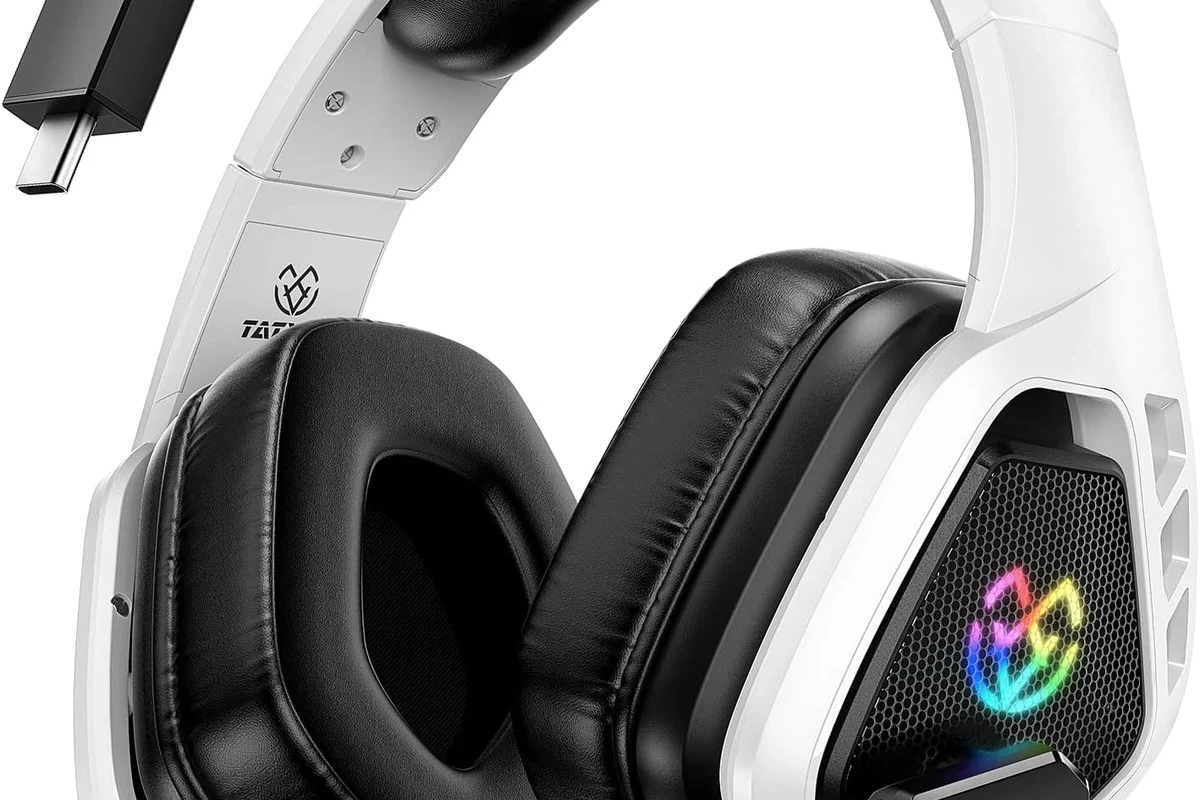
Search intent: quick answer for gamers who want voice chat without buying a new headset
Most players want a simple answer before spending money. If your headphones have only audio playback, they will not act as a microphone on Xbox One by themselves.
However, if your wired headphones include an inline mic, a TRRS plug, or a compatible adapter, you may be able to use them for party chat. The exact result depends on the headphone design, the controller, and the chat setup you use.
Why Xbox One treats headphones and microphones differently
Xbox One is built around headset-style communication, not just speaker-style audio. That means the system expects a microphone signal from a compatible input, not only sound output from the same cable.
This is why a normal pair of music headphones often plays game audio but cannot send your voice back to the console. It is a small hardware difference, but it matters a lot for chat.
How Xbox One Voice Chat Works With Headphones, Headsets, and Controllers
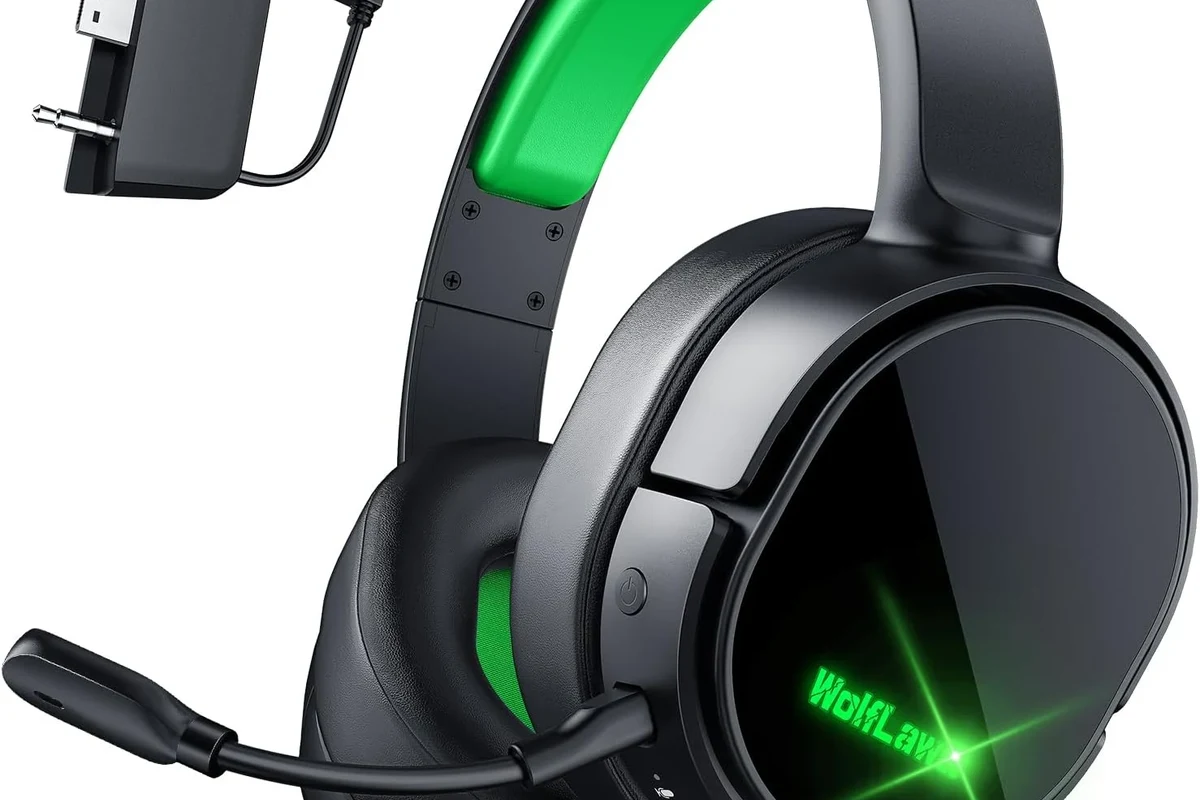
3.5mm headset jack vs. controller audio support
Many Xbox One controllers include a 3.5mm jack, but that jack is designed for headset use, not every headphone type. The controller can support both audio and mic input only when the plug and wiring match what the system expects.
If you are using an older controller or an accessory adapter, compatibility can vary. That is why one pair of headphones may seem close to working while another fails completely.
Why standard headphones usually fail as a mic input
Standard headphones are usually wired for output only. They send sound to your ears, but they do not include the extra microphone wiring needed for voice chat.
Even if the plug fits the controller, Xbox One still may not detect a mic signal. In other words, “fits” does not always mean “works.”
When wired headsets with inline mics do work
Wired headsets with an inline mic or boom mic are much more likely to work because they are made for two-way audio. The mic signal travels through the same compatible plug or adapter path as the headphones.
If your headset uses a single 3.5mm TRRS plug, that is usually the type to test first. For many players, this is the simplest low-cost solution.
Xbox compatibility can vary by controller model, headset wiring, and adapter quality. If your audio gear is meant for phones or laptops, it may not behave the same way on Xbox One.
Ways to Use Headphones as a Mic on Xbox One: What’s Possible and What Isn’t
Using headphones with an attached inline microphone
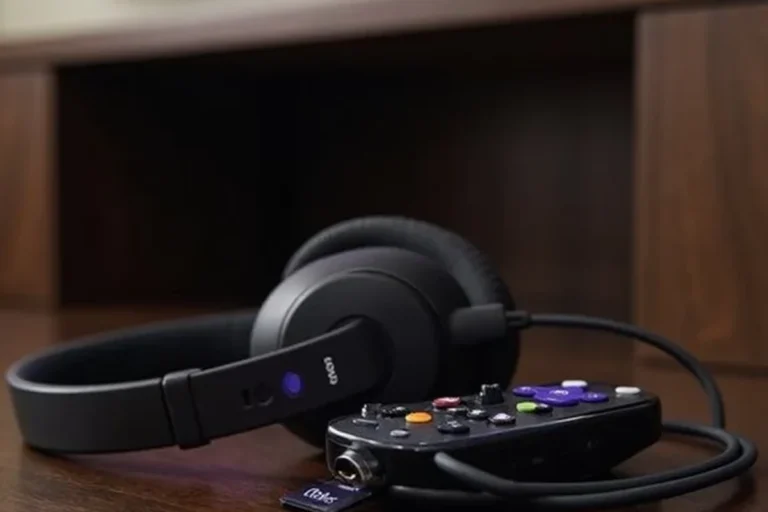
This is the most realistic way to use “headphones as a mic” on Xbox One. If your headphones have an inline mic built into the cable, the mic may work for party chat when plugged into a compatible controller.
Look for a headset-style plug rather than a simple headphone plug. If the product was sold as a headset for mobile or gaming use, it has a better chance of working.
Using a headphone splitter and external mic adapter
Some users try a splitter or adapter to separate headphone audio and microphone input. This can work in certain setups, but it is not always clean or reliable.
The problem is that Xbox One needs the right adapter and the right plug standard. A cheap adapter may create crackling, low mic volume, or no detection at all.
If you already own good headphones, it is often smarter to add a simple compatible mic than to force a playback-only headset into voice chat duty.
Using a USB or wireless headset instead of plain headphones
USB and Xbox-compatible wireless headsets are usually the easiest route if you want fewer compatibility headaches. They are designed for chat, game audio, and console pairing without guesswork.
Plain Bluetooth headphones are a different story. Xbox One does not generally support them the same way it supports wired or console-specific wireless headsets, so direct use is often limited.
Practical example: chatting in party voice with a budget wired setup
Say you have a wired headset with a single 3.5mm TRRS plug and an inline mic. You plug it into the controller, join a party, and the console detects your voice without extra hardware.
That is the budget-friendly path most people want. It is usually easier than trying to convert a pair of music headphones into a mic setup with multiple adapters.
Step-by-Step: How to Test Your Headphones on Xbox One Before Buying Anything
Check whether your headphones have a built-in mic or TRRS plug
Start by inspecting the cable and plug. A headset-style TRRS plug usually has three black rings, while a standard headphone plug often has two.
If your headphones have an inline mic button or a boom mic, that is another good sign. If they are just stereo headphones, they are likely playback-only.
- Does the cable end in a 3-ring TRRS plug?
- Is there an inline mic or boom mic?
- Are the headphones sold as a headset?
- Does the controller jack fit securely?
Plug into the controller and verify party chat detection
After connecting, open party chat and check whether your voice is detected. If the controller recognizes the mic, you should see signs that audio input is active when you speak.
If you hear game audio but others cannot hear you, the plug may be wrong, the adapter may be incompatible, or the mic may be muted.
Adjust Xbox audio and privacy settings for voice chat
Sometimes the hardware is fine, but settings block chat. Check your Xbox privacy settings, party chat permissions, and mic mute options before assuming the headphones failed.
Also make sure the controller firmware is current. A small update can occasionally fix headset detection issues or audio glitches.
Quick troubleshooting if Xbox still won’t detect the mic
If the mic still does not work, try unplugging and reconnecting the headset, testing another controller, or removing any extra adapter. Testing one piece at a time helps you find the weak link.
For more general plug-and-play guidance, our wired headphones compatibility guide explains why cable type matters so much across devices.
Do not assume every adapter is safe or fully compatible. Low-quality audio accessories can cause poor mic pickup, echo, or unstable connection behavior.
Common Mistakes People Make When Trying to Use Headphones as a Mic
Assuming every 3.5mm plug carries microphone support
This is the biggest misunderstanding. A 3.5mm plug can look correct and still only carry stereo audio, not microphone input.
The connector shape matters, but the wiring standard matters just as much.
Using a 2-ring headphone plug instead of a 3-ring headset plug
A two-ring plug is often made for sound only. If your headphones use that plug, Xbox One may play audio through them but ignore any voice input.
That is why a headset plug is usually the better choice for chat.
Expecting TV headphones or Bluetooth headphones to work directly
TV headphones are often designed for listening, not speaking. Bluetooth headphones are also not a simple fix on Xbox One because console support is limited compared with phones or PCs.
If your goal is easy party chat, direct wireless headphone use is usually not the fastest route.
Ignoring controller firmware or audio settings
Sometimes the issue is not the headphones at all. Outdated controller firmware, muted chat settings, or privacy restrictions can make a working mic seem broken.
Before replacing gear, always rule out settings first.
Many headset problems on consoles come from the plug standard, not the headphone brand. A simple wiring mismatch can make a perfectly good headset act like it is dead.
Best Budget Fixes and Price Comparison for Xbox One Voice Chat
Cheapest option: headset adapter or budget gaming headset
If you already have headphones, a headset adapter may be the cheapest experiment. Still, results vary, and some adapters are more hassle than they are worth.
In many cases, a low-cost gaming headset is the cleaner value because it is built for voice chat from the start.
Mid-range option: wired headset with boom mic
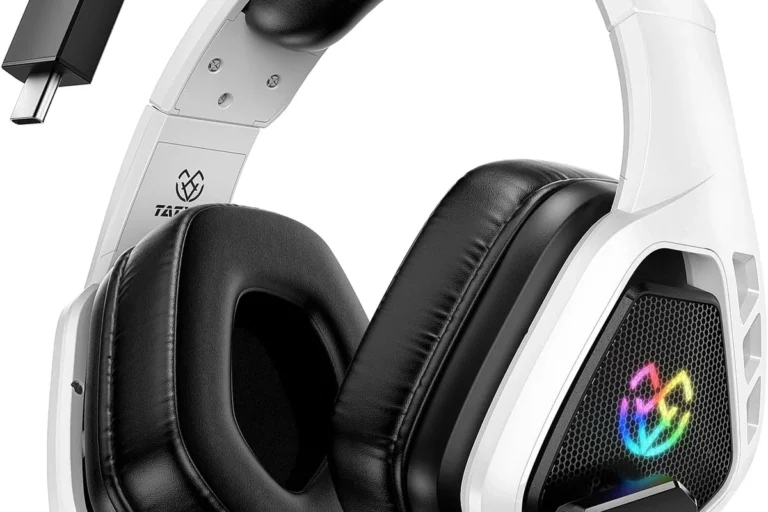
A wired headset with a boom mic is often the best balance of price and reliability. It is usually easier to set up than a converter-based solution and clearer than many basic inline-mic options.
If you want dependable party chat without spending too much, this is the category to look at first.
Higher-cost option: wireless Xbox-compatible headset
Wireless Xbox-compatible headsets are the most convenient, but they usually cost more. They can reduce cable clutter and often offer easier chat control, though performance still varies by model.
For players who spend long sessions in multiplayer games, the comfort and convenience can justify the upgrade.
What gives the best value for casual vs. competitive gamers
Casual players usually get the best value from a basic wired headset with a mic. Competitive players may prefer a better-fitting headset with clearer voice pickup and less background noise.
If you want more on general headset types, our types of headphones explained guide is a helpful place to compare over-ear, on-ear, and in-ear designs.
Expert Advice: When to Stop Trying to Use Headphones as a Mic
Warning signs that your headphones are playback-only
If your headphones have no mic hardware, no headset-style plug, and no support in the product description, they are probably playback-only. At that point, forcing them into Xbox chat usually wastes time.
That is especially true if you need clear voice pickup for team games or regular party chat.
When an adapter is more trouble than it’s worth
If you need multiple adapters just to make the setup work, the chain is probably too complicated. Each extra connector can add failure points, reduced clarity, or loose-fitting hardware.
In that situation, a proper headset is usually the better buy.
If you have repeated mic detection issues, echo, or distorted voice chat, consider asking a local audio specialist or checking with the headset manufacturer before buying more adapters. If you notice discomfort, ringing, or fatigue during long sessions, consult an audiologist or follow safe listening advice.
Recommended upgrade path for clearer party chat and less echo
For the cleanest path, move from playback headphones to a true wired headset, then to a better Xbox-compatible wireless model if you want more convenience. That upgrade order usually gives the best mix of price and performance.
It also tends to reduce echo, because proper gaming headsets are designed to isolate your voice and handle console chat more predictably.
Listening at high volumes for long periods can cause hearing damage. Keep volume at 60% or below for extended sessions.
Final Recap: The Easiest Answer for Xbox One Players in 2026
Short conclusion on whether headphones can be used as a mic on Xbox One
Yes, but only if the headphones include microphone support or you add the right compatible adapter. Plain headphones without a mic usually cannot function as a mic on Xbox One.
Best practical choice for most players
For most gamers, the best practical choice is a wired headset with an inline or boom mic. It is simpler, more reliable, and less frustrating than trying to convert standard headphones into a chat device.
Last takeaway for buyers who want simple voice chat without wasting money
If your goal is easy party chat, buy for compatibility first and sound quality second. A modest headset that works every time is usually a better value than a nicer pair of headphones that cannot talk back.
- Plain headphones usually play audio only on Xbox One.
- Headphones with an inline mic or headset plug may work.
- Wired or Xbox-compatible headsets are the easiest fix.
- Adapters can help, but compatibility is not guaranteed.
Frequently Asked Questions
Wired headsets are usually easier to use on Xbox One because they connect directly through the controller or adapter. Wireless options can work well too, but they need Xbox-compatible support rather than standard Bluetooth alone.
Noise cancelling can help reduce outside distractions, but it does not automatically improve microphone quality. For voice chat, the mic design and compatibility matter more than the noise cancelling feature.
Closed-back headphones usually block more outside noise and are better for gaming chat in shared spaces. Open-back headphones can sound more spacious, but they leak more sound and are less private for party chat.
Look at comfort, microphone support, and how the headset handles clarity and bass rather than chasing one single spec. Driver type, fit, and EQ options often matter more in real gaming use than a long spec sheet.
Check weight, ear cushion material, and headband pressure before buying. A slightly better fit can matter more than extra features during long gaming sessions.
Make sure the headset fits well, the mic works reliably, and the cable or wireless connection is stable. If you feel pressure, heat, or ear fatigue, choose a lighter model or take regular breaks.