How to Connect Bluetooth Headphones to PS4 Easily

The easiest way to connect Bluetooth headphones to PS4 is usually through a USB dongle or the controller’s 3.5mm jack, not direct Bluetooth pairing. Direct connection can be limited by compatibility, lag, and microphone support.
If you want to know how to connect bluetooth headphones to ps4, the short version is that the PS4 is picky about Bluetooth audio. Some headsets connect easily through a USB dongle, the controller’s 3.5mm jack, or your TV/receiver, while many standard Bluetooth headphones will not pair directly.
- Best method: USB dongles are usually the most reliable wireless option.
- Simplest fallback: The DualShock 4 headphone jack is stable and low-lag.
- Main limitation: Many Bluetooth headphones will not pair directly with PS4.
- Common issue: Mic support often fails before audio does.
How to Connect Bluetooth Headphones to PS4: What Works and What Doesn’t
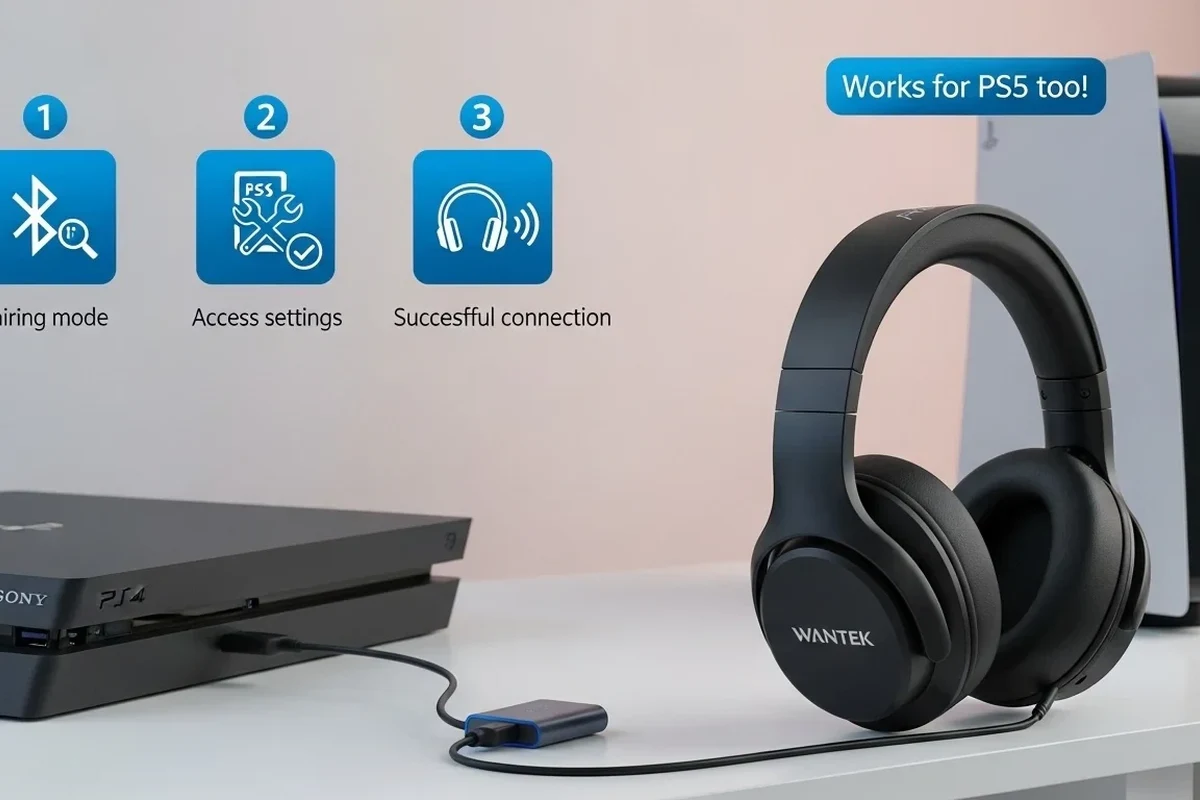
The PS4 does support some wireless audio setups, but it does not treat every Bluetooth headphone the same way. In practice, the console is more reliable with accessories made for gaming than with regular Bluetooth headphones.
That means a pair of everyday wireless headphones may work on your phone or laptop but still fail on PS4. If you are shopping for a new headset, it helps to understand the difference between direct Bluetooth support and adapter-based wireless audio.
For a broader look at headphone pairing basics, see our guide on how to connect Bluetooth headphones in general. The PS4 has extra limitations, so the setup process is a little more specific than on phones or PCs.
Why PS4 Bluetooth Audio Is Limited in 2026
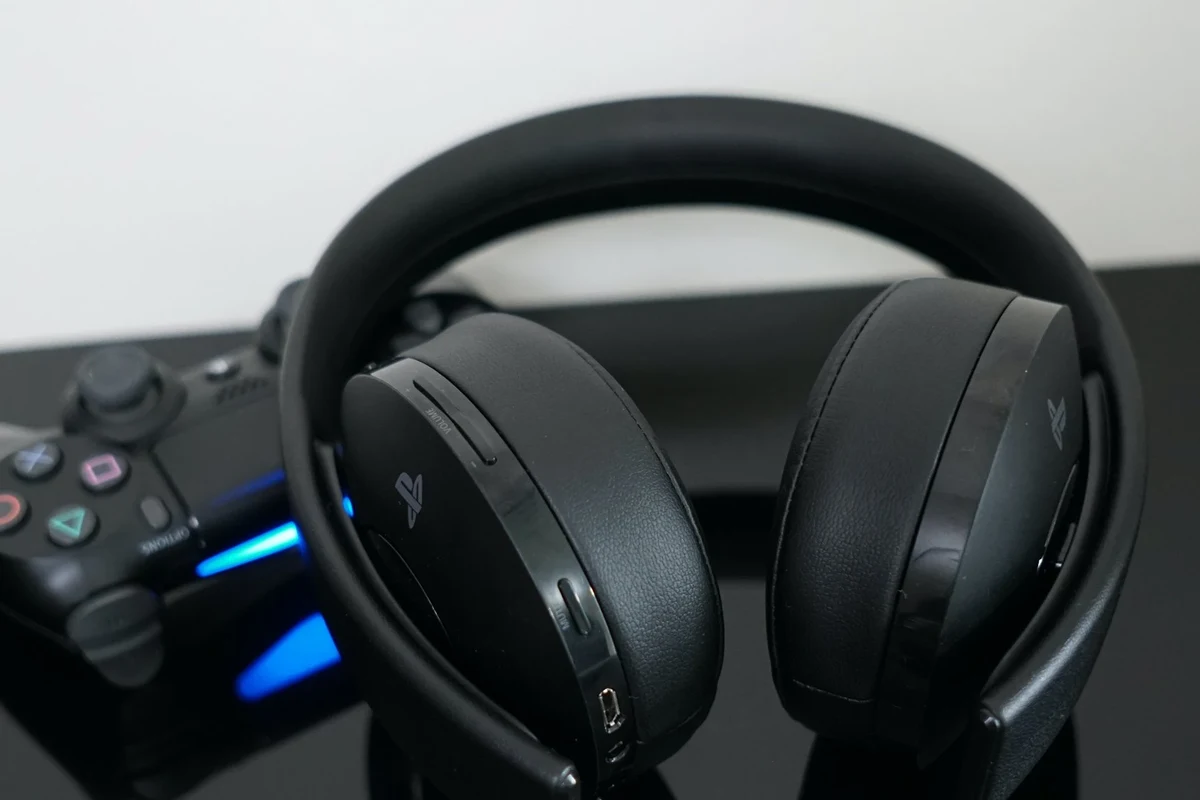
PS4 Bluetooth audio is still limited because the console was designed with gaming accessories in mind, not universal Bluetooth headphone support. Sony also restricts many third-party Bluetooth devices, especially if they are not optimized for low-latency game audio and voice chat.
The biggest issue for gamers is delay. Even when a headset connects, standard Bluetooth can add noticeable lag between the action on-screen and the sound in your ears. For fast games, that can make footsteps, gunfire, and dialogue feel slightly out of sync.
Another limitation is microphone support. A headset may play audio but not pass voice chat properly, or it may connect only in a reduced audio mode. That is why many players end up using adapters or wired alternatives instead of relying on built-in Bluetooth alone.
Best Ways to Use Wireless Headphones with PS4
If your goal is reliable sound rather than just forcing a connection, there are a few better options than direct Bluetooth pairing. The best method depends on whether you care most about game audio, chat audio, or microphone use.
For PS4, “wireless” often works best through an adapter, not native Bluetooth.That usually means fewer dropouts and less audio delay.
Pairing a Bluetooth headset through a USB dongle
A USB Bluetooth dongle or wireless transmitter is usually the most dependable way to use Bluetooth-style headphones with a PS4. The dongle handles the connection, and the PS4 sees it as an audio device rather than trying to manage the headset directly.
This approach is popular because it often improves compatibility and can reduce lag compared with random direct pairing attempts. It is still important to choose a dongle that supports the headset type you own, since not every adapter works with every codec or microphone setup.
Adapter performance can vary by brand, headset model, and whether the headset uses a built-in mic or separate voice channel support.
Using the DualShock 4 controller’s 3.5mm audio jack
If your headset has a cable, plugging it into the DualShock 4 controller is often the simplest and most stable option. This avoids Bluetooth pairing problems completely and gives you direct game audio with very little delay.
It is not wireless, of course, but it is reliable for long sessions and easy to set up. For many players, a wired connection through the controller is still the best fallback when wireless audio becomes frustrating.
If you are comparing wireless and wired sound behavior, our article on Bluetooth vs wired headphones sound quality explains why wired audio often feels more immediate for gaming.
Connecting via TV, monitor, or AV receiver Bluetooth output
Some players route PS4 audio through a TV, monitor, or AV receiver and then use that device’s Bluetooth output to send sound to headphones. This can work well if your display device has strong Bluetooth support and a low-latency mode.
Still, this method depends heavily on the TV or receiver, not just the headphones. Some screens add more delay than others, and some Bluetooth outputs are meant for casual listening rather than gaming.
Audio Tip
If your TV offers a “game mode” or low-latency audio setting, turn it on before judging headphone delay.
Step-by-Step Setup for the Most Reliable Connection
Before pairing, decide whether you are using a USB dongle, a wired controller connection, or a TV/receiver audio route. That choice affects which PS4 audio menus you will need to adjust and whether your microphone will work properly.
Preparing the PS4 and headset before pairing
Start by fully charging your headset and putting it into pairing mode according to the manufacturer’s instructions. On the PS4, go to the settings area where Bluetooth devices and sound devices are managed, then make sure the console is ready to detect new hardware.
If you are using a dongle, plug it in first and wait for the indicator light to show it is active. If you are using a wired connection through the controller, connect the cable firmly and check that the headset is not muted.
- Headset battery level is sufficient
- Pairing mode is active
- Dongle or cable is fully inserted
- Volume and mute controls are set correctly
Adjusting audio output and mic settings on PS4
Once the headset is connected, go into the PS4 sound settings and choose the correct output device. You may also need to switch audio to “all audio” instead of only chat audio, depending on how your device is connected.
For microphone use, check the input device menu and confirm that the PS4 is reading the headset mic. If the mic does not appear, the headset may be output-only, or the adapter may not support voice chat.
Some Bluetooth setups play game audio but send chat audio through a separate path, which is why a headset can sound fine while the mic still fails.
Testing game sound, chat audio, and microphone input
After setup, test a game with strong sound effects, then join a party chat or voice test if available. Listen for delay, crackling, or volume imbalance, and confirm that your voice is being picked up clearly.
If the sound is too quiet, raise the headset volume first before increasing the PS4 level too much. If the mic sounds weak, check the headset’s inline controls or the console’s input settings before assuming the device is broken.
Listening at high volumes for long periods can cause hearing damage. Keep volume at 60% or below for extended sessions.
Common Problems When Connecting Bluetooth Headphones to PS4
Most PS4 Bluetooth problems are not caused by the headphones being “bad.” They usually come from compatibility limits, signal interference, or the wrong connection method for the headset you own.
Headphones not appearing in the device list
If your headphones do not appear, the PS4 may be blocking them or the headset may not be in pairing mode. Some devices also need to be disconnected from a phone or tablet before they can be detected by the console.
Try restarting the headset, unplugging and replugging the dongle, and moving other wireless devices away from the console. If the headset still does not show up, it may simply not be supported for direct PS4 pairing.
Audio lag, crackling, or sudden disconnects
Lag and crackling usually point to weak wireless stability or a Bluetooth standard that is not ideal for gaming. Walls, other wireless signals, and low battery levels can all make the connection less stable.
Sudden disconnects are also common with cheap adapters. If this keeps happening, a better transmitter or a wired fallback may be more practical than trying to force the same setup to work.
Important
Not all low-cost adapters handle gaming audio well. Some may work briefly but become unreliable during longer sessions or online play.
Microphone not working in party chat or multiplayer
A headset mic may fail even when audio playback seems fine. That usually means the adapter, headset, or PS4 settings do not support voice input in the way you need.
Check whether the headset is listed as both input and output, and confirm that party chat is using the correct device. If you only need game sound, the setup may still be usable even without mic support.
If you keep getting mic failures across different adapters or devices, consider asking an audio specialist or retailer about PS4-compatible voice chat support before buying another headset.
Expert Advice: Compatibility Warnings and Mistakes to Avoid
The most common mistake is assuming every Bluetooth headphone works the same way on PS4. In reality, compatibility depends on the console, the adapter, the headset firmware, and whether you need stereo audio, chat audio, or both.
Why some Bluetooth headphones are blocked by PS4
Some Bluetooth headphones are blocked because the PS4 does not support them as a native audio device. Others may connect to the system menu but still fail when you try to use them for real game audio or voice chat.
This is one reason many gamers choose a headset designed for consoles instead of a general-purpose Bluetooth model. If you want to understand headset categories better, our guide to types of headphones explained can help you compare over-ear, on-ear, and in-ear options before you buy.
Low-latency vs standard Bluetooth: what gamers should look for
For gaming, low-latency support matters more than flashy features. Standard Bluetooth can sound fine for music, but even small delays become obvious when you are reacting to footsteps, dialogue cues, or rhythm-based gameplay.
Look for products that clearly mention gaming mode, low-latency wireless, or console compatibility. If a brand does not explain how it handles delay, that is usually a sign to be cautious.
When cheap adapters cause more problems than they solve
Budget adapters can be tempting, but they sometimes create more issues than they fix. Common problems include unstable pairing, poor microphone support, weak range, and audio that cuts out when you move slightly away from the console.
If you are comparing budget and premium options, think about how often you play and whether you need chat audio. Spending a little more on a reliable adapter may be better than replacing a cheap one after repeated frustration.
Cost Comparison: Built-In Bluetooth Alternatives vs PS4-Compatible Adapters
Built-in Bluetooth on the PS4 sounds convenient, but it is often the least dependable route for headphones. A USB dongle, wired controller connection, or TV-based audio path may cost more or less depending on the device, but each can be more practical than trying to force a direct pairing.
In general, the cheapest route is usually a simple wired headset with the controller jack. A mid-range option is a PS4-compatible wireless adapter, while a premium setup may involve a better headset, a stronger transmitter, or a display device with cleaner audio output.
| Model | Best For | Price Range |
|---|---|---|
| Wired controller headset | Simple, low-lag gaming | Varies |
| USB wireless dongle setup | More reliable wireless use | Varies by brand |
| TV or receiver Bluetooth output | Casual living-room listening | Depends on device |
Quick Summary
- Wired is usually the easiest and most stable.
- USB adapters are the best wireless workaround.
- TV Bluetooth can work, but latency varies.
- Mic support is often the biggest compatibility issue.
Final Recap: The Easiest Way to Connect Bluetooth Headphones to PS4
The easiest way to connect bluetooth headphones to ps4 is usually not direct Bluetooth at all. For the most dependable experience, use a PS4-compatible USB dongle, or switch to the controller’s 3.5mm jack if you want the simplest setup with the fewest surprises.
If you only need casual listening, a TV or receiver Bluetooth output may be enough. But for gaming, chat, and lower delay, a purpose-built adapter or wired connection is usually the better choice.
Before buying anything new, compare your headset’s compatibility, latency, and microphone support. That small check can save you a lot of setup trouble later.
Frequently Asked Questions
Wired headphones usually sound more consistent on PS4 because they avoid Bluetooth delay. Wireless can be convenient, but sound quality and latency depend on the headset and adapter.
Yes, especially if you play in a noisy room. Noise cancelling helps block distractions, but it does not fix Bluetooth lag or compatibility issues.
Closed-back headphones are usually better for PS4 because they isolate sound and keep game audio from leaking out. Open-back models can feel wider and more natural, but they are less private.
Look at latency, comfort, mic support, and connection type first. Driver size and frequency response can matter too, but the best headset is the one that stays clear and comfortable during long sessions.
Start with the PS4 audio settings and any EQ built into the headset or adapter. Small EQ changes often help more than pushing the volume higher.
Check PS4 compatibility, microphone support, connection type, comfort, and build quality. If you play long sessions, lighter weight and soft ear cushions can matter as much as sound.