How to Connect JBL Headphones to PS5 Easily and Fast

The fastest way to connect JBL headphones to PS5 is usually with a USB dongle or a 3.5mm cable from the DualSense controller. Standard Bluetooth JBL headphones often need a workaround because direct PS5 pairing is limited.
If you’re trying to figure out how to connect JBL headphones to PS5, the short answer is simple: wired connections and USB dongles are the most reliable options. Standard Bluetooth pairing usually does not work directly with the PS5, so the best setup depends on which JBL model you own and how you want to play.
- Fastest setup: Use a USB dongle if your JBL headset includes one.
- Most reliable fallback: Use a 3.5mm cable from the PS5 controller.
- Bluetooth limit: Many JBL Bluetooth headphones won’t pair directly with PS5.
- Common fix: Check PS5 audio output and chat settings first.
How to Connect JBL Headphones to PS5: What Works in 2026 and What Doesn’t
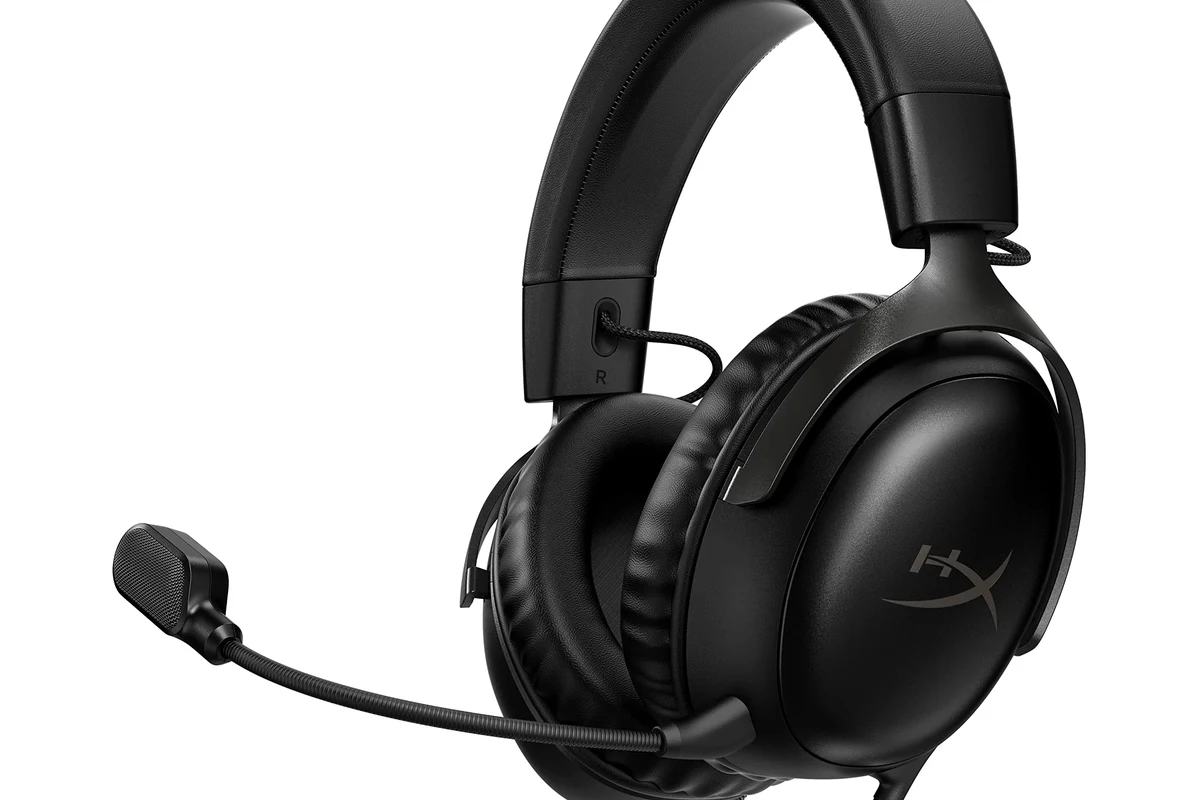
In 2026, the PS5 still favors wired audio and compatible USB wireless accessories over direct Bluetooth headphone pairing. That means many JBL headphones can work well with the console, but not always in the way people expect.
If you own a JBL gaming headset with a USB wireless transmitter, you may get a smooth plug-and-play setup. If you have a standard JBL Bluetooth headphone, you will usually need a cable, a TV workaround, or an external adapter to hear game audio.
Compatibility can vary by JBL model, PS5 firmware, and the adapter you use. When in doubt, check the headset manual before buying extra accessories.
Understanding PS5 Audio Options for JBL Headphones
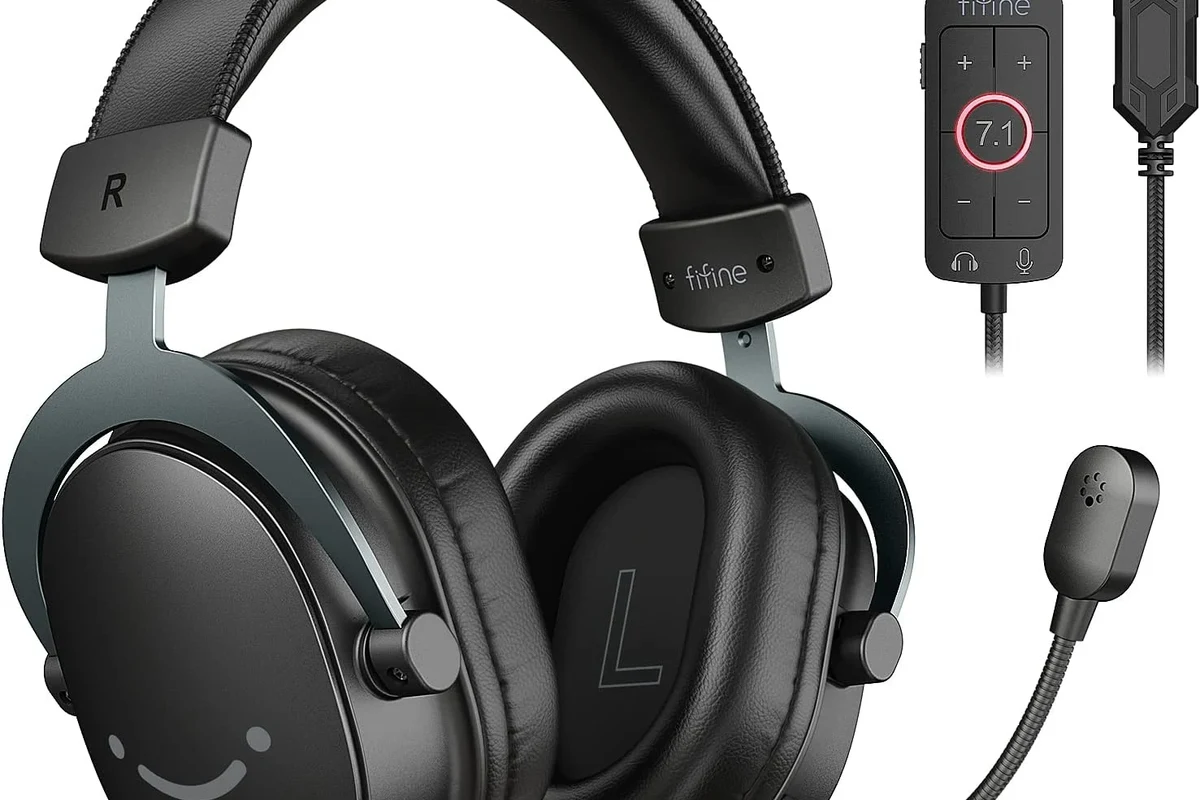
The PS5 gives you a few practical ways to route sound, but not every path supports every JBL headset. Understanding the difference between USB wireless, Bluetooth workarounds, and wired controller audio makes setup much easier.
USB wireless dongle connection
This is often the easiest route for gaming headsets that include a USB transmitter. You plug the dongle into the PS5, switch the headset on, and the console usually detects it as an audio device.
This method is ideal when you want low-latency game audio and a cleaner setup than running a cable across your couch.
Bluetooth limitations on PS5
The PS5 does not support most standard Bluetooth headphones directly for game audio. That is why many JBL wireless headphones will not show up in the normal Bluetooth device list on the console.
Some third-party Bluetooth adapters may work, but latency, microphone support, and stability can vary a lot. For fast-paced games, that delay can be distracting.
Not all Bluetooth adapters are equal. Some add noticeable audio delay or break voice chat, so choose carefully if you want a gaming-friendly setup.
Wired 3.5mm controller connection
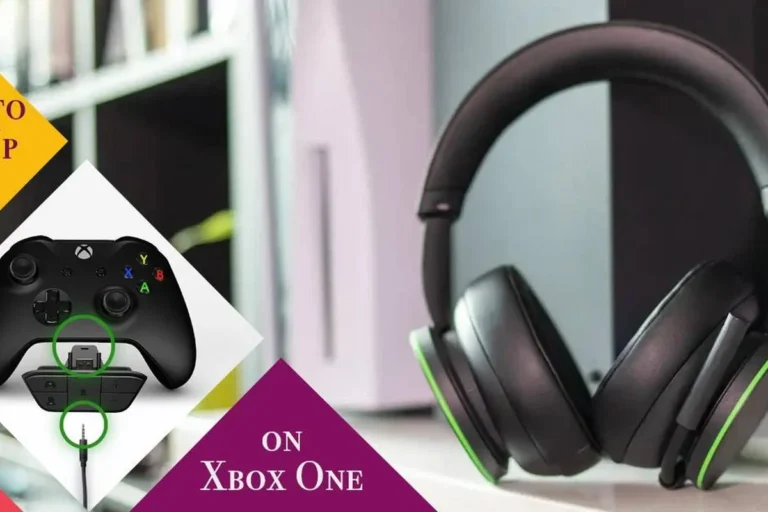
For many JBL headphones, the simplest solution is a 3.5mm cable from the headset into the DualSense controller. This bypasses Bluetooth limits and gives you direct audio from the PS5.
It is especially useful for standard over-ear JBL headphones that include a detachable cable or a wired backup mode.
Step-by-Step: How to Connect JBL Headphones to PS5 Easily and Fast
If you want the fastest setup, start with the connection type your JBL model already supports. In most cases, wired controller audio or a USB dongle will save you time and avoid pairing problems.
Look for a USB transmitter, a detachable 3.5mm cable, or a model that supports both wireless and wired use. This tells you which PS5 method is most likely to work.
If your headset came with a USB dongle, use that first. If not, try the controller cable before buying extra adapters.
After connecting, go to the PS5 sound settings and make sure the correct output device is selected. This helps avoid silent audio or sound coming from the TV instead of the headset.
Connect JBL headphones with a USB adapter or dongle
Plug the USB wireless dongle into the PS5’s front or rear USB port. Turn on the headset and wait a few seconds for the console to recognize it.
Then open the PS5 sound menu and confirm the headset is selected as the output device. If your model includes a mic, test voice chat in a party or game lobby.
This is usually the best choice for JBL gaming headsets or any model designed with a dedicated wireless transmitter.
Use a 3.5mm cable from the DualSense controller
Insert the headphone cable into the controller and connect the other end to your JBL headphones. The PS5 should route audio through the controller automatically.
If sound does not switch right away, check the console’s audio output settings and make sure controller/headset audio is enabled. This method is simple, stable, and often the most dependable for standard JBL headphones.
For readers comparing wired and wireless options, this is the same kind of straightforward setup many people prefer when learning how to connect Bluetooth headphones to different devices, except the PS5 is more restrictive with direct wireless pairing.
Pairing via TV, monitor, or external audio device when needed
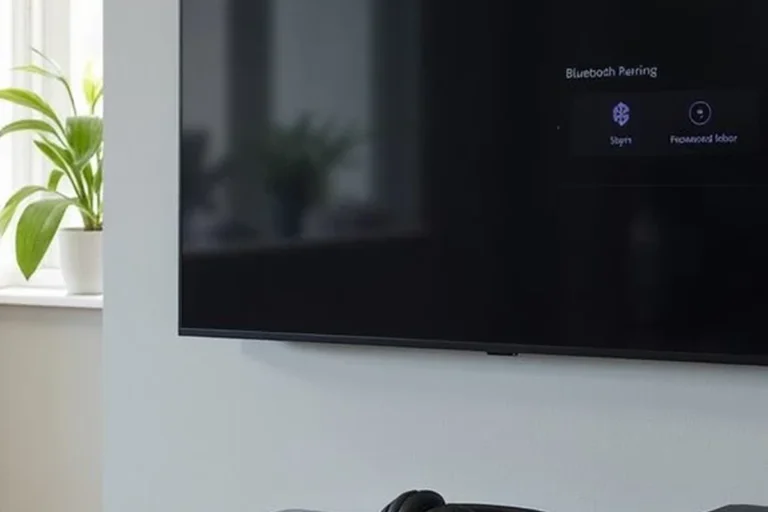
If your JBL headphones cannot connect directly to the PS5, you may be able to pair them to your TV, monitor, or soundbar instead. This only works if the external device supports Bluetooth audio output.
Another option is using the TV’s headphone jack or audio-out port, if available. That can be a useful fallback for casual gaming, though voice chat and latency may be less ideal than a direct headset connection.
Best JBL Headphone Models and Connection Types for PS5
Not every JBL headphone is equally convenient for PS5 use. The best choice depends on whether you want low-latency gaming, easy voice chat, or just a simple way to hear the action.
JBL gaming headsets vs standard JBL Bluetooth headphones
JBL gaming headsets with a USB dongle are usually the easiest to use on PS5. They are built with gaming in mind, so setup is often faster and microphone support is more predictable.
Standard JBL Bluetooth headphones can still work, but usually through a cable or external workaround. If you already own one, that may be enough; if you are buying specifically for PS5, a gaming headset is often the safer pick.
Which models offer the smoothest PS5 setup
The smoothest setup is usually any JBL model that includes both wired and wireless support, plus a USB transmitter made for consoles or PCs. Those models reduce guesswork and are less likely to cause pairing issues.
Headphones with a detachable cable are also practical because they give you a fallback if wireless mode is not supported on the PS5.
Price vs performance comparison for budget and premium users
Budget buyers may get the best value from a JBL headphone they already own, especially if it includes a 3.5mm cable. That avoids extra spending on adapters that may or may not improve the experience.
Premium buyers who want convenience should look for a gaming headset with a dedicated USB dongle, reliable mic support, and comfortable ear padding for longer sessions. Prices vary by model, retailer, and seasonal sales.
Common Problems When Connecting JBL Headphones to PS5
Most JBL-on-PS5 issues come from one of three things: unsupported Bluetooth pairing, the wrong audio output setting, or a cable/dongle problem. The good news is that many of these issues are easy to fix.
No sound, delayed audio, or mic not working
If you get no sound, first confirm the PS5 is sending audio to the headset and not the TV. If audio is delayed, the issue is usually Bluetooth latency or an adapter that is not well suited for gaming.
If the mic does not work, check whether your JBL headset supports microphone input through the cable or dongle you are using. Some models only support audio in certain modes.
Why some JBL Bluetooth models won’t pair directly
Many JBL Bluetooth headphones are designed for phones, tablets, and laptops, not for the PS5’s console audio system. That is why they may work perfectly with a phone but fail to appear on the PlayStation Bluetooth list.
This is a console limitation, not necessarily a fault in the headphones. If you want to avoid frustration, it is better to assume direct Bluetooth pairing will not work unless the headset documentation says otherwise.
Simple fixes for controller, dongle, and TV audio issues
For controller audio, unplug and reconnect the cable, then check the PS5 sound output menu. For dongles, try a different USB port and restart the headset and console.
For TV audio, confirm the TV is actually outputting sound to Bluetooth or headphone out, since some sets require a separate audio menu setting. If you need a broader guide to wireless audio behavior, our article on Bluetooth headphones explained simply can help make the connection limits easier to understand.
Expert Advice: Settings to Improve JBL Audio on PS5
Once your JBL headphones are connected, a few PS5 settings can make the sound cleaner and easier to use. Small changes in output and chat settings often matter more than people expect.
Adjusting output device and chat audio settings
Open the PS5 sound settings and confirm the output device is set to your JBL headset, not the TV speakers. If you play online games, also check whether chat audio is routed to the headset.
If game audio sounds too low or voice chat is unbalanced, adjust the mix between game and chat in the console or headset controls, if available.
Using 3D Audio and EQ-friendly presets
PS5 3D Audio can improve positional cues in supported games, especially with closed-back JBL headphones that help isolate outside noise. Still, the best result depends on the game and your personal preference.
If your JBL model has an app or EQ preset support on other devices, you can use that to tune bass and clarity before gaming. For more on how tuning affects listening comfort, see our guide to how noise cancelling headphones work.
Closed-back headphones often feel better for gaming in noisy rooms because they block more outside sound than open-back models.
Warning about latency and unsupported Bluetooth adapters
Not every Bluetooth adapter is a good gaming solution. Some introduce lag, reduce mic quality, or create connection dropouts that make fast games feel less responsive.
If you notice delay during shooters, rhythm games, or competitive play, switch to a wired connection or a proper USB dongle headset. That is usually the most stable fix.
Listening at high volumes for long periods can cause hearing damage. Keep volume at 60% or below for extended sessions.
If you notice ringing, discomfort, or uneven hearing after gaming, reduce volume and consider speaking with an audiologist or hearing professional.
Final Recap: The Fastest Way to Get JBL Headphones Working on PS5
The fastest way to connect JBL headphones to PS5 is usually a USB dongle if your headset includes one, or a 3.5mm cable through the DualSense controller if it does not. Those methods are more reliable than trying to force standard Bluetooth pairing.
If you already own JBL headphones, start with the simplest supported connection before buying adapters. That approach saves time, reduces lag, and gives you the best chance of getting clean game audio with minimal hassle.
- USB dongles are the easiest wireless option for compatible JBL gaming headsets.
- Most standard JBL Bluetooth headphones will not pair directly with PS5.
- A 3.5mm cable from the DualSense controller is the most dependable fallback.
- TV or monitor audio can work, but latency and mic support may be limited.
Frequently Asked Questions
Wireless can be more convenient, but wired is usually more reliable on PS5. If you want the least setup trouble, a 3.5mm cable or USB dongle is often the safer choice.
Noise cancelling is not required, but it can help in noisy rooms. Closed-back or ANC models may improve focus, while open-back styles can feel more spacious but leak sound.
Closed-back headphones are usually better for most PS5 players because they isolate outside noise and keep game audio contained. Open-back models can sound wider, but they are less private and less effective in loud rooms.
Look at connection type, comfort, microphone support, and whether the headset works wired or with a USB dongle. Sound quality details like bass, clarity, and frequency response may vary by model and personal preference.
For PS5 gaming, prioritize low-latency connection and comfort. For commuting, noise cancelling and wireless convenience matter more, while studio-style use usually favors clarity and wired reliability.
Choose a lightweight model with soft ear cushions and a secure but gentle clamp. If you feel pressure or fatigue, take breaks and lower the volume to keep long sessions more comfortable.