How Do You Hook Up Wireless Headphones to TV Easily

Use direct Bluetooth pairing if your TV supports it; otherwise, connect a Bluetooth transmitter or RF base station to the TV’s audio output. The easiest setup depends on your TV ports, your headphone type, and how much audio delay you can tolerate.
If you’re wondering how do you hook up wireless headphones to TV, the short answer is that it depends on your TV’s audio output and your headphones’ wireless type. In many homes, the easiest route is direct Bluetooth pairing, but older TVs usually need a Bluetooth transmitter or an RF base station.
The good news is that most setups are simple once you know which ports and settings to check. Below, the Top Headphone Reviews Editorial Team breaks down the practical ways to connect wireless headphones to a TV, what can go wrong, and how to choose the right setup for movies, gaming, and late-night viewing.
- Fastest method: Use built-in Bluetooth on compatible smart TVs.
- Best workaround: Add a Bluetooth transmitter for older TVs.
- Lowest hassle: RF headphones can be very TV-friendly.
- Main issue: Watch for lip-sync delay and pairing limits.
How to Hook Up Wireless Headphones to TV: What the Process Actually Involves
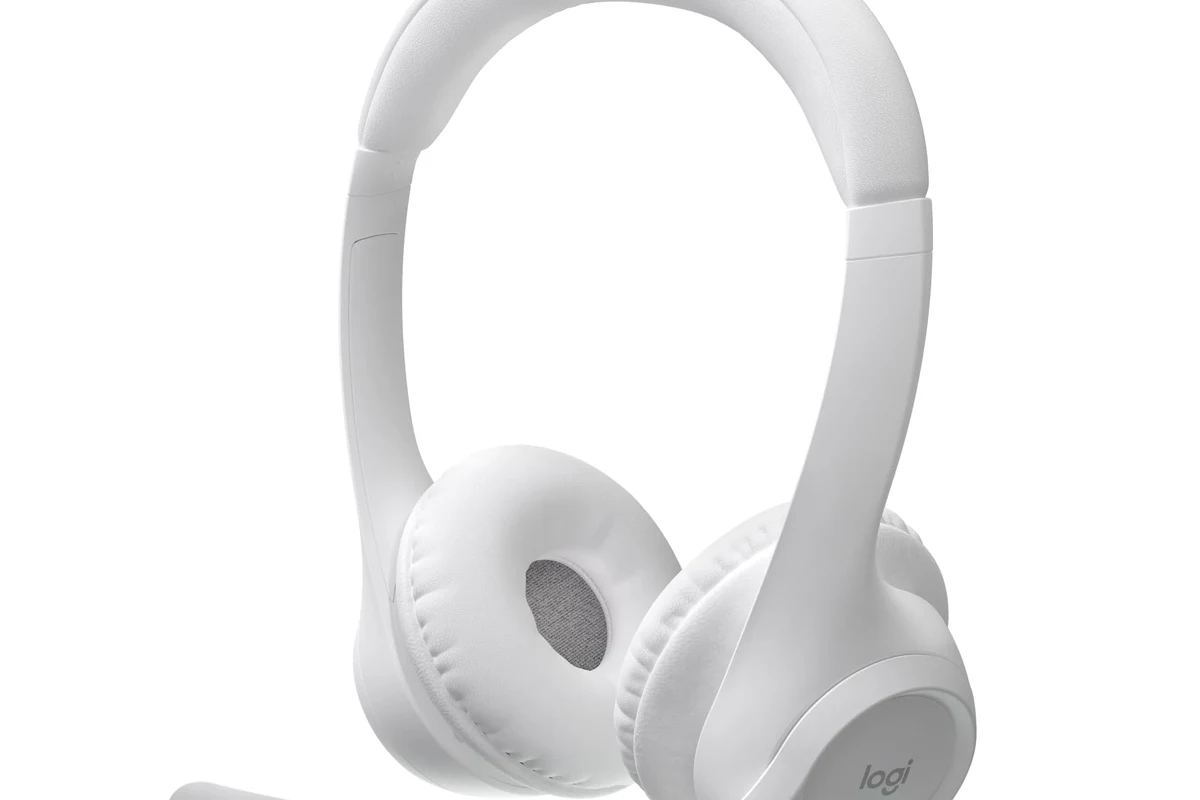
Hooking up wireless headphones to a TV usually means sending the TV’s audio to a wireless receiver instead of using the built-in speakers. That receiver may be built into the headphones, paired through Bluetooth, or handled by a separate transmitter connected to the TV.
In simple terms, you need three things to line up: a compatible audio output on the TV, a wireless method that matches your headphones, and the right TV audio settings. If one of those is missing, the connection may still be possible, but you may need an adapter or a different headphone type.
If you already own wireless headphones, check whether they use Bluetooth or an RF base station before buying extra gear. That one detail often decides whether setup is instant or requires an external transmitter.
For many readers, this is also the point where choosing between wired vs wireless headphones matters. Wireless is more convenient for TV use, but wired connections can still win on simplicity and zero lag if your setup allows it.
Check Your TV’s Audio Output Options Before Buying or Pairing
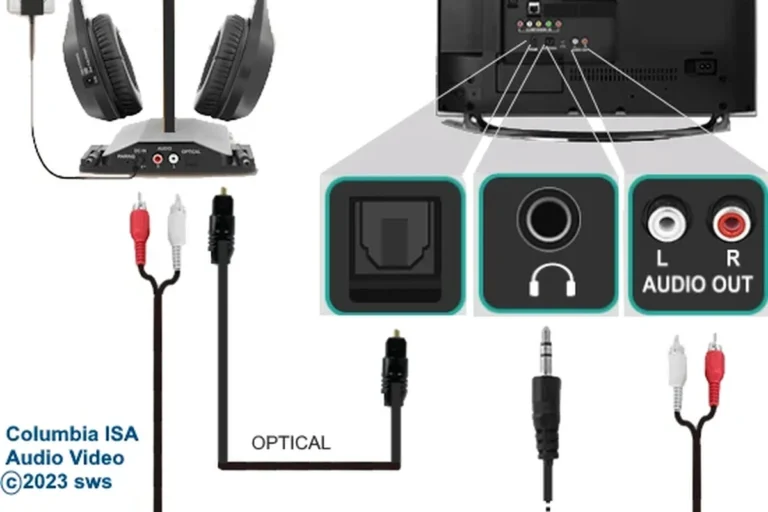
Before you pair anything, look at the back or side of your TV and check the audio outputs. The port type tells you whether you can connect directly, need a transmitter, or may have to use a workaround through another device.
This step is important because TV menus and ports vary by brand and model. A smart TV with Bluetooth can be easy, while an older set may only offer optical audio or HDMI ARC, which usually means you’ll need extra hardware.
Bluetooth-enabled TVs vs. TVs that need an external transmitter
Some smart TVs support Bluetooth audio output, which lets you pair compatible headphones directly in the settings menu. If your TV supports it, this is usually the cleanest option because there’s no extra box on the shelf.
Other TVs may support Bluetooth for remotes or keyboards, but not for audio. In that case, you’ll need a Bluetooth transmitter that plugs into the TV’s audio output and sends the sound to your headphones.
Even when a TV has Bluetooth, it may only support certain audio devices or may introduce noticeable delay. Results can vary by brand, model, and headphone codec support.
Optical, AUX, USB, and HDMI ARC: which ports matter for headphones
Optical audio is one of the most common outputs used with Bluetooth transmitters and RF base stations. It carries clean digital audio, but you may need to adjust TV sound settings so the transmitter receives a usable signal.
AUX or 3.5mm headphone outputs are often the simplest analog option, especially for older TVs. USB ports are less reliable for headphone audio on TVs, since many are meant for media playback or service use rather than sound output.
HDMI ARC and eARC are great for soundbars and home theater systems, but they are not usually the first choice for headphones unless your soundbar or receiver includes a pass-through or headphone output. If you use a soundbar, you may need a pass-through setup so the TV can still send audio to your headphones.
Best Ways to Connect Wireless Headphones to a TV in 2025
There isn’t one best method for every TV. The right choice depends on whether you want the easiest setup, the lowest delay, or the best chance of keeping TV speakers and headphones working at the same time.
In general, Bluetooth is best for convenience, RF systems are often best for range and simplicity, and transmitters are the bridge that makes older TVs compatible with modern headphones.
Direct Bluetooth pairing for smart TVs
If your TV supports Bluetooth audio, open the sound or accessories menu and put your headphones into pairing mode. Once the TV finds the headphones, select them and confirm the connection.
This is usually the easiest answer to how do you hook up wireless headphones to TV when the TV is already Bluetooth-ready. It’s especially useful for casual movie watching and late-night use, though some setups may still have audio delay.
Is direct Bluetooth always the best choice for TV audio?
Not always. It’s the simplest setup, but it can be less ideal for gaming or fast-moving dialogue if your TV and headphones don’t handle latency well.
Using a Bluetooth transmitter for non-Bluetooth TVs
A Bluetooth transmitter plugs into the TV’s audio output and sends sound wirelessly to your headphones. This is the most common solution for older TVs or smart TVs that don’t support Bluetooth audio output.
If you’re shopping for a transmitter, make sure it matches your TV’s output port and supports the headphone connection style you already own. For many people, this is the most flexible path because it lets you keep using a favorite pair of wireless headphones.
- Does the transmitter match optical, AUX, or HDMI ARC output?
- Does it support one or two headphones if you want shared listening?
- Does it include low-latency support for better lip-sync?
Connecting via RF wireless headphones and base stations
RF wireless headphones use a dedicated base station rather than standard Bluetooth pairing. You connect the base station to the TV, dock or power it, and the headphones receive the audio over a proprietary wireless link.
This setup can be very straightforward for TV use because the headphones are often designed for long range and easy charging. RF systems are also popular for users who want a stable listening experience without navigating Bluetooth menus every time.
RF headphones often feel more “TV-ready” than general Bluetooth headphones because the base station handles pairing, charging, and sometimes volume control in one place.
Soundbar pass-through and TV audio settings workarounds
If your TV audio is already routed through a soundbar, you may need to use a pass-through or splitter setup so headphones can still receive sound. Some soundbars have a headphone output or Bluetooth output, but not all do.
TV audio menus may also offer settings like external speaker, PCM audio, or simultaneous output. These options can help when the TV refuses to send sound to both the speakers and headphones at the same time, though the exact labels vary by brand.
Not every TV can play audio through speakers and wireless headphones at the same time. If your TV mutes the speakers automatically, check the sound menu or the manual before buying extra accessories.
Step-by-Step Setup Examples for Common TV and Headphone Combinations
The easiest setup depends on the exact combination you own. Below are common examples that help you choose the right path without guessing through menus for an hour.
Samsung, LG, Sony, and Roku TV pairing examples
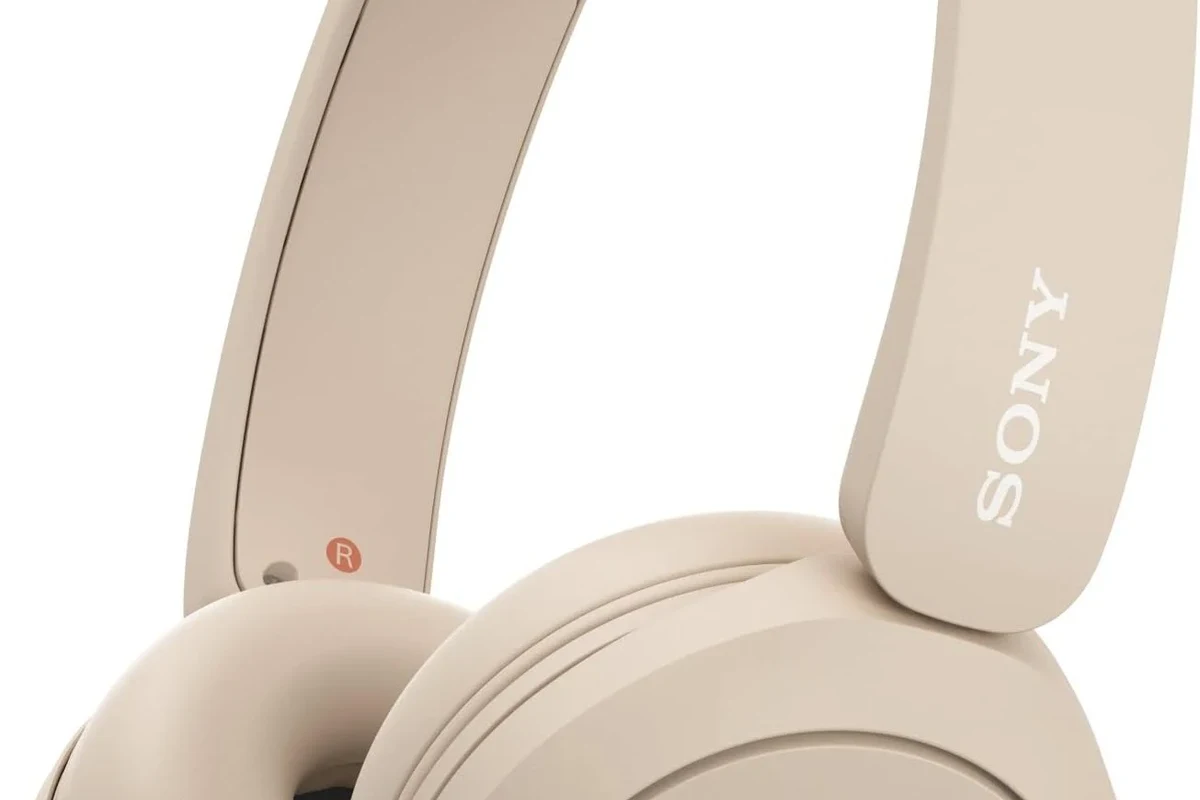
On many Samsung, LG, Sony, and Roku TVs, the process starts in the sound or Bluetooth menu. Put the headphones in pairing mode, search for devices on the TV, and select the headphones when they appear.
If the TV does not show your headphones, check whether the TV supports Bluetooth audio output at all. Some models support Bluetooth accessories but not headphones, which is where a transmitter becomes the better solution.
Go to sound, speaker, or Bluetooth settings and look for audio output options.
Hold the pairing button until the indicator light flashes or the voice prompt confirms pairing mode.
Choose the headphone name from the list and confirm the connection.
Pairing gaming headphones for late-night TV and console use
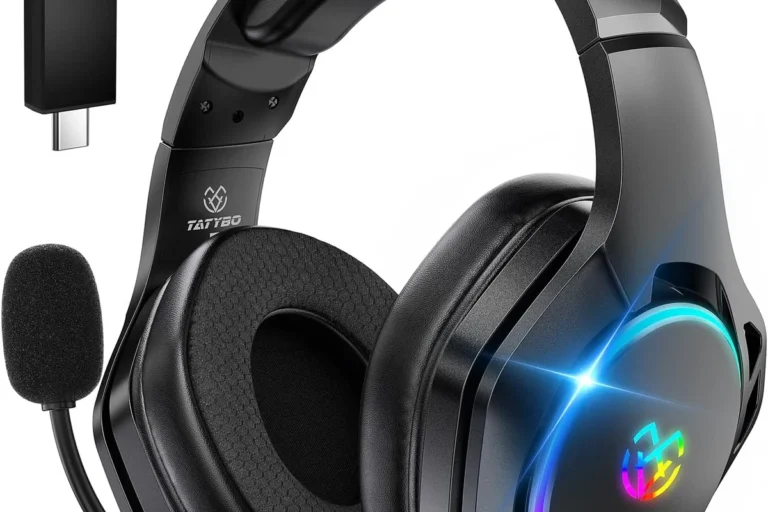
Gaming headsets can work well for TV, especially if you also use the same headset with a console. The main thing to watch is latency, because some wireless gaming headsets are optimized for their own dongle rather than standard TV Bluetooth.
If your headset uses a USB wireless receiver, check whether your TV supports USB audio input. Many TVs do not, so a console, set-top box, or external transmitter may be the better route. For readers who want a deeper dive into connection basics, our guide on how to connect Bluetooth headphones can help with pairing logic that applies to many devices.
Using wireless headphones with a streaming device or set-top box
Some streaming devices and set-top boxes support headphone pairing through their own apps or Bluetooth settings, but many do not. In those cases, the TV itself is still the main audio source, so the connection method depends on the TV rather than the streamer.
If you use a cable box, game console, or streaming stick, remember that audio may pass through the TV before reaching your headphones. That means TV sound settings still matter, even if the content comes from another device.
Common Problems When Hooking Up Wireless Headphones to TV
Most setup problems come down to compatibility, audio delay, or the wrong sound output selection. The good news is that these issues are usually fixable without replacing your headphones.
Audio delay and lip-sync issues
Audio delay is one of the biggest complaints with wireless TV listening. It can make dialogue look slightly out of sync with the picture, which is especially noticeable in movies and gaming.
Low-latency transmitters, TV sync settings, and certain Bluetooth codecs can reduce the problem, but not eliminate it in every setup. If lip-sync matters a lot to you, RF headphones or a low-latency transmitter may be a better fit than standard Bluetooth.
No sound, weak signal, or pairing failures
If you see a successful pairing but hear no sound, the TV may be sending audio to the wrong output or the transmitter may not match the port. Weak signal can also happen if the transmitter is blocked, too far away, or paired with too many obstacles in between.
For pairing failures, the usual fix is to reset the headphones, restart the TV, and try again from a short distance. If that doesn’t work, the issue may be incompatible Bluetooth versions or a transmitter that doesn’t support your headphone profile.
TV speakers muting automatically or not at all
Some TVs mute the built-in speakers as soon as headphones connect, while others keep both active or require a manual switch in the sound menu. This behavior varies widely and can be confusing the first time you set everything up.
If you want shared listening, look for TV audio settings that mention simultaneous output, external speakers, or audio out options. If your TV won’t do both, a soundbar pass-through or separate transmitter may solve the problem.
Listening at high volumes for long periods can cause hearing damage. Keep volume at 60% or below for extended sessions.
Expert Advice: What to Watch Out for Before You Buy or Connect
The best wireless TV setup is not always the cheapest one. A little planning can save you from lag, compatibility problems, or a headset that feels uncomfortable after one movie.
Latency, codec support, and range differences
Latency is the delay between the picture and the sound, and it matters more for TV than for casual music listening. Codec support can also affect how smooth or delayed the audio feels, but the exact result depends on both the TV and the headphones.
Range matters too, especially if you move around the room or watch from a couch far from the TV. Bluetooth range is usually fine for a living room, but walls, furniture, and interference can reduce stability.
If you have hearing concerns, tinnitus, or you notice that dialogue sounds distorted even at moderate volume, consult an audiologist or qualified audio specialist. Comfort with TV audio is personal, and it is worth getting help if listening causes strain.
Battery life, comfort, and multi-user listening needs
For TV use, battery life matters because long movies and binge sessions can drain smaller headphones quickly. Over-ear models often feel more comfortable for extended viewing, while lighter on-ear or in-ear designs may be better for short sessions or travel.
If more than one person wants to listen, look for transmitters or base stations that support dual connections. That can be especially useful for families, shared living rooms, or gaming nights where two viewers want private audio.
Warning signs of low-quality transmitters and incompatible adapters
Be cautious with generic adapters that promise universal compatibility but do not clearly list supported outputs or codecs. If the product description is vague, it may be a poor match for your TV.
Also watch for transmitters that only support one connection type, have unclear power requirements, or lack a return policy. In headphone setups, cheap usually becomes expensive when you spend extra time troubleshooting.
Cost Comparison: Bluetooth Transmitters, RF Headphones, and Premium TV Audio Solutions
Costs vary a lot by brand and feature set, so it helps to think in categories rather than fixed prices. A simple transmitter can be the lowest-cost path, while premium TV audio systems may offer easier switching, lower delay, and better comfort.
Budget-friendly setup options
Budget setups usually involve a basic Bluetooth transmitter or an entry-level RF headphone kit. These can be enough for casual TV watching if you mainly want private listening and do not need top-tier sync performance.
Mid-range and premium choices for better sound and lower delay
Mid-range and premium solutions often improve comfort, connection stability, and lip-sync performance. They may also offer better build quality, stronger range, and easier charging for everyday TV use.
If sound quality is a priority, it can help to compare headphone type, driver tuning, and the TV connection method together. For example, a comfortable closed-back headset may be better for immersive movie nights, while a lighter wireless set may be better for all-day use.
- Bluetooth is easiest on compatible smart TVs.
- Transmitters help older TVs and non-Bluetooth models.
- RF systems are often simpler for long TV sessions.
- Low latency matters most for movies and gaming.
Final Recap: The Easiest Way to Hook Up Wireless Headphones to TV
The easiest answer to how do you hook up wireless headphones to TV is to use direct Bluetooth if your TV supports it. If it does not, a Bluetooth transmitter or RF base station is usually the most practical workaround.
Start by checking your TV’s outputs, then match them to your headphone type and your priorities for delay, comfort, and range. That simple approach will save you time, reduce frustration, and help you get a better listening experience from your TV setup.
Frequently Asked Questions
Wireless headphones are more convenient for TV because they reduce cable clutter and let you move around. Wired headphones can still be better if you want the simplest connection and no wireless delay.
Yes, noise cancelling headphones can work very well for TV, especially in shared homes or noisy rooms. Just make sure the fit is comfortable for long sessions and that the sound delay is acceptable for your setup.
Closed-back headphones are usually better for TV because they block more outside noise and keep sound from leaking out. Open-back models can sound wider and more natural, but they are less private and less isolating.
Over-ear wireless headphones are often the best all-around choice because they are comfortable and can sound more immersive. For gaming, low-latency support matters more than extra bass or flashy features.
Look at latency support, wireless type, comfort, battery life, and whether the headset works with your TV output. Sound tuning, driver design, and EQ options can also affect bass, clarity, and dialogue.
Focus on a reliable connection first, then compare weight, ear cushion material, and battery life. A cheaper headset can still be a good buy if it fits well and works cleanly with your TV.