How to Pair Wireless Headphones to TV Easily Today

The easiest way to pair wireless headphones to a TV is to use the TV’s Bluetooth menu first, then switch to a transmitter if the connection is unstable or delayed. The best setup depends on your TV’s audio outputs, your headphones, and how much lip-sync lag you can tolerate.
If you want to know how to pair wireless headphones to TV, the easiest path is usually Bluetooth on a smart TV or streaming device. If your TV does not support Bluetooth well, a wireless transmitter or audio output adapter can still give you a clean, low-hassle setup.
- Bluetooth first: Try built-in TV Bluetooth before buying extra gear.
- Low-latency matters: Use a transmitter or low-lag mode for movies and gaming.
- Check outputs: Confirm 3.5mm, optical, USB, or Bluetooth support before purchase.
- Comfort counts: Choose headphones that feel good during long viewing sessions.
How to Pair Wireless Headphones to TV: What Viewers Want in 2025
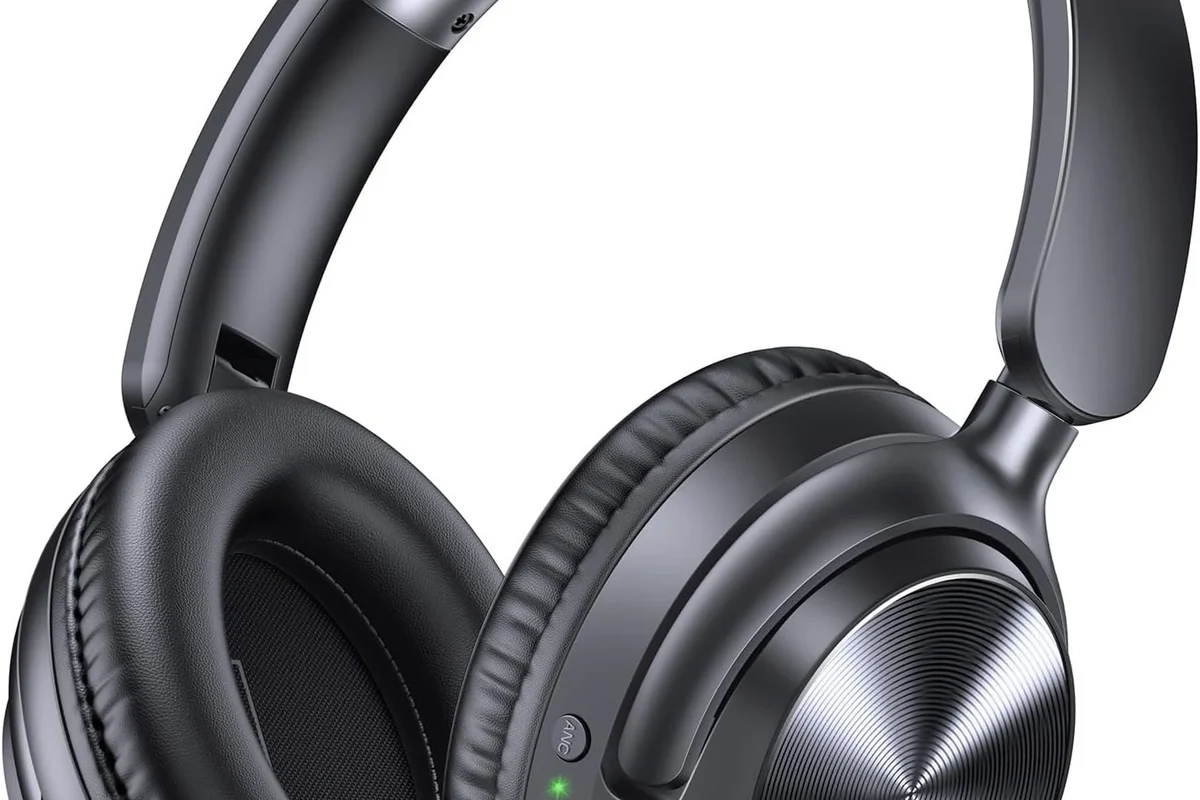
Most viewers want the same three things from TV headphones in 2025: simple pairing, low delay, and clear dialogue. That applies whether you are watching late at night, sharing a room, or trying to hear every word without turning up the TV.
For Top Headphone Reviews readers, the best setup depends on your TV model, your headphones, and how sensitive you are to lag. A basic Bluetooth connection may be enough for casual viewing, while movie fans and gamers often need a more reliable low-latency option.
It also helps to think beyond the headphones themselves. The TV’s audio menu, streaming box, soundbar, and even the room layout can affect whether the connection feels smooth or frustrating.
Best Ways to Connect Wireless Headphones to a TV Without Lag
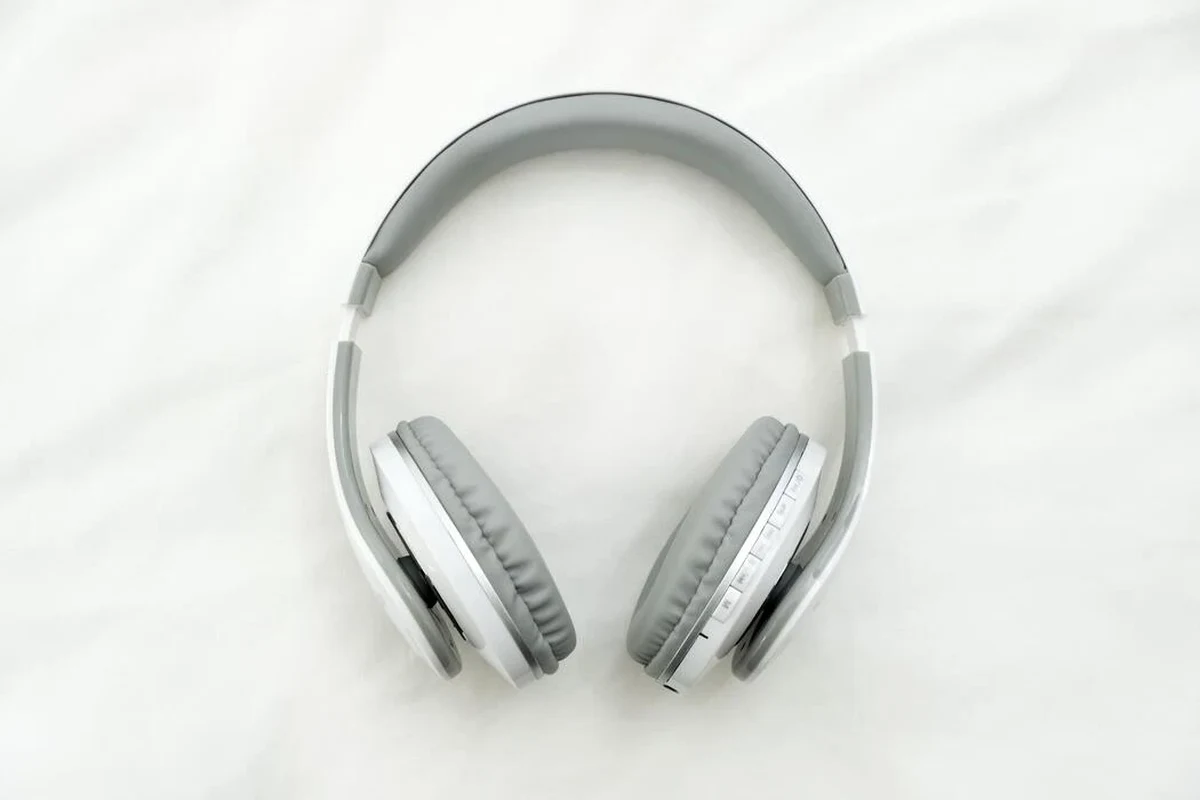
There are three common ways to connect wireless headphones to a TV: Bluetooth, a wireless RF transmitter, or a wired audio output feeding a transmitter or dock. Each method has strengths, and the best one depends on your TV’s built-in features.
If you already have a smart TV with Bluetooth, start there. If not, a dedicated transmitter often gives more consistent performance than trying to force a workaround.
Bluetooth TV pairing for smart TVs and streaming devices
Bluetooth is the simplest option because many modern TVs already support it. You usually place the headphones in pairing mode, open the TV’s Bluetooth menu, and select the device from the list.
This is often the best choice for casual TV watching, especially if you use a smart TV from Samsung, LG, Sony, TCL, or a streaming device that supports audio output over Bluetooth. Still, Bluetooth quality can vary by TV model, and some sets handle latency better than others.
If dialogue sounds slightly behind the video, check your TV’s audio delay or lip-sync settings before buying new headphones.
Using a wireless RF transmitter with non-Bluetooth TVs
RF headphone systems use a transmitter that plugs into the TV and sends audio to a matching headset or receiver. They are popular for people who want a stable connection and do not want to rely on built-in Bluetooth.
This can be a smart choice for older TVs, bedroom setups, or households where Bluetooth pairing gets messy. RF systems often feel more “plug in and go,” though the exact experience depends on the model and the available audio outputs on your TV.
Some RF kits include their own dock or base station, while others need a 3.5mm, optical, or RCA connection from the TV.
Connecting through a TV’s 3.5mm, optical, or USB audio output
Many TVs still offer useful audio outputs that can feed a transmitter, dock, or adapter. A 3.5mm headphone jack is the easiest to understand, while optical output is common on many mid-range and premium TVs.
USB audio support is less universal, so it is worth checking the manual before assuming it will work. If your TV has optical out, you may need a converter or transmitter designed for that signal type.
Not every USB port on a TV supports audio. Some are only for service, media playback, or power, so check the manual before buying accessories.
Step-by-Step Setup for the Most Common TV and Headphone Types
Pairing usually takes only a few minutes once you know where the settings live. The main challenge is that TV menus are not always labeled the same way, even across the same brand.
Before starting, make sure your headphones are charged, nearby, and already in pairing mode if needed. If you use a soundbar or external audio system, you may also need to choose the correct output source first.
Samsung, LG, Sony, and TCL smart TV pairing steps
On most smart TVs, the process starts in the sound or Bluetooth settings menu. From there, you look for “Bluetooth audio,” “speaker list,” “pair device,” or a similar option.
Go to sound settings and find Bluetooth or audio output options. Some TVs place this under general settings instead.
Hold the pairing button until the indicator light flashes or you hear a pairing prompt.
Choose the headset from the list and confirm the connection. Test the sound before leaving the menu.
If your TV supports multiple audio outputs, you may need to tell it whether to play through the TV speakers, headphones, or both. That setting can make a huge difference in how easy the setup feels.
Pairing Bluetooth headphones, earbuds, and gaming headsets
Bluetooth headphones and earbuds usually pair the same way, but gaming headsets can behave differently if they use a dongle or a special low-latency mode. True wireless earbuds may also reconnect automatically if they were previously paired to another device.
If your headset supports a companion app, it may offer EQ adjustments, gaming mode, or latency settings that improve TV listening. For more background on connection basics, see our guide on how to connect Bluetooth headphones.
Some Bluetooth headsets reconnect faster if they are the only paired device nearby, which can help when switching between TV and phone.
What to do when the TV does not detect the headphones
If the TV cannot find your headphones, start with the basics: charge both devices, move them closer together, and make sure the headphones are not already connected to a phone or tablet. Many pairing failures are caused by a simple connection conflict.
You can also restart the TV, remove old Bluetooth devices from the saved list, or reset the headphones and try again. If you need a deeper reset workflow, our article on how to reset Bluetooth headphones may help.
Common Pairing Problems and How to Fix Them Fast
Even when pairing works, TV headphone setups can still feel imperfect. The most common complaints are delay, weak volume, and unstable connections in busy homes.
These issues are normal enough that they should be part of your buying decision, not just something you troubleshoot after the fact.
Audio delay, lip-sync issues, and how to reduce latency
Audio delay happens when the sound reaches your headphones a little later than the picture reaches your eyes. It is especially noticeable in movies, sports, and gaming, where lip-sync matters.
To reduce latency, look for low-lag Bluetooth features, a dedicated transmitter, or a TV audio sync adjustment. If you want a broader explanation of wireless timing issues, our Bluetooth headphone lag fix guide is a useful companion read.
Listening at high volumes for long periods can cause hearing damage. Keep volume at 60% or below for extended sessions.
Why volume controls, mute settings, and audio output modes cause confusion
Some TVs split volume control between the TV speakers and the headphone output, which makes the setup feel inconsistent. In other cases, the TV may mute its speakers automatically when headphones connect.
If the sound is too low, check whether the headphone output has its own volume control or whether the TV is stuck in a fixed output mode. A quick look through the audio menu often solves what feels like a hardware problem.
Interference, range limits, and unstable connections in busy homes
Wireless signals can struggle in homes crowded with routers, consoles, soundbars, and multiple Bluetooth devices. Walls, furniture, and distance can also weaken the signal.
If the connection cuts out, move the transmitter or TV setup away from other wireless gear and keep the headphones within the recommended range. For a broader comparison of connection styles, our wired vs wireless headphones guide can help you decide which trade-offs matter most.
Wireless Headphone Features That Matter for TV Watching
Not every wireless headphone is equally good for television. Some are built for music and commuting first, while others are better suited to long viewing sessions or gaming.
Comfort, battery life, and latency usually matter more for TV than flashy features you may never use.
Low-latency codecs, battery life, and comfort for long viewing sessions
Low-latency codecs can help reduce delay, but the TV and transmitter must support them too. That means codec support is useful, but it is not a magic fix on its own.
Battery life matters because a movie marathon or sports event can outlast a weak headset. Comfort is just as important, especially if you prefer over-ear headphones with softer cushions for long sessions.
Single-device vs multi-device pairing for households
Single-device pairing is simpler and usually more stable, but multi-device pairing is more convenient in a busy home. If several people use the same headphones with a phone, tablet, and TV, switching can become annoying unless the headset handles it cleanly.
For households, the best choice is often a headset or transmitter that reconnects predictably and does not need a full reset every time. If you are buying for shared use, ease of switching can matter more than a small sound-quality difference.
Why some headphones work better for movies, sports, and gaming
Movies benefit from clear dialogue and good soundstage, sports benefit from stable sync, and gaming benefits from low latency and precise directional audio. That is why one “best” headphone rarely fits every viewing style.
Closed-back over-ear headphones often help keep outside noise down, while some earbuds are better for quick casual use and portability. If you are comparing models by fit and use case, our general types of headphones explained guide is a good place to start.
Cost Comparison: Budget vs Mid-Range vs Premium TV Listening Setups
There is no single correct budget for TV headphones. Some viewers only need a simple Bluetooth link, while others will be happier spending more on a transmitter, better comfort, or lower latency.
The right setup depends on how often you watch, how picky you are about delay, and whether your TV already supports the connection you want.
When a simple Bluetooth connection is enough
Budget setups make sense if your TV already has Bluetooth and you mostly watch talk shows, casual streaming, or late-night TV. In that case, convenience may matter more than perfect sync.
A basic headphone pair can be fine as long as the audio is stable and the delay does not bother you. For many people, that is the cheapest and simplest path.
When to upgrade to a dedicated transmitter or headphone dock
Upgrade when Bluetooth is unreliable, lip-sync is distracting, or your TV has no built-in wireless audio support. A transmitter or dock can also help if you want a more permanent setup that does not need repeated pairing.
Premium setups often make sense for users who watch a lot of movies, sports, or games and want fewer compromises. Exact pricing varies by brand, model, and features, so compare the whole system rather than the headset alone.
What Top Headphone Reviews recommends for different budgets in 2025
For a tight budget, start with your TV’s built-in Bluetooth if it works well enough. For a mid-range setup, a reliable transmitter plus comfortable headphones is often the best balance of quality and convenience.
For a premium setup, prioritize low-latency support, strong comfort, and compatibility with your TV and any soundbar or AVR you already use. If you are unsure which direction to go, start with your TV’s outputs before shopping for headphones.
Expert Advice: Mistakes to Avoid Before You Buy or Pair
The biggest TV headphone mistakes happen before pairing even begins. People often buy the wrong type of headset, ignore latency, or overlook how the rest of the home theater setup affects audio.
A few minutes of checking compatibility can save you from returning gear later.
Not checking TV audio output support before purchasing
Before buying anything, confirm whether your TV has Bluetooth, optical out, a 3.5mm jack, or USB audio support. A headset or transmitter that looks perfect on paper may be useless if the TV cannot feed it audio properly.
If you have hearing concerns, tinnitus, or frequent discomfort with headphone use, consult an audiologist or qualified hearing professional before making long listening sessions part of your routine.
Ignoring latency specs and assuming all Bluetooth is the same
Bluetooth is not automatically low-latency just because it is wireless. Some setups are fine for speech and casual viewing but still feel off during fast action scenes or gaming.
If lip-sync matters to you, check whether the headphones, TV, or transmitter supports a low-latency mode. That detail can matter more than brand name alone.
Overlooking compatibility with soundbars, AVR systems, and streaming boxes
Many homes use a soundbar, AVR, or streaming box, and that can change how audio is routed. A setup that works directly from the TV may behave differently once you add another device.
If your home theater already has extra gear, make sure the headphone connection does not break the rest of your audio chain. Sometimes the cleanest solution is a transmitter designed to sit alongside the existing system, not replace it.
Final Recap: The Easiest Way to Pair Wireless Headphones to TV Today
The easiest way to pair wireless headphones to TV is usually to use the TV’s built-in Bluetooth menu first, then move to a transmitter if pairing is unstable or lag is noticeable. That gives most viewers the simplest setup with the fewest extra parts.
If you want the best experience, choose headphones and accessories based on your TV’s outputs, your need for low latency, and how long you plan to watch at a time. The right match is not always the most expensive one; it is the one that fits your TV and your habits.
- Try built-in Bluetooth first if your TV supports it well.
- Use a transmitter for older TVs or better stability.
- Check latency, comfort, and audio output compatibility before buying.
- Match the setup to movies, sports, gaming, or casual TV.
Frequently Asked Questions
Wireless headphones are more convenient and easier to move around with, but wired headphones usually avoid latency and battery concerns. The better choice depends on your TV, your comfort needs, and how sensitive you are to audio delay.
Yes, noise cancelling can help reduce background noise so dialogue is easier to hear. It is most useful in shared homes or noisy rooms, but sound quality and comfort still matter too.
Closed-back headphones usually work better for TV because they block more outside noise and keep sound from leaking out. Open-back models can sound more spacious, but they are less ideal for quiet late-night viewing or shared spaces.
Look at latency support, comfort, battery life, and how the headphones handle dialogue clarity and bass. Driver type, frequency response, and EQ options can also shape the final sound, but real-world fit matters just as much.
Start with your TV’s built-in Bluetooth if it works well enough, then upgrade only if you notice delay or dropouts. If your TV lacks good wireless support, a basic transmitter can be a smarter budget buy than replacing the headphones first.
Check weight, ear cushion material, headband fit, and battery life for long sessions. A comfortable, well-built headset is often better for TV than a flashy model that feels heavy or clamps too hard.