How to Pair Bluetooth Headphones with TV Easily

Check whether your TV supports Bluetooth audio, then put your headphones in pairing mode and select them from the TV’s sound menu. If your TV does not support Bluetooth directly, a transmitter is usually the easiest fix.
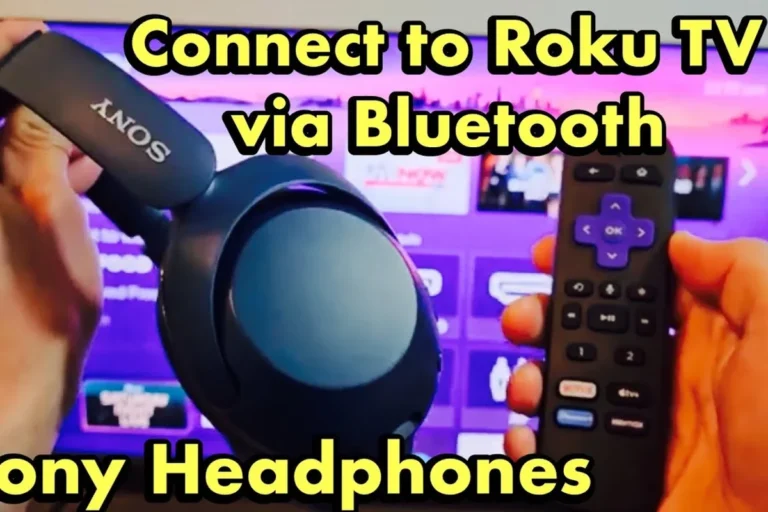
If you want to know how to pair bluetooth headphones with tv, the easiest path is usually to check whether your TV already supports Bluetooth audio and then follow the pairing steps in the sound menu. If it does not, a Bluetooth transmitter is often the simplest upgrade for movies, late-night viewing, and casual gaming.
- Start with settings: Check the TV’s sound or Bluetooth menu first.
- Pairing order matters: Put headphones in pairing mode before scanning.
- Latency is key: Gaming and lip-sync need lower-delay solutions.
- Adapters help older TVs: A transmitter adds wireless headphone support.
How to Pair Bluetooth Headphones with TV: What You Need to Know First
Before you start tapping through menus, it helps to know that TV Bluetooth audio is still a little inconsistent. Some TVs support headphones directly, some only support remotes or accessories, and some limit audio output to certain Bluetooth devices.
That is why setup can feel easy on one TV and frustrating on another. The good news is that most pairing problems come down to compatibility, audio output settings, or latency rather than the headphones themselves.
Why Bluetooth TV audio is still tricky in 2025
Even in 2025, many TVs treat Bluetooth as a general wireless feature rather than a dedicated headphone output. That means your TV may support Bluetooth, but not necessarily the kind of audio connection you want.
Some models also prioritize soundbars, remotes, or smart-home devices over headphones. If your TV menu looks confusing, you are not alone.
What searchers usually want: quick setup, no lag, and no soundbar conflict
Most people searching for TV headphone pairing want three things: a fast setup, no noticeable delay, and no interference with their soundbar or TV speakers. Those are the right priorities, especially if you watch dialogue-heavy shows or play games.
A clean setup usually starts with the TV’s built-in Bluetooth. If that fails, a transmitter can solve both compatibility and lag issues more reliably.
Check Whether Your TV Supports Bluetooth Headphones
The first step is confirming whether your TV can send audio to Bluetooth headphones. On some smart TVs, this is built in; on others, Bluetooth exists only for pairing controllers or mobile devices.
If you are unsure, check the sound settings, audio output menu, or the TV manual. That small step can save a lot of time.
How to find Bluetooth settings on smart TVs from Samsung, LG, Sony, TCL, and Hisense
On many Samsung, LG, Sony, TCL, and Hisense smart TVs, Bluetooth headphones are found inside the sound or audio output settings rather than a separate Bluetooth app. Look for labels like Sound Output, Bluetooth Speaker List, Audio Device, or Wireless Headphones.
If your TV has a setup assistant, it may also prompt you to choose a wireless audio device during initial configuration. Menu names vary by brand and model, so the exact path may not match every TV.
What to do if your TV has no built-in Bluetooth audio output
If your TV does not support Bluetooth headphones directly, you can still add the feature with a Bluetooth transmitter. These plug into the TV’s audio output and send sound to your headphones wirelessly.
This is especially useful for older TVs, gaming consoles, and cable boxes that do not include headphone pairing. For readers comparing wireless options more broadly, our guide to Bluetooth headphones explained simply can help make the basics easier to understand.
Step-by-Step: How to Pair Bluetooth Headphones with TV Easily
Once you know your TV supports Bluetooth audio, pairing is usually straightforward. The key is to put the headphones in pairing mode first, then make the TV search for them.
Keep the headphones close to the TV during setup, and avoid pairing them to another device at the same time.
Put the headphones into pairing mode
Turn on your headphones and hold the pairing button until the indicator light flashes or you hear a voice prompt. Different brands use different signals, so check the manual if you are unsure.
If your headphones were already paired to a phone or tablet, disconnect them first. That makes it easier for the TV to find them.
Open the TV’s sound or Bluetooth menu
Use your TV remote to open Settings, then go to Sound, Audio Output, or Bluetooth Device List. Some TVs place headphone pairing under a separate wireless speaker section.
If you do not see it immediately, use the search function in settings if your TV has one. That can be faster than scrolling through every menu.
Select the headphones and confirm the connection
When your headphones appear on the screen, select them and confirm the pairing request. Some TVs ask you to approve the device with an on-screen code or confirmation message.
After pairing, the TV may switch audio output automatically. If not, choose the headphones as the active sound output manually.
Test volume, latency, and audio balance
Play a scene with clear dialogue and check whether the voices match the picture. If the sound feels delayed, you may need a low-latency transmitter or a different codec-supported setup.
Also test volume on both the TV and the headphones. Some TVs output Bluetooth audio at a lower level, so you may need to adjust both sources for a comfortable balance.
Best Connection Methods for Different TV Setups
The best method depends on your TV age, the devices you use, and how sensitive you are to audio delay. A direct Bluetooth connection is simplest, but it is not always the best for gaming or older gear.
If you want a more stable setup, think about where the audio is coming from before you buy anything.
Direct Bluetooth pairing for smart TVs
Direct pairing is the easiest option when your smart TV supports Bluetooth headphones natively. It is usually the cleanest setup because you do not need extra cables or adapters.
This method works well for casual TV watching, especially when you are mainly listening to dialogue, news, or streaming shows.
Using a Bluetooth transmitter for older TVs, gaming consoles, and cable boxes
A Bluetooth transmitter is the most flexible solution for older TVs and devices without headphone support. It plugs into the TV’s audio output and broadcasts sound to your wireless headphones.
This is often the better choice for gaming consoles and cable boxes too, because it gives you more control over latency and compatibility. If you are comparing wireless and wired sound quality in general, our Bluetooth vs wired headphones sound quality guide explains the trade-offs clearly.
Optical, AUX, and USB transmitter options compared
Optical transmitters are common on TVs with digital audio outputs and can offer a clean, stable signal. AUX or 3.5 mm transmitters are simple and widely compatible, but audio quality and volume can vary by TV.
USB transmitters may work on some TVs, but not all USB ports provide audio output. Before buying, check whether your TV’s USB port supports sound or only power and media playback.
Common Problems When Pairing Bluetooth Headphones with a TV
Most Bluetooth TV problems are fixable once you identify the cause. The issue is often not the headphones but the TV’s output settings, wireless interference, or the limitations of standard Bluetooth.
Here is how to handle the most common issues without guessing.
Headphones not showing up in the TV menu
If your headphones do not appear, make sure they are in pairing mode and close to the TV. Also check that they are not already connected to another device.
Restarting both the TV and the headphones can help refresh the Bluetooth list. If that still fails, your TV may not support headphone pairing even though it has Bluetooth.
Audio delay and lip-sync issues while watching movies or gaming
Audio delay is one of the biggest complaints with Bluetooth TV listening. Even a small delay can be noticeable when lips and dialogue do not line up.
For movies, this may be tolerable. For gaming, standard Bluetooth can be more distracting, which is why some users prefer low-latency transmitters or gaming-focused wireless systems.
Standard Bluetooth can introduce delay, and the amount varies by TV, headset, and codec support. If you are highly sensitive to lag, a dedicated low-latency transmitter may be a better fit.
TV speakers and headphones playing at the same time
Some TVs keep the internal speakers active even after Bluetooth headphones connect. Others let you choose between TV speakers, external audio, or both.
If both are playing, return to the sound output menu and look for a headphone-only or Bluetooth-only setting. This is common on TVs with more than one audio output mode.
Connection drops, low volume, and one-ear audio issues
Dropouts can happen if the headphones are too far from the TV or if other wireless devices are interfering. Keeping the path between the TV and headset clear often helps.
Low volume may come from the TV output itself, while one-ear audio can point to a headset issue, a bad pairing, or a mono/stereo mismatch. If the problem continues, reset the headphones and pair again.
If your TV supports it, try disabling other nearby Bluetooth devices during setup. Fewer wireless connections can make pairing faster and more stable.
Expert Advice: What to Watch Out for Before You Buy or Connect
When people shop for TV headphones, they often focus on brand names first. In reality, codec support, latency, and range usually matter more than the logo on the box.
That is especially true if you plan to use the headphones for gaming or long viewing sessions.
Bluetooth codec support, latency, and range matter more than brand names
Different Bluetooth codecs can affect sound quality and delay, but support depends on both the TV and the headphones. If one device does not support the same codec, you may not get the benefit.
Range also matters. Walls, furniture, and other wireless signals can shorten the reliable distance between the TV and your headphones.
Warning about gaming use: why standard Bluetooth can cause delay
For gaming, standard Bluetooth is not always ideal because even modest delay can make footsteps, gunshots, and dialogue feel out of sync. That can be frustrating in fast-paced games.
If gaming is a priority, look for a headset or transmitter designed for low latency. Otherwise, wired headphones may still be the simplest choice for near-instant response.
If you notice consistent lip-sync issues, unusually low volume, or hearing discomfort, consult the TV manual first and consider speaking with an audiologist if the sound level feels unsafe or fatiguing.
When a dedicated transmitter or low-latency headset is worth the extra cost
A dedicated transmitter is worth it when your TV lacks Bluetooth, when you want better stability, or when you need lower delay than the built-in audio system can provide. A low-latency headset can also be a smart upgrade if you use the same headphones for movies and gaming.
For readers who want to compare wireless behavior across devices, our article on how to connect Bluetooth headphones is a useful companion guide.
How Much Does It Cost to Add Bluetooth Headphone Support to Your TV?
The cost depends on whether your TV already has Bluetooth and how much performance you want. A built-in connection is free to use, while adapters and transmitters add extra expense.
As with most audio gear, prices and features can vary a lot by brand and model.
Free setup with built-in Bluetooth vs. budget transmitter upgrades
If your TV already supports Bluetooth headphones, you may not need to buy anything at all. That is the cheapest and simplest setup.
Budget transmitters are usually the first paid upgrade option. They can be a practical fix for older TVs, but performance may vary, especially in range and latency.
Mid-range and premium options for better range, latency, and dual-device support
Mid-range transmitters often offer more stable connections and better codec support than the cheapest models. Premium options may also support dual headphones, better range, or lower delay.
If two people want to watch together without waking the house, a dual-device transmitter can be especially useful.
Value comparison: cheap adapters vs. reliable 2025 models
Cheap adapters can work, but they sometimes bring trade-offs like weaker volume, more dropouts, or limited compatibility. Reliable 2025 models may cost more, but they are often easier to live with day to day.
For a TV setup you use often, paying a little more can be worth it if it reduces lag and connection problems.
Final Recap: The Easiest Way to Pair Bluetooth Headphones with Your TV
The easiest way to pair Bluetooth headphones with a TV is to use the TV’s built-in Bluetooth audio feature if it exists. If it does not, a transmitter is usually the most reliable backup.
Once paired, test for delay, volume, and comfort before settling in for a long movie or gaming session.
Quick summary of the safest setup path for movies, gaming, and late-night viewing
For movies and regular TV, direct Bluetooth pairing is often enough. For gaming or lip-sync-sensitive content, a low-latency transmitter or a wired option may be the better choice.
Best next step depending on whether your TV has Bluetooth or needs an adapter
If your TV already supports Bluetooth headphones, start in the sound menu and pair directly. If not, choose a transmitter that matches your TV’s audio output and your listening needs.
That simple decision usually solves most setup problems before they start.
Frequently Asked Questions
Wireless headphones are more convenient for TV listening, but wired headphones usually avoid latency and dropouts. If you watch a lot of gaming or dialogue-heavy content, wired can still be the safer choice.
Yes, noise cancelling can make dialogue easier to hear in a noisy room. It does not improve TV audio quality by itself, but it can reduce background distractions.
Closed-back headphones are usually better for TV because they block more outside noise and keep sound from leaking out. Open-back models can sound spacious, but they are less private for shared living spaces.
For TV use, check Bluetooth codec support, latency, battery life, comfort, and connection range. Driver type and frequency response can matter too, but real-world comfort and sync are often more important.
For gaming, prioritize low latency and comfort. For commuting, noise cancelling and portability matter more, while studio use usually calls for accurate wired monitoring and balanced sound.
Look for lightweight build quality, soft ear cushions, and a fit that does not clamp too hard. For long sessions, comfort matters as much as sound, especially if you wear them for hours.