How to Connect Headphones to TV Wireless Easily and Fast

The quickest way is to pair Bluetooth headphones directly to a TV that supports Bluetooth audio. If the TV does not support that, a wireless transmitter is usually the easiest and most reliable alternative.
If you want to know how to connect headphones to TV wireless, the fastest path is usually Bluetooth if your TV supports it. If not, a wireless transmitter is often the easiest upgrade for stable sound and lower delay.
- Fastest method: Use built-in Bluetooth if your TV supports it.
- Best backup: A wireless transmitter can solve compatibility issues.
- Main issue: Audio delay matters most for gaming and movies.
- Before buying: Check the TV’s audio outputs and Bluetooth support.
How to Connect Headphones to TV Wireless: What You Need to Know First
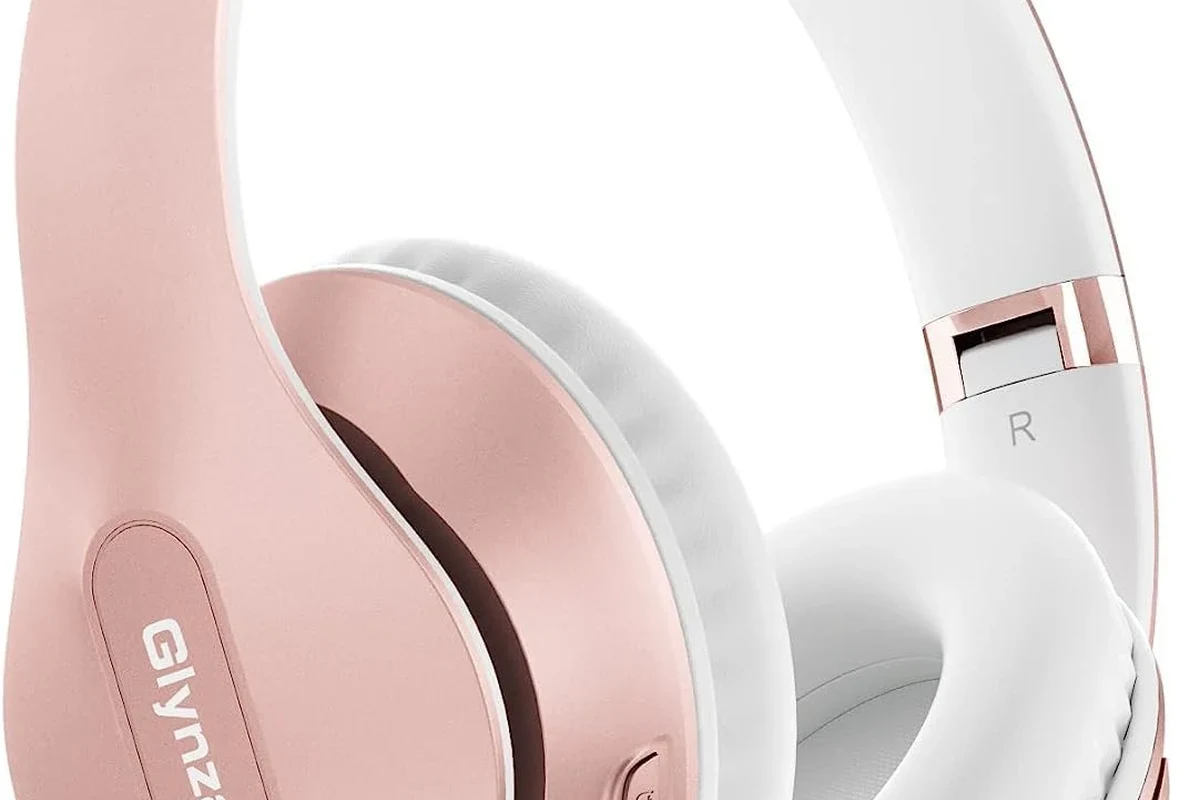
Before you pair anything, check whether your TV has built-in Bluetooth, a headphone output, or a digital audio output such as optical. Those details matter because not every TV can send audio to wireless headphones the same way.
Wireless TV listening is popular for late-night viewing, shared living rooms, and gaming setups where you want private sound without turning up the speakers. It can also be a smart choice if you already use wired vs wireless headphones comparisons to decide what fits your home setup best.
Noise cancelling headphones can make TV audio easier to follow in a noisy room, but the connection method still matters. Bluetooth is convenient, while dedicated transmitters often deliver more consistent performance.
Best Wireless Connection Methods for TV Headphones in 2025
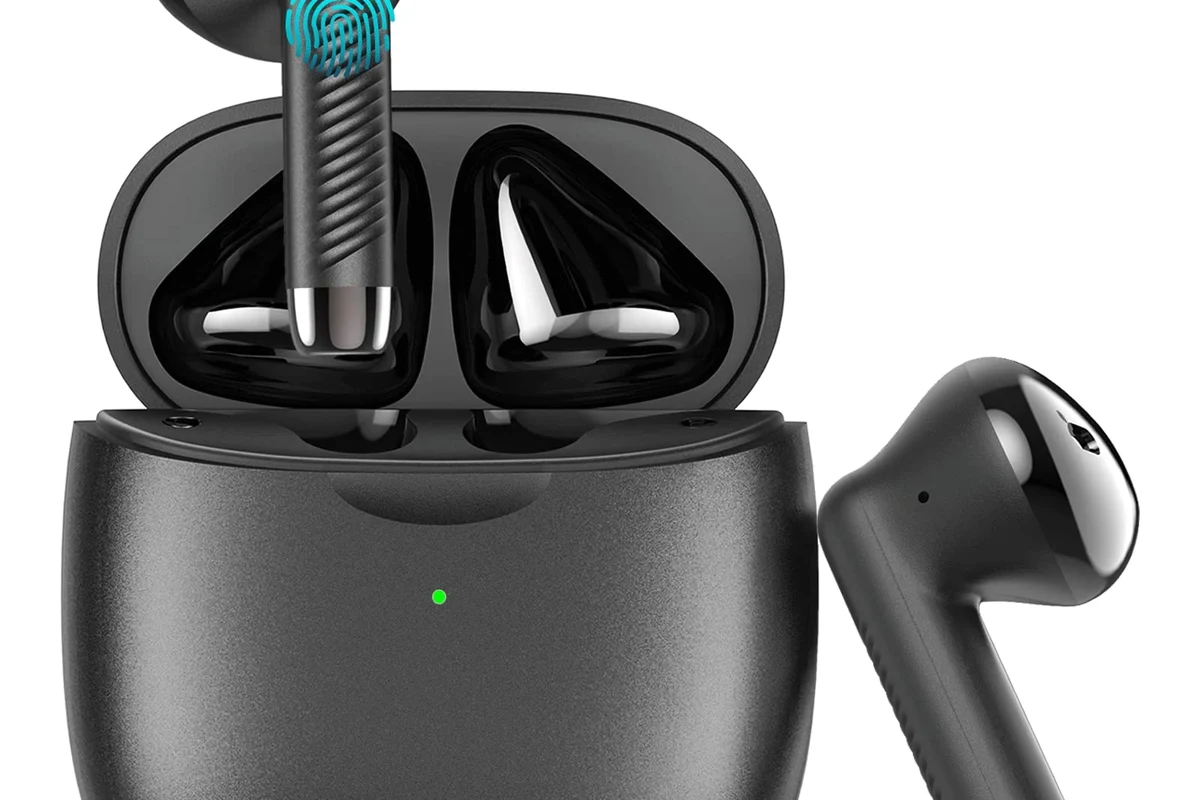
There are three common ways to get wireless audio from a TV to headphones. The best option depends on your TV model, your budget, and whether you care more about simplicity or low latency.
Bluetooth TV Pairing
Bluetooth is the most familiar option because many modern TVs include it already. You pair your headphones directly to the TV, just like you would with a phone or laptop.
This method is simple and cable-free, but it may not work equally well on every TV. Some sets support Bluetooth only for remotes or accessories, while others support full audio output.
Using a Wireless Headphone Transmitter
A wireless transmitter plugs into your TV’s audio output and sends sound to compatible headphones. This is often the best choice if your TV does not support Bluetooth audio or if you want a more reliable connection.
Many TV headphone users prefer this route for gaming and movies because transmitters can reduce lag and improve range. The exact performance depends on the transmitter type, headphone compatibility, and your room layout.
Connecting Through a TV’s Built-In Audio Features
Some TVs include special audio menus, accessibility settings, or headphone output modes that make wireless listening easier. In a few cases, the TV may let you route sound to both speakers and headphones at the same time.
These features vary a lot by brand and model, so the owner’s manual is worth checking. If you are also comparing devices for other setups, selecting headphones in Windows 11 can help you understand how audio routing works across different systems.
Step-by-Step Guide to Pair Wireless Headphones with Your TV
The exact process changes from one TV to another, but the basic steps are usually the same. Start with compatibility, then put the headphones in pairing mode, and finally test the audio.
How to Check If Your TV Supports Bluetooth
Open your TV settings and look for Sound, Audio Output, Bluetooth, or Connected Devices. If you see a headphone or Bluetooth audio option, your TV may support direct pairing.
If you do not see Bluetooth in the menu, check the manual or the manufacturer’s support page. Some TVs support Bluetooth only for specific accessories, so the wording matters.
- TV sound settings
- Bluetooth audio support
- Optical or 3.5 mm output options
- Whether speakers and headphones can play together
How to Put Headphones in Pairing Mode
Most wireless headphones have a pairing button or a long press on the power button. When pairing mode is active, you will usually see a flashing light or hear a voice prompt.
If the headphones are already connected to another device, disconnect them first. For readers new to setup steps, our guide on how to connect Bluetooth headphones explains the same pairing logic in a simple way.
How to Complete the Connection and Test Audio
On the TV, search for available Bluetooth devices and choose your headphones from the list. Once connected, play a show, movie, or game menu to confirm that sound is coming through clearly.
Test volume, dialogue clarity, and whether the audio stays synchronized with the picture. If the sound is too quiet or delayed, you may need to switch output modes or try a transmitter instead.
If your TV has both speaker and headphone output options, try each one before assuming the headphones are the problem. Sometimes a simple audio menu change fixes the issue right away.
Common Problems When Connecting Headphones to TV Wireless
Wireless TV audio is convenient, but it is not always perfect. The most common issues are delay, no sound, and dropped connections.
Audio Delay and Lip-Sync Issues
Bluetooth can sometimes create a small delay between the picture and the sound. This is most noticeable when watching dialogue-heavy shows or playing games where timing matters.
If your TV includes an audio sync or lip-sync adjustment, use it. If not, a low-latency transmitter may be a better fit for movies and gaming.
TV Detects Headphones but No Sound Plays
If the TV shows that the headphones are connected but nothing plays, check the audio output setting. Some TVs mute the speakers automatically, while others need manual output selection.
Also confirm that the headphone volume is turned up and that the headphones are not paused, muted, or connected to another device. A quick reset of both devices can also help.
Connection Drops or Pairing Fails
Pairing failures often happen because the headphones are too far away, the battery is low, or another device is already connected. Interference from Wi-Fi routers and other wireless gear can also affect stability.
If the connection keeps dropping, move closer to the TV, charge the headphones, and remove old pairings from both devices. In persistent cases, a reset may help, similar to the steps in our guide on how to reset Bluetooth headphones.
Listening at high volumes for long periods can cause hearing damage. Keep volume at 60% or below for extended sessions.
When a Wireless Headphone Transmitter Is Better Than Bluetooth
Bluetooth is easy, but it is not always the best choice for every TV listener. A transmitter can be the better buy if you want stronger range, better stability, or less lag.
Range, Stability, and Low Latency Benefits
Transmitters are often designed specifically for TV audio, so they may offer a steadier connection than built-in Bluetooth. That can matter in larger rooms or when the TV is mounted far from your seat.
For gaming, low latency is especially important because even a small audio delay can feel distracting. If you want a smoother movie or gaming experience, a transmitter may be worth it.
Price Comparison: Built-In Bluetooth vs Transmitter Setup
Built-in Bluetooth is usually the cheapest option because it costs nothing extra if your TV already supports it. A transmitter adds another device, so the total cost will vary by brand and feature set.
That said, a transmitter can still be a good value if it solves compatibility issues or prevents you from replacing perfectly good headphones. For many buyers, the right setup is less about price and more about reliability.
Expert Advice: Mistakes to Avoid Before You Buy or Pair
A little checking before you buy can save a lot of frustration later. The biggest mistakes usually involve output compatibility, codec mismatch, and choosing the wrong setup for your use case.
Checking TV Output Compatibility Before Purchase
Before buying anything, confirm whether your TV has Bluetooth audio, optical output, a 3.5 mm jack, or another usable audio port. Some wireless transmitters need a specific output type, so this step matters.
If your TV only supports soundbars or certain accessories over Bluetooth, standard headphones may not pair correctly. Always verify the audio output path first.
Avoiding Unsupported Codec and Latency Problems
Not all Bluetooth audio performs the same way. Codec support, TV processing, and headphone design can all affect delay and sound quality, and results may vary by model.
If you are sensitive to lag, do not assume every Bluetooth setup will feel the same. A dedicated transmitter or a low-latency audio solution may be the safer choice.
Some TVs let you adjust audio delay in the settings menu, which can make wireless headphones sound much more in sync with the picture.
Why Gaming and Late-Night TV Viewing Need Different Setups
Gaming usually needs lower latency than casual TV watching. If you play action games, rhythm games, or anything with fast timing, a transmitter may be the better fit.
Late-night TV viewing is more forgiving, so comfort and ease of use may matter more than perfect sync. If you want a more immersive listening experience, consider whether you prefer over-ear, on-ear, or in-ear designs based on comfort and isolation.
If you have ongoing hearing sensitivity, tinnitus, or trouble understanding dialogue even at normal volume, consider speaking with an audiologist. They can help you choose a safer listening level and a headphone style that fits your needs.
Final Recap: The Fastest Way to Get Wireless TV Audio Working
The fastest way to connect headphones to TV wireless is usually to use built-in Bluetooth if your TV supports it. If Bluetooth is missing, unstable, or delayed, a wireless headphone transmitter is often the better long-term solution.
Start by checking your TV’s audio outputs, then pair the headphones, and test for sound, sync, and comfort. If you want a setup that works well for movies, gaming, and late-night viewing, choose the method that matches your TV’s compatibility and your latency needs.
- Bluetooth is the simplest wireless TV audio option.
- Transmitters often work better for lag and range.
- Always check TV output support before buying.
- Gaming usually needs lower latency than casual viewing.
Frequently Asked Questions
Wireless headphones are more convenient for moving around and keeping your living room cable-free. Wired headphones can still be better if you want the simplest setup with no pairing or battery concerns.
Yes, noise cancelling headphones can make dialogue easier to hear in noisy rooms. They are especially useful for apartments, shared homes, and late-night viewing.
Closed-back headphones are usually better for TV because they block more outside noise and keep sound from leaking. Open-back models can sound spacious, but they are less private and less isolating.
Over-ear headphones are often the most comfortable for long sessions because they spread pressure over a larger area. Ear cushion material, clamping force, and weight also affect comfort a lot.
Check Bluetooth support, latency, battery life, and whether the headphones match your TV output options. If you game or watch fast-paced content, low-latency support matters more than extra features.
Use your TV equalizer or headphone app settings if available, and test different sound modes like dialogue or movie mode. Bass and clarity depend on the headphone driver, fit, and your personal sound preference.