How to Use Dre Beats Headphones Like a Pro Today

Charge your Beats, pair them through Bluetooth, and learn the main buttons or touch controls first. Then focus on fit, safe volume, and the features you actually need for music, calls, workouts, or travel.
If you just bought a pair of Beats and want the easiest way to get started, this guide walks you through the basics without the fluff. The exact controls and setup steps can vary by model, but the core process is the same: charge, pair, fit properly, and learn the playback controls.
- Setup first: Charge, pair, and confirm audio output before daily use.
- Fit matters: A secure seal improves bass, clarity, and comfort.
- Use features wisely: Noise cancellation and spatial audio are helpful, but not always needed.
- Protect hearing: Keep volume moderate and take breaks during long sessions.
How to Use Dre Beats Headphones: What New Owners Need to Know in 2026
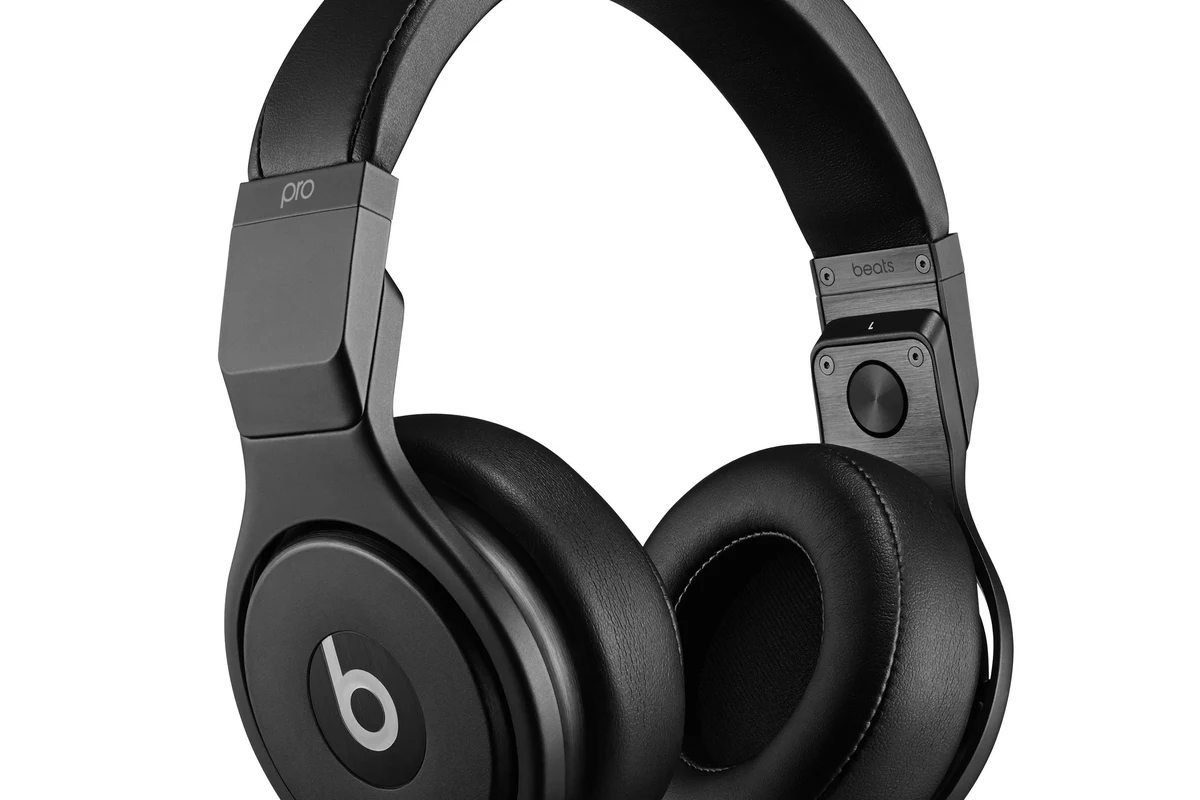
“Dre Beats headphones” usually refers to Beats by Dre products such as Solo, Studio, Fit Pro, and Powerbeats. Each one handles comfort, controls, and everyday use a little differently, so it helps to know which style you have before you start pressing buttons.
Understanding the model differences: Solo, Studio, Fit Pro, and Powerbeats
Solo and Studio models are typically over-ear headphones, which means they sit around your ears and are better for home listening, commuting, and long sessions. Fit Pro and Powerbeats are in-ear or sport-focused options, which usually make more sense for workouts, running, and lighter travel setups.
The control layout also changes by model. Some Beats headphones use physical buttons, while newer earbuds may rely on press controls or touch-style actions, so it is worth checking the model-specific guide before assuming every Beats product works the same way.
Matching this guide to your goal: music, calls, workouts, or travel
If your main goal is music, focus on fit, sound balance, and any EQ settings available through your phone or app. If you use them for calls or meetings, microphone placement and Bluetooth stability matter more than extra bass.
For workouts, a secure fit and sweat resistance are the big priorities. For travel, battery life, noise cancellation, and comfort over several hours matter most, especially if you plan to use them on flights or long train rides.
Unboxing and First Setup for Dre Beats Headphones
First setup is usually simple, but a few small steps make a big difference. Taking a minute to charge, pair correctly, and clear old connections can prevent the most common first-day problems.
Beats features and controls may vary by model, phone type, and software version. If something looks different on your pair, check the model-specific instructions in the Beats app or device settings.
Charging the headphones before first use
Before you listen, charge the headphones or earbuds fully if possible. A full first charge is not always required, but it reduces the chance of pairing interruptions and gives you a better sense of battery performance from the start.
Use the cable that came with the product when you can, or a reliable replacement from a reputable brand. Avoid worn-out cables, loose ports, or cheap chargers that may cause slow charging or unstable power.
Powering on, pairing mode, and Bluetooth connection basics
Turn the headphones on by using the power control for your model. If they do not appear on your phone right away, place them in pairing mode by following the model’s button sequence until the status light indicates they are ready to connect.
On Bluetooth devices, the headphones should appear in your settings list once pairing mode is active. If a connection fails, turn Bluetooth off and on again, move closer to the device, or remove the old pairing and try again.
Hold the power or pairing control until the light flashes or the headphones appear discoverable.
Open Bluetooth settings and tap the Beats name when it shows up in the available devices list.
Play a track or video and make sure sound is coming through the headphones, not the phone speaker.
Connecting to iPhone, Android, Windows, and Mac
On iPhone, pairing is often the easiest because Beats is designed to work smoothly in the Apple ecosystem. If you are setting up a new pair, keep your phone nearby, enable Bluetooth, and follow the on-screen prompt if it appears.
On Android, Windows, and Mac, the process is still straightforward, but you may need to connect manually through Bluetooth settings. If you need a broader refresher on device pairing, our guide on how to connect Bluetooth headphones explains the general process clearly.
For Windows users, it can also help to confirm the output device after pairing, especially if the sound does not switch automatically. If that happens, our article on selecting headphones in Windows 11 may save time.
How to Use Dre Beats Headphones for Everyday Listening
Once the headphones are paired, everyday use becomes simple. The key is learning your model’s controls so you can adjust playback without reaching for your phone every few minutes.
Using the physical buttons and touch controls correctly
Most Beats headphones use a small set of buttons or press controls for power, pairing, volume, and playback. Press too lightly and nothing happens; press too long and you may trigger pairing or shut the headphones off by mistake.
Take a minute to test each control one by one. That is the fastest way to learn what a single tap, double tap, long press, or button hold does on your specific model.
Adjusting volume, skipping tracks, and managing playback
Use the headphone controls to raise or lower volume when you want quick adjustments, but remember that your device volume and app volume can also affect the final output. If the sound seems too quiet, check all three: the headphones, the phone, and the app.
Track skipping and pause/play functions are especially useful when you are walking, commuting, or working out. Learning these controls early makes the headphones feel much easier to use day to day.
If your Beats sound too loud or too soft, test them with a familiar song first. A track you know well makes it easier to spot whether the volume, bass, or clarity is set the way you want.
Activating voice assistant and call controls
Many Beats models let you trigger voice assistants or manage calls from the headphones itself. This is useful when your phone is in a pocket, bag, or desk drawer and you do not want to interrupt what you are doing.
For calls, a short press often answers or ends the call, while a longer hold may reject it or activate another function. Since this varies by model, it is worth checking the control map once instead of guessing during an important call.
Getting the Best Sound Quality from Dre Beats Headphones
Beats are often chosen for easy wireless use and a lively sound profile, but the way they fit and the settings you use can change the result a lot. A good seal and the right EQ can matter more than people expect.
Fitting the earcups or earbuds for a secure seal
Over-ear models should sit evenly around your ears without pinching your head. If the earcups are misaligned, bass can feel weak and outside noise may leak in more than expected.
In-ear models need a snug seal to sound their best. Try different ear tip sizes if they are included, because the wrong fit can make music sound thin, reduce noise isolation, and make the earbuds fall out during movement.
A poor earbud seal can make bass seem “missing” even when the headphones are working normally. Fit is often the first thing to fix before changing any sound settings.
Choosing EQ settings and sound modes for different genres
If your device or app offers EQ options, use them to match your listening style instead of leaving everything on one default setting. Bass-heavy settings can be fun for hip-hop and pop, while a flatter or clearer setting may work better for podcasts, acoustic music, and calls.
There is no universal “best” EQ. Personal hearing, song choice, and volume level all affect what sounds balanced, so use small changes and listen for clarity rather than chasing the biggest bass boost.
Using spatial audio and noise cancellation when available
Some Beats models include spatial audio, active noise cancellation, or transparency features. Spatial audio can make movies and some music feel more immersive, while noise cancellation helps reduce low, steady background sounds like engines or air conditioning.
For more background on this feature type, our guide to how noise cancelling headphones work explains the basics in plain language. If your model also has transparency mode, it is useful when you need to hear announcements or nearby traffic without removing the headphones.
Using Dre Beats Headphones for Calls, Meetings, and Workouts
Beats can do more than music, but each use case has its own best practices. A few small adjustments can make calls clearer, workouts safer, and switching between devices much less annoying.
Optimizing microphone performance in noisy environments
For calls in busy places, position the microphone correctly and keep your voice steady. If you are outdoors, try to face away from strong wind and avoid covering the mic area with hair, clothing, or a scarf.
When possible, move to a quieter spot before important meetings. Even good wireless headphones can struggle if there is a lot of background noise, so environment matters as much as the microphone itself.
Switching between devices during work and travel
If you use Beats with a laptop and phone, device switching can be convenient once everything is paired properly. The trick is to avoid leaving too many old Bluetooth connections active, because that can cause the headphones to connect to the wrong device.
If switching becomes unreliable, forget the device you are not using, reconnect from scratch, and keep only the essentials paired. That simple cleanup often fixes odd connection behavior.
Practical workout use: sweat, stability, and safe volume levels
For workouts, make sure the headphones stay stable when you move. If they shift during running, jumping, or lifting, the fit may need adjustment or a different model may suit you better.
Also keep the volume reasonable in the gym. Loud music can feel motivating, but it can also mask surrounding sounds like equipment, people, or traffic if you are exercising outdoors.
Listening at high volumes for long periods can cause hearing damage. Keep volume at 60% or below for extended sessions.
Common Mistakes People Make When Using Dre Beats Headphones
Most setup and usage problems are not serious. They usually come from old Bluetooth pairings, overworked batteries, or simple care mistakes that are easy to avoid once you know what to look for.
Pairing issues caused by old Bluetooth connections
If your headphones keep connecting to the wrong device or failing to show up, old Bluetooth memory is often the reason. Remove the Beats from unused phones, tablets, and laptops, then reconnect only the devices you actually use.
A quick reset can also help when the headphones act stuck or unresponsive. If you need a broader troubleshooting refresher, our guide on how to reset Bluetooth headphones covers the general steps.
Battery drain from leaving features on unnecessarily
Features like noise cancellation, spatial audio, or always-on Bluetooth can reduce battery life faster than expected. If you do not need them, turn them off to stretch your listening time.
It also helps to avoid leaving the headphones powered on in a bag or on a desk when you are done. Small habits like that can make the battery last longer between charges.
Cleaning and storage mistakes that shorten lifespan
After workouts or long listening sessions, wipe away sweat, dust, and oils with a soft dry cloth. Moisture and grime can wear down cushions, grilles, and charging contacts over time.
Store the headphones in a case or safe place instead of tossing them loosely into a backpack. Pressure, bending, and tangled cables can all shorten the life of the product.
Expert Advice: What to Avoid to Protect Your Beats and Hearing
Good headphones should be enjoyable, but they should also be used safely. The biggest long-term risks are usually too much volume, poor fit, and cheap accessories that create avoidable problems.
Warning signs of listening too loud for too long
If your ears feel tired, muffled, or sensitive after listening, that is a sign to lower the volume and take a break. You should not need to strain to hear lyrics, dialogue, or meeting audio.
If you are worried about hearing changes or tinnitus, follow safe listening guidance and speak with an audiologist. It is better to adjust habits early than wait for a problem to get worse.
When not to use noise cancellation or transparency mode
Noise cancellation is helpful in many quiet, steady-noise environments, but it may not be ideal when you need full awareness of your surroundings. Use caution near traffic, train platforms, or any place where hearing external sounds matters for safety.
Transparency mode can also be distracting if you are trying to focus or relax. Use the mode that fits the situation instead of leaving one setting on all day.
How to avoid counterfeit accessories and unreliable chargers
Be careful with low-quality replacement cables, adapters, and ear tips. Counterfeit or poorly made accessories can damage charging performance, fit, and in some cases the headphones themselves.
When in doubt, choose reputable accessories and check compatibility before buying. That is especially important if you are replacing a cable or charging case component for a specific Beats model.
If you notice persistent distortion, one-sided audio, charging failures, or pain while wearing the headphones, contact the manufacturer or consult an audiologist or audio specialist as needed.
Price, Value, and Final Recap: Are Dre Beats Headphones Easy to Use?
For most people, Beats are easy to use because the setup is straightforward and the controls are designed for everyday listening. The real value depends on whether you want simple wireless convenience, workout-friendly design, or a comfortable travel companion.
Quick comparison of setup ease versus other premium headphone brands
Compared with many premium wireless headphones, Beats are generally beginner-friendly, especially for people already using iPhone or other Apple devices. Android, Windows, and Mac users can still use them easily, but may need a little more manual setup.
That said, “easy” does not always mean “best for every person.” Some listeners prioritize a more neutral sound, different comfort shapes, or specific features such as stronger noise cancellation or wired options.
What the learning curve looks like for first-time users
The learning curve is usually short. Once you know how to charge, pair, and use the main buttons or touch controls, the headphones become simple to live with.
The only part that may take a little practice is remembering the exact control layout for your model. After that, most people can use Beats confidently without checking instructions every day.
Final recap of the fastest way to use Dre Beats headphones like a pro
Charge them first, pair them once carefully, and learn the playback controls before your first commute, workout, or call. Then focus on fit, safe volume, and the features you actually need instead of leaving everything on by default.
If you do those basics well, you will get a smoother experience and better sound from the start. That is the simplest way to use Dre Beats headphones like a pro today.
Frequently Asked Questions
Wireless is usually easier for everyday use, calls, and travel. Wired can be useful if your model supports it and you want a direct connection with no Bluetooth pairing.
Some Beats models do, but not all of them. Noise cancelling can help in steady background noise, while transparency mode is useful when you need to hear your surroundings.
Over-ear models are often better for long listening sessions and travel comfort. In-ear models are usually better for workouts, portability, and a tighter fit.
Start by getting a secure fit, because poor fit can weaken bass and reduce clarity. Then adjust EQ settings lightly instead of making extreme changes.
Check the model type, comfort, battery life, controls, and whether it fits your main use case. It also helps to compare wireless features, noise cancellation, and device compatibility before buying.
Choose the right ear tip size or adjust the headband so the fit feels secure but not tight. Taking breaks and keeping the volume moderate also helps reduce fatigue.