How To Stop White Noise In Headphones: Easy Fixes

White noise in headphones usually comes from the headphone amplifier, active noise cancellation system, Bluetooth connection, cable, or audio source. To stop it, lower the volume, turn off noise cancellation and transparency modes, test another device, and check whether the sound continues with no audio playing. If the hiss remains, update the headphones, clean the connection, or have the hardware repaired.
This guide applies to common headphones and earbuds used in the United States, including Bluetooth models, wired headsets, AirPods, Android earbuds, Windows headsets, and gaming headphones. The exact menu names may differ by brand and device.
What the White Noise Means
White noise sounds like a soft hiss, static, or “shhh” sound. It may be steady, appear only when noise cancellation is on, or become louder when you raise the volume.
The sound does not always mean the headphones are broken. Some noise comes from normal electronic operation. Other noise points to a poor cable, a weak Bluetooth link, a dirty port, or a damaged component.
Use this quick test:
- Stop all music and video.
- Set the headphone volume to a safe, low level.
- Disconnect the headphones from the device.
- Listen for the hiss again.
- Test the headphones with a second device.
The result helps narrow down the cause.
| What you hear | Most likely cause |
|---|---|
| Hiss only with noise cancellation on | ANC microphone, amplifier, or firmware issue |
| Hiss only with a wired connection | Cable, adapter, jack, or electrical interference |
| Hiss that changes when you move the cable | Damaged cable or loose plug |
| Hiss only on one device | Phone, computer, app, or audio port |
| Hiss during silence on Bluetooth | Headphone electronics or Bluetooth processing |
| Crackle, pops, or dropouts | Wireless interference, low battery, or hardware trouble |
A quiet hiss can be normal in some sensitive in-ear headphones. A loud, new, or one-sided hiss is less likely to be normal.
First Steps to Stop Headphone White Noise
Start with simple checks. These steps are safe, fast, and work for many headphone types.
1. Lower the volume
Turn down both the headphone volume and the device volume. Some headphones add more background hiss at high gain levels.
If the hiss becomes much quieter, the headphone amplifier may be producing a noise floor. The “noise floor” is the small amount of electrical sound created by an audio system even when no music plays.
Do not increase the volume to cover the hiss. That can raise your risk of hearing damage.
2. Pause the audio and restart the device
Pause music, close the video app, and restart the phone, tablet, or computer. A stuck audio process can create clicks or static.
For a Bluetooth headset, turn Bluetooth off and back on. Then reconnect the headphones. On Windows, you can also remove the headset from Bluetooth settings and pair it again.
3. Fully charge the headphones
Low battery power can cause noise, dropouts, or unstable connections in some wireless headphones. Charge both earbuds if you use a true wireless pair.
Check the charging case as well. One earbud may fail to charge if its metal contacts are dirty.
4. Turn off extra sound modes
Open the headphone app or device sound settings. Turn off:
- Active noise cancellation
- Transparency or ambient mode
- Adaptive sound
- Bass boost
- Equalizer presets
- Spatial audio
- Hearing or conversation modes
Test each mode one at a time. If the hiss stops when ANC is off, the noise is tied to the microphones, processing, or amplifier. That result does not prove that the hardware is defective, but it identifies the area to check.
5. Test a different app
Play audio from another source. For example, compare a downloaded song with a web video and a podcast app.
If only one app creates noise, check that app's volume normalization, equalizer, or audio enhancement settings. A recording with a noisy background may also sound like headphone hiss.
How to Fix White Noise in Bluetooth Headphones
Bluetooth headphones can produce static when the wireless link is weak or when the headset switches between audio modes.
Try these steps in order:
- Keep the phone or computer within a few feet of the headphones.
- Remove the device from a pocket, bag, or metal surface.
- Move away from crowded wireless areas, such as busy offices or airports.
- Turn off Bluetooth on nearby devices that are not in use.
- Disconnect the headphones from other paired devices.
- Forget the headphones in Bluetooth settings.
- Restart the source device.
- Pair the headphones again.
Many headphones support multipoint Bluetooth. This lets them connect to two devices at once. A second connected device can sometimes cause pauses, clicks, or odd background sounds. Turn off multipoint as a test.
Check the Bluetooth connection
On an iPhone or iPad, open Settings > Bluetooth and tap the information button next to the headphones. Choose Forget This Device if you need to pair them again.
On Android phones, menu names vary. The usual path is Settings > Connected devices > Bluetooth, followed by the settings icon beside the headphones. Remove or forget the device, then pair it again.
On Windows 11, open Settings > Bluetooth & devices. Remove the headphones, restart Bluetooth, and pair them again. Microsoft also recommends checking driver and system updates when Bluetooth audio has connection problems.
Update the headphones
Install firmware updates through the manufacturer's official app. Updates may improve Bluetooth stability, noise control, or compatibility.
Do not interrupt a firmware update. Keep the headphones charged and close to the phone during the process. Firmware updates cannot fix every hardware fault, and an update may not be available for older models.
Check whether the hiss is normal
Some Bluetooth headphones have a faint hiss when they enter an active listening mode. This can happen even when no song is playing. It may be more noticeable with sensitive earbuds because the earbud sits close to the ear canal.
The key test is comparison. If the same model has always produced a very faint hiss in ANC mode, the sound may be part of its design. If the hiss suddenly becomes loud, uneven, or limited to one side, contact the manufacturer.
How to Stop White Noise When Noise Cancellation Is On
Active noise cancellation, or ANC, uses microphones to detect outside sound. The headphones then create an opposing sound signal. This system can make a low hiss more noticeable during quiet moments.
To troubleshoot ANC:
- Switch from ANC to normal or off mode.
- Turn on transparency mode briefly.
- Turn off transparency mode.
- Compare the left and right sides.
- Test the headphones in a quiet room.
- Check for firmware updates.
- Reset the headphones if the manual supports it.
A sudden change in sound can also come from a blocked microphone. Inspect the small microphone openings on the earcups or earbuds. Remove dust with a dry, soft brush. Do not push debris into the openings, and do not spray liquid into the headphones.
When ANC creates a low rumble
A low rumble is different from white noise. It may come from wind, clothing rubbing against a microphone, or pressure changes around the earcups.
Try a better seal. For earbuds, test a different ear tip size. For over-ear headphones, adjust the headband so the cushions sit evenly. A poor seal can make ANC work harder and can make external noise seem strange.
Do not use compressed air near the microphones. It can force dust or moisture deeper into the device.
Reset the noise-control system
Many headphones have a factory reset process. The button combination differs by model. Use the instructions from the official support page rather than guessing.
A reset usually removes saved Bluetooth connections. Write down the device name or keep the pairing instructions nearby before you begin.
If the hiss remains in all modes after a reset, the issue may be a microphone, amplifier, battery, or other internal component.
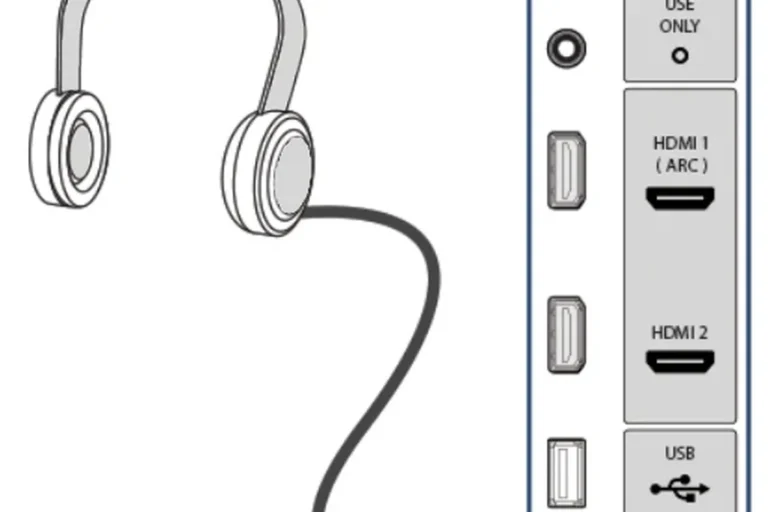
How to Fix White Noise in Wired Headphones
Wired headphones often pick up noise from the cable, adapter, computer port, or power supply.
Use this test:
- Unplug the headphones.
- Inspect the plug and cable.
- Reconnect the plug firmly.
- Try a different audio port.
- Try a different cable if the cable detaches.
- Test the headphones with a battery-powered phone.
- Test another pair of headphones with the original device.
If the noise disappears when you use a phone but remains on a desktop computer, the computer may be creating electrical interference. Desktop computers can pass small electrical signals through the headphone jack.
Check the adapter
USB-C and Lightning adapters contain digital-to-analog conversion hardware. A low-quality, damaged, or incompatible adapter can create hiss or crackle.
Try a known-compatible adapter. Check the connector for dust or bent parts. Do not force the plug into the port.
If the headphones use a 3.5-millimeter plug, make sure it is fully inserted. A partly inserted plug can cause one-sided sound, buzzing, or static.
Look for cable damage
Bend the cable gently near the plug and near each earcup. If the sound changes, the internal wire may be damaged.
Stop using a cable that has exposed wires. It may not create a dangerous electric shock in normal headphone use, but it can damage the device or produce sudden loud sounds.
Reduce computer interference
Try the following:
- Use a rear motherboard audio port instead of a front-panel port.
- Disconnect unused USB devices.
- Move the headphone cable away from power bricks.
- Try a different USB port.
- Use a USB audio adapter.
- Test the computer while running on battery, if it is a laptop.
These tests help identify interference. They do not repair a damaged audio port or faulty power supply.
How to Stop White Noise on a Windows PC or Mac
A computer can add noise through system settings, drivers, ports, or audio effects.
Windows
Check the sound settings and disable enhancements as a test. The path varies by Windows version, but you can usually find these options under Settings > System > Sound and the properties for the selected output device.
Look for settings such as:
- Audio enhancements
- Spatial sound
- Volume normalization
- Equalizer effects
- Communications mode
Update Windows and the computer's audio and Bluetooth drivers. Use drivers from the computer maker or the component maker when available.
If a USB headset creates noise, move it to another USB port. If only one software program creates the noise, check that program's audio settings.
Mac
Open System Settings > Sound and confirm the correct output device. If you use Bluetooth, remove and reconnect the headphones through Bluetooth settings.
For wired headphones, test another port or adapter. Also check whether an audio app is applying an equalizer or effect.
A Mac may switch between output devices when a monitor, dock, or USB accessory is connected. Select the intended headphones again and test the sound.
Gaming headsets
Gaming headsets may produce hiss through microphone monitoring, also called sidetone. Sidetone lets you hear your own voice.
Open the headset software and set sidetone or mic monitoring to zero. Then test again. If the hiss stops, the headphones were monitoring the microphone rather than playing noise from the game.
How to Tell Whether the Headphones Are Faulty
Use a controlled test before replacing the headphones.
Test the same headphones with:
- A different phone
- A different computer
- Bluetooth with ANC off
- Bluetooth with ANC on
- A wired connection, if available
- Another cable, if available
The pattern matters.
| Test result | Likely meaning |
|---|---|
| Noise follows the headphones to every device | Headphone hardware or firmware |
| Noise stays with one phone or computer | Source device, settings, or port |
| Noise appears only with one cable | Cable or connector |
| Noise appears only in ANC mode | ANC system or normal ANC noise floor |
| Noise appears only on one side | Earbud, driver, cable, or microphone fault |
| Noise changes when the plug moves | Loose port or cable damage |
Contact the manufacturer if the headphones are under warranty. Give support the exact model, firmware version, devices tested, and the results of the comparison tests.
Do not open the earcups or earbuds unless the manufacturer specifically supports user repair. Small batteries and delicate microphones can be damaged during disassembly.
Cleaning and Care That Can Reduce Static
Clean only the parts that the manufacturer says are safe to clean.
For most headphones:
- Wipe earcups with a dry or slightly damp soft cloth.
- Clean charging contacts with a dry cotton swab.
- Remove earwax from earbud screens with a soft, dry brush.
- Keep liquid away from ports and microphone openings.
- Let wet headphones dry fully before charging.
- Store wired headphones without tight bends.
Do not use alcohol, water, needles, or metal tools inside speaker or microphone openings unless the manual allows it. Earwax or moisture can change the sound, but aggressive cleaning can cause permanent damage.
If an earbud became wet, power it off and let it dry in a well-ventilated place. Do not use a household hair dryer. Heat can harm the battery and seals.
Common Mistakes to Avoid
Raising the volume to hide the hiss
This masks the problem but does not solve it. It also makes loud sound exposure more likely.
Assuming every hiss means a bad Bluetooth signal
A steady hiss that remains when the device is close may come from the headphone electronics. A weak Bluetooth signal more often causes dropouts, clicks, delays, or brief bursts of static.
Using an unverified reset method
Button combinations differ by model. A wrong reset may change settings without solving the problem. Use the official manual.
Spraying cleaner into the headphones
Liquid can damage microphones, speakers, charging contacts, and batteries. Clean the outside only.
Ignoring one-sided noise
A hiss in one earbud can point to a blocked opening, loose connection, damaged driver, or internal fault. Compare both sides at low volume.
Buying an amplifier without testing the cause
An amplifier may make a sensitive headphone sound worse if it adds gain. First test another source, cable, adapter, and output mode. Add equipment only when you understand the problem.
When to Stop Troubleshooting
Stop using the headphones and seek manufacturer or qualified repair help if you notice:
- A burning smell
- Heat near the battery
- Swelling
- Smoke
- A damaged charging port
- Exposed wires
- Sudden very loud output
- Pain, ringing, or reduced hearing
For hearing symptoms, remove the headphones. If pain, ringing, dizziness, or reduced hearing continues, contact a health professional. Do not keep testing at high volume.
A faint hiss alone is usually an audio-quality issue. Heat, swelling, smoke, or battery damage is a safety issue.
The Fastest Fix for Most People
Follow this order:
- Lower the volume.
- Turn off ANC, transparency, and sound effects.
- Restart the source device.
- Fully charge the headphones.
- Test another app.
- Test another device.
- Re-pair Bluetooth headphones.
- Try another cable or adapter for wired headphones.
- Update the headphone firmware and device software.
- Reset the headphones using the official instructions.
- Contact support if the hiss remains everywhere.
The most useful clue is whether the noise follows the headphones or stays with one source device. That single test often separates a headphone fault from a phone, computer, cable, or app problem.
FAQs About White Noise in Headphones
Why do my headphones hiss when no music is playing?
The hiss may come from the headphone amplifier, ANC microphones, transparency mode, or a noisy audio source. Test the headphones with ANC off and with a second device. A faint, steady hiss can be normal in some sensitive earbuds.
Is white noise in headphones dangerous?
The hiss itself is not usually dangerous at a low volume. The greater risk comes from turning the volume up to cover it. Stop using the headphones if you develop pain, ringing, dizziness, or hearing changes.
Why do my headphones hiss only when ANC is on?
ANC uses microphones and signal processing, which can create or reveal a low background hiss. Check for blocked microphone openings, install firmware updates, and compare ANC with normal mode. If the sound is new or loud, contact the manufacturer.
Why do wired headphones hiss on my computer but not my phone?
The computer's audio port may pick up electrical interference or use a noisier amplifier. Try another port, a different cable, or a compatible USB audio adapter. If the headphones work normally on other devices, the headphones may not be the problem.
Can a damaged headphone cable cause white noise?
Yes. A damaged cable can create hiss, crackle, channel loss, or noise that changes when the cable moves. Replace a detachable cable or have a fixed cable repaired rather than continuing to bend it.
Should I replace headphones that have a faint hiss?
Not always. If the hiss is quiet, stable, and present only in a specific mode, it may be normal for that model. Replace or repair the headphones when the noise is new, loud, one-sided, worsening, or present across every device and mode.
Conclusion
To stop white noise in headphones, begin with low-risk checks: lower the volume, disable ANC and sound effects, restart the device, and test another source. Then check Bluetooth pairing, cables, adapters, ports, firmware, and microphone openings.
If the hiss follows the headphones through every test, the problem is likely inside the headset. Use the warranty or official repair service, and do not open headphones with built-in batteries unless the manufacturer provides a safe repair method.