How To Increase Bass On Headphones PC: Easy Audio Boost

For Windows 10 and Windows 11 PCs in the United States, the fastest way to increase bass on headphones is to adjust the sound equalizer. Start with the bass control in your headphone app, PC maker’s audio app, or media player. If no equalizer is available, use a trusted system-wide tool such as Equalizer APO with Peace.
Increase low frequencies in small steps. A boost of about 3 to 6 decibels (dB) often adds more bass without making music muddy. If the sound becomes distorted, lower the preamp or overall volume before raising the bass again.

Check the Simple Causes First
Before changing equalizer settings, confirm that your PC, headphones, and audio app are working correctly. Weak bass is not always caused by a missing bass boost.
Try these checks:
- Test another song or video. Some recordings have little low-end sound by design.
- Try another pair of headphones. This shows whether the issue comes from the headphones or the PC.
- Check the headphone fit. Over-ear and in-ear headphones need a good seal to produce strong bass.
- Turn off unwanted sound effects. Virtual surround, room correction, or low-quality presets can reduce bass.
- Check the left and right channels. A loose plug or damaged cable can make music sound thin.
- Update the audio driver. Use Windows Update or the support page for your PC maker.
- Check the output device. Make sure Windows is using your headphones instead of a monitor, dock, or built-in speaker.
A poor seal is a common cause of weak bass with earbuds. If outside sound leaks in, low frequencies may seem much quieter even when the computer is working normally.
Confirm the correct Windows output
- Right-click the speaker icon on the Windows taskbar.
- Select Sound settings.
- Under Output, choose your headphones.
- Play audio and confirm that the level meter responds.
For Bluetooth headphones, check that they are connected as the normal stereo output. Some headsets switch to a hands-free communications mode when an app uses the microphone. That mode may sound worse than the stereo mode.

Use Windows Sound Settings for Built-In Bass Options
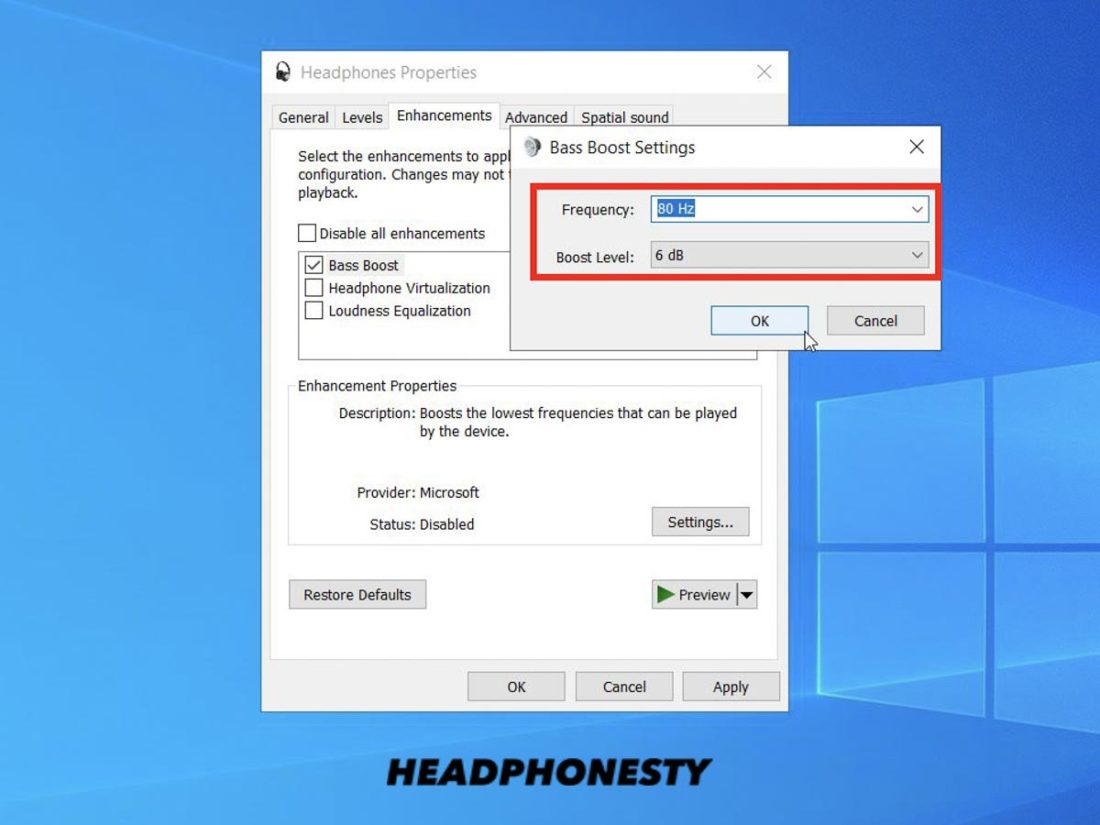
Windows may provide audio enhancements, but the available options depend on your sound driver and hardware. Microsoft documents these controls through the Windows sound settings, but the names and locations can differ between PCs.
Windows 11 steps
- Open Settings.
- Select System, then Sound.
- Choose your headphones under Output.
- Open the device properties.
- Look for Audio enhancements or Enhance audio.
- If available, review options such as Bass Boost, Loudness Equalization, or other enhancements.
If you see Bass Boost, enable it and test the result. Do not assume that Loudness Equalization is the same as bass boost. Loudness equalization changes the difference between loud and quiet sounds. It may make quiet bass easier to hear, but it does not directly add more low-frequency energy.
Windows 10 steps
- Right-click the speaker icon in the taskbar.
- Select Open Sound settings.
- Choose your headphones.
- Select Device properties.
- Open Additional device properties.
- Choose the Enhancements tab.
- Look for Bass Boost or a similar option.
Some Windows 10 and Windows 11 systems do not show an Enhancements tab. This usually means the current driver does not expose those controls, or the PC maker uses a separate audio application.
If the setting is missing
Look for an audio control app from your computer or motherboard maker. Common examples include:
- Realtek Audio Console
- Dolby Access
- DTS Sound Unbound
- Nahimic
- Waves MaxxAudio
- ASUS Armoury Crate audio controls
- Lenovo Vantage audio controls
- HP Audio Control
- Dell Optimizer audio settings
The exact options depend on your PC, driver, Windows version, and headphone connection. Download audio software only from the Microsoft Store, your PC maker, or the official developer.
Increase Bass With an Equalizer
An equalizer lets you change selected frequency ranges. Bass usually refers to frequencies from about 20 Hz to 250 Hz, although listeners may use the word more broadly.
For a simple bass boost, adjust the lower bands first:
| Frequency band | Main effect | Starting change |
|---|---|---|
| 31–60 Hz | Deep rumble and sub-bass | +2 to +4 dB |
| 80–125 Hz | Kick drums and bass guitar weight | +2 to +4 dB |
| 160–250 Hz | Warmth and body | 0 to +2 dB |
| 500 Hz–1 kHz | Lower midrange | 0 dB at first |
| 2 kHz and above | Speech, detail, and brightness | Leave unchanged initially |
These values are starting points, not universal settings. Headphones differ, and a setting that works for one model may sound boomy on another.
Use your headphone manufacturer’s app
Many gaming and wireless headphones include a companion app. Open the app and look for:
- Equalizer
- EQ
- Custom sound
- Bass boost
- Sound profile
- Presets
Choose a custom profile if one is available. Raise the low bands by 2 or 3 dB, then listen to a familiar track. Add more only if the sound remains clean.
Use a media player equalizer
Some programs change only the audio played inside that program. For example, VLC Media Player includes an equalizer under its audio tools. Music services and game launchers may also include their own sound controls.
This method is useful when you want more bass in one app but not in calls, system alerts, or other games. It does not create a system-wide change.
Use Equalizer APO for system-wide control
Equalizer APO is a free Windows audio processor that can apply EQ to selected playback devices. Peace is a separate graphical interface commonly used to control Equalizer APO.
A typical setup is:
- Download Equalizer APO from its official project page.
- Install it and select the headphone output in the configurator.
- Restart Windows if the installer requests it.
- Install Peace from its official source if you want a visual control panel.
- Select your headphones in the EQ software.
- Raise the low-frequency bands gradually.
- Play music and check for clipping or distortion.
Equalizer APO may not work with every audio path. Exclusive-mode applications, some games, virtual audio devices, and certain manufacturer effects can bypass or conflict with it. If the EQ has no effect, check that the correct playback device was selected and restart the audio app.

Prevent Distortion When You Add Bass
Bass boosts can cause clipping. Clipping happens when the processed audio signal exceeds the available level. It may sound harsh, cracked, or flattened, especially during loud parts of a song.
Use this safer method:
- Lower the equalizer’s preamp by about 3 to 6 dB.
- Raise the low-frequency bands.
- Increase the main volume only as needed.
- Test with bass-heavy music and spoken audio.
- Reduce the bass if the sound becomes muddy or distorted.
For example, if you raise the 60 Hz band by 5 dB, start by lowering the preamp by about 5 dB. This does not guarantee perfect headroom, because recordings and equalizers behave differently, but it reduces the chance of clipping.
Signs of too much bass
Reduce the boost if you hear:
- Crackling on kick drums
- Rattling from the headphone driver
- Blurred vocals
- Bass notes that cover guitar or piano
- A constant booming sound
- Sudden volume changes between apps
A good bass boost should make low notes easier to feel and hear. It should not make every sound seem louder or hide the rest of the music.

Fix Weak Bass on Bluetooth Headphones
Bluetooth headphones may sound thin because of the connection mode, device profile, or app settings. Start by checking the basics rather than changing many EQ controls at once.
Try these steps:
- Disconnect the headphones from other nearby devices.
- Remove the headphones from Bluetooth & devices in Windows.
- Pair them again.
- Confirm that Windows uses the stereo output.
- Close apps that use the headset microphone.
- Test the headphones with the microphone disabled.
- Apply EQ through the headphone app or Windows output device.
When a Bluetooth headset uses a hands-free profile, Windows may prioritize two-way voice communication. This can change the audio quality. The exact behavior depends on the headset, Bluetooth hardware, drivers, and Windows version.
If the headphones sound normal with a phone but weak on the PC, the PC connection or profile is more likely to be the cause. If they sound weak on every device, the headphone tuning, fit, seal, or hardware may be responsible.

Improve Bass for Games, Music, and Movies
Different types of audio need different EQ choices. A single heavy bass profile may sound good in a game but make voices unclear in video calls.
For music
Use a small boost around 60 to 125 Hz. Keep the 160 to 250 Hz range modest, since too much energy there can make music sound thick.
For games
A little low-end boost can make explosions and engine sounds feel stronger. However, too much bass may cover footsteps, reload sounds, and voice chat. For competitive games, clarity may matter more than maximum bass.
For movies
Try a modest boost below 125 Hz. If dialogue becomes hard to understand, lower the 160 to 300 Hz area rather than raising the volume for the entire movie.
For voice calls
Avoid a strong bass profile. Speech clarity usually improves when the low end is neutral or slightly reduced. Keep a separate music or game preset if your EQ software allows it.

When an Equalizer Cannot Add Real Bass
An equalizer changes the signal sent to the headphones. It cannot fix every physical limitation.
Bass may remain weak when:
- The headphone drivers have limited low-frequency output.
- The ear cups or earbuds do not seal well.
- The headphones are damaged.
- The source audio has little bass.
- The audio device cannot provide enough power.
- A software effect is bypassing the EQ.
- The headphones are connected through a faulty adapter or cable.
Do not keep increasing bass to compensate for a damaged driver. Rattling, buzzing, or imbalance can indicate a hardware problem.
Headphone impedance and sensitivity also affect volume and available headroom. Most common headphones work from a PC headphone jack, but some high-impedance models may play quietly. A suitable headphone amplifier can help with level and control, but it does not automatically change the headphone’s frequency tuning.

Protect Your Hearing
More bass does not require unsafe volume. Strong low frequencies can make audio feel less harsh, which may encourage you to raise the overall level without noticing.
Use a comfortable volume and take regular breaks. If you hear ringing, pain, muffled hearing, or a feeling of pressure after listening, stop and lower the volume. Persistent symptoms should be discussed with a qualified medical professional.
Do not use an EQ to overcome a noisy environment. In-ear headphones with a proper fit or noise-canceling headphones may let you listen at a lower level, but noise cancellation does not make high volume safe.

Common Mistakes to Avoid
Raising every EQ band
This increases volume more than bass and can cause clipping. Raise only the low bands first.
Using several bass boosts at once
Windows, a headphone app, a media player, and a game may all apply effects. Stacking them can create distortion and make troubleshooting difficult.
Turning on Loudness Equalization and expecting deep bass
This option manages loudness differences. It is not a dedicated sub-bass control.
Installing random driver tools
Untrusted driver packages can create security and compatibility problems. Use official sources.
Ignoring the headphone seal
A loose earbud fit can remove much of the bass you want. Try a different ear tip size or adjust the ear cup position before changing software.
Testing with only one song
Use several tracks with different bass instruments, vocals, and volume levels. A setting that sounds good on one track may sound poor on another.

Quick Troubleshooting Table
| Symptom | Likely cause | Best next step |
|---|---|---|
| No bass in every app | Wrong output, poor seal, driver issue, or hardware limit | Test another output and another pair of headphones |
| Bass works in one app only | App-specific EQ | Check the app’s audio settings |
| Sound is louder but not bassier | Loudness or volume effect | Use a frequency EQ instead |
| Bass is muddy | Too much 160–250 Hz boost | Reduce the upper bass bands |
| Bass crackles | Clipping or damaged driver | Lower preamp and test another device |
| EQ does nothing | Wrong device or bypassed audio path | Select the correct output and restart the app |
| Bluetooth sound changes during calls | Hands-free profile | Close microphone apps or use stereo mode |
| Headphones are quiet | Low source level or difficult-to-drive headphones | Check volume, connection, and device compatibility |

Frequently Asked Questions
What is the best bass setting for headphones on a PC?
There is no single best setting for every headphone. Start with a 2 to 4 dB boost around 60 to 125 Hz, then adjust by ear. Lower the preamp if the sound clips.
How do I increase bass without making the sound muddy?
Boost deep bass in small steps and keep the 160 to 250 Hz range modest. If vocals lose clarity, reduce the upper-bass bands instead of raising the overall volume.
Does Windows 11 have a bass boost setting?
Some Windows 11 PCs show Bass Boost or related enhancements, but the option depends on the audio driver and hardware. Check the headphone device properties and the PC maker’s audio app.
Why does my bass boost sound distorted?
The EQ may be causing clipping, or the headphone driver may be reaching its limit. Lower the preamp or main volume, then test the headphones with another device.
Can I increase bass on a PC without downloading software?
Yes. Use Windows audio enhancements, your headphone manufacturer’s app, or the equalizer built into a media player. These options may not provide system-wide control.
Conclusion
To increase bass on headphones on a PC, first select the correct output and check the headphone fit. Then use Windows enhancements, a manufacturer app, or an equalizer to raise the low bands by a few decibels. Keep the preamp lower when you boost bass, and test several types of audio.
If the result is still weak, the cause may be the Bluetooth profile, audio driver, cable, headphone seal, or physical limits of the headphones. Make one change at a time so you can find the setting that improves bass without sacrificing clarity or hearing safety.