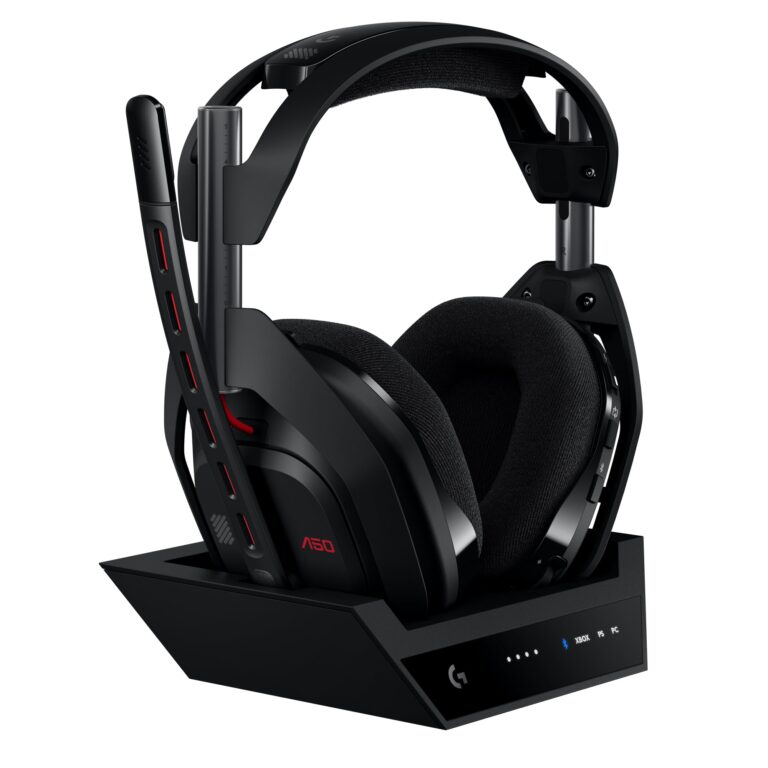
How to Connect Headphones to TV Easily and Fast

The easiest way to connect headphones to a TV is usually Bluetooth if your TV supports it well. If you want the most reliable sound, a wired jack or dedicated transmitter is often the better choice.
Connecting headphones to a TV is easier than most people expect, but the best method depends on your TV model, your headphones, and whether you care more about convenience or low-latency audio. In 2025, most viewers can choose between Bluetooth, wired headphone jacks, or a dedicated wireless transmitter for better reliability.
If you want a simple setup for movies, gaming, or late-night viewing, this guide from the Top Headphone Reviews Editorial Team walks through the safest and most practical options. We’ll also cover common problems, TV-specific setup tips, and what to check before buying a headphone solution.
- Fastest option: Bluetooth is simplest on compatible TVs.
- Most stable option: Wired or transmitter setups usually avoid delay.
- Best for gaming: Low-latency headphones help keep audio in sync.
- Common fix: Check TV sound output settings before troubleshooting hardware.
How to Connect Headphones to TV: What Viewers in 2025 Need to Know
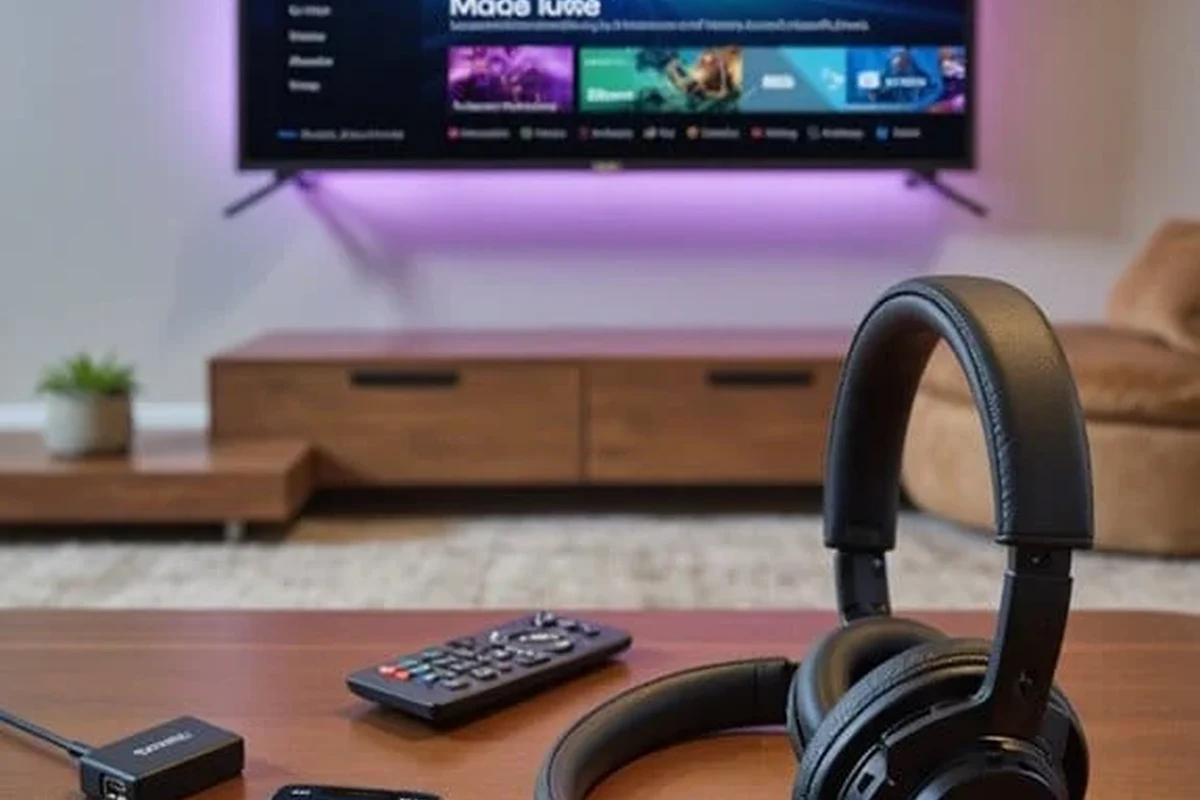
The first thing to check is what audio outputs your TV actually has. Some TVs offer built-in Bluetooth, while others rely on a 3.5mm headphone jack, RCA audio out, optical audio, USB, or HDMI-ARC through an external device.
That matters because the easiest method is not always the best one. Built-in Bluetooth is convenient, but a wired connection or a dedicated transmitter may sound more stable, especially for gaming or fast-moving scenes.
TV menus and port labels vary by brand and model, so the exact steps may differ slightly between Samsung, LG, Sony, Roku TVs, and older sets.
Before you buy anything, check whether you want headphones for solo viewing, shared living-room use, or gaming. A movie watcher may prioritize comfort and battery life, while a gamer usually needs lower latency and tighter lip-sync.
Best Ways to Connect Headphones to a TV: Wired, Wireless, and Bluetooth Options
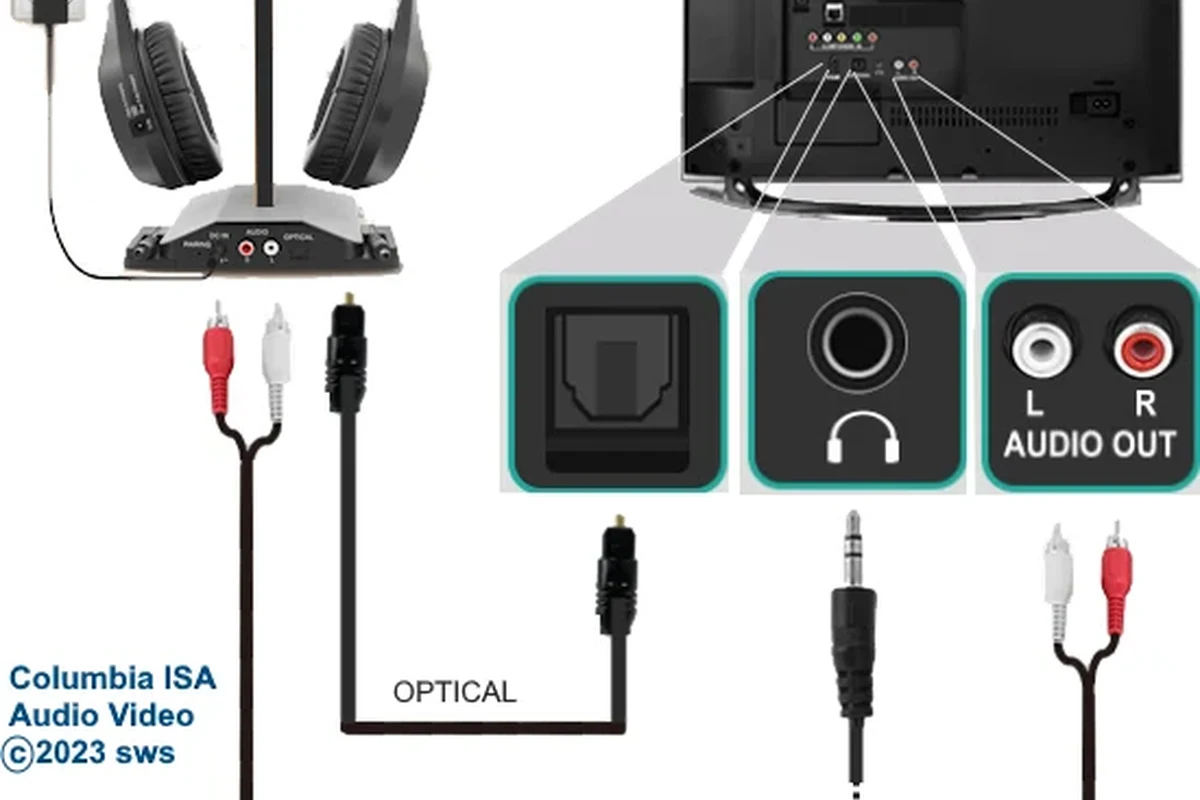
There are three main ways to connect headphones to a TV: Bluetooth, wired analog audio, and wireless transmitter-based setups. Each has strengths, and the right choice depends on your TV’s outputs and how sensitive you are to delay.
For many people, the simplest route is Bluetooth if the TV supports it well. For others, especially those with older TVs or audio delay issues, a transmitter or wired adapter may be the better long-term choice.
Bluetooth TV Connection: When It Works Best
Bluetooth is the cleanest option when your TV has good built-in support and your headphones pair easily. It removes cables, works well for casual watching, and is ideal if you already use wireless headphones daily.
Still, Bluetooth can introduce lag on some TVs, which may be noticeable during dialogue-heavy shows or gaming. If your TV supports audio sync adjustment, that can help, but it does not always solve the issue completely.
If you plan to watch a lot of TV through Bluetooth, look for headphones with low-latency support or a TV that includes audio delay controls.
Using a 3.5mm Headphone Jack or RCA Adapter
If your TV has a headphone jack, this is usually the easiest wired option. Just connect the cable, switch the TV’s sound output if needed, and adjust the volume from the TV or headphones depending on the model.
Older TVs may have RCA audio outputs instead of a headphone jack. In that case, an RCA-to-3.5mm adapter can work well for wired headphones or a headphone amplifier, though the sound behavior may vary by TV.
Some TV headphone jacks lower the TV speaker volume automatically, while others mute the speakers completely. Check your sound settings so you do not assume the connection is broken.
Optical, USB, and HDMI-ARC Workarounds for Modern TVs
Modern TVs sometimes skip a dedicated headphone jack, but you may still have useful alternatives. Optical audio can feed a DAC or transmitter, USB may support certain audio devices on some models, and HDMI-ARC can work with an external audio extractor or soundbar-style setup.
These methods are less plug-and-play than Bluetooth or a headphone jack, but they can offer better stability. They are especially useful when you want to keep TV speakers, use a sound system, or create a more permanent gaming setup.
Many TVs handle Bluetooth audio differently from Bluetooth phones or laptops, which is why one headset may sound delayed on a TV even if it works perfectly elsewhere.
Step-by-Step Setup for Each TV Type: Samsung, LG, Sony, Roku, and Older Models
TV brands usually follow the same general logic, but their menus can be arranged differently. The key is to find the sound output menu, choose the right device, and confirm the TV is sending audio to headphones instead of speakers.
Smart TV Setup Example: Pairing Bluetooth Headphones
Go to the audio or sound menu and look for Bluetooth, sound output, or speaker settings.
Hold the pairing button until the indicator light flashes or the voice prompt says pairing mode.
Choose the headset from the available Bluetooth devices and wait for confirmation.
Play a show or game, then check whether the sound is clear and in sync with the picture.
Samsung, LG, Sony, and Roku TVs often use slightly different menu names, but the process is usually the same. If the TV does not find the headphones, turn Bluetooth off and on again, restart both devices, and try pairing from scratch.
If you want a deeper look at pairing basics, our guide on how to connect Bluetooth headphones can help you understand the general pairing process before you troubleshoot the TV side.
Non-Smart TV Setup Example: Using a Transmitter or Adapter
Older TVs often work best with a wired adapter or a Bluetooth transmitter connected to the TV’s audio output. A transmitter plugs into optical, RCA, or sometimes the headphone jack and sends audio to compatible wireless headphones.
This is often the most dependable choice if your TV has no Bluetooth menu at all. It also gives you more control over latency, which matters if you watch sports or play games where sound timing is important.
- Does the TV have optical, RCA, or headphone output?
- Does the transmitter support your headphone type?
- Does the setup keep audio delay low enough for your use?
Common Problems When Connecting Headphones to TV and How to Fix Them
Most headphone-to-TV issues come from pairing, output selection, or audio delay. The good news is that many of them can be fixed with simple settings changes before you buy new gear.
No Sound, Delayed Audio, or Pairing Failures
If you get no sound, first confirm that the TV is actually sending audio to the headphones. Check volume, mute status, and output selection, then make sure the headphones are charged and in pairing mode.
For Bluetooth failures, remove the device from the TV’s saved list and pair it again. If the TV still refuses to connect, a transmitter or wired adapter may be more reliable than the built-in Bluetooth.
Listening at high volumes for long periods can cause hearing damage. Keep volume at 60% or below for extended sessions.
Audio Out of Sync During Movies or Gaming
Audio delay is one of the most common complaints with wireless TV listening. It is usually more noticeable in gaming, where even a small delay can make dialogue, effects, or action feel off.
Some TVs include lip-sync or audio delay settings that can reduce the problem. If that does not help, low-latency wireless headphones or a dedicated transmitter may be a better fit than standard Bluetooth.
If you regularly notice delay, distortion, or one-sided audio across multiple devices, consider speaking with an audiologist for hearing-related concerns or an audio specialist for setup advice.
TV Volume, Muting, and Output Settings Mistakes
One common mistake is assuming the headphones are broken when the TV is simply still set to internal speakers. Another is forgetting that some TVs keep the headphone volume separate from the main speaker volume.
Check whether the TV mutes speakers automatically when headphones connect. If not, you may need to lower speaker volume manually or choose a different output mode in the sound menu.
Best Headphone and Adapter Choices for TV Watching and Gaming
The best TV headphone choice depends on how you use it. For casual viewing, comfort and easy pairing matter most. For gaming, low latency and stable connectivity usually matter more than extra features.
- Bluetooth is easiest when the TV supports it well.
- Wired connections are often simpler and more stable.
- Transmitters help older TVs and reduce compatibility issues.
Budget vs Premium: What You Get at Different Price Points
Budget options usually give you basic wireless or wired TV listening with fewer extras. Premium models may add better comfort, stronger battery life, more reliable pairing, or lower-latency performance, but results still vary by brand and model.
If you only watch TV occasionally, a simple adapter or entry-level wireless headset may be enough. If you use headphones every night, it is usually worth paying more for comfort, build quality, and easier setup.
Low-Latency Wireless Headphones vs Standard Bluetooth Models
Standard Bluetooth headphones are convenient, but they may introduce delay on some TVs. Low-latency wireless models, especially those paired with a dedicated transmitter, are often better for gaming and fast dialogue.
If you want the smoothest match between picture and sound, that low-latency setup is usually the safer pick. Standard Bluetooth is still fine for talk shows, casual streaming, and relaxed movie nights when delay is not a dealbreaker.
Expert Advice: What to Check Before Buying a TV Headphone Solution
Before you buy, think about how far you sit from the TV, how long you watch, and whether you need headphones for only one room or multiple devices. A solution that looks simple on paper may be frustrating if it does not match your TV’s output options.
Latency, Range, Battery Life, and Comfort for Long Viewing Sessions
Latency affects lip-sync, range affects how freely you can move around the room, and battery life matters if you watch several episodes in a row. Comfort is also a major factor, especially for over-ear headphones during long sessions.
For many viewers, soft ear cushions, moderate clamping force, and a lightweight fit are just as important as sound quality. If you plan to wear headphones for hours, choose a model that feels comfortable before you focus on extra features.
When to Avoid Built-In Bluetooth and Choose a Dedicated Transmitter
Built-in Bluetooth is not always the best answer, even on newer TVs. If your TV has poor pairing behavior, limited codec support, or obvious delay, a dedicated transmitter can be a smarter purchase.
A transmitter can also help if you want a more consistent setup across different headphones. This is especially useful in homes where multiple people may use the same TV with different wireless headsets or earbuds.
- More stable pairing
- Often better for gaming
- Works with older TVs
- Extra device to set up
- May need cables or power
- Compatibility can still vary
Final Recap: The Fastest and Easiest Way to Connect Headphones to TV
If your TV supports Bluetooth well, that is usually the fastest and easiest way to connect headphones to TV. If you want the most reliable sound, especially for gaming or older sets, a wired jack or dedicated transmitter is often the better choice.
The best setup is the one that matches your TV’s ports, your listening habits, and your tolerance for audio delay. A little checking upfront can save you a lot of frustration later, and it helps you get clearer, more comfortable TV audio right away.
Frequently Asked Questions
Wireless headphones are more convenient, but wired headphones are usually more stable and avoid audio delay. Choose wireless for comfort and wired if you want the simplest, most reliable connection.
Yes, noise cancelling headphones can reduce room noise and make dialogue easier to hear. They work best for quiet, focused viewing, but sound quality and comfort still depend on the model.
Closed-back headphones are usually better for TV because they block more outside sound and keep audio from leaking. Open-back models can sound spacious, but they are less practical in shared living rooms.
Low-latency wireless headsets or wired headphones are usually best for gaming on TV. They help keep sound effects, dialogue, and on-screen action in sync.
Check latency, battery life, comfort, connection type, and whether the headphones work with your TV’s output options. If you want better sound, look at tuning, bass balance, and EQ support too.
Look for lightweight headphones, soft ear cushions, and a fit that does not clamp too tightly. For long viewing sessions, comfort matters as much as sound quality, especially if you wear them for hours.