How to Connect Headphones to Roku Easily and Fast

The easiest way to connect headphones to Roku is usually through the Roku mobile app’s private listening feature. If your Roku TV supports it, Bluetooth or a wired headphone connection can also work well.
If you want to know how to connect headphones to Roku, the easiest method depends on your Roku model and the type of headphones you own. In many setups, private listening through the Roku mobile app is the fastest option, while Roku TV Bluetooth support or a wired connection may be better for a more stable home viewing experience.
- Best first step: Try Roku app private listening before buying accessories.
- Compatibility matters: Roku models vary, so check your exact device first.
- Wired is reliable: It often gives the most stable audio with less lag.
- Bluetooth can vary: Some setups may have delay or dropouts.
How to Connect Headphones to Roku: What This Guide Will Help You Do in 2025
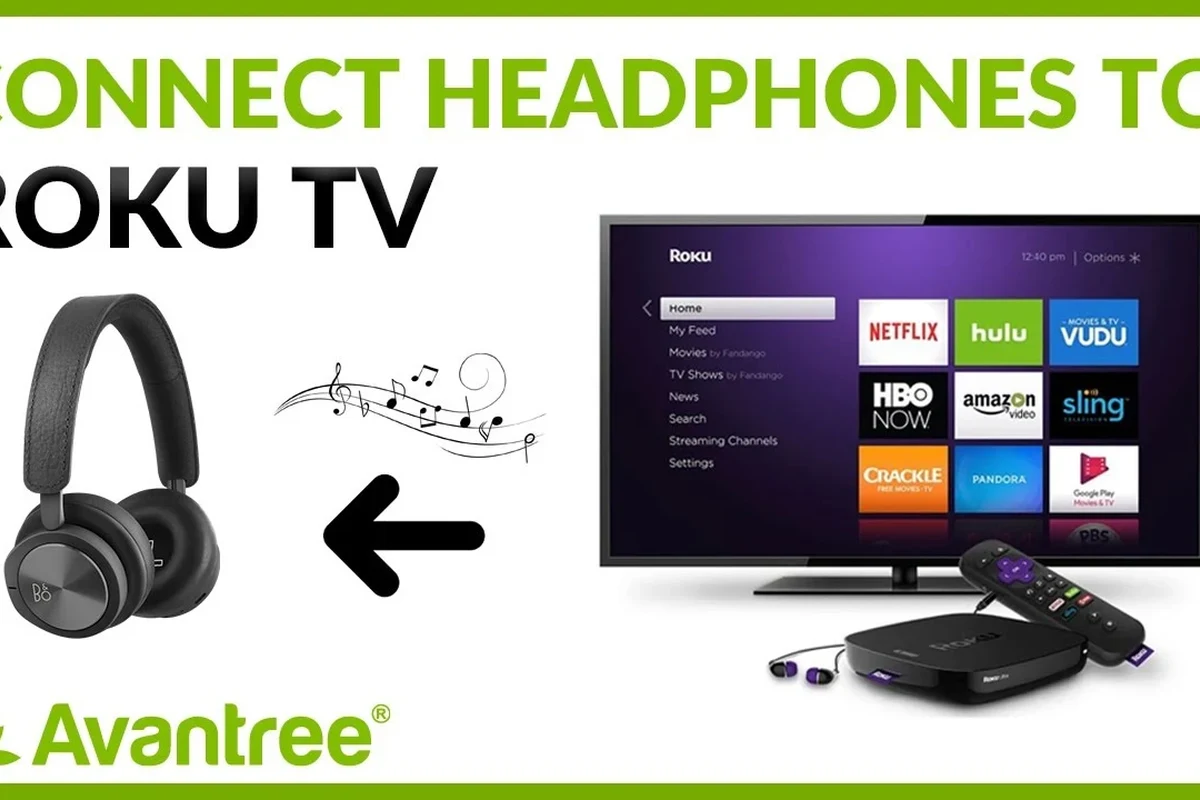
This guide walks you through the most practical ways to listen privately on Roku without making the setup more complicated than it needs to be. You’ll learn which Roku devices support headphones, how to connect wireless and wired options, and what to do when your model does not allow direct pairing.
For readers comparing headphone styles for TV use, it also helps to understand the difference between wireless convenience and wired reliability. If you want a broader primer on connection basics, our guide on how to connect Bluetooth headphones can help you understand the general pairing process before you start.
Which Roku Devices Support Headphone Connections?
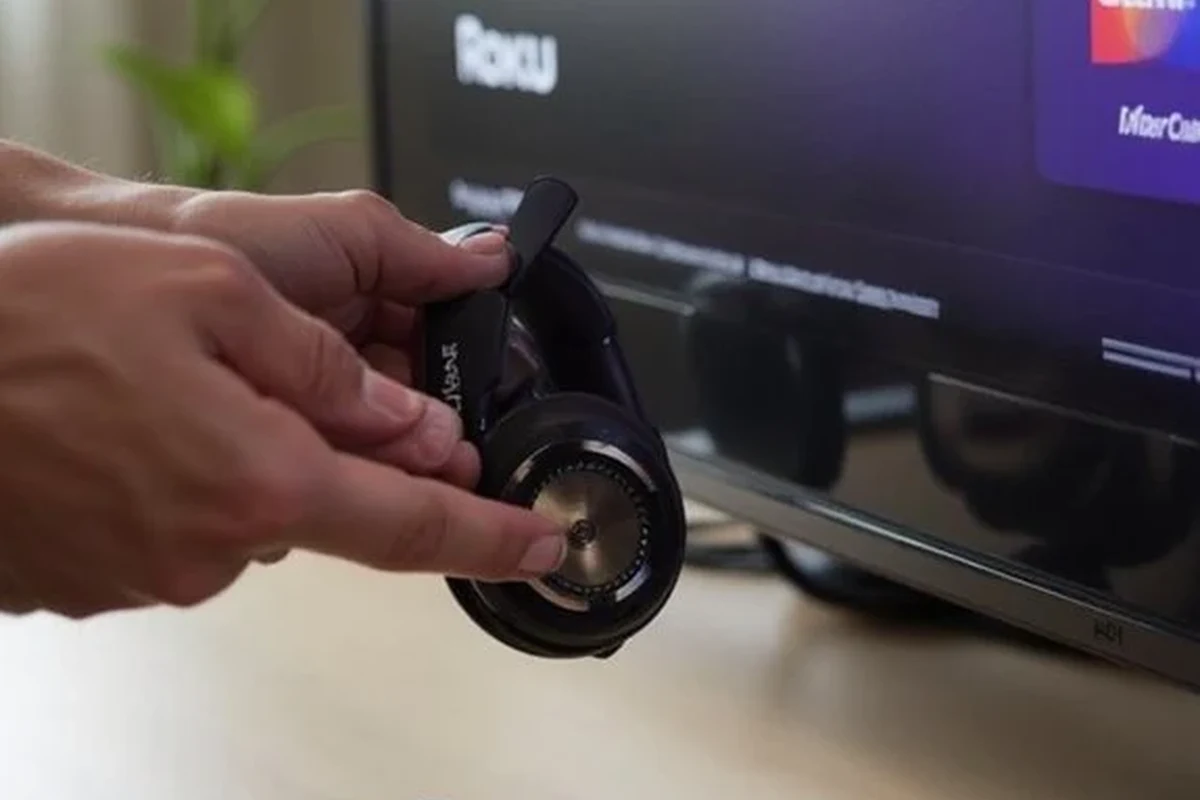
Roku support for headphones varies by product line. Some Roku TV models offer private listening through the remote or the mobile app, while some streaming devices rely on the app for headphone audio instead of direct Bluetooth pairing.
Roku TV models with private listening built in
Many Roku TV models support private listening through the Roku mobile app, and some remotes also offer a headphone jack. This makes it easy to watch late at night without disturbing anyone else in the room.
On compatible Roku TVs, the TV itself may handle the audio output options, so the Roku menu is only part of the setup. If you are unsure whether your TV supports Bluetooth headphones directly, check the TV’s sound settings as well as the Roku settings.
Roku streaming devices, Roku Ultra, and remote-based audio options
Roku streaming players such as Roku Ultra may support private listening through the mobile app, and some remote models include a built-in headphone jack. That remote-based solution is useful if you want a simple wired option without adding extra adapters.
Roku features can differ by model, software version, and remote type. Always check your exact device before buying headphones or accessories.
When your Roku model does not support direct headphone pairing
Some Roku devices do not support direct Bluetooth headphone pairing at all. In those cases, the Roku mobile app, a TV audio-out port, or the remote’s headphone jack may be your only practical options.
If your setup feels limited, that does not mean you are stuck. Many users solve the problem by using the phone app for private listening or by choosing a TV-compatible audio path instead of trying to pair headphones directly to the Roku box.
Fastest Ways to Connect Headphones to Roku
The fastest method is usually the one your device already supports without extra hardware. For most beginners, the Roku mobile app is the easiest place to start because it avoids cable clutter and works with many Roku setups.
Using the Roku mobile app for private listening
Private listening in the Roku app lets the TV play audio to your phone, then your headphones connect to the phone. This is especially convenient if you already use wireless headphones with your phone every day.
This method is often the most flexible, but it depends on a stable Wi-Fi connection and a phone that stays nearby. If you want a deeper understanding of wireless headphone behavior and common setup issues, our article on Bluetooth headphones explained simply is a useful companion read.
Pairing Bluetooth headphones to a Roku TV or compatible Roku device
Some Roku TV models and compatible devices support Bluetooth headphone use more directly. When this works, it is a clean solution because you can listen without routing audio through your phone.
Bluetooth is convenient, but it can introduce lag or occasional dropouts depending on the headphones and the room environment. If you care about lip-sync for movies or gaming, it helps to choose low-latency headphones and keep the connection path as simple as possible.
Connecting wired headphones through the Roku remote or TV audio-out
Wired headphones are still a strong choice for Roku if your remote has a headphone jack or your TV has a compatible audio-out port. They are often the most reliable option for avoiding pairing problems and reducing delay.
For viewers who prefer a no-fuss setup, wired listening can be the most predictable route. It may not be as flexible as wireless, but it can be easier to manage when you just want sound that works every time.
Listening at high volumes for long periods can cause hearing damage. Keep volume at 60% or below for extended sessions.
Step-by-Step Setup for Each Connection Method
Once you know which connection path your Roku supports, setup is usually straightforward. The key is to match the method to the device so you do not waste time chasing a feature your model does not have.
How to enable private listening in the Roku app
Make sure your phone is on the same Wi-Fi network as your Roku device.
Choose the correct player or TV from the app so the audio routes to the right screen.
Tap the headphones or private listening option, then connect your headphones to the phone.
Once private listening is active, the TV audio should shift to your phone. If the sound does not appear, check that your phone volume is up, the app is updated, and the Roku device is connected to the same network.
How to pair Bluetooth headphones with Roku TV
Go to the sound or Bluetooth section, depending on your TV menu layout.
Use the headphone manufacturer’s pairing process so the TV can find them.
Choose the headphones from the list and wait for the connection to complete.
If the headphones do not appear, move them closer to the TV and try again. Bluetooth range, other wireless devices, and even the room layout can affect how quickly the connection completes.
How to use wired headphones with a Roku remote or TV adapter
Look for a headphone jack on the Roku remote or a compatible audio-out port on the TV.
Use the correct cable or adapter so the connection is secure and fully seated.
Set the TV or remote volume to a comfortable level and confirm audio is routed to the headphones.
Wired setups are especially helpful if you have had trouble with Bluetooth lag in the past. If you often experience connection issues, it may be worth reading about Bluetooth headphone lag fix so you can better judge whether wireless is the right choice for your Roku viewing habits.
Best Headphone Types for Roku Viewing in 2025
The best headphones for Roku are not always the most expensive ones. Comfort, connection type, and latency matter just as much as sound quality when you are watching TV for long stretches.
Bluetooth over-ear headphones for comfort and long sessions
Over-ear Bluetooth headphones are a popular choice for Roku because they usually feel more comfortable during long movie nights. Larger ear cups can also help with passive noise isolation, which is useful if people are moving around the house.
Look for a pair that feels stable without clamping too hard. Sound quality, battery life, and Bluetooth performance can vary by brand and model, so comfort should be part of the decision instead of an afterthought.
Low-latency wireless earbuds for late-night streaming
Wireless earbuds can be a smart pick if you want a lighter, more discreet setup. They are especially handy for late-night streaming when you do not want bulky headphones pressing on your head or glasses.
Low-latency audio matters more for TV dialogue and gaming than many casual listeners expect. Even a small delay can make voices feel out of sync with the picture.
Budget wired headphones and when they still make sense
Budget wired headphones still make sense if you want simple, dependable Roku audio without worrying about charging or Bluetooth pairing. They are a practical choice for guest rooms, secondary TVs, or occasional use.
If you only need private listening now and then, a wired option can offer excellent value. For many households, that simplicity is more useful than extra wireless features they may never use.
| Model | Best For | Price Range |
|---|---|---|
| Bluetooth over-ear headphones | Comfort and long viewing sessions | Varies by brand |
| Wireless earbuds | Lightweight late-night streaming | Varies by model |
| Wired headphones | Simple, reliable TV listening | Budget-friendly to premium |
Common Problems When Connecting Headphones to Roku
Most Roku headphone problems come from compatibility, signal quality, or settings rather than a broken device. A few quick checks can usually narrow down the issue.
Audio delay, pairing failures, and weak Bluetooth connections
Audio delay is one of the most common complaints with wireless TV listening. If the sound lags behind the picture, try moving closer to the TV, reconnecting the headphones, or switching to a more stable wired setup.
Pairing failures often happen when the headphones are already connected to another device or when the Roku TV cannot detect them clearly. Resetting the headphones and trying again can help, especially if the device was previously paired elsewhere.
No sound, low volume, or only one ear playing audio
If you get no sound, confirm that the Roku audio output is actually set to the headphones and not the TV speakers. Also check the headphone volume itself, because some setups use separate volume controls.
If only one ear is playing audio, the problem may be the cable, jack, adapter, or the headphones themselves. Try another device if possible to rule out a hardware issue before changing Roku settings.
Why some Roku setups require a TV setting change instead of a Roku setting
Some audio problems are caused by the TV, not the Roku player. That means you may need to change the TV’s sound output, enable Bluetooth, or adjust the digital audio format before the headphones work correctly.
This is where many users get stuck, because the Roku menu looks like the obvious place to fix everything. In reality, the TV may be the device controlling the final audio path, especially on Roku TV models.
If your Roku setup keeps dropping audio, or if you notice hearing discomfort, consider speaking with an audiologist or a professional audio specialist. Persistent sound issues can come from the device, the headphones, or your listening habits.
Expert Advice: Mistakes to Avoid Before You Buy or Set Up
A little planning can save a lot of frustration. Before you buy new headphones or adapters, make sure the connection method matches your exact Roku setup.
Why not every Bluetooth headphone works the same with Roku
Not all Bluetooth headphones behave the same way on TV devices. Some connect quickly and stay stable, while others may introduce lag, reconnect slowly, or struggle with range.
That is why it helps to think beyond “Bluetooth or wired” and consider how you actually watch TV. Movie watchers, gamers, and late-night streamers may all want different headphone traits.
When a headphone splitter, adapter, or new remote may be needed
Sometimes the simplest fix is not a new pair of headphones but the right accessory. A splitter, adapter, or Roku remote with a headphone jack can solve a problem that software settings cannot.
If your current remote does not support private listening, replacing the remote may be more practical than replacing the entire Roku device. The right accessory can make a setup feel much more modern without a full upgrade.
Warning signs that your setup is likely to cause lag or dropouts
Frequent dropouts, inconsistent volume, and repeated pairing failures are all signs that your wireless setup may be strained. Older headphones, crowded wireless environments, and weak TV software support can all contribute.
If your headphones are uncomfortable, too loud, or cause ringing after use, lower the volume and take breaks. If symptoms continue, consult a hearing professional.
For many viewers, the best solution is to keep the setup simple. A stable wired connection or the Roku app’s private listening mode may be more dependable than forcing a weak Bluetooth link to do more than it can handle.
Final Recap: The Easiest Way to Listen Privately on Roku
The easiest way to connect headphones to Roku is usually private listening in the Roku mobile app, followed by a Bluetooth connection on compatible Roku TVs or a wired connection through the remote or TV output. The best choice depends on your exact model, your headphone type, and whether you care most about convenience, comfort, or zero-lag audio.
If you want the most reliable setup, start by checking whether your Roku TV or remote already supports private listening. From there, choose the headphone style that fits your viewing habits, and keep sound safety in mind for longer sessions.
Frequently Asked Questions
Wireless headphones are more convenient, especially for private listening and long sessions. Wired headphones are usually more reliable and can reduce audio lag.
Yes, noise cancelling headphones can work well for Roku if they connect through a supported method. They help block room noise, but performance varies by model and fit.
Over-ear headphones are often best for comfort during long TV sessions. In-ear earbuds are lighter and more portable, while on-ear models can feel less bulky but may be less comfortable for some people.
Look at connection type, latency, comfort, and battery life before chasing specs alone. Driver type, frequency response, and EQ options can affect bass and clarity, but results vary by brand and preference.
Focus on a stable connection, comfortable fit, and decent build quality first. A budget model can still work well for TV if it is reliable and easy to wear.
Check latency, comfort, microphone support if needed, and whether the headphones work with your exact Roku setup. For gaming, low delay matters more than extra bass, while studio-style listening usually favors clarity and balance.