How to Connect Bluetooth Headphones to Xbox One Without Adapter Easily

Xbox One does not support standard Bluetooth headphones directly, so the easiest no-adapter options are a 3.5mm cable, Xbox Wireless, or TV audio. If your headset is Bluetooth-only, you will need a supported wired or console-compatible wireless workaround.
If you want to know how to connect bluetooth headphones to xbox one without adapter, the short answer is that you usually cannot pair standard Bluetooth headphones directly to the console. The practical workaround is to use a controller cable, Xbox-compatible wireless audio, or another audio route that the Xbox One actually supports.
- Direct Bluetooth: Standard Bluetooth headphones usually will not pair with Xbox One for audio.
- Best workaround: Use the controller’s 3.5mm jack if your headset has a cable.
- Wireless option: Xbox Wireless headsets are the simplest true wireless choice.
- Casual use: TV or monitor audio can work for media and relaxed play.
Can You Connect Bluetooth Headphones to Xbox One Without an Adapter?
Xbox One does not work like a phone, tablet, or laptop when it comes to wireless audio. Most Bluetooth headphones can connect to many devices, but the console is built around Xbox Wireless and wired audio paths instead of standard Bluetooth sound output.
That means “without an adapter” usually does not mean “pair Bluetooth directly.” It means finding a no-dongle method that still gives you game audio, chat audio, or media playback through a supported connection.
Why Xbox One Does Not Support Standard Bluetooth Audio
Microsoft designed Xbox One to prioritize low-latency gaming communication and controller accessories. Standard Bluetooth can add delay, and that delay is more noticeable in fast games where footsteps, shots, and voice chat need to stay in sync.
Also, the console’s wireless system is not the same as regular Bluetooth pairing. If your headphones only support normal Bluetooth audio, the Xbox One will not see them as a direct audio device.
What “Without Adapter” Really Means for Xbox Players in 2026
In 2026, “without adapter” usually means using the tools you already have: a headset with a 3.5mm cable, a headset with native Xbox Wireless support, or audio routed through a TV or monitor. It does not usually mean using standard Bluetooth headphones exactly the way you would on a smartphone.
If you are comparing wireless options, it helps to read broader setup guides like how to connect Bluetooth headphones and then adapt the idea to Xbox’s more limited audio system.
Best Ways to Use Wireless Headphones with Xbox One Without Bluetooth Pairing
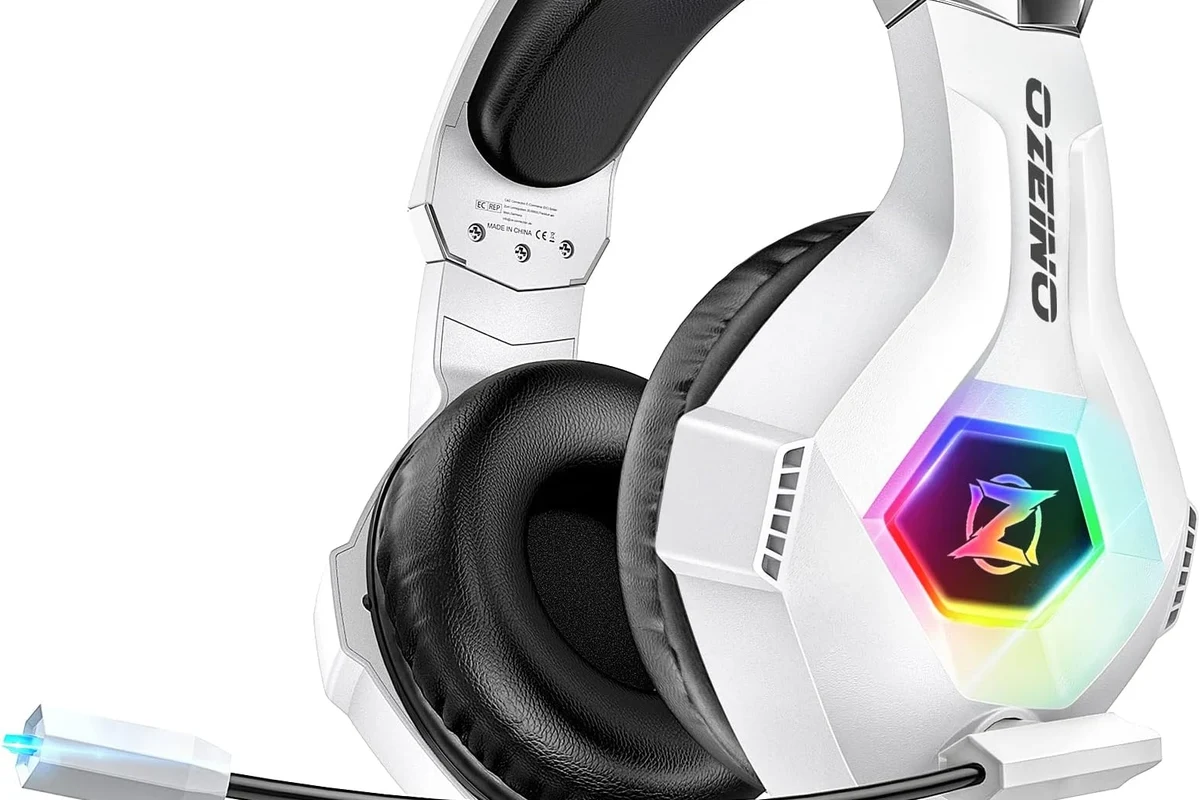
The easiest no-adapter solutions are the ones that avoid direct Bluetooth altogether. For most players, the best path is to use a wired connection from the controller or a headset made for Xbox.
Connect Through the Xbox One Controller 3.5mm Jack
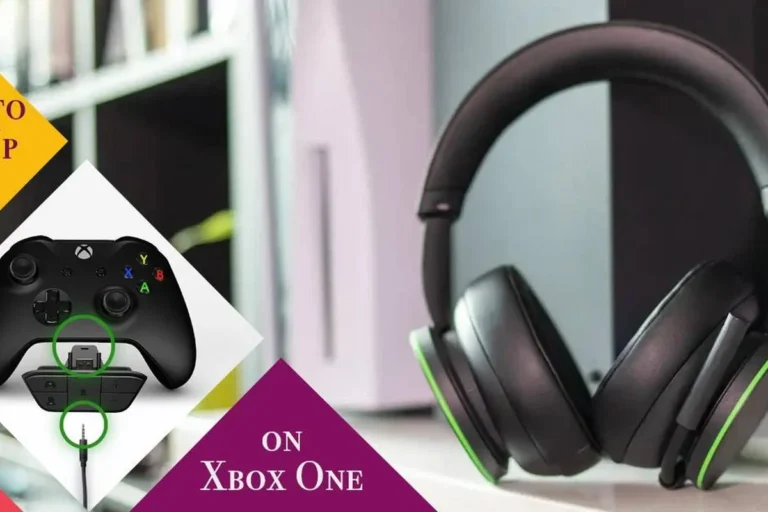
If your headphones include a detachable 3.5mm cable, plug them into the controller’s headset jack. This is the simplest option because the controller can pass game audio and, on compatible setups, chat audio as well.
This method works especially well for casual gaming, single-player sessions, and users who already own a Bluetooth headset with a wired backup cable. Sound quality will depend on the headphone model, cable quality, and controller compatibility.
If your headset has both Bluetooth and wired modes, switch to wired mode on Xbox One for the most reliable sound and the least lag.
Use Xbox Wireless Headphones or Xbox-Compatible Wireless Audio
Some headsets use Xbox Wireless instead of standard Bluetooth. These are designed to connect directly to the console and often provide a smoother gaming experience than generic Bluetooth models.
If you want a wireless setup that feels close to Bluetooth convenience but works better on Xbox, this is usually the cleanest route. It may cost more than a basic wired workaround, but it avoids the pairing limitations that frustrate many users.
Headset compatibility can vary by brand and model, so always check whether the product supports Xbox Wireless, controller audio, or only standard Bluetooth.
Stream Game Audio Through a TV, Monitor, or Smart Device
Another no-adapter workaround is to send Xbox audio to your TV or monitor, then listen through the display’s headphone output or a connected smart audio device. This can be useful for watching content, casual play, or shared living-room setups.
This option is not always the best for competitive gaming because audio delay may be higher than a direct wired headset connection. Still, it is a practical choice when your main goal is convenience rather than top-tier responsiveness.
Step-by-Step Setup: How to Connect Bluetooth Headphones to Xbox One Without Adapter
Here is the most realistic setup process for Xbox One owners. The goal is to use your existing headphones in a way that the console can actually support.
Check Your Headphones for Wired, USB, or Xbox Wireless Support
Start by checking the box, manual, or product page for connection options. Look for a 3.5mm cable, USB audio support, or Xbox Wireless compatibility.
If your headphones are Bluetooth-only, they will not connect directly to Xbox One for audio. If they include a cable or a console-friendly wireless mode, you may still be able to use them without buying an adapter.
- Does the headset include a 3.5mm cable?
- Does it support Xbox Wireless or USB audio?
- Does the microphone work in wired mode?
- Are your controller and headset firmware up to date?
Pair Through the Controller or Console-Compatible Wireless Mode
If you are using a cable, plug the headset into the controller and test the audio. If you are using an Xbox Wireless headset, follow the headset’s pairing instructions and connect it using the console’s supported wireless method.
For readers who also use headsets on other devices, our guide on Bluetooth vs wired headphones sound quality is helpful for understanding why wired audio often wins on latency and reliability.
Use the 3.5mm jack on the controller or the headset’s Xbox-compatible wireless connection.
Make sure both devices have power and that the headset is not still trying to pair by Bluetooth.
Launch a game or party chat and confirm that both sound and microphone input are working correctly.
Adjust Xbox Audio Settings for Chat and Game Sound
Once the headset is connected, open the Xbox audio settings and check the balance between game sound and chat volume. If the sound is too low or the mic seems muted, the issue may be in the console settings rather than the headset itself.
For some users, controller firmware updates also help improve headset detection. If audio still acts up, recheck the headset jack, restart the console, and confirm that the output is set to the correct device.
Do not assume a Bluetooth pairing failure means your headset is broken. In many cases, the Xbox One simply does not support that wireless mode, even if the headphones work perfectly on phones and laptops.
Practical Examples: Which Headphone Types Work Best?
Different headphones need different workarounds. The best choice depends on whether you care most about gaming latency, voice chat, comfort, or simple media playback.
Bluetooth Headphones with a 3.5mm Cable
These are often the easiest “no adapter” option because they can switch from wireless to wired use. You keep the flexibility of Bluetooth for phones and tablets, but you rely on the cable for Xbox One.
This is a smart choice if you already own a decent Bluetooth headset and do not want to buy new gear right away. The trade-off is that you lose the freedom of true wireless use while gaming.
Wireless Gaming Headsets with USB Dongles vs. Native Xbox Support
Some wireless gaming headsets rely on a USB dongle, while others support Xbox Wireless natively. The dongle route may work well on some devices, but it is not the same as standard Bluetooth and may not be ideal for every Xbox One setup.
Native Xbox support is generally simpler for console owners because it is designed around the Xbox ecosystem. If you want fewer connection headaches, that usually matters more than chasing a “Bluetooth” label.
Many gamers call all wireless audio “Bluetooth,” but Xbox Wireless and Bluetooth are different technologies with different compatibility rules.
TV-Audio Workaround for Watching Content and Casual Play
If your main use is streaming shows, relaxed single-player games, or couch gaming, TV audio can be enough. You can listen through the television’s headphone output, a soundbar with a headphone jack, or another supported audio output.
This is less ideal for party chat and competitive play, but it can be a very low-cost way to avoid buying new accessories. If you are building a broader home setup, you may also want to compare headset comfort and isolation using resources like how noise cancelling headphones work.
Common Mistakes That Stop Audio from Working
Most connection problems come from expecting Xbox One to behave like a phone or PC. Once you know the console’s limits, troubleshooting becomes much easier.
Trying to Pair Standard Bluetooth Directly to Xbox One
This is the most common mistake. If the headset only supports normal Bluetooth, the Xbox One usually will not accept it as an audio device.
Many users spend time resetting the headset or the console when the real issue is simple compatibility. Before troubleshooting further, confirm that your headset has a supported wired or Xbox Wireless mode.
Using Headphones Without a Compatible Cable or Mic Support
Some headphones can play sound through a cable but do not pass microphone input correctly. Others may need a special cable or inline remote to enable full chat features.
If you want both game audio and voice chat, check mic support before assuming the headset will handle everything. This matters even more for party chat users and multiplayer players.
Ignoring Controller Firmware and Audio Output Settings
Outdated controller firmware or incorrect audio settings can make a working headset seem broken. If the headphones are supported but still not working, update the controller and review the Xbox sound menu.
It also helps to disconnect and reconnect the cable, restart the console, and test the headset on another device. That way you can separate a headset problem from a console setup problem.
Expert Advice: When a No-Adapter Method Is Worth It and When It Is Not
Using existing headphones without an adapter is great when you want a simple, low-cost solution. It is less ideal when you need the best possible mic quality, the lowest delay, or easy wireless convenience.
Latency, Mic Quality, and Battery Life Trade-Offs
Wired connections usually offer the most stable timing and avoid battery worries during long sessions. Wireless methods can be more comfortable, but they may introduce latency, charging needs, or pairing limitations depending on the headset.
Mic quality also varies a lot by model. A headset that sounds fine for music may not be the best choice for chat-heavy gaming, especially if the microphone is weak or the cable does not support voice input properly.
Warning for Competitive Gaming and Party Chat Users
If you play shooters, racing games, or ranked multiplayer, even small audio delays can be distracting. In that case, a direct wired connection or a native Xbox Wireless headset is usually safer than trying to force a Bluetooth-style setup.
For people who spend hours in chat, comfort and mic consistency matter too. If you notice headaches, ear fatigue, or ringing after sessions, follow safe listening guidelines and consider speaking with an audiologist.
If you have persistent hearing discomfort, tinnitus, or sensitivity to volume, consult an audiologist or hearing professional before increasing headset volume or changing your listening routine.
Cost Comparison: Free Workarounds vs Budget Adapters vs Xbox Wireless Headsets
Not every solution costs the same. If you already own the right headset, a no-adapter method may be free; if not, it may be worth comparing the price of a better headset against a simple adapter or cable.
Low-Cost Options for Casual Players
The cheapest route is usually a headset you already own with a 3.5mm cable, or a TV-based audio workaround. These options are fine for casual play, story games, and media watching.
If you are mainly trying to avoid extra spending, start there first. You may not need a new headset at all if your current one has the right cable and microphone support.
Mid-Range and Premium Choices for Better Sound and Convenience
Mid-range and premium headsets often make sense if you play often or want a cleaner wireless experience. A native Xbox Wireless headset may be more convenient than juggling unsupported Bluetooth pairing every time you sit down to play.
Price and performance can vary by brand, build quality, battery life, and comfort. For a broader look at device compatibility and headset basics, you can also read Bluetooth headphones explained simply.
Final Recap: The Easiest Way to Use Bluetooth Headphones on Xbox One in 2026
The easiest way to use Bluetooth headphones on Xbox One without an adapter is usually not direct Bluetooth at all. Instead, use a 3.5mm cable, an Xbox-compatible wireless headset, or a TV/monitor audio workaround depending on what your headphones support.
Best Method by Use Case: Gaming, Chat, or Media Playback
For gaming, wired controller audio or native Xbox Wireless is usually the most reliable. For chat-heavy play, make sure the microphone works in the mode you choose.
For media playback and casual sessions, TV audio or a wired headset can be perfectly practical. If you want the shortest path, check your headset’s supported connection types first, then choose the method that matches your use case and budget.
Frequently Asked Questions
Usually no. Xbox One does not support standard Bluetooth audio, so most Bluetooth-only headphones will not pair directly for sound.
A 3.5mm cable through the controller or an Xbox Wireless headset is usually the easiest option. Both are more reliable than trying to force standard Bluetooth pairing.
Wired headphones often give lower latency and more stable audio. Wireless can still sound good, but performance depends on the headset and connection type.
They can be useful for blocking room noise, especially for story games and casual play. For competitive gaming, comfort, mic quality, and latency may matter more than noise cancellation.
Over-ear headsets are often best for long sessions because they usually feel more comfortable and isolate sound better. In-ear models can be lighter, but fit and mic quality vary by model.
Check connection type, microphone support, comfort, weight, battery life, and whether the headset is Xbox-compatible. If you care about sound balance, also look at driver type and EQ options.