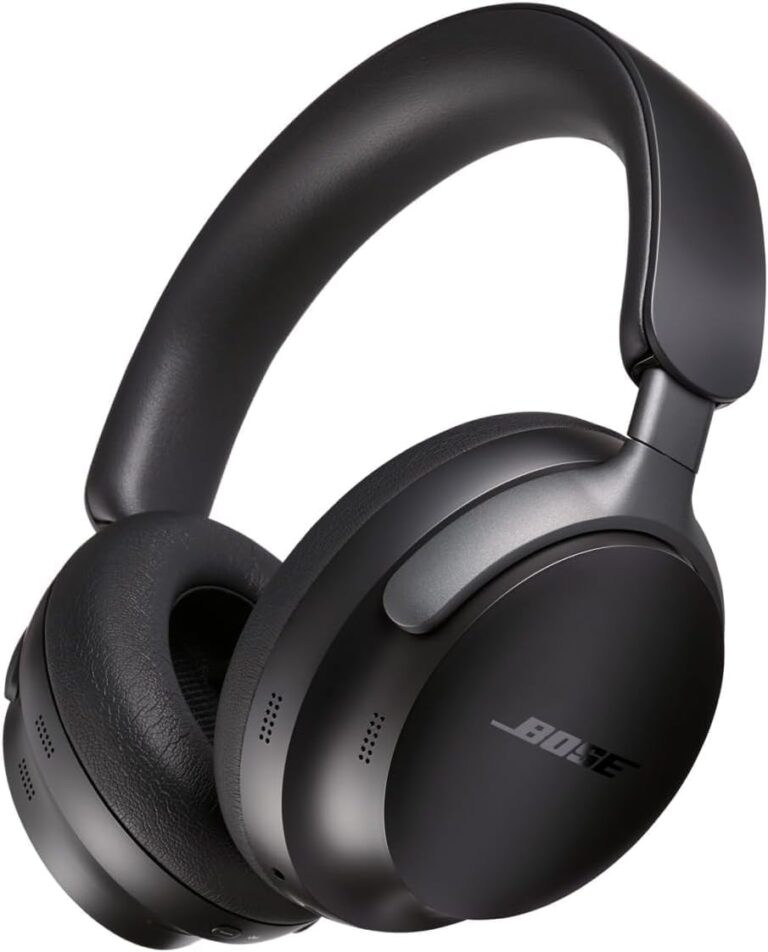
How Do You Connect Wireless Headphones to Xbox One Easily

The easiest way is to use an Xbox-compatible wireless headset or a headset with a USB dongle, since standard Bluetooth usually will not pair directly with Xbox One. If you use a Bluetooth headset, you will typically need a TV or monitor transmitter workaround, and that can add lag.
If you are asking how do you connect wireless headphones to xbox one, the short answer is that it depends on the headset type. Xbox One does not support standard Bluetooth headphones directly, so the easiest working setup is usually an Xbox-compatible wireless headset or a headset that uses its own USB dongle.
For many players, the real goal is simple: get clean game audio, avoid lag, and keep setup time low. That is especially important for living room gaming, party chat, and late-night play, where cable clutter and audio delay can quickly become annoying.
- Best direct option: Xbox-compatible wireless headsets are usually the simplest choice.
- Bluetooth limit: Standard Bluetooth headphones usually do not connect directly to Xbox One.
- Low-lag priority: USB dongles and Xbox wireless options are better for gaming response.
- Chat matters: Always check microphone support before buying or connecting.
How Do You Connect Wireless Headphones to Xbox One: What Works in 2026
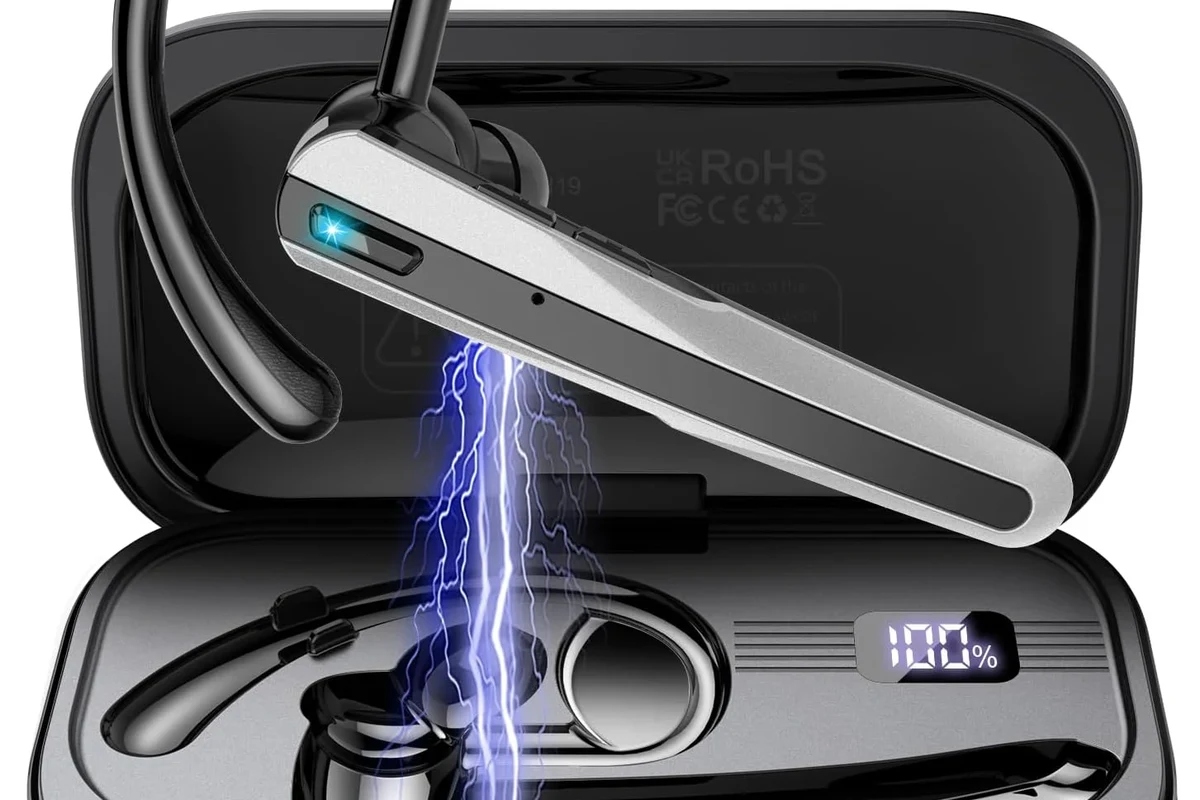
Xbox One is still a little different from many other gaming devices when it comes to wireless audio. Unlike phones, tablets, and some PCs, it does not usually accept ordinary Bluetooth headphones as a direct pairing option.
That means the connection method matters just as much as the headset itself. If you choose the wrong type of wireless headphone, you may end up with no connection, delayed sound, or a mic that does not work for chat.
Why Xbox One is different from other consoles for wireless audio
Xbox One uses its own wireless ecosystem for many accessories, and that is why standard Bluetooth support is limited. In practice, this means many popular Bluetooth headphones will work with your TV, phone, or laptop, but not directly with the console.
This is also why some users think their headphones are broken when the issue is really compatibility. A pair of headphones may be perfectly fine, but if it is not designed for Xbox One or supported through another audio path, the console may not recognize it.
What readers are really trying to solve: gaming without cables, lag, or setup headaches
Most players want three things: freedom of movement, low latency, and a microphone that works without extra trouble. If one of those pieces is missing, the whole wireless experience can feel frustrating.
The best Xbox One wireless setup is the one that balances compatibility, latency, and chat support.That usually means choosing Xbox-ready hardware instead of generic Bluetooth.
If you are still comparing connection styles, it can help to understand the broader tradeoffs in our guide to wired vs wireless headphones. That context makes it easier to decide whether convenience or simplicity matters more for your setup.
Wireless Headphone Options That Actually Work with Xbox One
There are a few reliable ways to use wireless headphones with Xbox One, but not all of them are equal. Some are simple and seamless, while others need extra accessories or rely on your TV or monitor for audio output.
Xbox-compatible wireless gaming headsets with USB dongles
One of the easiest solutions is a gaming headset made for Xbox compatibility. Some models connect through an Xbox wireless signal or a USB dongle, which can make setup much easier than trying to force a generic Bluetooth connection.
These headsets are often the best choice if you want chat support and low-latency audio in one package. They are also usually the least confusing option for beginners because the headset and console are designed to work together.
Headsets that connect through the controller’s 3.5mm jack with a wireless transmitter
Another option is to use a wireless transmitter that plugs into the controller’s 3.5mm headset jack or into an external audio source. This is a more flexible route, especially if you already own a headset you like.
However, this method can vary a lot depending on the transmitter and the headset. Some setups deliver solid sound, while others may introduce latency or limit microphone features.
Bluetooth headphones: why they usually do not connect directly
Bluetooth headphones are common, but they are usually not the easiest answer for Xbox One. In most cases, the console will not pair with them the way a phone or laptop would.
Do not buy a headset assuming “Bluetooth” automatically means Xbox One compatible. Always check whether the headset supports Xbox wireless, USB dongle mode, or another approved connection method.
Cost comparison: budget adapters vs premium Xbox wireless headsets
Budget adapters may look appealing because they cost less upfront, but they can be hit-or-miss. Some work well enough for casual play, while others suffer from lag, weak microphones, or unstable pairing.
Premium Xbox wireless headsets usually cost more, but they often offer simpler setup, better comfort, and more reliable chat support. If you play often, that convenience can be worth the extra spend.
How to Connect Wireless Headphones to Xbox One Step by Step
Before you start, check whether your headset needs a dongle, a transmitter, or a direct Xbox wireless connection. That small step can save a lot of setup time.
Method 1: Using an Xbox Wireless headset or Xbox Wireless adapter
This is usually the cleanest method if your headset supports Xbox wireless. Pairing is often straightforward, and once connected, the headset may work for both game audio and voice chat.
Put the headset in pairing mode according to the manufacturer’s instructions.
Use the Xbox pairing button or the adapter pairing process if your headset uses one.
Check in-game sound, party chat, and microphone input before you start playing.
Pairing steps can vary by headset model and Xbox One version, so always check the headset manual if the connection does not appear right away.
Method 2: Using a USB wireless dongle headset
Some wireless gaming headsets come with a USB dongle that plugs into the console. This can be a good middle-ground option if you want wireless convenience without relying on Bluetooth.
Plug the dongle into an available USB port on the Xbox One.
Turn the headset on and let it connect automatically or press the pairing button if needed.
Make sure game audio and chat audio are both coming through correctly.
USB dongle setups are often easier than transmitter chains because they avoid extra audio routing. Still, firmware updates and USB port behavior can affect performance, so it is worth checking both if the headset is not detected immediately.
Method 3: Using a Bluetooth transmitter with the TV or monitor
If you already use Bluetooth headphones, a transmitter connected to your TV or monitor may be the most practical workaround. In this setup, the Xbox sends video to the display, and the display or audio output path sends sound to the transmitter.
This can be useful for casual gaming, but it is not always ideal for competitive play. TV audio processing and transmitter latency can create a delay that some players will notice.
When using a TV or monitor transmitter, check the display’s audio settings first. If the TV is not set to output sound correctly, the headphones may connect but still play no audio.
Method 4: Routing audio through the controller or external audio gear
Some players route audio through the controller or use external audio equipment to make their setup more flexible. This can work well if you already own accessories you trust.
That said, this method may involve more steps and more points of failure. If your goal is the easiest possible setup, a headset designed for Xbox One is usually less frustrating.
Audio Tip
If you hear sound but the mic does not work, check whether the headset supports voice chat on Xbox One specifically. Audio and microphone support are not always the same thing.
Best Setup Scenarios for Different Types of Players
The best connection method depends on how you play. A casual couch gamer does not need the same setup as someone playing ranked matches every night.
Casual gaming and streaming setup
For casual play, comfort and simplicity usually matter more than ultra-low latency. A wireless headset with easy pairing or a TV-based transmitter can be enough if you mostly want clean sound and fewer cables.
If you stream occasionally, make sure your microphone is stable and not overly sensitive to room noise. A headset with easy volume controls can also make long sessions more comfortable.
Competitive gaming setup with low-latency audio
Competitive players usually want the lowest delay possible. In that case, Xbox-compatible wireless headsets or reliable USB dongle solutions are typically better than generic Bluetooth workarounds.
Even a small delay in audio can make footsteps, reloads, and voice cues feel less precise in fast-paced games.
For more on wireless delay and how to reduce it, our guide to Bluetooth headphone lag fix explains why some wireless connections feel slower than others.
Living room TV setup for shared family play
If you game in a shared living room, convenience and TV compatibility matter a lot. A transmitter connected to the TV may be useful because it lets you keep the console setup simple while still using wireless headphones.
Just remember that family-friendly setups often involve more audio switching. Make sure the TV speakers, headset, and chat audio are all configured the way you want before a game night starts.
Party chat and multiplayer voice communication setup
If you use party chat often, microphone support should be a top priority. Some headphones can play game audio well but still struggle with voice quality or chat detection on Xbox One.
For multiplayer, a headset made for Xbox compatibility is usually the safest choice. That reduces the chance of pairing problems and makes it easier to hear teammates clearly.
Common Mistakes When Trying to Use Wireless Headphones on Xbox One
Most connection problems come from a few predictable mistakes. The good news is that they are easy to avoid once you know what to look for.
Assuming standard Bluetooth will pair directly with Xbox One
This is the most common mistake. Many people assume that because their headphones connect to a phone, they will connect to Xbox One the same way.
In reality, Xbox One usually needs a different wireless method. If your headset is Bluetooth-only, you will likely need a workaround such as a TV transmitter or a different headset type.
Ignoring audio lag and microphone compatibility
Some setups sound fine at first but create noticeable lag during gameplay. Others may play audio correctly while the microphone fails in party chat.
Listening at high volumes for long periods can cause hearing damage. Keep volume at 60% or below for extended sessions.
If you care about voice chat, do not assume every wireless headset supports it on Xbox One. Check both audio and mic compatibility before buying.
Using the wrong USB port or outdated firmware
Some wireless dongles and adapters are picky about setup. A headset may not connect properly if the dongle is in the wrong port or if the firmware is outdated.
When possible, update the headset and adapter software before troubleshooting anything else. That simple step can solve connection issues that look more serious than they really are.
Forgetting TV audio settings when using external transmitters
If you route sound through a TV or monitor, the display’s audio settings become part of the setup. If those settings are wrong, the transmitter may work but still receive no usable audio signal.
That is why external transmitter setups can be more confusing than direct headset connections. They are useful, but they require a little more attention to detail.
Expert Advice: What to Check Before Buying or Connecting
Before you spend money on an adapter or headset, look at the details that matter most for Xbox One use. The right choice is not always the most expensive one, but it should be the one that fits your play style.
Latency, mic support, and battery life
Latency affects how quickly audio reaches your ears, mic support affects party chat, and battery life affects how often you need to recharge. Those three factors usually matter more than flashy marketing terms.
If you notice persistent audio delay, distorted mic pickup, or hearing discomfort, consider consulting an audiologist or a qualified audio specialist for safe listening and setup guidance.
Compatibility with Xbox One, Xbox One S, and Xbox One X
Not every headset or adapter behaves exactly the same across Xbox One models. Most of the time the difference is small, but it is still smart to check compatibility notes before buying.
Also look for support details that mention Xbox One specifically, not just “gaming consoles” in general. Vague labeling is often a warning sign.
When to choose a headset versus a separate wireless adapter
If you want the simplest setup, a headset designed for Xbox is usually the better choice. If you already own a good headset and only need wireless flexibility, a separate adapter or transmitter may make more sense.
The right answer depends on whether you are upgrading convenience or solving a specific compatibility problem. In many cases, buying the right headset is easier than building a workaround.
Warning signs of cheap adapters and unreliable third-party solutions
Be cautious with products that promise universal compatibility without clear details. If a listing does not explain latency, mic support, or Xbox One support clearly, that is a red flag.
Cheap adapters may also have inconsistent build quality, poor range, or unstable pairing. Those problems can turn a simple wireless setup into a constant troubleshooting job.
Recommended Buying Guide: Features Worth Paying For in 2026
In 2026, the best wireless headphone purchase for Xbox One is still the one that solves real problems, not just the one with the longest feature list. Focus on the features you will actually use every week.
Price tiers and what you get at each level
Lower-cost options may give you basic wireless audio, but they often cut corners on mic quality, comfort, or battery performance. Mid-range models usually offer the best balance for most players.
Higher-end models tend to improve convenience, materials, and tuning options, though results can vary by brand and personal preference. There is no single “best” price point for everyone.
Sound quality, surround audio, and chat balance controls
Sound quality matters, but gaming headsets are not only about bass or loudness. Clear mids and controlled treble can make dialogue, footsteps, and menu sounds easier to follow.
Chat balance controls are especially helpful on Xbox One because they let you adjust voice and game audio without digging through menus. If you play online often, that feature is worth prioritizing.
Comfort, durability, and long-session wearability
Wireless headphones should feel good after an hour, not just for the first ten minutes. Weight, clamp force, ear cushion material, and headband padding all affect long-session comfort.
| Model | Best For | Price Range |
|---|---|---|
| Xbox wireless headset | Simple pairing and chat | Varies by brand |
| USB dongle headset | Easy wireless gaming | Varies by brand |
| TV transmitter setup | Casual living room play | Varies |
If you want a broader sense of headphone categories before buying, our overview of types of headphones explained can help you compare over-ear, on-ear, and in-ear designs.
Best value features for most Xbox One users
For most people, the best value features are simple pairing, reliable mic support, decent battery life, and comfortable ear pads. Those are the things that improve daily use the most.
A headset that is easy to live with is usually better than one that looks impressive on paper but is annoying to connect. That is especially true for Xbox One, where compatibility matters so much.
Final Recap: The Easiest Way to Connect Wireless Headphones to Xbox One
If you want the easiest answer to how do you connect wireless headphones to xbox one, choose a headset that is explicitly compatible with Xbox One or use a USB dongle model that supports the console. Those options are usually the least frustrating and the most reliable for both game audio and chat.
Bluetooth-only headphones usually need a workaround, such as a transmitter connected to the TV or monitor, and that can add lag or extra setup steps. To avoid wasted money, always check compatibility, mic support, and latency before buying.
Quick summary of the best connection method by user type
Casual players may be fine with a TV-based transmitter or a simple dongle headset. Competitive players should lean toward Xbox-compatible wireless headsets for lower latency and better chat support.
Key takeaways for avoiding setup problems and wasted money
Do not assume all wireless headphones work the same way on Xbox One. Check the connection type first, then buy based on comfort, chat support, and reliable audio performance.
For readers comparing wireless setups in general, our guide to how to connect Bluetooth headphones may also help you understand pairing basics on other devices.
Frequently Asked Questions
Usually no. Xbox One does not support standard Bluetooth headphones directly, so you often need an Xbox-compatible headset, USB dongle, or TV transmitter workaround.
An Xbox-compatible wireless headset or a reliable USB dongle headset is usually the best low-latency option. These setups are typically more responsive than generic Bluetooth workarounds.
Over-ear headsets are usually the most comfortable for long gaming sessions and often handle chat better. In-ear options can be portable, but comfort and microphone quality vary by model.
Focus on latency, microphone support, battery life, comfort, and clear midrange sound. Frequency response and driver type matter too, but real-world compatibility is more important on Xbox One.
Look for clear Xbox One compatibility, a stable wireless connection, and decent mic reviews rather than just the lowest price. Budget models can work well, but cheap adapters and vague listings are riskier.
Choose a lightweight headset with soft ear cushions and a headband that does not clamp too tightly. If you get discomfort or hearing fatigue, lower the volume and take breaks.