How to Hook Headphones Up to TV Easily and Fast

The easiest way to hook headphones up to a TV is to use the TV’s headphone jack if it has one, or Bluetooth if the TV supports audio output. If neither works, a Bluetooth transmitter or audio adapter is the fastest reliable fix.
If you want to know how to hook headphones up to TV quickly, the best method depends on your TV’s audio outputs and whether your headphones are wired or wireless. In most cases, you can use the TV headphone jack, Bluetooth, or a simple transmitter to get listening in minutes.
- Fastest option: Use the TV headphone jack when available.
- Wireless option: Bluetooth is convenient, but lag can happen.
- Older TVs: A Bluetooth transmitter solves most compatibility issues.
- Gaming tip: Choose low-latency or wired for better sync.
- Safety first: Keep volume moderate during long listening sessions.
How to Hook Headphones Up to TV: What You Need to Know First
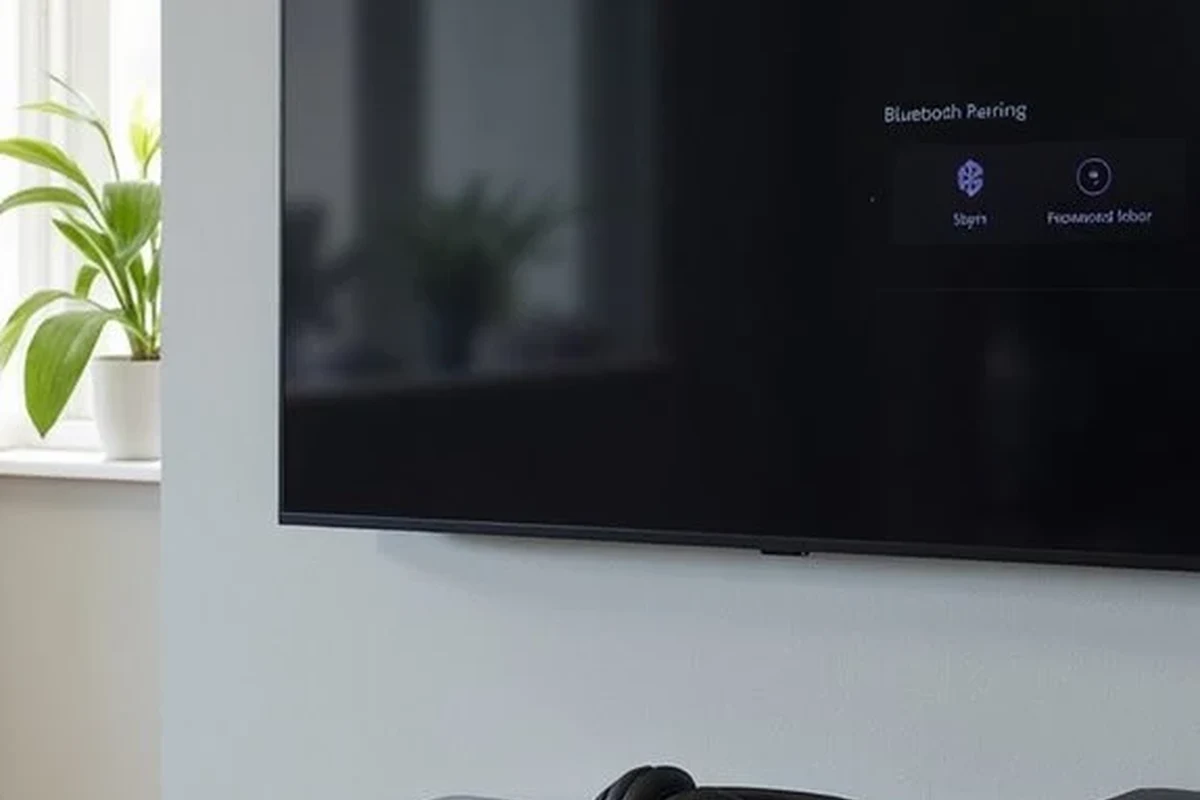
Before you buy any adapter or start plugging in cables, it helps to know what kind of audio support your TV actually has. Some TVs make headphone setup easy, while others need a small accessory to send sound where you want it.
Why people connect headphones to a TV in 2025
People connect headphones to a TV for many practical reasons: late-night viewing, shared living spaces, clearer dialogue, and private gaming. It is also useful for anyone who wants more control over volume without disturbing family, roommates, or neighbors.
For some viewers, headphones can make speech easier to hear than TV speakers alone. That matters if your TV sound feels thin, if the room has echo, or if you prefer a more focused listening experience while watching movies or sports.
TV audio basics: wired, wireless, and Bluetooth support
Most TV audio setups fall into three groups: wired headphone output, built-in Bluetooth, or external wireless support through a transmitter. A few TVs also use optical audio or RCA outputs, which can be adapted for headphones with the right gear.
Do not assume every smart TV has full Bluetooth audio support. Some models only support Bluetooth remotes, keyboards, or soundbars, so you may need to check the audio menu before pairing anything.
TV brands vary a lot in how they label audio menus. Look for terms like “Sound Out,” “Audio Output,” “Headphones,” or “Bluetooth Audio Device.”
Best Ways to Connect Headphones to a TV Quickly
The fastest method is usually the one your TV already supports. If not, a low-cost adapter or transmitter can solve the problem without changing your whole setup.
Using the TV’s headphone jack
If your TV has a 3.5mm headphone jack, this is the simplest path. Plug in your wired headphones, lower the TV volume first, and then raise it slowly until the sound feels comfortable.
This method is usually reliable and low-latency because the audio is sent directly through a cable. The main downside is that your movement is limited by the cord length, and not every modern TV includes this jack anymore.
Connecting via Bluetooth on smart TVs
If your TV supports Bluetooth audio output, you can pair wireless headphones directly. Open the TV’s Bluetooth menu, put your headphones in pairing mode, and select them from the list of available devices.
This is convenient because it removes the cable and keeps the room tidy. Still, sound delay can happen, especially with movies, live sports, and gaming, so it is worth testing lip-sync before settling in.
If your TV has a “lip sync” or “audio delay” setting, use it to fine-tune Bluetooth playback before deciding the connection is unusable.
Using a Bluetooth transmitter for non-Bluetooth TVs
If your TV does not have Bluetooth audio, a Bluetooth transmitter can bridge the gap. These devices plug into a headphone jack, optical port, or RCA output and send audio to wireless headphones.
This is one of the best options for older TVs or simple setups where you want wireless listening without replacing the TV. For a smoother experience, check that the transmitter and headphones support low-latency audio modes when possible.
Hooking up wired headphones with RCA or optical adapters
If your TV has RCA audio outputs or an optical port, you may need an adapter or DAC-style converter to use standard wired headphones. RCA outputs are analog, while optical is digital, so the adapter must match the signal type.
This method is useful when the TV lacks a headphone jack but still has audio outputs. It can be a very stable solution, though the extra box and cable can make the setup less simple than direct plug-in listening.
Step-by-Step: How to Hook Headphones Up to TV for Each Setup
Once you know your TV’s output options, the setup process is usually straightforward. The key is matching the right headphone type to the right output and checking the TV’s sound menu afterward.
Fast setup for 3.5mm wired headphones
Look on the side or back of the TV for a 3.5mm port labeled headphones or audio out.
Insert the headphone plug fully, then lower the TV volume before playback starts.
If needed, go to the TV sound menu and switch audio output from speakers to headphones.
If the sound is too quiet or distorted, try another volume level on the TV before changing anything else. Some TVs control headphone output separately from speaker volume, so the menu can matter more than the remote buttons.
Fast setup for Bluetooth headphones
Go to sound or connection settings and look for Bluetooth audio pairing.
Follow your headphone model’s pairing steps until the indicator light flashes or you hear a prompt.
Choose the headphones on the TV and play a show or game to confirm the connection.
If the TV does not show your headphones, turn Bluetooth off and back on, then try again. If you still cannot connect, the TV may not support Bluetooth audio output even if it supports other Bluetooth devices.
Fast setup for TVs without built-in Bluetooth
Pick the TV output your transmitter supports, such as headphone jack, optical, or RCA.
Plug the transmitter into the TV and power it if required by USB or wall adapter.
Put the headphones into pairing mode and link them to the transmitter, then test audio.
This setup is often the best compromise for older TVs because it adds wireless convenience without needing a brand-new television. For more Bluetooth basics, our guide on how to connect Bluetooth headphones is a useful companion read.
Fast setup for soundbars and shared audio setups
Some viewers want both a soundbar and headphones available, which is where output management becomes important. Depending on the TV, you may be able to switch between speakers, soundbar, and headphones in the audio menu.
If your TV supports simultaneous audio output, test whether the soundbar and headphones can stay in sync. If not, you may need to choose one output at a time or use a separate transmitter for private listening.
Some TVs mute the built-in speakers automatically when headphones are connected, while others let you control both outputs separately.
Which Connection Method Is Best for Your TV and Headphones?
The best method depends on how you watch, what headphones you own, and how sensitive you are to delay. A simple cable is often easiest, but wireless can be more comfortable for long sessions.
Wired vs wireless: sound quality, comfort, and latency
Wired headphones usually offer the most dependable connection and the lowest delay. That makes them a strong choice for gaming and lip-sync-sensitive viewing, especially if your TV has a direct headphone jack.
Wireless headphones are more convenient and easier to use from across the room. The tradeoff is that Bluetooth may introduce lag or compression, and performance can vary by TV, transmitter, and headphone model.
Best option for gaming, late-night watching, and seniors
For gaming, wired headphones or a low-latency transmitter are usually the best choices because they reduce audio delay. If you play rhythm games, shooters, or anything where timing matters, latency is a bigger deal than convenience.
For late-night watching, Bluetooth headphones are often the easiest option if your TV supports them well. For seniors or anyone who wants a simple setup, a direct wired connection can be easier to understand and less frustrating than pairing steps.
When to choose a transmitter over a direct TV connection
Choose a transmitter when your TV lacks Bluetooth audio, has no headphone jack, or you want wireless headphones with better compatibility. A transmitter is also useful if you want to keep using a favorite pair of headphones without replacing the TV.
If you are comparing headphone styles too, our general guide to types of headphones explained can help you decide whether over-ear, on-ear, or in-ear models fit your TV habits best.
Common Mistakes When Connecting Headphones to a TV
Most TV headphone problems come from small setup mistakes, not broken gear. A few minutes of checking the output type and audio settings can save a lot of frustration.
Assuming every smart TV has full Bluetooth audio support
This is one of the most common mistakes. A TV may have Bluetooth for remotes or accessories but still not support audio output to headphones.
Always check the audio menu or manual before buying wireless headphones for TV use. If Bluetooth audio is missing, a transmitter is the safer purchase.
Ignoring audio delay in movies and games
Bluetooth delay can be subtle at first, but it becomes obvious when dialogue does not match the mouth movement on screen. Games can feel even worse if footsteps or gunfire arrive late.
If you notice lag, look for low-latency support, wired alternatives, or a transmitter with better sync options. For more help, see our guide on Bluetooth headphone lag fix.
Using the wrong adapter or cable type
Not every port works the same way. A headphone jack, RCA output, and optical output all need different matching gear, and the wrong adapter can lead to no sound or poor sound quality.
Check whether the port is audio out, input, or a combined port before ordering anything. This is especially important on older TVs and compact streaming displays.
Forgetting TV audio output settings
Even when the cable is correct, the TV may still be sending sound to the speakers instead of the headphones. Many models require you to switch output manually in the settings menu.
If the headphones are connected but silent, revisit the sound output selection first. That simple step solves a surprising number of “broken” setups.
Expert Advice: Avoid These Headphone-to-TV Problems in 2025
A little planning goes a long way when you are choosing TV headphones. The right setup should be comfortable, compatible, and easy to use every day.
Latency warnings for gaming and lip-sync issues
If you game often, do not buy wireless headphones for TV use without checking delay performance. Even a small lag can make gameplay feel off, especially in fast or competitive titles.
For movies and shows, lip-sync issues can usually be corrected a little, but not always fully. If you are sensitive to timing, wired audio is still the most predictable option.
Volume safety and hearing protection tips
Headphones can make TV audio feel clearer, which sometimes leads people to listen louder than they realize. Keep volume at a moderate level and take breaks during long sessions.
Listening at high volumes for long periods can cause hearing damage. Keep volume at 60% or below for extended sessions.
If you already notice ringing, pain, or muffled hearing after listening, it is a good idea to follow safe listening guidance or consult an audiologist.
If TV listening causes ear pain, ringing, or persistent discomfort, stop using that setup and speak with an audiologist or hearing professional.
Compatibility checks before buying a transmitter or adapter
Before buying anything, confirm your TV output type, your headphone connection type, and whether you need wireless or wired listening. That simple checklist prevents most return headaches.
If you are shopping on a budget, our article on best headphones under 100 can help you choose a practical pair without overspending.
Cost Comparison: Budget vs Premium Ways to Hook Headphones Up to TV
Costs can vary a lot depending on whether you already own compatible headphones. In many cases, the cheapest path is simply using the TV’s built-in output.
Lowest-cost options for wired headphones
The least expensive setup is usually a direct 3.5mm connection, if your TV has one. If not, a basic RCA-to-headphone adapter or a simple optical converter may still keep the cost fairly low.
This route is best for readers who want dependable sound without extra pairing steps. It is also a good choice if you already own wired headphones and just want a straightforward TV listening solution.
Mid-range Bluetooth transmitter setups
A mid-range setup usually means a Bluetooth transmitter plus a pair of wireless headphones. This can be a strong balance of convenience and flexibility, especially for older TVs.
These setups are often the sweet spot for people who want private listening without moving to a new TV. Just remember that results can vary based on transmitter quality and headphone compatibility.
Premium low-latency solutions for serious TV and gaming use
Premium setups are aimed at viewers who care a lot about sync, comfort, and long-term reliability. That might mean a better transmitter, a low-latency wireless system, or headphones designed for TV and gaming use.
For serious gaming or frequent use, paying more can make sense if it reduces lag and improves comfort. The right premium choice depends on your TV, your room layout, and how often you listen.
Final Recap: The Easiest Way to Hook Headphones Up to TV
If you want the fastest answer to how to hook headphones up to TV, start with the TV’s built-in headphone jack, then Bluetooth, then a transmitter if needed. That order usually gives you the simplest setup with the least guesswork.
Quick summary of the best method by TV type
For a TV with a headphone jack, wired headphones are the easiest and most reliable. For a smart TV with Bluetooth audio, wireless headphones are convenient, but check for delay.
For a TV without Bluetooth, a Bluetooth transmitter is usually the best fix. For soundbars or shared audio setups, make sure the TV’s output menu allows the arrangement you want before buying extra gear.
Final recommendation for fast, reliable TV listening
If you want the most dependable experience, use wired headphones when possible. If you want freedom to move around, choose Bluetooth only when your TV supports audio well, or add a transmitter for older models.
The best setup is the one that matches your TV, your headphones, and the way you actually watch. Keep it simple, check compatibility first, and you will avoid most of the common problems.
Frequently Asked Questions
Wired headphones usually give the most reliable sound and the least delay. Wireless is more convenient, but Bluetooth can add lag depending on the TV and headphones.
Check the TV’s audio outputs, Bluetooth support, and whether you need a transmitter. Also consider comfort, cable length, battery life, and how sensitive you are to audio delay.
Noise cancelling headphones can make dialogue easier to focus on by reducing room noise. They do not improve TV audio quality by themselves, so sound clarity still depends on the TV and headphone tuning.
Over-ear headphones are often more comfortable for long viewing because they spread pressure around the ears. Earbuds are lighter and more portable, but fit and comfort vary more by ear shape.
Use the TV’s sound settings or the headphone app EQ if available. Small EQ changes often help dialogue clarity more than boosting bass, and results can vary by headphone model.
The best budget setup is usually a direct wired connection if your TV has a headphone jack. If not, a basic adapter or transmitter can still work well, but compatibility should be checked first.