How to Connect Headphones to Vizio TV Without Bluetooth Easily

The easiest way is to use the Vizio TV’s headphone jack if it has one, or an RCA/optical adapter if it does not. If you want wireless listening without Bluetooth, an RF transmitter is usually the most practical option.
If you want to use headphones with a Vizio TV but do not have Bluetooth, you still have several easy options. The best method depends on the ports on your TV, the kind of headphones you own, and whether you want a wired or wireless setup.
- Fastest setup: Use the 3.5mm headphone jack if your TV includes one.
- Best fallback: Use RCA or optical output with the right adapter or DAC.
- Best wireless choice: RF transmitters often work better than Bluetooth for TV audio.
- Common fix: Check TV audio settings if sound does not switch automatically.
How to Connect Headphones to a Vizio TV Without Bluetooth: What You Need to Know
Most Vizio TVs can work with headphones through a direct analog port, an adapter, or an external audio device. In many cases, the simplest solution is a wired connection, but some viewers prefer a wireless RF transmitter for more freedom around the room.
Before you buy anything, check the back and side panels of your TV for a 3.5mm headphone jack, RCA audio out, or optical audio out. The available port determines which setup will be the easiest and most reliable for your specific model.
Vizio TV port layouts can vary by model year, so the same method may not work on every set. Always confirm the labels next to each output before ordering an adapter.
If you already own a pair of wired headphones, you may not need much at all. If you want a more flexible private listening setup, a small DAC or wireless transmitter can make a big difference in comfort and convenience.
Best Non-Bluetooth Ways to Use Headphones with a Vizio TV in 2025
There are four practical ways to connect headphones to a Vizio TV without Bluetooth. Some are very simple and inexpensive, while others are better for bigger TVs, longer cable runs, or better sound control.
Using the TV’s 3.5mm headphone jack
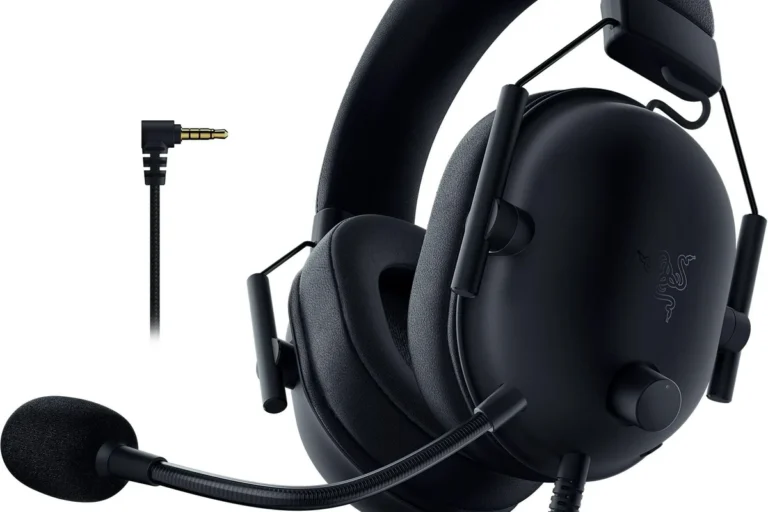
If your Vizio TV has a 3.5mm headphone output, this is usually the easiest route. Plug in your wired headphones just like you would with a phone, laptop, or controller.
This method is best for casual TV watching because it is fast, low-cost, and usually requires no extra hardware. The main limitation is that not every Vizio model includes this jack, and some TVs may lower speaker output automatically when headphones are inserted.
Connecting via RCA audio out with an adapter
Some Vizio TVs include red and white RCA audio outputs instead of a headphone jack. In that case, you can use an RCA-to-3.5mm adapter or an RCA-to-headphone converter to feed sound into your headphones.
This is a solid option for older TVs and basic home setups. However, because RCA output is line-level audio, you may need an adapter with built-in volume control or amplification to avoid weak sound.
Using optical audio out with a DAC and headphone amp
If your TV only has optical audio out, you will need a digital-to-analog converter, often called a DAC. The DAC changes the optical signal into analog audio that your headphones or headphone amp can use.
This is one of the best choices for newer TVs that no longer include analog headphone jacks. It can also improve compatibility with a wider range of headphones, especially if you want stronger volume control or cleaner sound than a basic adapter can provide.
Using a wireless RF headphone transmitter instead of Bluetooth
A wireless RF headphone transmitter is a great alternative if you want to move around without a cable. These systems usually connect to the TV through RCA, 3.5mm, or optical output, then send audio to a matching pair of headphones.
Compared with Bluetooth, RF systems can be easier for TV listening because they often have lower lag and more stable range. That makes them appealing for movies, sports, and gaming, where lip-sync matters.
If you watch late-night TV often, a wireless RF setup can be more comfortable than a long cable, especially on larger couches or recliners.
Step-by-Step Setup for Each Connection Method
Once you know which port your Vizio TV has, the setup is usually straightforward. The key is matching the right cable or adapter to the output and then checking the TV’s sound settings if audio does not play right away.
Direct wired connection to the headphone jack
Look for a 3.5mm port labeled headphone, audio out, or similar on the side or back of the TV.
Insert the headphone plug fully until it clicks or sits firmly in place.
Lower the TV volume first, then raise it slowly to a comfortable level from the headphones.
If the TV speaker stays active, check the audio menu for output settings. Some Vizio models require you to switch from internal speakers to external audio or headphone output manually.
RCA-to-headphone adapter setup
Find the red and white audio out ports on the TV or external device connected to the TV.
Attach the RCA plugs to the matching colored outputs and connect the 3.5mm end to your headphones or adapter box.
Use the adapter volume control if it has one, then fine-tune the TV or source device volume.
This method can work well for basic TV audio, but low-quality adapters may add hiss or reduce clarity. If you hear weak output, a powered adapter is often better than a passive cable.
Optical-to-analog DAC setup for older and newer Vizio models
Run a Toslink optical cable from the TV’s optical out to the DAC input.
Many DACs need USB or wall power, so make sure it is turned on before testing audio.
Use the DAC’s analog output or headphone amp output, then adjust volume on the DAC or amp.
For older Vizio TVs, this can be a clean upgrade over cheap analog adapters. For newer models, it is often the most dependable way to use standard headphones when no headphone jack is available.
For readers comparing wired listening quality more broadly, our guide on Bluetooth vs wired headphones sound quality explains why a direct audio path can still be the simplest choice for TV use.
Wireless transmitter setup for private TV listening
Use RCA, 3.5mm, or optical output depending on the transmitter’s input options.
Turn on the transmitter, then connect the included wireless headphones or compatible receiver.
Walk around the room and check whether the audio stays stable and in sync with the picture.
RF systems are especially useful if you want to watch without waking others. They can also be a good fit for users who prefer over-ear headphones and want less physical strain than a long cable might create.
Common Problems When Connecting Headphones to a Vizio TV
Most connection issues come from the wrong port, the wrong adapter, or a TV audio setting that is still pointed at the speakers. A quick check of the output menu usually solves many of the most common problems.
No sound after plugging in headphones
If nothing plays, confirm that the headphones are plugged into an actual audio output and not an input or service port. Then check whether the TV has switched audio to external output automatically.
If you are using optical or RCA output, make sure the DAC or adapter has power and is connected correctly. A loose cable, a dead converter, or the wrong input format can stop sound completely.
Do not force a plug into a port that does not fit. Wrong connections can damage the cable, the adapter, or the TV’s audio jack.
Low volume, distortion, or audio delay
Low volume often means the adapter needs amplification or the headphone impedance is higher than the source can drive comfortably. Distortion may also happen if the output level is set too high and the adapter clips the signal.
Audio delay is more common with wireless setups or some conversion boxes. If lip-sync matters for gaming or movies, look for a transmitter or DAC designed for low-latency use.
Some TVs process sound differently depending on whether the output is set to PCM, stereo, or surround format, which can affect headphone compatibility.
TV audio switching issues and output settings
Vizio TVs may keep internal speakers active until you manually change the sound menu. If you hear both the TV and the headphones at once, look for speaker settings, audio output options, or digital audio format settings.
If your TV has a sound mode or advanced audio menu, try switching to stereo or PCM when using a basic DAC or analog adapter. That can reduce compatibility issues and help the signal play correctly.
For readers who also use wireless audio elsewhere, our guide on how to connect Bluetooth headphones is useful if you later upgrade to a Bluetooth-ready setup.
What to Buy: Affordable Accessories and Price Comparison
When shopping for a non-Bluetooth headphone setup, the best purchase is usually the one that matches your TV’s actual output. Spending more does not always mean better sound, but the right adapter can save a lot of frustration.
Budget wired options vs. mid-range adapters
A simple 3.5mm cable is the cheapest option if your Vizio TV already has a headphone jack. RCA-to-3.5mm cables are also affordable, but they may be less flexible than a powered adapter with volume control.
Mid-range adapters often make sense when you want more stable volume, better build quality, or fewer hiss and hum problems. They are usually a better buy than the lowest-cost no-name cables if you plan to use headphones often.
When a DAC or RF transmitter is worth the extra cost
A DAC is worth considering if your TV only has optical output or if your analog audio sounds too quiet or thin. It is also a practical upgrade if you use over-ear headphones that need a cleaner or stronger signal.
An RF transmitter is worth the extra cost when you want freedom to move around, watch without cables, or reduce lag compared with some wireless alternatives. For some families, the convenience alone makes it the best long-term choice.
Best value choice for gaming, late-night TV, and seniors
For gaming, choose the setup with the lowest delay and the cleanest output, usually wired or a low-latency RF system. For late-night TV, comfort and easy volume control matter more than fancy audio extras.
For seniors, the best value is often a simple wired connection or a transmitter with large controls and clear pairing steps. Ease of use is usually more important than advanced features, especially if the TV is shared by multiple people.
Expert Advice: Mistakes to Avoid When Using Headphones with Vizio TVs
The most common mistakes are easy to avoid once you know what to look for. A little planning before buying an adapter can save time, money, and a lot of trial and error.
Wrong port selection on the TV
Do not assume every round or colored port is an audio output. Some ports are input-only, some are for service use, and some may belong to another connected device like a soundbar or console.
Always check the labels and, if needed, the TV manual. If the port says optical out, audio out, or headphone, that is usually the right place to start.
Using unsupported adapters or poor-quality cables
Cheap adapters can work, but they can also introduce noise, weak volume, or inconsistent connection quality. If an adapter is not designed for the type of output your TV uses, the result may be silent audio or poor sound.
When possible, choose cables and converters that clearly match your TV output and headphone input. That simple step avoids many compatibility problems.
Ignoring audio format and latency issues
Some headphones and converters do not handle surround formats well, especially if the TV is sending a signal that expects a home theater system. In those cases, switching the TV to stereo or PCM can help.
If you notice a delay between the picture and the sound, the problem may be the transmitter or conversion box rather than the headphones themselves. For sensitive listeners, especially gamers, latency should be checked before buying.
If you have hearing loss, tinnitus, or ongoing ear discomfort, consider speaking with an audiologist before relying on very loud headphone listening for long TV sessions.
Listening at high volumes for long periods can cause hearing damage. Keep volume at 60% or below for extended sessions.
Final Recap: The Easiest Ways to Connect Headphones to a Vizio TV Without Bluetooth
The easiest answer to how to connect headphones to Vizio TV without Bluetooth is to use the TV’s 3.5mm headphone jack if it has one. If not, RCA output with an adapter, optical output with a DAC, or an RF transmitter can all work well depending on your model and listening style.
For most people, wired is the simplest and most reliable option, while RF wireless is the best no-Bluetooth choice for comfort and freedom. The right setup comes down to your TV ports, your headphone type, and whether you care most about price, sound quality, or convenience.
- Use the headphone jack first if your Vizio TV has one.
- Use RCA, optical, DAC, or RF options when the TV lacks a headphone port.
- Check audio settings if the sound is missing, quiet, or delayed.
- Choose the setup that best fits your budget, comfort, and viewing habits.
Frequently Asked Questions
Yes. You can often use RCA audio out, optical audio out with a DAC, or a wireless RF transmitter. The best choice depends on which ports your TV has.
They can be better for some users because they often offer lower lag and a more stable connection. That makes them a strong option for movies and gaming.
Closed-back headphones are usually better for TV because they block more outside noise and keep sound from leaking out. Open-back models can sound spacious, but they are less private.
Over-ear headphones usually give the best balance of bass, comfort, and soundstage for TV. For clarity, look for a model with a balanced tuning rather than exaggerated bass.
Check the connection type, impedance, comfort, cable length, and whether you need wired or wireless use. If you are using a DAC or transmitter, compatibility matters just as much as the headphones themselves.
Choose lightweight headphones with soft ear cushions and a secure but gentle fit. If you listen for long periods, take breaks and keep the volume at a safe level.