How to Connect Bluetooth Headphones to Vizio TV Easily

If your Vizio TV supports Bluetooth audio, you can pair headphones directly from the TV’s settings menu. If it does not, a Bluetooth transmitter is usually the easiest workaround.
If you want to learn how to connect Bluetooth headphones to a Vizio TV, the first thing to check is whether your specific model supports Bluetooth audio output. Some Vizio TVs pair directly with headphones, while others need a Bluetooth transmitter or another workaround.
For most viewers, the goal is simple: private listening for late-night movies, lower-lag audio for gaming, or a way to watch TV without waking anyone up. The exact setup depends on the TV model, the headphone type, and whether you are using built-in Bluetooth or an external adapter.
- Check first: Not every Vizio TV supports Bluetooth headphone output.
- Direct pairing: Put the headphones in pairing mode and connect through the TV menu.
- Best workaround: Use a Bluetooth transmitter for older or unsupported models.
- Watch for lag: Low-latency gear helps with movies and gaming.
- Safety matters: Keep listening volume moderate for long sessions.
How to Connect Bluetooth Headphones to Vizio TV: What You Need to Know in 2025
Vizio has used different smart TV platforms and hardware across its lineup, so Bluetooth support is not the same on every set. That means one Vizio TV may pair with headphones in a few taps, while another may not show any headphone option at all.
In 2025, the safest approach is to treat Bluetooth as a model-by-model feature rather than a guaranteed Vizio standard. If your TV supports it, pairing is usually straightforward; if it does not, an external transmitter is often the fastest fix.
Why Vizio TV Bluetooth support varies by model
Bluetooth support can depend on the TV’s year, series, and software platform. Some models include Bluetooth for remotes or soundbars, but not always for headphones, which is where confusion starts.
That is why two Vizio TVs sitting side by side in the same room can behave very differently. Before you buy anything, it helps to confirm whether your model supports audio output over Bluetooth specifically.
What viewers are actually trying to solve: late-night TV, gaming, and private listening
Most people are not chasing fancy audio features. They simply want a quiet way to watch shows, hear dialogue clearly, or keep game audio personal without disturbing others.
For gaming, Bluetooth can be convenient, but delay matters more than it does for casual TV. If you notice lag between the picture and the sound, you may need a low-latency headset or a wired-style workaround.
Check Whether Your Vizio TV Has Built-In Bluetooth Headphone Support
Start here before buying a transmitter or new headphones. If your TV already supports Bluetooth audio, you can save money and keep the setup simple.
How to find Bluetooth settings in the Vizio menu
Use your Vizio remote and open the Settings or Audio menu, then look for Bluetooth, Speakers, Sound Output, or Device Pairing. On some models, the Bluetooth option may be tucked inside a system or accessories menu instead of the main audio screen.
If you see a pairing option, your TV likely supports wireless audio devices. If the menu only shows speaker or soundbar controls, that does not always mean Bluetooth is missing, but it does mean you should check the manual or support page for your exact model.
How to identify unsupported models and older Vizio TVs
Older Vizio TVs often rely on HDMI, optical, or analog audio outputs instead of headphone Bluetooth. If your menu never mentions pairing, device discovery, or Bluetooth audio, the TV may not support headphones directly.
Model numbers matter here. A quick search of your exact Vizio model can usually tell you whether Bluetooth is built in, limited to remotes, or absent from audio output entirely.
Quick test before buying anything extra
Put your headphones in pairing mode and open the TV’s Bluetooth or audio device list. If the headphones appear, you are probably good to go.
If nothing shows up after a full scan, do not assume the headphones are broken. The TV may simply not support direct headphone pairing, which is common on some sets.
Bluetooth support on TVs can be limited to certain device types. A TV that connects to a remote or soundbar may still need a separate adapter for headphones.
Step-by-Step: Pair Bluetooth Headphones to a Vizio TV
If your Vizio TV supports Bluetooth audio, the pairing process is usually simple. The key is to put the headphones into discoverable mode first, then pair from the TV menu.
Put your headphones in pairing mode correctly
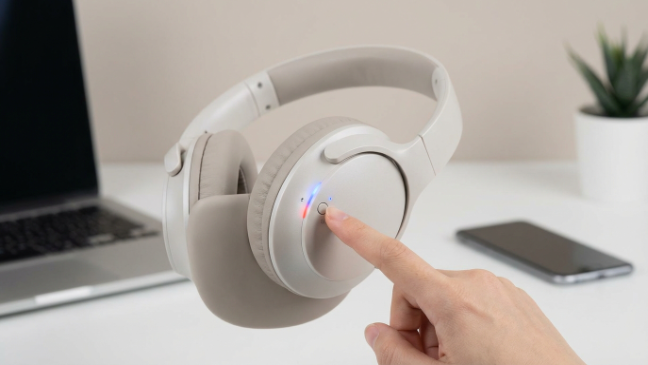
Turn on the headphones and hold the pairing button until the indicator light flashes or you hear a pairing prompt. Every brand does this a little differently, so check the headset’s manual if the light pattern is unclear.
Make sure the headphones are close to the TV during setup. Being within a few feet can help the TV detect them faster, especially the first time you connect.
Open the Vizio TV audio or Bluetooth menu
On the TV, go to the settings area and look for audio output, Bluetooth devices, or accessory pairing. Some Vizio interfaces place this under sound settings, while others use a separate device manager.
Once the scan starts, wait a moment for the TV to finish searching. If the headphones are in pairing mode, they should appear in the list when the TV detects them properly.
Select the headphones and confirm the connection
Choose your headphones from the list and confirm pairing if the TV asks for approval. After that, the TV should switch audio output from the speakers to the headphones.
If the sound does not move automatically, check the audio output setting and make sure headphones are selected instead of internal speakers.
Adjust volume, audio output, and lip-sync settings
After pairing, raise or lower the TV volume as needed and adjust the headphone volume separately if your model supports it. Some headphones also have their own volume controls, which can make the TV seem quieter than expected.
If voices seem out of sync with the picture, check the TV’s lip-sync or audio delay setting. This is especially important for gaming and fast-paced shows where even a small delay can be noticeable.
Listening at high volumes for long periods can cause hearing damage. Keep volume at 60% or below for extended sessions.
When Bluetooth Is Missing: Best Workarounds for Vizio TVs
If your Vizio TV does not support Bluetooth headphones directly, you still have good options. In many homes, a small transmitter is the easiest and most affordable fix.
Using a Bluetooth transmitter with optical, AUX, or USB output
A Bluetooth transmitter plugs into the TV’s audio output and sends sound to your headphones wirelessly. Depending on your TV, you may use optical, 3.5mm AUX, RCA, or sometimes USB for power and audio support.
This is often the best choice for older TVs because it adds headphone support without replacing the television. It can also be easier to upgrade later if you switch headphones.
If you are sensitive to delay, look for a transmitter and headphones that both support low-latency audio modes. Not every Bluetooth setup handles lip-sync equally well.
Soundbar passthrough and TV box alternatives
Some viewers route audio through a soundbar or external streaming box that offers better output options. This can help if your TV’s built-in audio menus are limited or if you already use a home theater setup.
Just keep in mind that passthrough behavior varies by device. You may need to test whether the soundbar, receiver, or streaming box sends audio in a way that works well with your headphones.
When a wired headphone adapter is the better option
Wired connections still make sense for some users, especially if you want the simplest path with the least delay. If your TV has a headphone jack or compatible audio output, a wired adapter may be more reliable than Bluetooth.
For gaming, wired often wins when low latency matters most. For casual TV, Bluetooth is usually more convenient, but only if the connection stays stable.
Common Problems and Mistakes That Stop Headphones from Connecting
Most connection issues are small setup problems, not major hardware failures. A few menu checks and reset steps can usually fix them.
Headphones not showing up in the device list
If the headphones do not appear, confirm they are in pairing mode and not already connected to your phone, tablet, or laptop. Many headphones will only pair with one active device at a time unless multipoint is enabled.
Also move closer to the TV and restart the scan. Weak signal, old firmware, or a busy wireless environment can make discovery slower than expected.
Audio delay, dropouts, and unstable pairing
Bluetooth delay can happen when the TV and headphones use different audio processing methods. Dropouts may also appear if the room has too much wireless interference from routers, game consoles, or other devices.
If the connection cuts out, try lowering distance, removing obstacles, or reconnecting after a full power cycle. In some cases, the issue is the codec support rather than the headphones themselves.
TV connected but sound still plays through speakers
This usually means the TV did not switch the audio output setting after pairing. Go back into the sound menu and manually choose headphones, Bluetooth audio, or external device output.
Some TVs also keep internal speakers on unless you disable them. If your Vizio model allows it, turn off TV speakers or set the output priority to headphones.
Resetting Bluetooth and re-pairing the right way
If nothing works, remove the headphones from the TV’s paired device list and start over. Then restart both devices and repeat the pairing process from scratch.
If you need a deeper reset on the headphones side, our guide on how to reset Bluetooth headphones can help clear stubborn pairing problems before you try again.
Expert Advice: How to Get Better Sound and Fewer Delays on Vizio TV
Not all Bluetooth setups sound or feel the same. For TV watching and gaming, the most important factors are latency, stability, and comfort over long sessions.
If you have hearing concerns, ringing in the ears, or discomfort during long listening sessions, follow safe listening guidelines and consider speaking with an audiologist. For persistent audio delay or compatibility issues, a TV or audio specialist can help you choose the right transmitter or output path.
Why Bluetooth codec support matters for TV watching and gaming
Bluetooth codecs affect how audio is encoded and sent to your headphones. Some setups are more efficient than others, which can change delay, clarity, and overall consistency.
You do not need to memorize codec names to make a good choice. Just know that better codec matching can mean fewer sync issues and a smoother listening experience.
Choosing low-latency headphones for movie nights and console play
If you watch a lot of action movies or play games on your Vizio TV, low-latency headphones are worth prioritizing. They help keep dialogue, footsteps, and game effects closer to what is happening on screen.
For general TV use, comfort and battery life may matter more than advanced audio features. For gaming, delay should move higher on your checklist.
Even a great pair of headphones can feel “off” on TV if the audio delay is too high. That is why transmitter quality and codec support matter as much as the headphones themselves.
Placement tips to reduce interference in real living rooms
Keep the TV, transmitter, and headphones within a reasonable range and avoid placing the transmitter behind thick furniture or metal objects. That can help reduce signal drops and random cutouts.
If your router or console is crowded near the TV, try moving the transmitter slightly or separating wireless devices. Small placement changes often improve stability more than people expect.
Cost Comparison: Built-In Bluetooth vs Bluetooth Transmitter vs New Headphones
There is no single best budget path for every Vizio owner. The right choice depends on whether your TV already supports Bluetooth and how much you care about latency and convenience.
Budget-friendly setup options under a typical home-theater budget
If your Vizio already supports Bluetooth, you may only need the headphones you already own. That is the cheapest path and the easiest to use.
If Bluetooth is missing, a basic transmitter can be a low-cost way to add private listening without buying a new TV. Just make sure it matches your TV’s available audio output.
Mid-range transmitter solutions for older Vizio TVs
Mid-range transmitters are often the sweet spot for older TVs because they can improve stability and reduce the frustration of cheap adapters. They may also offer better pairing options or dual-headphone support, depending on the model.
For many households, this is the most practical upgrade because it extends the life of the TV and keeps your existing headphones in use.
When upgrading to a newer TV or better headphones makes more sense
If your current TV has weak audio output options or persistent sync problems, upgrading the TV may eventually be the cleaner solution. That said, most people can solve the issue with a transmitter long before replacing the display.
Better headphones can also help if comfort, battery life, or sound quality is the real problem. If you want to compare wireless and wired options more broadly, our guide on Bluetooth vs wired headphones sound quality is a useful next read.
Final Recap: The Fastest Way to Connect Bluetooth Headphones to a Vizio TV
The fastest setup is always the one your TV actually supports. If your Vizio model has built-in Bluetooth audio, pair the headphones from the TV menu and adjust the output settings.
Best choice for supported Vizio models
For supported models, use the TV’s Bluetooth pairing menu, confirm the headphones are in discoverable mode, and test the sound before settling in. That gives you the simplest and cleanest setup.
Best workaround for unsupported models
If Bluetooth is missing, a Bluetooth transmitter is usually the best workaround because it adds wireless headphone support without replacing the TV. Choose one that matches your TV’s audio output and your latency needs.
Last checks before settling in for private listening
Before you start watching, confirm the headphones are connected, the TV speakers are off or lowered, and the audio is in sync. A quick test clip can save you from discovering a problem halfway through a movie.
If you are still deciding on the right headphone style for TV use, our broader headphone guides can help you compare comfort, sound, and wireless convenience for long listening sessions.
Frequently Asked Questions
Wireless headphones are more convenient, but wired headphones usually have less delay. For gaming and lip-sync sensitive viewing, wired can be the safer choice.
Over-ear headphones are often the most comfortable for long sessions because they spread pressure more evenly. Ear cushion material, weight, and clamp force matter as much as the style itself.
Noise cancelling can make dialogue easier to hear in a noisy room, but it does not automatically improve the TV’s audio quality. Sound quality still depends on the headphones, the source, and the connection method.
Closed-back headphones are usually better for TV because they isolate sound and reduce leakage. Open-back models can sound wider, but they are less private and let in more room noise.
Check Bluetooth compatibility, battery life, comfort, and whether the headphones support low-latency audio if you care about sync. Driver size and frequency response can matter too, but real-world tuning is often more important than a spec sheet alone.
Look for a lightweight fit, soft ear pads, and a headband that does not clamp too tightly. If you experience pain, pressure, or ringing in your ears, lower the volume and consider speaking with an audiologist.