How Do You Connect Wireless Headphones to PS4 Easily

Use a PS4-compatible wireless headset with a USB dongle for the easiest setup. Standard Bluetooth headphones often need a workaround because direct pairing is limited and can cause lag or mic issues.
If you’re trying to figure out how do you connect wireless headphones to ps4, the short answer is that it depends on the headphone type. Some PS4 players can connect through a USB wireless dongle, while many standard Bluetooth headphones need a workaround because the console does not support every headset directly.
The good news is that there are a few reliable ways to get wireless audio working on PS4 without overcomplicating the setup. In this guide, the Top Headphone Reviews Editorial Team breaks down what works, what usually fails, and which connection method makes the most sense for gaming, party chat, and everyday play.
- Best method: USB dongle headsets are usually the simplest.
- Bluetooth limit: Direct pairing may not support chat well.
- Workaround: Controller cable or TV transmitter can help.
- Common fix: Recheck PS4 audio input and output settings.
- Buying tip: Confirm PS4 compatibility before adding adapters.
How Do You Connect Wireless Headphones to PS4? What Works in 2025
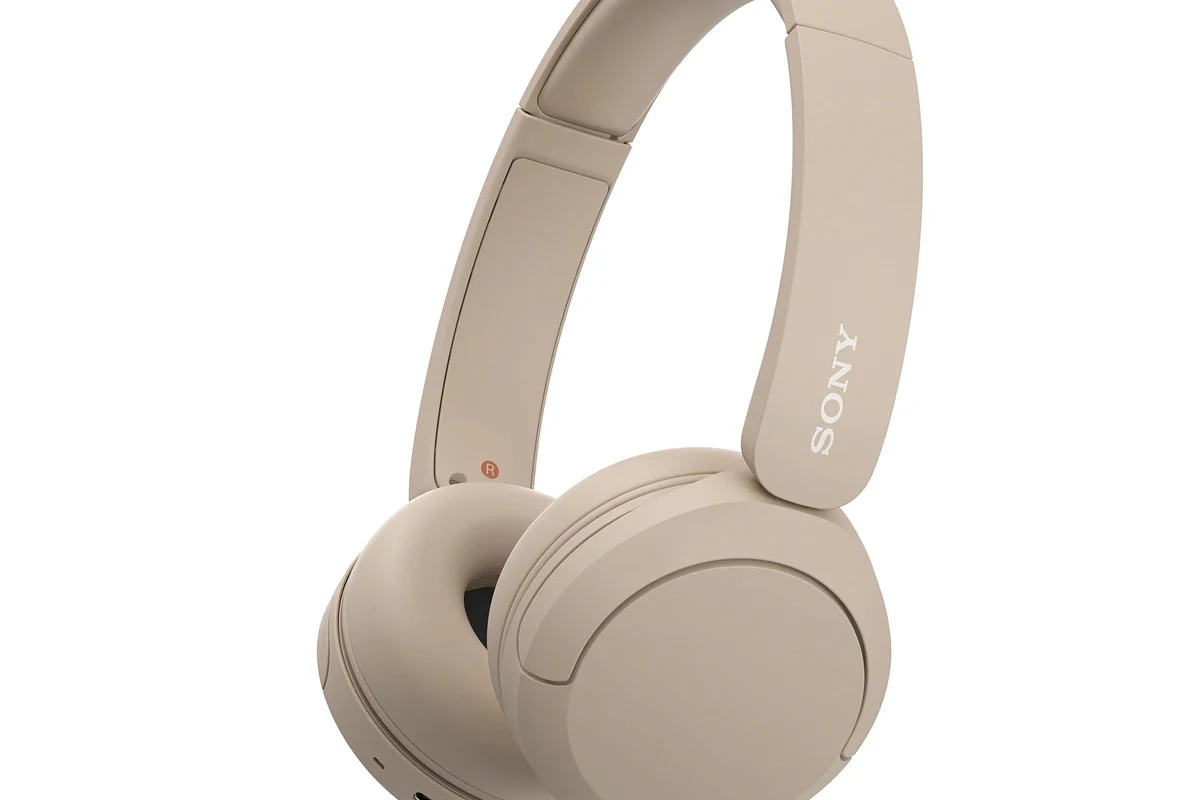
In 2025, the easiest PS4 wireless headphone setup is usually a headset made for consoles or a model that includes its own USB dongle. That is the most straightforward path because the dongle handles the wireless link instead of relying on the PS4’s limited Bluetooth support.
Many players are surprised that “wireless” does not always mean “easy to pair.” On PS4, wireless audio often works best when the headset is designed for gaming, especially if you want both game sound and microphone support. If you mainly want private listening and don’t need chat, your options open up a little more.
PS4 Wireless Headphone Compatibility: Bluetooth, USB Dongles, and Official Support
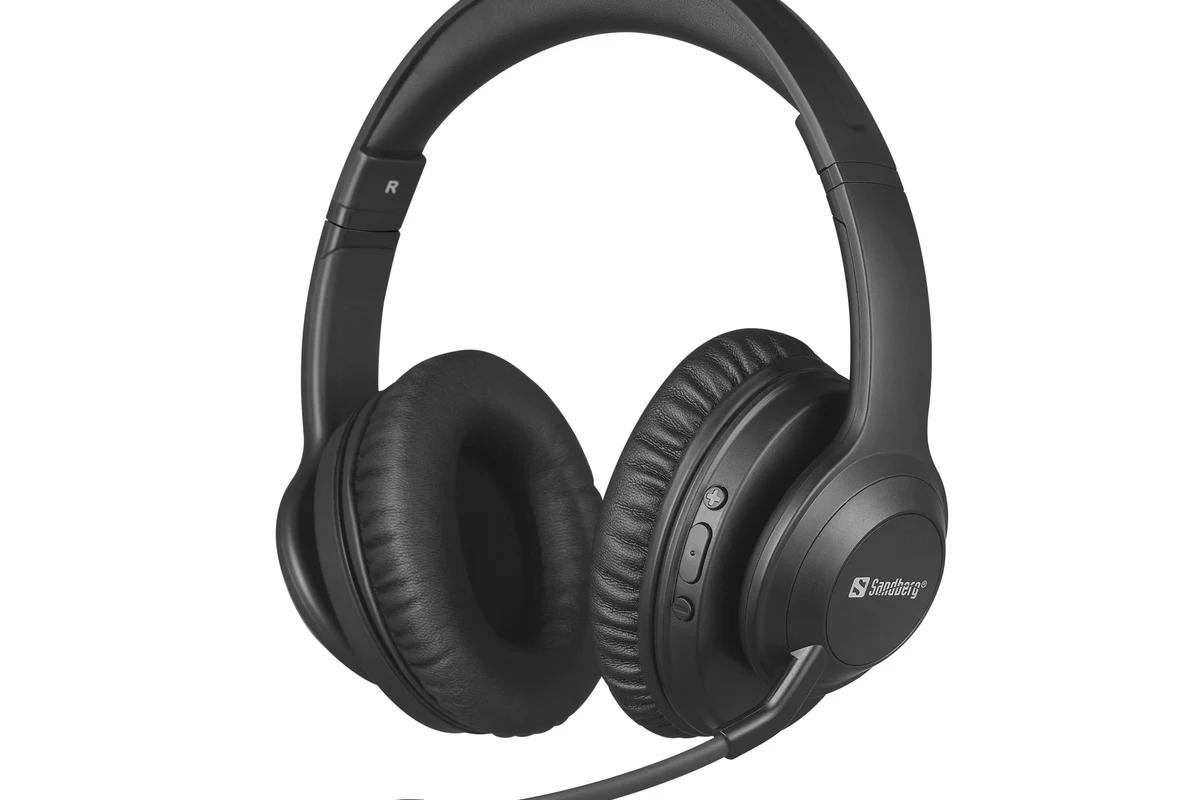
PS4 compatibility comes down to how the headphones send audio. Some use Bluetooth, some use a 2.4GHz USB receiver, and some are officially supported PlayStation headsets that are built to work with the console more smoothly.
Which wireless headphones work best with PS4
The best wireless headphones for PS4 are usually gaming headsets with a USB wireless adapter, official PlayStation headsets, or console-compatible models from major gaming brands. These are typically easier to pair and more likely to support voice chat.
If you want a more flexible setup, look for low-latency wireless headphones that advertise console support. That matters because gaming audio needs to stay in sync with the action, especially in shooters, rhythm games, and competitive titles.
Compatibility can vary by brand and model, so always check the headset’s PS4 support notes before buying.
Why many Bluetooth headphones do not connect directly
Many Bluetooth headphones do not connect directly to PS4 because the console’s Bluetooth support is limited and not designed for every audio device. Even when a connection works, it may not support mic chat properly or may introduce noticeable delay.
This is why a pair that works perfectly on a phone or laptop may still be frustrating on PS4. For gaming, stability and low latency matter more than simple pairing.
Unsupported Bluetooth pairing can lead to lag, dropouts, or no microphone support at all. If you need chat audio, check the headset’s PS4 compatibility first.
Step-by-Step Methods to Connect Wireless Headphones to PS4
There are three common ways to connect wireless headphones to PS4. The best method depends on whether your headset includes a USB dongle, whether you can use a wired workaround, or whether your TV or monitor can act as the audio source.
Using a USB wireless adapter or dongle
This is usually the cleanest method. Plug the headset’s USB dongle into the PS4, turn on the headphones, and wait for them to pair automatically or through the headset’s pairing button.
Plug the USB wireless adapter into an open PS4 USB port.
Turn on the headphones and wait for the indicator light to confirm pairing.
Go to PS4 sound settings and confirm the headset is selected for output.
If the headset supports microphone chat, you may also need to set the input device in the PS4 settings menu. Some models handle this automatically, while others need a quick manual check.
If your headset has both game and chat modes, test both before a long session so you know which setting gives the clearest voice balance.
Connecting through the PS4 controller with a wired workaround
If your wireless headphones include a detachable 3.5mm cable, you can connect them to the PS4 controller and use the headset in wired mode. This is not fully wireless, but it can solve compatibility problems fast.
This approach is especially useful if your Bluetooth headset refuses to pair directly. You lose the wireless freedom, but you often gain more stable audio and better chat support.
- Does the headset include a 3.5mm cable?
- Does the PS4 controller detect the headset automatically?
- Do you need to adjust output settings in the console menu?
For readers comparing connection styles more broadly, our guide on wired vs wireless headphones can help you decide whether convenience or reliability matters more for your setup.
Pairing via TV, monitor, or external transmitter
Another option is to connect the headphones to your TV, monitor, or an external Bluetooth transmitter instead of the PS4 itself. This can work well if your display has audio output support or if you already own a transmitter.
This method is often better for simple game audio than for party chat. It can also add delay depending on the TV, transmitter, and headphone model, so it is not always the best choice for competitive gaming.
Some TVs handle Bluetooth audio better than consoles, but the extra processing can still create lag that gamers notice quickly.
Common Connection Problems and How to Fix Them
Even when the headphones are technically compatible, PS4 wireless audio can still run into a few common problems. The good news is that most issues are easy to diagnose once you know where to look.
Headphones not appearing in PS4 audio devices
If your headphones do not show up, first confirm that the dongle is fully inserted and the headset is powered on. Then check the PS4 sound settings and make sure the output device is not still set to the TV or controller.
If you are using Bluetooth headphones without a dongle, the PS4 may simply not support that model. In that case, a USB receiver or a wired workaround is usually the faster solution.
Why does my PS4 see the headset but not play sound?
This usually means the output device or audio routing is set incorrectly. Recheck the console settings and confirm the headset is selected for game audio, not just paired.
Audio delay, dropouts, and low volume issues
Audio delay usually points to Bluetooth latency, while dropouts often come from interference, distance, or a weak wireless link. If the sound cuts in and out, move closer to the console or dongle and remove obstacles between the devices.
Low volume can happen if the headset has its own volume control turned down or if the PS4 output level is not set correctly. In some cases, the headset simply needs a firmware update from the manufacturer.
Listening at high volumes for long periods can cause hearing damage. Keep volume at 60% or below for extended sessions.
Mic not working in chat or party mode
If game audio works but the microphone does not, check whether the headset supports PS4 voice chat through that connection method. Some Bluetooth headphones only handle playback, not mic input, when used with a console.
You should also verify that the PS4 input device is set correctly in system settings. If the mic still fails, the headset may need a USB dongle or a wired connection to support voice properly.
If you rely on headphones for frequent party chat and the mic keeps failing, consider asking a retailer or audio specialist whether the model supports PS4 voice input before you buy an adapter.
Best Wireless Headphone Setup Options for PS4 Players
The best setup depends on your budget, how much latency you can tolerate, and whether you care more about solo gaming or voice chat. For most PS4 players, a dedicated gaming headset with a USB dongle is the easiest balance of convenience and performance.
Budget-friendly choices vs premium low-latency models
Budget-friendly options can be perfectly fine if you mainly want wireless game audio and casual play. Premium models may offer better comfort, stronger wireless stability, and cleaner microphone performance, but the difference depends on the brand and model.
If you play long sessions, comfort can matter as much as sound quality. Look for soft ear cushions, a secure but not tight headband, and a weight that does not feel fatiguing after an hour or two.
Comparing Bluetooth, 2.4GHz wireless, and official PlayStation headsets
Bluetooth is the least reliable option for direct PS4 use because of latency and compatibility limits. 2.4GHz wireless headsets with USB dongles usually perform better for gaming because they are designed for faster, more stable audio transmission.
Official PlayStation headsets can also be a strong choice because they are built with console use in mind. If you want the simplest experience, that is often the safest route.
| Model | Best For | Price Range |
|---|---|---|
| USB dongle headset | Easy setup and low-latency play | Varies |
| Bluetooth headset | Casual listening with workarounds | Varies |
| Official PlayStation headset | Simple console compatibility | Varies by brand |
Expert Advice: Mistakes to Avoid Before Buying or Connecting
A lot of PS4 headphone frustration comes from buying the wrong type of wireless headset. A little checking before purchase can save you from pairing issues, missing mic support, and unnecessary adapter costs.
Warning about unsupported Bluetooth pairing and latency
Do not assume that any Bluetooth headphones will work well just because they connect to other devices. PS4 is stricter than a phone or laptop, and that can lead to lag or limited functionality.
Unsupported Bluetooth pairing may seem convenient at first, but it can create delay that ruins gameplay timing, especially in fast-paced titles.
What to check before spending extra on adapters
Before buying a separate adapter, check whether your headset already includes a USB receiver or wired backup option. Also confirm whether the adapter supports both audio and microphone input, not just sound output.
It is also worth checking the headset’s connection instructions from the manufacturer. Some models need specific pairing steps, and some are not meant to be used with a generic Bluetooth dongle at all.
- USB dongle headsets are usually the easiest PS4 wireless option.
- Direct Bluetooth pairing often causes lag or limited mic support.
- Wired controller workarounds can solve compatibility problems quickly.
- Check headset support notes before buying extra adapters.
Final Recap: The Easiest Way to Connect Wireless Headphones to PS4
If you want the simplest answer to how do you connect wireless headphones to ps4, choose a headset with a USB wireless dongle or an official PS4-compatible model. That setup usually gives you the best mix of easy pairing, stable sound, and microphone support.
Bluetooth headphones can work in some cases, but they are less dependable for gaming and chat. For most players, the best path is to match the headset to the PS4 first, then worry about sound quality, comfort, and features second.
Frequently Asked Questions
Wired headphones usually offer the most reliable connection and the least delay. Wireless headphones are more convenient, but sound quality and latency can vary by model and connection type.
Yes, noise cancelling headphones can help block background noise during gaming sessions. Just remember that active noise cancelling may affect battery life and comfort depending on the model.
Closed-back headphones are usually better for PS4 gaming because they isolate sound and keep game audio from leaking out. Open-back headphones can sound more spacious, but they are less private and let in more outside noise.
Over-ear headphones are usually the most comfortable for long sessions because they spread pressure around the ears. In-ear models can be lighter, but comfort depends on fit, ear tip material, and personal preference.
Check wireless type, latency support, microphone compatibility, battery life, and whether a USB dongle is included. Comfort, cushion material, and build quality also matter for long-term use.
Start with the headset’s EQ settings if available, then adjust the PS4 audio output and game settings. Bass and clarity can vary by driver design, fit, and how well the headphones seal around your ears.