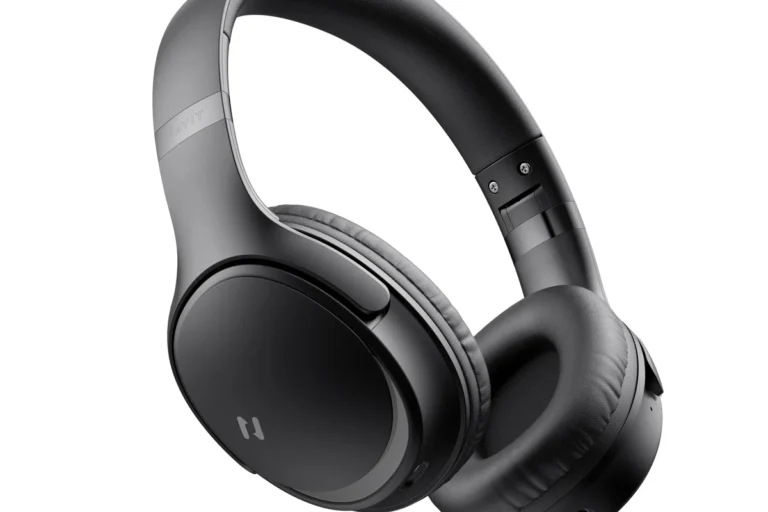
Can Beats Headphones Connect to PS5 Easily and Fast

Yes, Beats headphones can connect to a PS5, but wired connection is usually the easiest and most reliable method. Direct Bluetooth support is limited, so adapters or controller connection are often needed.
If you’re asking can beats headphones connect to ps5, the short answer is yes, but not always directly through Bluetooth. The easiest setup depends on your Beats model, whether it supports a cable, and whether you’re okay using a Bluetooth adapter or the DualSense controller.
For most PS5 players, Beats can work well for game audio, party chat, and streaming, but the connection method matters a lot. If you want the fastest path, wired connection options are usually more reliable than trying to pair Beats like a normal Bluetooth headset.
- Best method: Use a wired connection if your Beats model supports it.
- Bluetooth limit: PS5 does not support many Bluetooth headphones directly.
- Workarounds: USB adapters and TV audio can help, but results vary.
- Gaming tradeoff: Dedicated PS5 headsets are usually better for chat and latency.
Can Beats Headphones Connect to PS5? Quick Answer for 2026 Gamers
Yes, Beats headphones can connect to a PS5 in several ways, but the console does not support every Bluetooth headphone natively. In practice, wired Beats models and adapter-based setups are the most dependable choices.
If you own a newer Beats model, you may still be able to use it with PS5 audio through a cable, a USB transmitter, or your TV’s audio output. The best method depends on whether you want simple game sound only or full chat and microphone support too.
How PS5 Supports Headphones: Bluetooth, USB, and Controller Connection
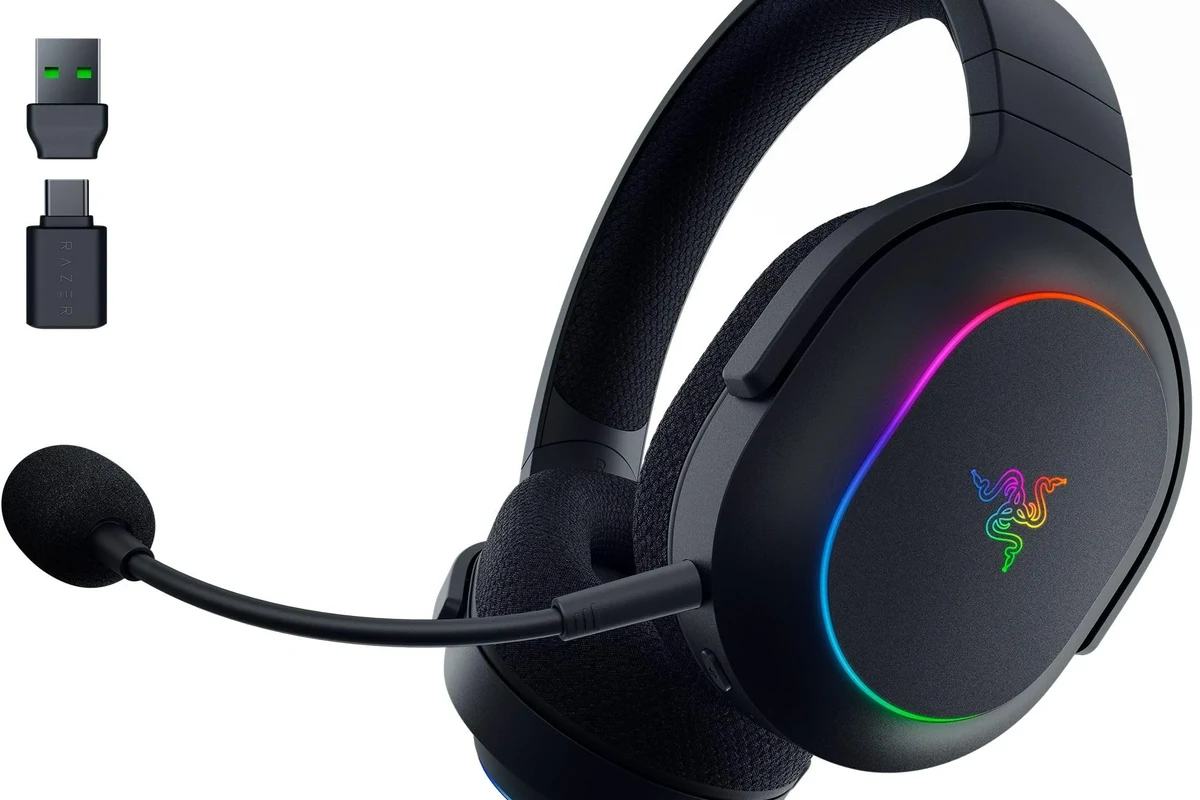
The PS5 supports headphones in a few different ways, but not all of them are equal. Some devices work through USB audio, some through the 3.5mm jack on the DualSense controller, and some through accessories that convert wireless audio into a PS5-friendly signal.
That means the PS5 can be flexible, but it also means you need to match the right Beats model with the right connection method. If you are also comparing device compatibility in general, our guide on how to connect Bluetooth headphones explains the basics in a simple way.
Why the PS5 does not natively support most Bluetooth headphones
The PS5’s built-in Bluetooth support is limited for audio devices. Sony designed the console to work more smoothly with approved accessories, USB audio devices, and wired connections rather than standard Bluetooth headphones.
This is why many Bluetooth headphones may not show up in the PS5 settings menu at all. Even if the headphones pair in theory, the console may reject them, drop the connection, or produce unstable audio.
PS5 Bluetooth behavior can vary by headset, firmware version, and adapter. A device that works on one setup may not work the same way on another.
What this means for Beats users specifically
For Beats users, the biggest factor is whether your model supports wired audio. Some Beats headphones can be used with a 3.5mm cable, while others are wireless-first and need a workaround.
If your Beats model depends on Bluetooth only, the PS5 may not accept it directly. In that case, a USB Bluetooth transmitter or TV-based audio route is usually the better solution.
Best Ways to Use Beats Headphones with a PS5
There are four practical ways to get Beats working with a PS5. The best one depends on your model, your budget, and whether you care about microphone use for chat.
Using a 3.5mm cable with Beats wired models
If your Beats headphones support a wired connection, this is usually the simplest option. Plug the cable into the DualSense controller, then set the PS5 audio output to the controller/headphones route.
This method is popular because it is stable and easy to set up. It also avoids the lag and pairing issues that can happen with Bluetooth.
If your Beats support both wireless and wired use, choose the cable for gaming when you want the lowest delay and the most reliable connection.
Connecting through the DualSense controller
The DualSense controller includes a 3.5mm headphone jack, which is the most PS5-friendly path for many headphones. If your Beats model can accept a wired input, this is often the fastest plug-and-play option.
It’s also useful for chat because the controller can pass audio directly without extra accessories. Just keep in mind that the cable must fit your specific Beats model and may not be included with every version.
Using a USB Bluetooth adapter or transmitter
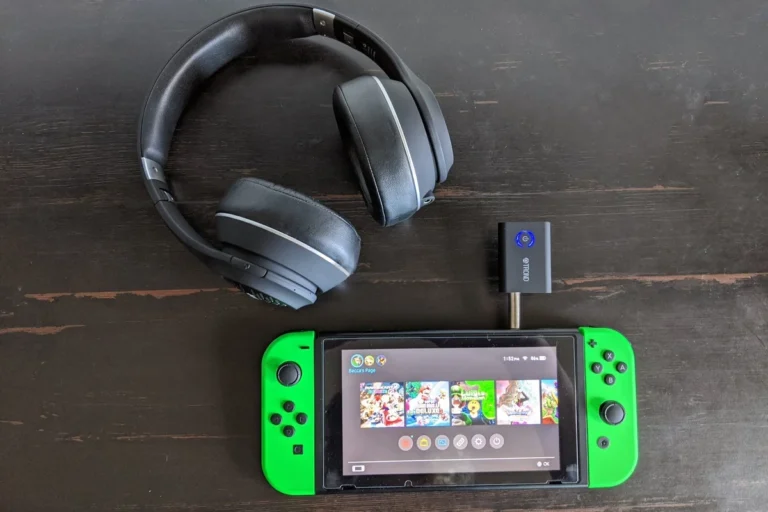
A USB Bluetooth adapter can help when your Beats are wireless-only. The adapter plugs into the PS5 and acts as a bridge between the console and your headphones.
This can be a good workaround, but quality varies a lot by adapter. Some transmitters handle game sound well but still create latency or limit microphone support.
Not every Bluetooth transmitter supports voice chat, and some may only work for audio playback. Check the adapter’s compatibility before buying.
Pairing through a TV, monitor, or external audio device
Another option is to connect your Beats to a TV, monitor, soundbar, or audio extractor that supports Bluetooth or headphone output. In this setup, the PS5 sends audio to the display or device first, and your Beats connect there.
This can be convenient if your TV already handles Bluetooth well. It is less ideal for competitive gaming, though, because TV-based audio paths can add delay depending on the display and settings.
Step-by-Step Setup: How to Connect Beats to PS5 Fast
Below are the quickest ways to get your Beats working with the PS5. The exact steps vary by model, but these simple setups cover most common cases.
Beats Studio Pro and other wired-compatible models
Plug your Beats into the DualSense controller using the correct audio cable.
Open PS5 sound settings and choose the controller or wired headset as the output device.
Start a game or media app and adjust both the PS5 volume and the Beats volume if needed.
Wired-compatible Beats models usually give the cleanest result for PS5 use. If you want a broader look at how headphone connections behave across devices, our article on Bluetooth headphones explained simply can help make the setup easier to understand.
Beats Solo and Powerbeats wireless workarounds
For wireless-only Beats models, start by checking whether your headphones can be connected to a USB Bluetooth adapter or your TV. If they can, pair the headphones to that device rather than to the PS5 itself.
Then route PS5 audio through the adapter or display. This is often the fastest workaround when direct PS5 Bluetooth pairing does not appear as an option.
- Does your Beats model support wired audio?
- Does your adapter support PS5 use?
- Does your setup allow microphone input?
Audio settings to check on the PS5 after pairing
Once your Beats are connected, open the PS5 sound menu and confirm the output device, output to headphones setting, and chat audio balance. These settings affect whether you hear only game audio or both game and party chat.
If the sound seems weak or unbalanced, check the controller volume, the headset volume, and the game’s own audio settings. Some games also have separate voice and music sliders that can make the headset seem quieter than it really is.
Will Beats mic support work on PS5?
Sometimes, but not always. Wired controller connections and certain adapters are more likely to support chat than direct Bluetooth workarounds.
Common Problems and Mistakes When Connecting Beats to PS5
Most Beats-to-PS5 issues come from connection limits, not from broken headphones. Once you know the common problems, it becomes much easier to choose the right setup.
Latency, audio delay, and mic limitations
Bluetooth audio can add delay, which is noticeable in games with fast action or rhythm timing. Even if the sound quality is good, a small delay can make gameplay feel less responsive.
Microphone support is another common limitation. Some adapters pass audio but not voice chat, while some wireless routes support listening only.
Why some Beats models fail to appear in PS5 Bluetooth settings
The PS5 may simply not recognize your Beats as a supported Bluetooth audio device. That is normal for many consumer headphones, including some Beats models that work perfectly with phones but not with consoles.
If your headphones do not appear, it does not necessarily mean they are defective. It usually means the PS5 is being selective about Bluetooth audio support.
Many modern consoles prioritize low-latency accessory connections over open Bluetooth pairing to reduce audio lag and connection problems.
Volume, chat audio, and controller battery issues
Low volume can happen if the PS5 output setting is wrong, the cable is not seated properly, or the controller volume is turned down. Chat audio can also seem missing if the balance is set too far toward game sound.
Using the controller jack can also drain the DualSense battery a bit faster during long sessions. That is normal, but it is worth keeping in mind if you play for hours at a time.
Listening at high volumes for long periods can cause hearing damage. Keep volume at 60% or below for extended sessions.
Beats vs Gaming Headsets: Is It Worth Using Beats on PS5?
Beats can absolutely be a practical PS5 option, especially if you already own a pair. But dedicated gaming headsets still have advantages in latency, microphone support, and console-specific controls.
When Beats make sense for casual gaming and media
Beats make sense if you want one headphone for gaming, music, movies, and everyday use. They are especially appealing for casual players who value convenience more than competitive performance.
They can also be a smart choice if you already like the fit and sound signature of your Beats. For single-player games, streaming, and media use, they may be perfectly good.
When a dedicated PS5 headset is the better buy
A PS5 gaming headset is usually better if you play multiplayer often, need reliable chat, or want lower latency. Gaming headsets are also more likely to offer easy console controls and clearer mic performance.
If you want a more traditional gaming setup, it may be worth comparing Beats with a purpose-built model instead of forcing a wireless workaround.
Price and value comparison for 2026 shoppers
Price and value depend on the exact Beats model, the adapter you need, and whether you already own the headphones. In some cases, adding a quality adapter can narrow the value gap between Beats and a dedicated headset.
If you are shopping with a budget in mind, it helps to compare the total setup cost, not just the headphone price. You may find that a cheaper gaming headset is simpler than buying Beats plus accessories.
Expert Advice: Best Practices for Better Sound and Fewer Connection Issues
The best PS5 audio setup is usually the one that keeps things simple. Fewer adapters, fewer wireless hops, and fewer settings changes usually mean better sound and fewer headaches.
Recommended accessories and setup tips
Use a good-quality 3.5mm cable if your Beats support it. If you need wireless, choose a Bluetooth adapter with PS5-friendly audio support and clear compatibility notes.
Also check for firmware updates on your Beats and make sure your PS5 system software is current. Small updates can sometimes improve stability, especially with USB accessories.
If you experience persistent audio distortion, one-sided sound, or hearing discomfort, consider speaking with an audiologist or a qualified audio specialist. For long sessions, safe volume habits matter as much as the headset itself.
Warning signs that your connection method is not ideal
If you notice frequent dropouts, lag, muffled chat, or unstable pairing, your connection method may not be the right one for PS5 use. That is often a sign to switch from Bluetooth to wired audio or to a better adapter.
Also watch for excessive battery drain, especially if the controller is doing too much work. A simple wired setup is often the most dependable option for everyday play.
Final Verdict: The Fastest and Easiest Way to Use Beats with PS5
So, can Beats headphones connect to PS5? Yes, but the easiest route is usually wired through the DualSense controller if your model supports it. If your Beats are wireless-only, a USB Bluetooth adapter or TV-based audio route is the next best workaround.
For most gamers, Beats can work well on PS5, but they are not always the most seamless choice. If you want the fastest setup with the fewest problems, wired Beats compatibility is the method to aim for.
- Wired Beats are the most reliable PS5 option.
- Direct PS5 Bluetooth support is limited for many headphones.
- Adapters and TV routing can work, but results vary.
- Gaming headsets are still better for chat and low latency.
Frequently Asked Questions
Wired is usually better for PS5 because it is more stable and has less audio delay. Wireless can work with adapters, but performance varies by model and accessory.
The PS5 does not support many Bluetooth audio devices natively. If your Beats do not appear, you may need a wired connection or a USB Bluetooth adapter.
Beats are fine for casual gaming, media, and single-player use. A dedicated PS5 headset is usually better for low latency, chat, and gaming-specific controls.
Check whether you are using Bluetooth, a TV audio route, or an adapter, since each can add delay. A wired connection through the DualSense controller usually gives the lowest latency.
Sometimes, but not always. Mic support depends on the exact Beats model and the connection method, and some Bluetooth workarounds only pass audio playback.
Connection type, latency, comfort, and microphone support matter more than fancy specs alone. If you are choosing between models, check wired compatibility, fit, and how the headset handles long sessions.