How To Use Open Ear Bone Conduction Headphones: Easy Guide

Open-ear bone-conduction headphones sit outside your ear canals and send sound through vibrations in the bones near your ears. To use them well, charge the headset, pair it with your phone, place the transducers against your cheekbones, and set a safe volume. Your ears stay open, so you can still hear nearby sounds such as traffic, people, and alarms.
For runners, cyclists, commuters, and workers in the United States, this design can feel more aware than sealed earbuds. Still, open ears do not make outdoor listening risk-free. You must stay alert, follow local traffic laws, and keep the volume low enough to hear important sounds.

What Are Open-Ear Bone-Conduction Headphones?
Open-ear bone-conduction headphones use small transducers that rest on the bones in front of or just above your ears. These transducers create vibrations. Your inner ear detects those vibrations and turns them into sound.
Unlike standard earbuds, bone-conduction headphones do not need to sit inside the ear canal. They also differ from many “open-ear” headphones that use tiny speakers aimed toward the ear. Both designs leave the ear canal open, but only bone-conduction models send sound through bone vibration.
Bone conduction vs. open-ear air conduction
| Feature | Bone-conduction headphones | Open-ear air-conduction headphones |
|---|---|---|
| Where sound comes from | Vibrations through nearby bones | Small speakers near the ears |
| Ear canal blocked? | No | No |
| Physical contact needed? | Yes, for the transducers | Usually no firm contact |
| Sound leakage | Often present, especially at high volume | Often present |
| Bass response | Usually lighter than sealed earbuds | Varies by design |
| Best fit | Awareness during outdoor activity | Awareness with a more speaker-like sound |
The exact design depends on the model. Read the product manual before use, especially if the headset uses a separate microphone, charging cable, app, or control system.
How to Set Up Bone-Conduction Headphones
Set up the headset before wearing it during a run, ride, or commute. A short indoor test helps you find problems before they affect your safety.
1. Charge the headset
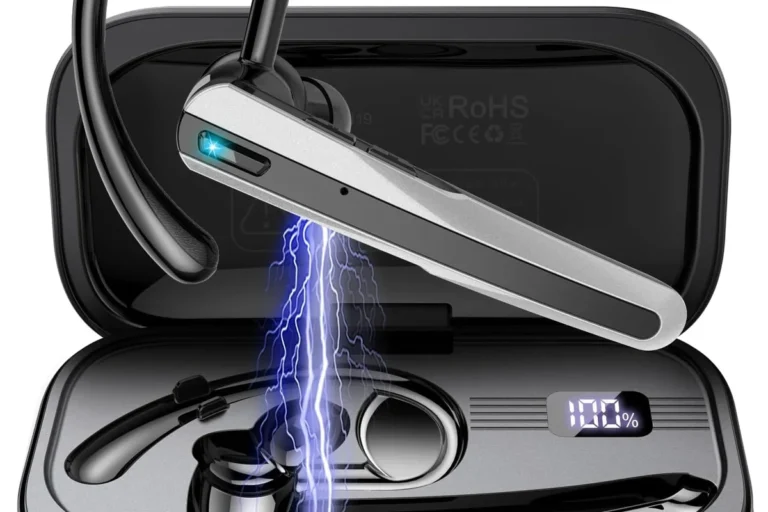
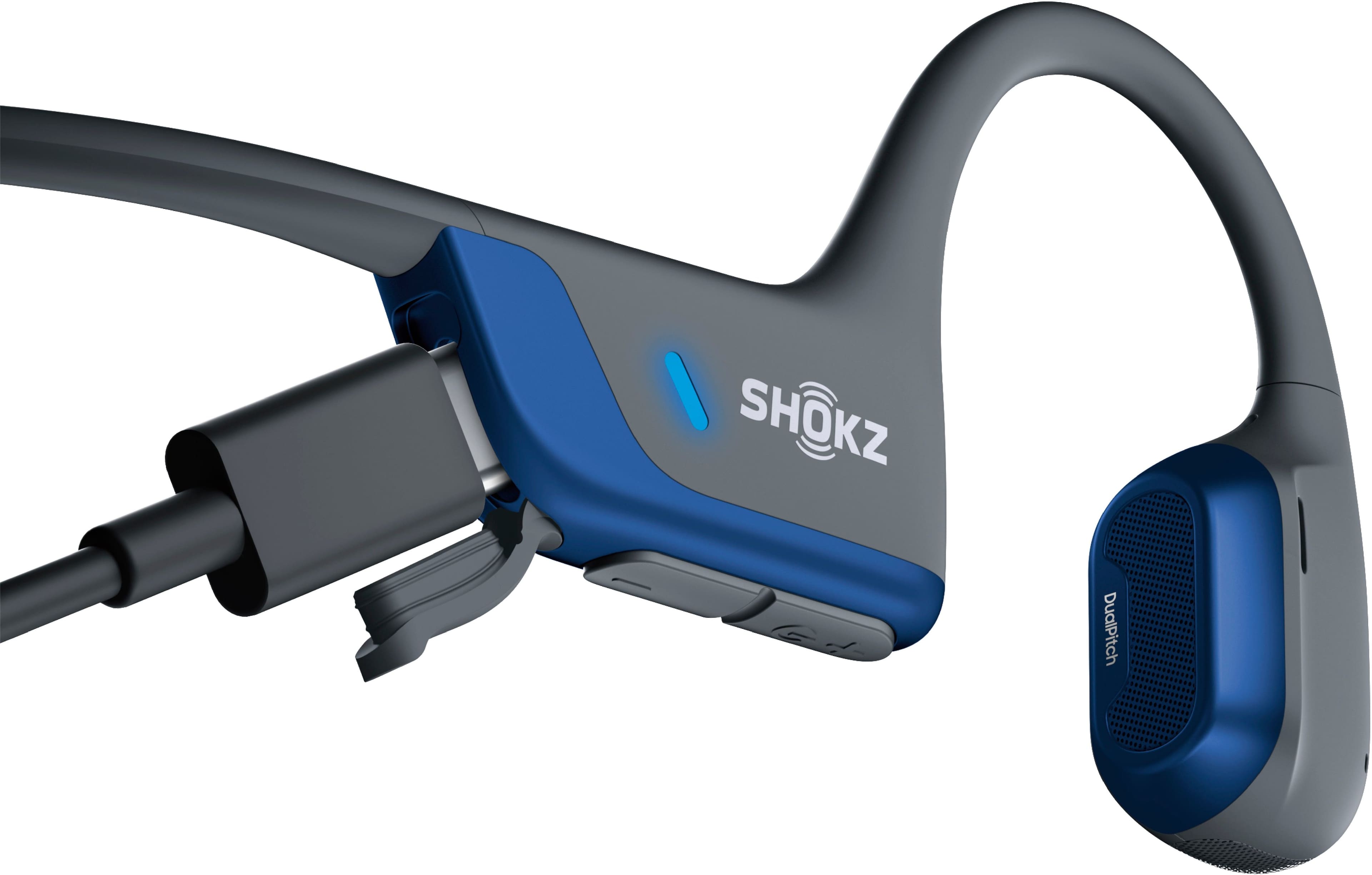
Use the supplied charging cable or charging dock. Some models use magnetic charging pins, while others use USB-C.
Check that:
- The charging contacts are clean and dry.
- The cable sits firmly in place.
- The charge indicator shows that charging has started.
- The headset is not wet unless the manual says it can safely charge when wet.
Do not charge a wet headset. Water resistance does not mean the device is safe to charge while damp.
A first charge may take longer than later charges. The manual for your exact model is the best source for charging time and battery indicators.
2. Turn on Bluetooth on your phone
On an iPhone, open Settings > Bluetooth and turn Bluetooth on.
On most Android phones, open Settings > Connected devices or Settings > Connections, then select Bluetooth. Menu names can vary by phone brand and Android version.
Keep the headset close to the phone during setup. If another phone has connected to the headset before, turn off Bluetooth on that phone or move it away during pairing.
3. Put the headset into pairing mode
most headsets enter pairing mode when you hold the power button for several seconds. A voice prompt, flashing light, or tone usually confirms the mode.
Select the headset name in your phone’s Bluetooth menu. Wait for a connected message or confirmation tone.
If the headset does not appear:
- Turn the headset off.
- Turn Bluetooth off and back on.
- Charge the headset for a few minutes.
- Move the headset closer to the phone.
- Check the manual for its reset or pairing procedure.
Do not repeatedly tap random buttons if the model uses a special pairing sequence. Some headsets use different actions for power, pairing, voice assistant access, and multipoint connections.
4. Test sound at a low volume
Start playback at a low level. Ask yourself:
- Can you hear sound in both sides?
- Is the voice clear?
- Is the audio cutting out?
- Does the headset feel stable?
- Can you still hear a person speaking nearby?
If the sound is weak, do not immediately increase the volume. The transducers may not be touching the right area.

How to Wear Bone-Conduction Headphones Correctly
Correct placement matters more than maximum volume. The headset should rest against your skin without pressing hard.
Place the transducers in front of your ears
The flat or rounded transducer areas should touch the bones just in front of your ears. Many models sit near the upper cheekbone or temporal bone.
The band usually curves behind your head. It should feel secure but not tight. Your ears should remain uncovered.
Use these steps:
- Hold the headset with the controls easy to reach.
- Place the transducers on the skin in front of your ears.
- Guide the band behind your head.
- Make sure both sides touch your skin evenly.
- Move each side by a few millimeters until voices and music sound clear.
- Turn your head and walk around to check stability.
The best position can differ slightly from person to person. Hair, glasses, hats, helmets, and head shape can change the fit.
Check the fit before exercising
A good fit should meet four conditions:
- The headset stays in place when you walk.
- The transducers maintain light contact with your skin.
- There is no sharp pressure or pain.
- You can hear the audio without raising the volume too far.
If the headset slides, adjust the band or use the fit method described in the manual. Do not press the transducers tightly against your head to make them louder. Excess pressure can cause discomfort and will not fix poor placement in every case.
Wearing the headset with glasses or a helmet
Glasses and helmets can create pressure where the headset rests. Put on your glasses or helmet first, then position the headset around them if the design allows it.
For cycling, the helmet must still fit as intended. Do not route the headset in a way that changes the helmet’s fit or blocks its straps. If the headset causes helmet movement or pressure, use a different model or do not wear both together.
How to Control Music, Calls, and Volume
Most bone-conduction headsets have physical buttons or touch controls. Common controls include:
- Power on and off
- Play and pause
- Volume up and down
- Track changes
- Answer and end calls
- Voice assistant access
The control layout is not universal. Read the manual instead of assuming that a double press or long press does the same thing on every device.
Set the volume for the environment
Open-ear headphones can sound quieter in traffic, on a train platform, or in strong wind. Raising the volume may make music easier to hear, but it can also increase sound exposure.
A safer approach is to:
- Set the volume indoors at a low level.
- Start playback.
- Move to the intended environment.
- Raise the volume only as much as needed.
- Lower it again when the environment becomes quiet.
If you need a very high volume to hear speech or music, first check the fit and placement. Persistent difficulty hearing normal conversation may warrant a hearing evaluation rather than louder playback.
The National Institute for Occupational Safety and Health identifies 85 dBA over an 8-hour workday as a recommended exposure limit for occupational noise. Personal headphone exposure varies by device, content, volume, and listening time, so this workplace limit should not be treated as a precise safe setting for every headset.
Use one-ear listening only when the model supports it
Some headphones support single-sided playback. Others expect both transducers to operate together.
If your headset supports one-sided use, check whether removing or repositioning one side affects controls, microphone performance, or sound balance. Do not assume that one-sided use eliminates hearing risk. The remaining side may still play too loudly.
How to Use Bone-Conduction Headphones for Calls
Bone-conduction headphones can handle phone calls through a built-in microphone, but call quality depends on wind, traffic, and microphone placement.
Before an important call:
- Pair the headset with the phone.
- Make a short test call.
- Confirm that the phone uses the headset for both audio and microphone input.
- Speak at a normal volume.
- Test the call outdoors if that is where you plan to use it.
Wind can create noise that makes you hard to understand. Some models include wind-reduction features, but no microphone removes all outdoor noise.
If the other person cannot hear you:
- Move away from fans or strong wind.
- Check that the headset is selected as the call audio device.
- Disconnect other Bluetooth devices temporarily.
- Restart the call.
- Clean the microphone openings with a dry, soft brush.
- Check the manual for microphone placement.
If a phone call works but music does not, or music works but calls do not, open your phone’s Bluetooth settings and review the device permissions. Some phones show separate options for media audio and phone calls.
How to Use the Headphones Safely Outdoors
Open-ear bone-conduction headphones can help you remain aware of your surroundings, but awareness has limits. Music, podcasts, wind, and road noise can still mask important sounds.
Walking and running
Use a low enough volume to hear:
- Approaching vehicles
- Bicycle bells
- Emergency sirens
- People speaking to you
- Alarms and horns
Keep your eyes up at intersections. Look both ways even when you believe you can hear traffic. Avoid using noise-canceling features, if your model has them, when you need environmental awareness.
Cycling
Never assume that open ears replace visual checks. Ride according to state and local rules. Stop playback or remove the headset if it distracts you or makes it harder to judge nearby traffic.
A helmet, glasses, wind, and road vibration can all affect fit and sound. Test the headset at low speed in a safe area before using it on a busy road.
Driving
Do not treat bone-conduction headphones as a way to make headphone use safe while driving. Laws vary by state and may restrict headphone use, especially if both ears are covered or if the device interferes with safe driving.
Check the current rules in the state where you drive. The safest choice is to keep your attention on driving and use the vehicle’s approved audio system when possible.
Work and job sites
Open-ear headphones may still be unsuitable around machinery, powered equipment, forklifts, or other hazards. They do not replace hearing protection.
If your workplace requires hearing protection, follow the employer’s safety program. Bone-conduction headphones may not provide hearing protection, and wearing them under or around protective equipment can affect the equipment’s fit.

How to Clean and Maintain Bone-Conduction Headphones
Clean the headset after workouts or heavy sweating. Salt and moisture can collect on the transducers, buttons, charging contacts, and microphone openings.
Use this routine:
- Turn the headset off.
- Disconnect the charging cable.
- Wipe it with a soft, slightly damp cloth.
- Dry the transducer surfaces and controls.
- Use a dry, soft brush around openings.
- Let the headset air-dry before charging.
Avoid bleach, solvents, abrasive cleaners, and high-pressure water unless the manufacturer specifically allows them. Do not push liquid into the charging port or microphone opening.
Water-resistance ratings have limits. A rating may cover sweat, rain, or brief water exposure, but it does not automatically cover salt water, soap, hot tubs, diving, or charging while wet.
Store the headset in a dry place. Keep it away from extreme heat, such as a parked car in summer. Heat can damage the battery and shorten its life.
Troubleshooting Common Problems
Use the simplest and safest check first. Many sound problems come from placement, low battery, or a Bluetooth connection.
| Problem | Likely causes | What to try |
|---|---|---|
| No sound | Low battery, wrong output, poor pairing | Charge it, reconnect Bluetooth, select the headset as the audio output |
| Sound is very quiet | Poor transducer placement, low phone volume | Move the transducers closer to the cheekbones and adjust volume slightly |
| One side is weak | Uneven contact, balance setting, debris | Reposition both sides, check audio balance, clean the headset |
| Audio cuts out | Distance, interference, low battery | Keep the phone nearby, disconnect unused Bluetooth devices, recharge |
| Headset will not pair | Already connected elsewhere, pairing mode not active | Disconnect from the old device and restart pairing mode |
| Pain or pressure | Poor fit, glasses or helmet conflict | Adjust the band, change the position, or stop using it if pain continues |
| Call quality is poor | Wind, blocked microphone, wrong call output | Move to a quieter area and confirm the headset is the call device |
| Buttons do not respond | Lock mode, low battery, software issue | Restart the headset and check the manual |
If the headset keeps disconnecting
Bluetooth range can be reduced by the phone’s position, walls, heavy body movement, or interference from other devices. Keep the phone on the same side of your body as the headset when possible.
Then try:
- Forget the headset in the phone’s Bluetooth settings.
- Restart both devices.
- Pair them again.
- Update the headset app or firmware if the manufacturer provides one.
- Test with a second phone.
If the headset fails with multiple phones after a reset, contact the manufacturer or use the warranty process. Do not open the battery housing.
If the sound seems distorted
Distortion may result from excessive volume, poor contact, a damaged recording, or a hardware fault. Lower the volume first. Test a different song or podcast, then reposition the transducers.
Stop use if you hear crackling with all content, feel unusual heat, smell burning, or see swelling. Move the device away from flammable materials and contact the manufacturer for battery guidance.

Common Mistakes to Avoid
The most common mistake is treating an open ear as a fully safe ear. Open-ear headphones reduce the physical barrier in the ear canal, but they do not prevent loud sound from reaching the inner ear.
Avoid these errors:
- Wearing the transducers behind the ears instead of on the intended contact area
- Turning up the volume to overcome poor placement
- Charging the headset while it is wet
- Wearing it during hazardous work without checking workplace rules
- Assuming every model supports two phones at once
- Expecting strong bass equal to sealed in-ear headphones
- Using it as a replacement for a hearing aid
- Ignoring pain, numbness, ringing, or muffled hearing
- Wearing it while driving without checking applicable state law
- Cleaning it with harsh chemicals or sharp tools
If you experience ringing, muffled hearing, ear pain, dizziness, or a sudden change in hearing, stop using the headset. Persistent or sudden hearing symptoms should be assessed by a qualified health professional. Sudden hearing loss needs prompt medical attention.
How to Choose the Right Listening Setting
The right setup depends on what you need to hear and how much noise surrounds you.
| Situation | Useful approach | Main limit |
|---|---|---|
| Quiet home | Low volume and normal fit | Sound may be audible to people nearby |
| Office | Low volume, short listening periods | Coworkers may still hear leakage |
| Walking outdoors | Keep both ears open and volume low | Visual attention remains necessary |
| Running | Secure fit and low wind exposure | Sweat and movement can change placement |
| Cycling | Test with your helmet first | Traffic awareness cannot rely on sound alone |
| Calls outside | Use a microphone test before calling | Wind can reduce speech clarity |
| Industrial work | Follow site rules first | The headset is not hearing protection |
The main trade-off is clear: open-ear designs can preserve environmental awareness, but they usually provide less isolation and may sound less full than sealed earbuds. Choose the design based on your environment, not only on music quality.

Frequently Asked Questions
Do bone-conduction headphones go inside your ears?
No. Bone-conduction headphones sit outside the ear canal. Their transducers touch the skin near the cheekbones or temporal bones and transmit vibrations through bone to the inner ear.
Can you use bone-conduction headphones with glasses?
Usually, yes. However, the headset, glasses, and helmet may compete for the same space. Adjust the order and position until nothing causes pain or changes the fit of your glasses or helmet.
Are bone-conduction headphones safe for hearing?
They can still expose your inner ear to loud sound, even though they do not sit inside the ear canal. Keep the volume as low as practical, take listening breaks, and stop if you notice ringing or muffled hearing.
Can other people hear bone-conduction headphones?
Yes. Bone-conduction headphones can leak sound, especially at higher volume. The amount depends on the model, fit, content, and listening level.
Why do bone-conduction headphones sound quiet?
The transducers may not be touching the correct area, the battery may be low, or the environment may be too noisy. Reposition the headset before raising the volume. If it remains quiet with several devices, check the manual or contact the manufacturer.
Key Takeaways
- Charge the headset fully and pair it through your phone’s Bluetooth settings.
- Place the transducers lightly against the bones in front of your ears.
- Start at a low volume and adjust only as needed.
- Keep your eyes and attention on traffic, people, and hazards.
- Open-ear headphones are not hearing protection or a substitute for a hearing aid.
- Keep the headset dry while charging and clean it with a soft cloth.
- Stop using it if you feel pain, hear persistent ringing, or notice a battery problem.
Conclusion
To use open-ear bone-conduction headphones correctly, focus on three things: fit, volume, and surroundings. The transducers should touch the correct area, the sound should stay as low as practical, and your attention should remain on the environment.
Test the headset in a quiet place first. Then try it in the setting where you plan to use it, such as a neighborhood walk, office, or gym. If it cannot stay comfortable and clear without a high volume, adjust the fit or choose a different type of headphone.
Sources and Further Reading
- FDA: Hearing Loss and Hearing Aids
- CDC: Preventing Noise-Induced Hearing Loss
- NIOSH: Occupational Noise Exposure
- FCC: Bluetooth and Wireless Device Information
- Shokz Support and Product Manuals