How To Fix Noise Cancelling Headphones: Easy Fixes

Noise-cancelling headphones may stop blocking sound because of a poor ear seal, blocked microphones, low battery, software errors, or a damaged part. In most cases, you can restore normal noise cancellation by charging the headphones, cleaning them safely, checking the listening mode, updating the app, and resetting the device.
This guide applies to common headphones and earbuds used in the United States, including Apple AirPods, Bose QuietComfort models, Sony WH and WF models, Beats, JBL, Sennheiser, and similar devices.

Key takeaways
- Check the mode first. The headphones may be in Transparency, Ambient, or Off mode.
- Improve the seal. Poorly fitted ear cups or ear tips can make ANC seem weak.
- Clean the microphones. Dust, sweat, and skin oil can cover the tiny ANC microphone openings.
- Charge both the headphones and the case. Low power can limit or disable noise cancellation.
- Update and reset the headphones. App and firmware errors often cause uneven ANC.
- Stop using the headphones if they become hot, swell, smell burnt, or show battery damage.
How noise cancellation works
Active noise cancellation, or ANC, uses microphones to hear outside sounds. The headphones then create an opposing sound wave to reduce steady noise, such as airplane engines, air conditioners, fans, and road hum.
Noise cancellation does not block every sound. It usually works best with low, steady noise. Voices, claps, alarms, dogs, and sudden sounds may still be heard.
Headphones use two main forms of noise control:
- Active noise cancellation: Uses microphones, signal processing, and speakers.
- Passive isolation: Uses ear cups or ear tips to form a physical barrier.
This difference matters when troubleshooting. If music sounds normal but voices and traffic are still loud, the ANC system may have a problem. If the headphones do not fit well, the issue may be passive isolation rather than electronics.
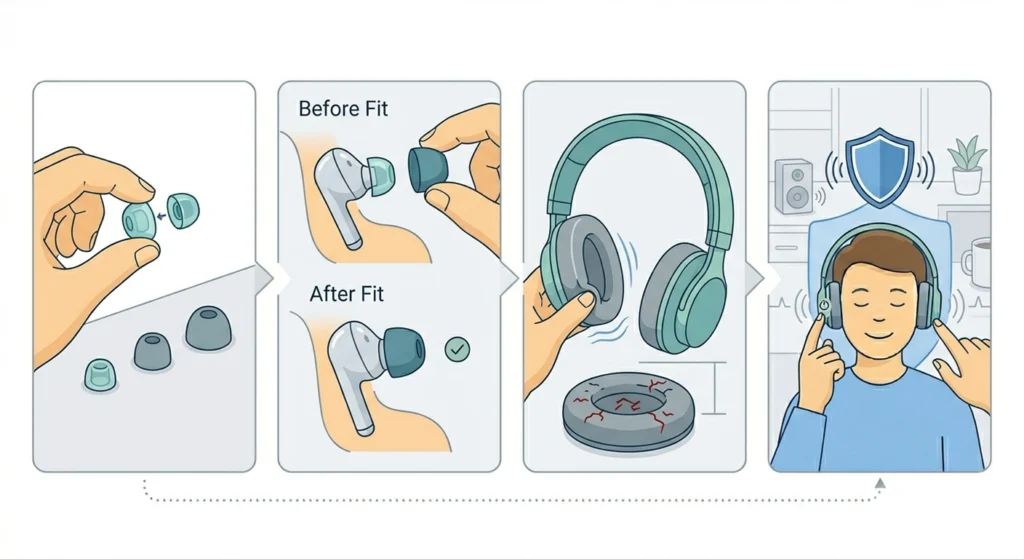
A good ear seal is part of the ANC system. With over-ear headphones, glasses, thick hair, hats, or a loose headband can create small gaps around the ear cups. With earbuds, the wrong ear tip size can let outside sound leak in.
Diagnose the problem before making a repair
Start by identifying what changed. The symptom often points to the cause.
| Symptom | Likely cause | First check |
|---|---|---|
| Noise cancellation seems weak on both sides | Wrong listening mode, low battery, software issue, poor fit | Check ANC mode, charge, and fit |
| Only one side cancels noise | Blocked microphone, poor seal, balance issue, hardware fault | Clean the affected side and test the fit |
| ANC creates a hiss or pressure feeling | Normal ANC behavior, blocked microphone, feedback issue | Test in a quiet room and clean the mic openings |
| Headphones make a popping or crackling sound | Bluetooth problem, wind, moisture, or damaged microphone | Move away from interference and dry the headphones |
| ANC works but music does not | Source, volume, Bluetooth, or app problem | Test another device or audio source |
| Headphones will not turn on | Empty battery, charging problem, or hardware failure | Check the cable, charger, contacts, and indicator |
| Noise cancellation stops after a few minutes | Battery issue, overheating, app setting, or automatic mode | Check battery level and temperature |
| One earbud is much quieter | Wax, blocked speaker mesh, fit issue, or balance setting | Clean the mesh and check left-right balance |
Test the headphones in a quiet room first. Then test them near a steady sound, such as a fan. Avoid using a loud source for testing. Very loud sound can harm your hearing and may hide smaller problems.
If the issue affects only one side, compare the left and right microphone openings, ear tips, ear cup cushions, and battery levels. Uneven ANC often comes from a blocked microphone or an uneven seal.

Fix noise-cancelling headphones step by step
Follow these steps in order. The early checks are simple and solve many problems without risking damage.
1. Turn noise cancellation on
The headphones may be working normally but set to the wrong mode.
Use the headphone button, touch control, phone settings, or the manufacturer’s app. Look for names such as:
- Noise Cancellation
- Quiet
- ANC
- Adaptive Noise Cancellation
- Transparency
- Ambient Sound
- Awareness
- Off
Choose the strongest fixed noise-cancellation setting for testing. Turn off Transparency or Ambient mode. Adaptive modes may change the level of cancellation based on movement, speech, wind, or the surrounding sound.
On an iPhone, check the connected headphone controls in Control Center or Bluetooth settings. On an Android phone, use the device controls or the maker’s app. Menu names vary by model and software version.
2. Charge the headphones fully
Low power can reduce performance or stop ANC. Charge the headphones and, for earbuds, charge the case as well.
Use a known-good cable and wall adapter. Check whether the charging light appears. If the headphones charge through a case, clean the metal charging contacts with a dry cotton swab.
Do not use a damaged cable. Do not charge headphones that are wet, swollen, unusually hot, or leaking.
After charging, test ANC without playing music. A steady fan or air conditioner can help you hear the difference.
3. Improve the ear seal
Fit is one of the most common causes of weak noise cancellation.
For over-ear headphones:
- Place the ear cups over your ears.
- Make sure no part of the ear rests on the cushion edge.
- Adjust the headband until the cups sit evenly.
- Move hair, hat brims, or glasses away from the cushion if possible.
- Compare the seal on both sides.
For earbuds:
- Try a different ear tip size.
- Insert each earbud using the fit instructions for that model.
- Run the manufacturer’s ear-tip or fit test if available.
- Check whether the earbud loosens when you walk or talk.
- Test both earbuds with the same ear-tip size before trying different sizes.
Do not push earbuds deeply into the ear canal. A secure seal should not cause pain.
4. Clean the microphones and speaker openings
ANC microphones are small. They may sit on the outside of an ear cup, near the edge of an earbud, or behind a mesh screen.
Use a soft, dry brush or a clean microfiber cloth. Gently remove dust, skin oil, and dried sweat. Keep the brush away from delicate mesh.
Avoid:
- Water or cleaning spray
- Alcohol poured directly onto the headphones
- Needles, pins, or metal tools
- Compressed air
- Pushing debris into the microphone opening
If the manufacturer gives cleaning instructions, follow those instructions first. Apple, Bose, Sony, and other brands use different materials and designs.
Do not clean inside a port or microphone hole with a sharp object. A small puncture can turn a minor blockage into permanent damage.
5. Remove wind and environmental causes
Wind can create noise in the ANC microphones. This may sound like rumbling, crackling, or unstable cancellation.
Move indoors or away from fans and open windows. If the headphones have a wind-reduction setting, enable it. Some models perform better with a fixed ANC mode than with an adaptive mode in strong wind.
Sweat and condensation can also affect microphones. Let the headphones dry at room temperature before testing them again. Do not place them on a heater or use a hair dryer.
6. Check left-right balance and accessibility settings
A phone may send more sound to one side. This can make one ear seem less effective even when ANC works correctly.
On your phone, search settings for:
- Balance
- Mono audio
- Hearing accommodations
- Headphone safety
- Audio accessibility
- Spatial audio
Set the left-right balance to the center for testing. Turn off unusual sound enhancements until you find the cause.
Also check the app for separate settings for each earbud. Some models let users set different ANC levels or controls on the left and right sides.
7. Disconnect and pair the headphones again
Bluetooth data can become corrupted after a phone update, device switch, or failed connection.
Try this sequence:
- Turn off Bluetooth on nearby devices that may connect automatically.
- Forget or remove the headphones from your phone’s Bluetooth list.
- Turn the headphones off.
- Restart the phone.
- Put the headphones into pairing mode.
- Pair them again.
- Test ANC before changing other settings.
If possible, test the headphones with a second phone or computer. If ANC fails on both devices, the issue is likely in the headphones rather than the original phone.
8. Update the headphone app and firmware
Manufacturers may release firmware updates that fix connection, microphone, battery, or ANC problems. Install updates only through the official app or support site.
Before updating:
- Charge the headphones.
- Keep the phone close to the headphones.
- Use a stable internet connection.
- Do not close the app during the update.
- Do not remove the headphones from the charging case unless the app says to do so.
Firmware updates can change controls or sound behavior. Read the manufacturer’s update notes when they are available.
9. Reset the headphones
A reset can fix stuck settings and failed software states. The method differs by model.
Common reset methods include:
- Holding the power and volume buttons together
- Holding the case button while the earbuds are inside
- Using a reset option in the official app
- Holding a control button for a set number of seconds
Look up the exact instructions for your model on the manufacturer’s support page. A reset may erase paired devices, custom equalizer settings, and saved controls.
After the reset, pair the headphones with one phone and test ANC before restoring every custom setting.

Model-specific checks that often matter
The general steps above work for most headphones, but some brands use different controls and terms.
Apple AirPods and Beats
Check the listening mode in Control Center or Bluetooth settings. AirPods models with ANC may offer Noise Cancellation, Transparency, Adaptive, or Off modes.
Run the Ear Tip Fit Test when supported. Also check that both AirPods charge and that the microphone and speaker meshes are clean.
If the problem continues, reset the AirPods through the charging case or the device instructions for that model. AirPods firmware updates are normally delivered while the earbuds charge near a connected Apple device.
Bose headphones and earbuds
Use the Bose app to confirm the selected Quiet or noise-cancellation mode. Some Bose models allow adjustable levels or custom modes.
Check whether wind block, aware mode, or conversation features are changing the sound. If the app cannot connect, remove the Bluetooth connection and pair the headphones again before performing a reset.
Sony headphones and earbuds
Sony models may separate Noise Canceling, Ambient Sound, and Off settings. The Sony app may also provide an ear-shape, fit, or atmospheric-pressure optimization feature, depending on the model.
Check the touch-control setting and make sure the headphones are not in Ambient Sound mode. For earbuds, confirm that both earbuds are detected in the charging case and in the app.
Other brands
For JBL, Sennheiser, Soundcore, Jabra, and other brands, use the official app and support guide for the exact model. Reset methods, water resistance limits, and microphone locations can differ.
Do not assume that one model’s button combination works on another model from the same brand.

What to do when noise cancellation works on one side only
One-sided ANC problems need a closer inspection. First, swap the ear tips or reposition the ear cups. If the problem follows the ear tip or your ear, the fit is the likely cause.
Next, clean the microphone openings on the weak side. Compare them with the working side under good light. Do not remove a protective mesh unless the manufacturer specifically says that it is removable.
Then check the phone’s balance setting and test the headphones on another device. If the same side remains weak after cleaning, charging, pairing, and resetting, the microphone, speaker, battery, or internal connection may be damaged.
For earbuds, place both units in the case and confirm that both charge. One earbud with a low battery may reduce or stop its ANC function.
If one side became weak after a drop, water exposure, or impact, software steps may not fix it. Arrange service rather than opening the earbud or ear cup.

When to seek repair or replace the headphones
Contact the manufacturer or an authorized repair provider when:
- ANC fails after a reset on more than one device.
- One side remains weak after cleaning and fit checks.
- The headphones will not charge with a known-good cable.
- The microphone produces constant popping or feedback.
- The headphones were exposed to liquid.
- The ear cup, hinge, or charging case is physically damaged.
- The battery drains very quickly or will not hold a charge.
- The headphones become hot, swell, smoke, or smell burnt.
Stop using headphones with a swollen battery or signs of overheating. Do not puncture, squeeze, or open a lithium-ion battery. Place the device away from heat and flammable material, and follow local battery recycling or hazardous-waste guidance.
Repair may make sense when the headphones are under warranty or have replaceable cushions, ear tips, or batteries. Replacement may be more practical when the battery is sealed, the device is old, and the repair cost is close to that of a comparable new model.
A manufacturer’s warranty may not cover liquid damage, normal battery wear, or physical damage. Check the warranty terms for your exact model and purchase region.

How to prevent noise-cancelling problems
Regular care helps keep ANC microphones and ear seals working.
- Store headphones in a case when not in use.
- Wipe away sweat after exercise.
- Let damp headphones dry before placing them in a charging case.
- Replace torn or flattened ear cushions.
- Replace worn or loose ear tips.
- Keep the microphone openings free of dust.
- Avoid leaving headphones in a hot car.
- Keep firmware and the official app up to date.
- Do not use harsh cleaners or sharp tools.
- Keep volume at a safe level, especially when testing noise cancellation.
Ear cushions can lose their shape over time. A flattened cushion may let outside sound in even when the ANC electronics work correctly. Replacing the cushions can restore isolation, comfort, and the distance between the ear and speaker.

Common mistakes to avoid
Do not judge ANC only while music is playing. Loud music can mask a fault. Test with no music and a steady background sound.
Do not cover the microphones with tape or thick adhesive. The microphones need to hear outside sound for ANC to work.
Do not reset the headphones repeatedly without checking the fit and charging system. A reset cannot repair a torn cushion, blocked mesh, damaged battery, or broken microphone.
Do not use water to flush earbud mesh. Liquid can move deeper into the device and cause corrosion.
Do not assume that hearing less sound means the headphones are working better. ANC can reduce certain background sounds while leaving voices and high tones clear. Safe listening volume still matters.
Frequently asked questions
Why do my noise-cancelling headphones suddenly stop working?
The most common causes are a changed listening mode, low battery, blocked microphones, poor fit, wind, or a Bluetooth and firmware error. Charge the headphones, select ANC, clean the microphone openings, reconnect Bluetooth, and reset the device if needed.
Can I fix noise cancellation without the app?
Yes. You can check the mode, improve the fit, charge the headphones, clean them with a dry tool, and reconnect Bluetooth without an app. However, some models require the official app for firmware updates, custom ANC settings, or a full reset.
Why does ANC sound worse with glasses?
Glasses can create small gaps between over-ear cushions and your head. Those gaps reduce passive isolation and may make ANC seem weaker. Adjust the ear cups, move the glasses arms if possible, or replace worn cushions with a better seal.
Is a small hiss from noise cancellation normal?
A faint hiss can be normal on some ANC headphones, especially in a quiet room with no music. A sudden loud hiss, crackle, pulsing sound, or one-sided noise may indicate wind, moisture, a blocked microphone, software trouble, or hardware damage.
Can earwax stop noise cancellation from working?
Yes. Earwax or debris can block an earbud’s speaker mesh or microphone opening. Clean only the parts that the manufacturer says are safe to clean. Do not push tools into the earbud, and seek medical help for earwax inside the ear canal.
Why does noise cancellation work on my phone but not my laptop?
The laptop may use a different Bluetooth profile, app setting, or device connection. Check the headphone controls directly, forget and re-pair the laptop connection, and test ANC without relying on the laptop’s sound settings.
Final checklist
Use this short order when noise-cancelling headphones fail:
- Select ANC or Quiet mode.
- Charge the headphones and case.
- Check the ear seal and replace damaged tips or cushions.
- Clean the external microphones and speaker mesh carefully.
- Test away from wind and moisture.
- Check left-right balance and accessibility settings.
- Forget and re-pair Bluetooth.
- Update the official app and firmware.
- Reset the exact model.
- Seek service if the fault remains or the battery shows damage.
If the headphones still fail after these checks on more than one device, the problem is likely physical rather than a setting. Use the manufacturer’s warranty or an authorized repair service instead of opening the headphones yourself.