How to Plug Headphones into Xbox One Easily and Fast

Plug 3.5mm headphones directly into a newer Xbox One controller, or use the Stereo Headset Adapter on older controllers. For wireless audio, choose an Xbox-compatible headset with a dongle or base station rather than standard Bluetooth.
If you want to know how to plug headphones into Xbox One, the easiest method is usually to connect them to the controller’s 3.5mm jack. If your controller is older or your headset uses a different connection type, there are still a few reliable workarounds that can get you game audio and chat without much hassle.
- Fastest method: Use the controller’s 3.5mm jack if available.
- Older controllers: The Stereo Headset Adapter is the main workaround.
- Wireless caution: Not all Bluetooth headsets work natively on Xbox One.
- Best value: Wired headsets usually offer the easiest setup.
How to Plug Headphones into Xbox One: What Works in 2026
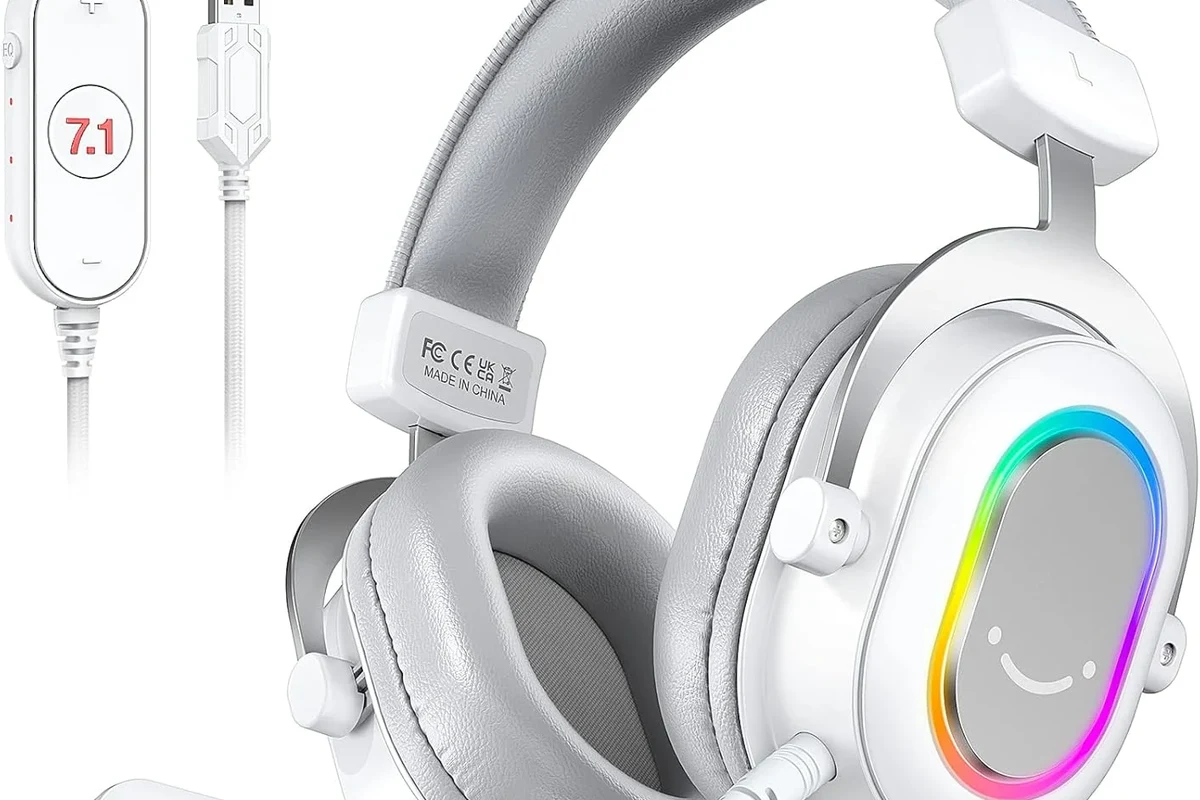
In 2026, the Xbox One still supports several headphone connection methods, but not every type works the same way. The simplest setup is wired headphones through the controller, while wireless headsets usually need an Xbox-compatible dongle, base station, or a headset made specifically for Xbox.
That matters because many people assume any USB or Bluetooth headset will work natively. In practice, Xbox One is more limited than a PC or phone, so choosing the right connection path saves time, money, and frustration.
Xbox One audio support depends on the controller model, headset design, and whether you need game audio, chat audio, or both. Always check compatibility before buying.
Xbox One Audio Ports and Controller Options Explained
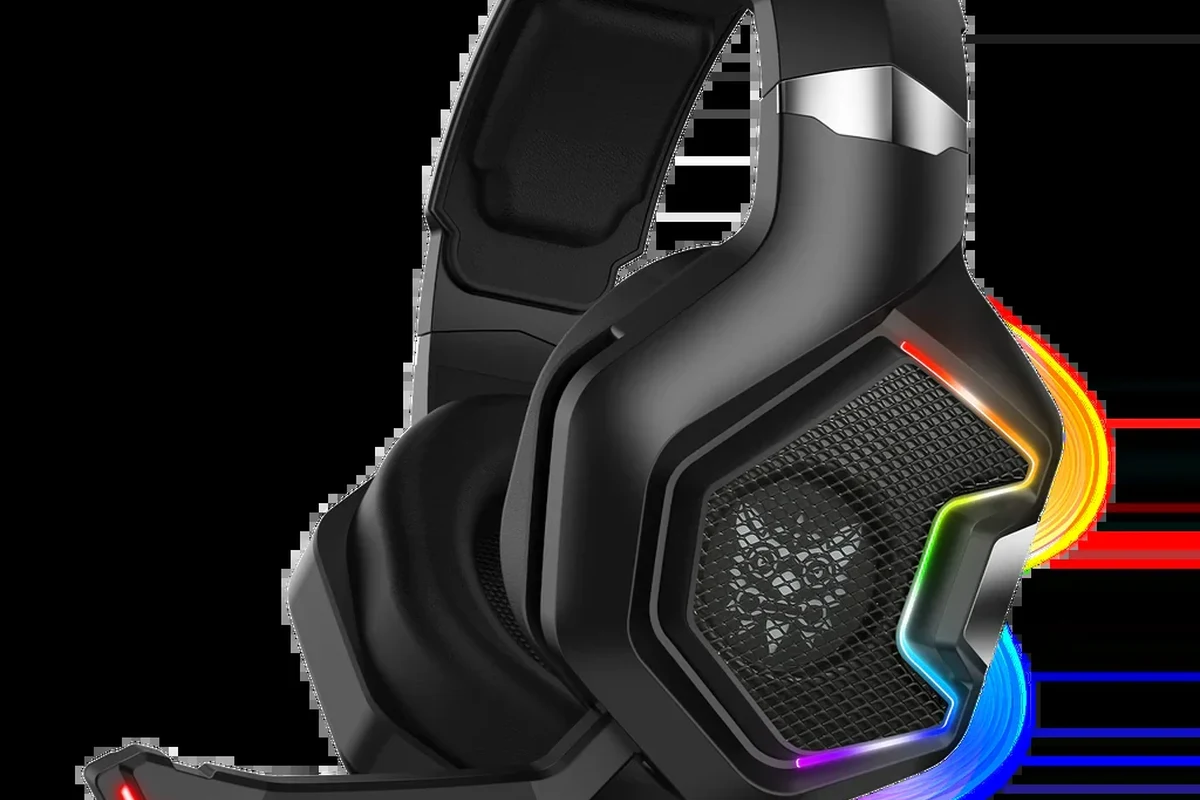
Before you plug in anything, it helps to know which controller and port you have. Xbox One controller compatibility changed over time, and that affects whether you can connect standard headphones directly or need an adapter.
3.5mm Headphone Jack on Xbox One Controllers
Most newer Xbox One controllers include a built-in 3.5mm headphone jack at the bottom. If your headphones have a standard 3.5mm plug, you can connect them directly and start listening right away.
This is the most straightforward option for wired headphones and many gaming headsets. It is also the easiest way to get chat audio if your headset includes a microphone.
Xbox One Stereo Headset Adapter for Older Controllers
Older Xbox One controllers may not have a 3.5mm jack. In that case, the Xbox One Stereo Headset Adapter lets you connect a wired headset through the controller’s expansion port.
This adapter is useful if you already own a good headset and do not want to replace it. It can also give you more control over volume and chat balance, which is helpful during multiplayer sessions.
Many Xbox One audio issues come from the controller connection, not the headset itself. A loose plug or outdated controller firmware can make a good headset seem faulty.
USB, Optical, and Wireless: What the Console Supports
Xbox One does not treat every connection type the same way. USB headsets may work only with certain models or via the headset’s own software, while standard Bluetooth headphones usually do not connect directly for game audio.
Optical audio is more of a TV or audio-system path than a direct headphone solution. For wireless listening, the safest route is an Xbox-compatible wireless headset or a headset that includes its own USB dongle or base station.
Do not assume “wireless” automatically means Xbox compatible. Some Bluetooth headphones work with phones and laptops but still will not pair directly with Xbox One for gameplay audio.
Step-by-Step Ways to Connect Headphones to Xbox One
There is no single best method for everyone. The right choice depends on your headset type, whether you need a microphone, and how much convenience versus audio control you want.
Wired Headphones Directly to the Controller
This is the fastest and easiest setup for most players. Simply plug your 3.5mm headphones into the controller jack, then turn up the headset volume using the Xbox audio controls if needed.
Make sure your headphones use a 3.5mm connector, not USB-only or Lightning-only audio.
Push the plug into the controller until it sits firmly and does not feel loose.
Use the Xbox guide or headset controls to set game and chat volume to a comfortable level.
Wired headphones are a smart choice if you want low fuss and low latency. They are also usually the most budget-friendly option, especially if you already own a decent pair.
Using a Stereo Headset Adapter for Better Control
If your controller needs an adapter, connect the Stereo Headset Adapter to the controller first, then plug your headphones into the adapter. From there, use the adapter buttons to manage volume and chat balance.
This setup is especially helpful for players who want easier access to controls during matches. It can also make older controllers feel more modern without replacing the entire controller.
If your headset sounds quiet, check both the game volume and the headset/chat balance. Sometimes the issue is not the headphones, but the mix between chat and gameplay audio.
Connecting Wireless Headphones with a Dongle or Base Station
For wireless headphones, the most reliable method is usually a USB dongle or a dedicated base station designed for Xbox compatibility. Follow the headset manufacturer’s pairing steps, then select the headset as the active audio device if the system prompts you.
This is a good option if you want to move around freely without a cable. It can also be more comfortable for long sessions, though battery life and latency may vary by model.
If you are comparing wireless options, it helps to understand the basics of Bluetooth headphones explained simply, especially because not all wireless audio works the same way on consoles.
TV-to-Headphone Connection for Workarounds
Some players route audio through the TV instead of the controller. This can work if your TV has a headphone jack, Bluetooth output, or an audio-out port connected to a headphone-friendly device.
It is a useful workaround, but it is not always ideal for gaming chat. Audio delay, lower mic support, or extra cables can make this less convenient than a direct controller connection.
Best Headphone Setup for Game Audio, Chat, and Comfort
The best Xbox One headphone setup is not always the most expensive one. It is the one that gives you clear sound, working chat, and enough comfort to handle long sessions without distraction.
Choosing Between Stereo Sound and Surround Features
Stereo sound is enough for many players, especially if the headset has good imaging and balanced tuning. Surround features can be useful in some games, but they do not automatically mean better sound quality.
For most Xbox One users, clarity matters more than flashy labels. A well-tuned stereo headset often delivers more practical value than a heavily marketed surround model.
Mic Support for Party Chat and Multiplayer Games
If you plan to use Xbox party chat, make sure your headset includes a mic or boom microphone. Headphones alone can handle game audio, but they will not replace a proper chat mic in multiplayer games.
Also check whether the mic is detachable, muted by a switch, or built into the cable. Small design details can make a big difference in daily use.
Latency, Cable Length, and Battery Life Considerations
Wired headphones usually offer the lowest latency, which can matter in fast-paced games. Wireless models are more convenient, but battery life and signal stability may vary by brand, distance, and interference.
Cable length also matters more than many buyers expect. A cable that is too short can pull on the controller, while one that is too long can get in the way of your setup.
Listening at high volumes for long periods can cause hearing damage. Keep volume at 60% or below for extended sessions.
Common Problems When Plugging Headphones into Xbox One
Most Xbox One headphone problems are simple connection or settings issues. Before replacing your headset, it is worth checking the basics carefully.
No Sound, Low Volume, or Only One Ear Working
If you get no sound, first make sure the plug is fully inserted into the controller or adapter. A partially seated connector is one of the most common causes of audio cutting out or only playing in one ear.
Also inspect the cable for damage and test the headset on another device if possible. That can help you figure out whether the issue is the headset, the controller, or the console settings.
Chat Audio Not Working in Xbox Party or Game Lobbies
If game audio works but chat does not, the microphone may be muted, the headset may not support mic input, or the party settings may need adjustment. Some headsets also need the chat balance corrected before voice comes through clearly.
For wired headsets, the controller jack and adapter are common trouble spots. For wireless models, confirm that the headset is designed for Xbox and not just for general Bluetooth use.
Controller Firmware and Audio Settings Issues
Sometimes the controller itself needs a firmware update before audio works properly. If you have persistent problems, connect the controller to the console and check for updates in the system settings.
It can also help to review the Xbox audio output options and party chat settings. A small configuration mismatch can make a working headset seem broken.
If you experience ear pain, ringing, or ongoing volume-related discomfort, speak with an audiologist. Persistent issues may point to a hearing concern rather than a headset problem.
Expert Advice: Mistakes to Avoid Before Buying or Connecting
Many people run into trouble because they buy the wrong type of headset for Xbox One. A little checking upfront can prevent wasted money and disappointing audio.
Using the Wrong Adapter or Expecting USB Headphones to Work Natively
Not every USB headset works the way people expect on Xbox One. Some need special support, and some simply will not deliver full functionality without the right adapter or console-compatible design.
If your headset is USB-only, verify Xbox support before buying. The same advice applies to Bluetooth models that are excellent on phones but limited on consoles.
Overpaying for Features the Xbox One Won’t Use
It is easy to overspend on features like advanced surround processing, app-based EQ, or multi-device switching. Those features can be nice, but they are less useful if the Xbox One cannot use them fully.
Focus first on compatibility, comfort, mic quality, and stable audio. After that, extra features become a bonus instead of a gamble.
Ignoring Compatibility with Older Xbox One Controllers
Older controllers can still work well, but they may need a headset adapter. If you skip that detail, you may think the headset is faulty when the real issue is the controller version.
Before buying, check whether your controller has a built-in 3.5mm jack or needs the Stereo Headset Adapter. That one detail often decides how easy the setup will be.
Price Guide: Budget vs Premium Headphone Connection Options
Prices can vary a lot by brand, features, and sales, so it is better to think in ranges than exact numbers. The good news is that Xbox One has usable options at nearly every budget level.
Low-Cost Wired Solutions
The most affordable route is usually a basic wired headset or a pair of headphones with a 3.5mm plug. This setup is simple, dependable, and usually enough for casual gaming and chat.
If you already own a decent wired pair, you may not need to buy anything new at all. That makes wired connection the best value for many players.
Mid-Range Adapter and Headset Combos
A mid-range setup often includes a better headset plus a Stereo Headset Adapter, especially for older controllers. This can improve convenience and give you more control over volume and chat balance.
For many players, this is the sweet spot between price and usability. You get better comfort and better controls without moving into premium wireless pricing.
Premium Wireless Headphones for Xbox One Gaming
Premium wireless gaming headsets can be worth it if you value freedom of movement, longer play sessions, and cleaner desk setup. Look for Xbox-compatible wireless support, comfortable ear cushions, and a battery life that fits your routine.
Just remember that premium does not automatically mean best for everyone. The right choice depends on whether you prioritize convenience, mic quality, isolation, or pure sound balance.
Final Recap: The Fastest and Easiest Way to Plug Headphones into Xbox One
If you want the quickest answer, plug a standard 3.5mm headset directly into a newer Xbox One controller. If your controller is older, use the Stereo Headset Adapter, and if you want wireless, choose an Xbox-compatible headset with a dongle or base station.
For most people, wired headphones are still the easiest and most reliable choice. If you want more comfort or flexibility, just make sure the headset is truly compatible with Xbox One before you buy.
- 3.5mm wired headphones are the easiest plug-and-play option.
- Older controllers may need the Xbox Stereo Headset Adapter.
- USB and Bluetooth support can be limited, so check compatibility first.
- Wireless headsets work best when they include an Xbox-ready dongle or base station.
Frequently Asked Questions
Wired headphones often give the most reliable connection and lowest latency. Wireless can still sound great, but performance depends on the headset and connection method.
Closed-back headphones usually block more outside noise and are better for shared spaces. Open-back models can feel more spacious, but they leak sound and offer less isolation.
Driver size alone does not guarantee better sound, but good tuning matters more than raw numbers. Look for balanced bass, clear mids, and enough detail for footsteps and dialogue.
Focus on weight, ear cushion material, and clamp pressure, since comfort matters most over time. A lighter headset with soft pads is often easier to wear for long sessions.
Check connector type, microphone support, Xbox compatibility, and whether you need an adapter or dongle. Battery life, cable length, and comfort are also important depending on how you play.
Yes, a little EQ adjustment can help reduce harsh highs or boost weak bass. Keep changes subtle so you do not lose clarity in game audio or voice chat.