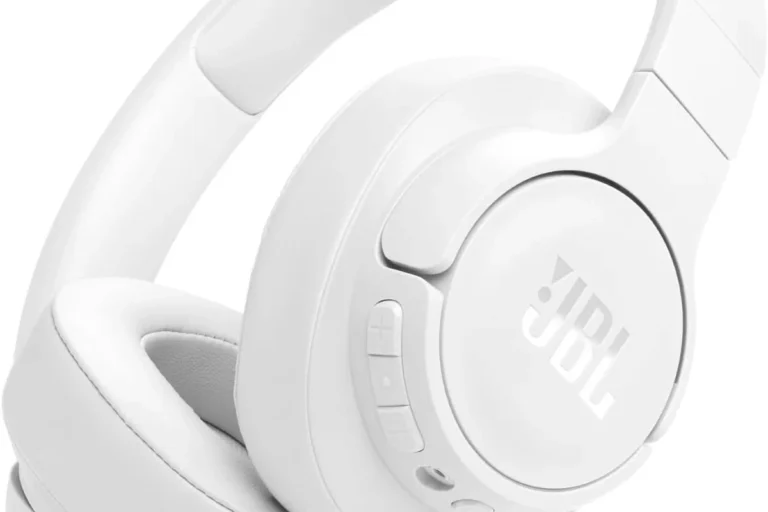
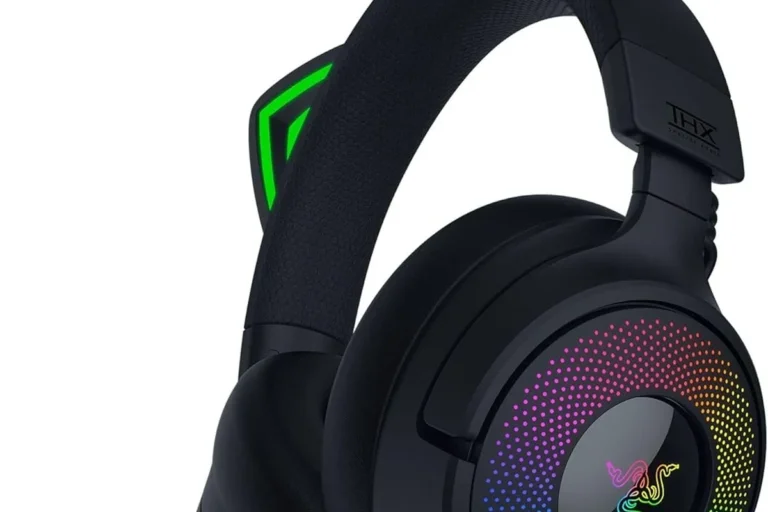
How to Connect Headphones to Xbox One Easily and Fast

The easiest way to connect headphones to Xbox One is with a wired headset plugged into the controller’s 3.5mm jack. Standard Bluetooth usually needs an adapter, while Xbox Wireless headsets offer the smoothest native wireless setup.
If you want to know how to connect headphones to Xbox One, the short answer is that wired headsets are the easiest option, while wireless setups usually need Xbox-compatible hardware. Standard Bluetooth headphones do not connect natively to Xbox One, so the best method depends on your headset type and how you want to use chat audio.
- Fastest method: Use a wired headset through the controller.
- Wireless reality: Standard Bluetooth usually needs a workaround.
- Best native option: Xbox Wireless headsets are simplest for chat and audio.
- Troubleshooting: Check settings, firmware, and adapter compatibility first.
How to Connect Headphones to Xbox One: What Works in 2026
Contents
- 1 How to Connect Headphones to Xbox One: What Works in 2026
- 2 Best Way to Match Your Headphones to Xbox One Audio Output
- 3 Step-by-Step Methods for Connecting Headphones to Xbox One
- 4 Common Connection Problems and How to Fix Them Fast
- 5 What Most Players Get Wrong When Setting Up Xbox One Headphones
- 6 Expert Advice: When a Cheap Adapter Is Not Worth It
- 7 Price Comparison: Wired, Wireless, and Adapter-Based Options
- 8 Final Recap: The Fastest and Most Reliable Way to Connect Headphones to Xbox One
- 9 Frequently Asked Questions
- 10 Author
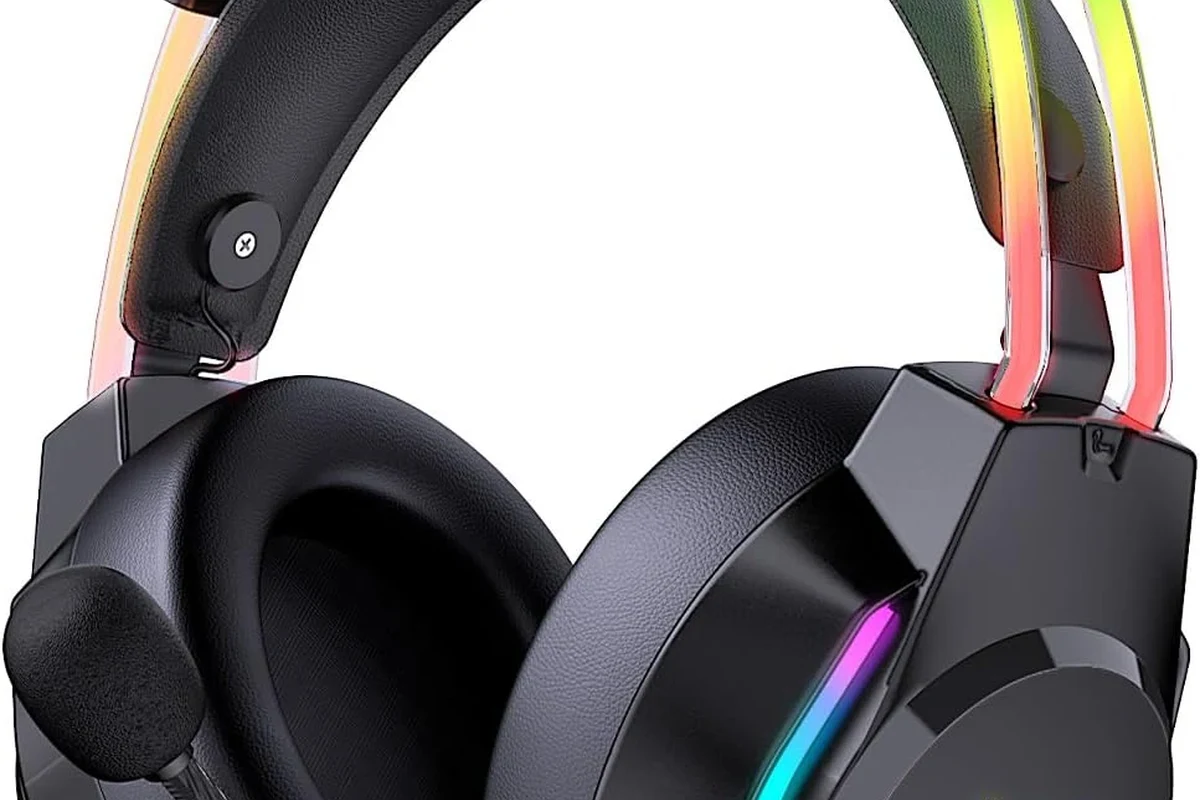
In 2026, Xbox One still supports several practical headphone setups, but not all of them work the same way. The most reliable choices are a wired headset through the controller, a TV or monitor audio output, or an Xbox Wireless headset that pairs directly with the console.
If you are using Bluetooth headphones, the main thing to know is that Xbox One does not support standard Bluetooth audio the way phones, laptops, or some TVs do. That means you usually need a workaround such as a transmitter, a TV connection, or a headset built for Xbox Wireless.
Compatibility can vary by headset model, controller version, TV audio output, and whether you need game sound only or both game and party chat.
Best Way to Match Your Headphones to Xbox One Audio Output
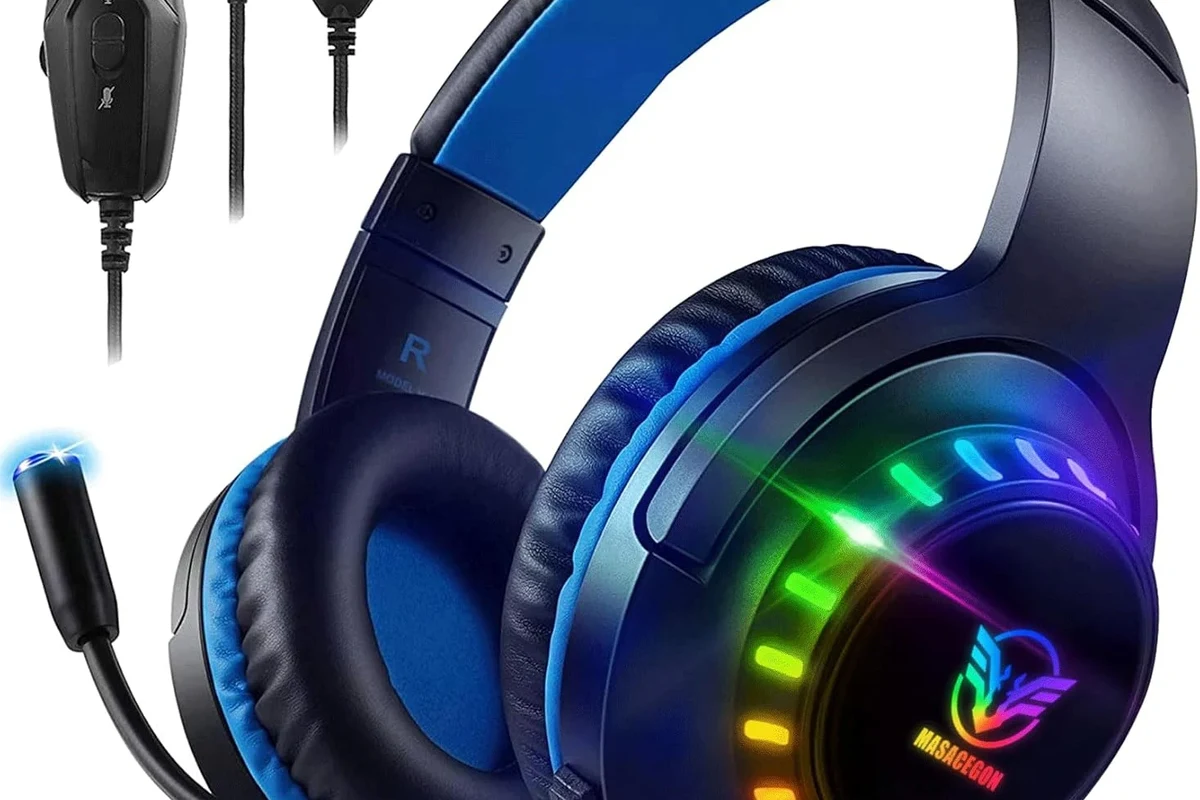
The easiest way to avoid frustration is to match your headphones to the audio output you already have. If your headset has a 3.5mm plug, the controller jack is usually the cleanest setup. If your headphones are wireless, you will need to check whether they support Xbox Wireless or can work through a transmitter.
For readers comparing headphone styles, a quick overview of different headphone types explained can help you decide whether wired, wireless, over-ear, or in-ear models make the most sense for gaming.
Using the Xbox One controller’s 3.5mm jack
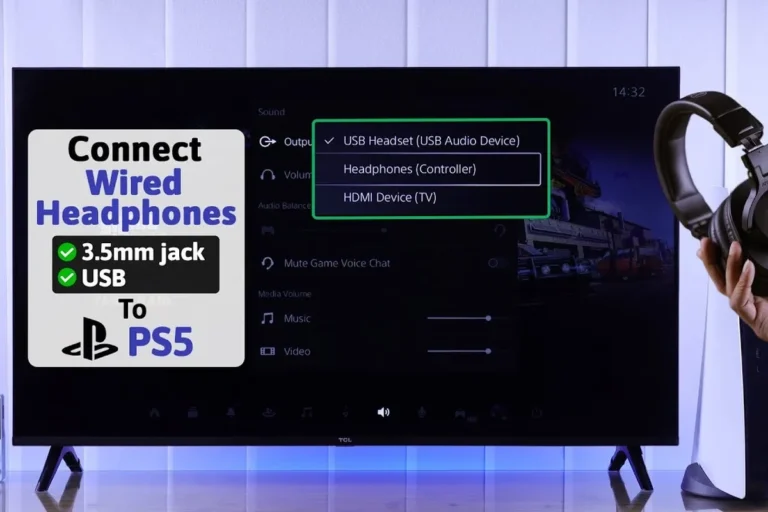
This is the simplest method for most wired gaming headsets and many wired earbuds. Plug the 3.5mm connector into the controller, then make sure the headset is set as the active audio device in your Xbox settings if needed.
This method is best for players who want low-latency sound and easy party chat. It is also the most beginner-friendly option because you do not need extra accessories or power.
Connecting wired headphones through the TV or monitor
Some TVs and gaming monitors have a headphone output or an audio-out port. In that case, you can connect wired headphones directly to the display and hear the Xbox One audio through the screen instead of the controller.
This can be useful if your controller is far from you or if you prefer to keep the controller free of cables. The trade-off is that chat audio and mic support may be limited unless your display or adapter supports both directions of audio.
Using wireless headphones with an Xbox-compatible USB transmitter
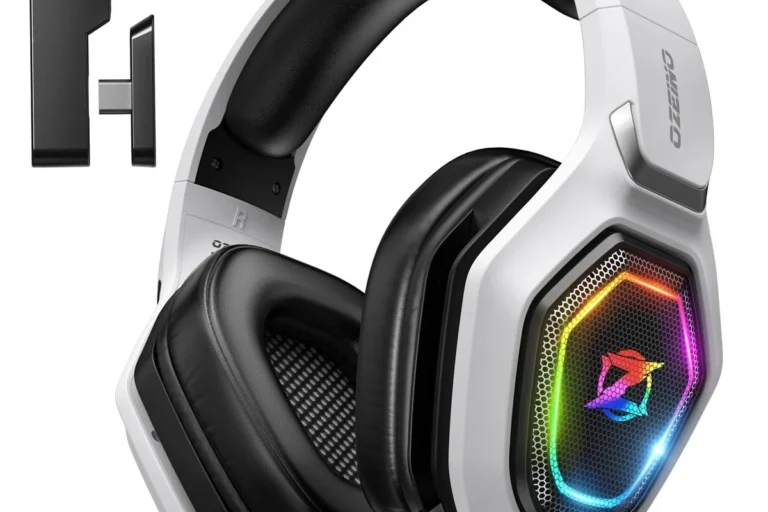
Wireless headphones that do not support Xbox Wireless may still work with a USB transmitter, depending on the model and the adapter. This is common with some gaming headsets that include their own dongle for console or PC use.
For best results, check whether the transmitter is specifically listed as compatible with Xbox One. Generic Bluetooth dongles are often hit-or-miss for game audio, and many do not handle voice chat properly.
Step-by-Step Methods for Connecting Headphones to Xbox One
Once you know which connection type you have, the setup process is usually quick. The main goal is to get the console, controller, and headset all speaking the same audio language.
Quick setup with a wired headset
Insert the 3.5mm cable into the Xbox One controller or the display’s headphone output if you are using the TV route.
Open the Xbox audio menu and make sure headset output is enabled. If you are using party chat, confirm that chat audio is not muted.
Start a game or party chat to confirm both playback and microphone input are working as expected.
Setup for Bluetooth headphones with an adapter workaround
Because Xbox One does not support standard Bluetooth audio directly, you need an adapter-based workaround. The most common approach is a Bluetooth transmitter connected to the TV, monitor, or controller audio path, depending on the hardware.
Before buying one, check whether the adapter supports low-latency audio and whether it can pass microphone input if you need chat. Many low-cost adapters only send sound one way, which is fine for listening but not ideal for multiplayer communication.
Setup for gaming headsets with Xbox Wireless support
Xbox Wireless headsets are usually the cleanest wireless option because they are designed to pair directly with the console. In many cases, you can put the headset into pairing mode and follow the console’s accessory setup prompts.
This is the most convenient route if you want fewer cables and more stable chat support. It is also the option that most closely feels like a console-native experience.
If you hear distortion or low volume after pairing, check the headset’s own volume wheel, the Xbox chat mixer, and the console audio output settings before assuming the headset is faulty.
Common Connection Problems and How to Fix Them Fast
Most Xbox One headphone issues come down to settings, cable fit, or the wrong adapter. A few quick checks usually solve the problem without replacing the headset.
No sound in the headset
First, confirm the plug is fully seated in the controller or audio port. A loose 3.5mm connection is one of the most common reasons for silent headphones.
Next, check the Xbox audio output settings and make sure the headset is selected as the active device. If you are using a transmitter, confirm it is powered on and paired correctly.
Mic not working in party chat
If the headphones play sound but the microphone does not work, the issue is often the headset cable, mute switch, or chat permissions. Some headsets also need a CTIA-compatible plug or a specific adapter for mic support.
Make sure the controller firmware is updated and test the mic with another device if possible. If the mic works elsewhere, the problem is more likely to be a console setting or adapter mismatch.
Headphones connect but audio is delayed or weak
Delay is most common with Bluetooth workarounds, especially low-cost dongles. Weak volume can also happen if the adapter or TV output is not sending enough signal to the headphones.
If you want less lag, wired is usually best. For wireless gaming, a dedicated Xbox headset or a low-latency transmitter is often a better fit than a generic Bluetooth adapter.
If your headset sounds distorted at high volume, lower the level immediately. Long gaming sessions at unsafe volume can damage hearing and may worsen tinnitus.
What Most Players Get Wrong When Setting Up Xbox One Headphones
Many connection problems are caused by simple assumptions. The biggest mistake is expecting Xbox One to behave like a phone or laptop when it comes to wireless audio.
Assuming standard Bluetooth works natively
This is the most common misunderstanding. Xbox One generally does not accept standard Bluetooth headphones for direct audio, so pairing them the usual way will not work.
If you already own Bluetooth headphones and want to try them with Xbox, you will need a compatible transmitter or another supported audio path. That extra step matters more than most people expect.
Ignoring controller firmware and console audio settings
Even a good headset can behave poorly if the controller firmware is outdated or the audio settings are wrong. It is worth checking for updates before you troubleshoot the headset itself.
Also review chat mixer settings, output format, and mute controls. Small menu changes can make a big difference in volume and voice clarity.
Using the wrong adapter or splitter for chat and game audio
Some adapters only carry stereo sound and do not support microphone input. Others may split game and chat audio in a way that does not match your headset wiring.
If you need both game sound and party chat, look carefully at the adapter description and connector type. A cheap splitter can work for basic listening, but it may not be the right choice for full gaming communication.
Expert Advice: When a Cheap Adapter Is Not Worth It
Budget adapters can be tempting, especially if you only need a quick fix. But with Xbox One audio, the cheapest option is not always the best value once you factor in lag, noise, and chat limitations.
Audio quality trade-offs with low-cost Bluetooth dongles
Low-cost Bluetooth dongles may introduce latency, compression, or unstable pairing. That can make dialogue feel slightly off and can reduce the sense of impact in games.
If you mainly play single-player games and do not mind small compromises, a budget dongle may still be fine. For competitive play, though, delay is more noticeable and more frustrating.
When to choose a dedicated Xbox headset instead
A dedicated Xbox headset is usually worth it if you play online often, use party chat regularly, or want a cleaner wireless setup. You get fewer compatibility headaches and usually better plug-and-play convenience.
It is also a better choice if you want a headset that is easier to manage across long sessions. Comfort, battery life, and microphone quality can matter as much as raw sound.
If you notice persistent ringing, discomfort, or hearing fatigue after gaming, reduce volume immediately and consider speaking with an audiologist or hearing professional.
Best use cases for budget vs premium setups
Budget setups are best for casual players who want simple game audio and do not need advanced chat features. Premium setups make more sense for frequent multiplayer gaming, better wireless stability, and more comfortable long sessions.
If you are comparing accessories in the same price range, it helps to think about your full setup, not just the headset. For example, a better connection method can matter more than a slightly fancier earcup material.
Price Comparison: Wired, Wireless, and Adapter-Based Options
Prices vary a lot by brand, build quality, and whether the headset includes a microphone or wireless transmitter. Instead of focusing only on the sticker price, think about total convenience and long-term use.
Budget-friendly wired connection options
Wired headphones are usually the most affordable route because they do not require a transmitter or special pairing process. Many wired earbuds and gaming headsets will work as long as they have the right connector.
This is the best value for players who want a simple, low-latency setup. It is also the easiest way to avoid extra charging and wireless interference.
Mid-range wireless accessories and adapters
Mid-range options often include Bluetooth transmitters or wireless gaming dongles. These can be a good middle ground if you already own headphones you like and only need a compatibility bridge.
Just remember that the adapter quality matters. A better transmitter may cost more, but it can also reduce lag and improve stability.
| Model | Best For | Price Range |
|---|---|---|
| Wired headset | Simple plug-and-play gaming | Varies |
| Bluetooth transmitter setup | Using existing wireless headphones | Varies |
| Xbox Wireless headset | Best native wireless convenience | Varies by brand |
Premium Xbox wireless headsets and value for money
Premium Xbox wireless headsets usually cost more, but they can offer the cleanest overall experience. If you play often, the time saved on setup and troubleshooting can be worth the extra spend.
For readers who want more guidance on wireless audio behavior in general, our Bluetooth headphones explained simply guide is a useful companion read. It helps explain why some wireless setups feel smoother than others.
Final Recap: The Fastest and Most Reliable Way to Connect Headphones to Xbox One
The fastest way to connect headphones to Xbox One is usually a wired headset through the controller’s 3.5mm jack. If you want wireless with less hassle, an Xbox Wireless headset is the most reliable native-style option.
Standard Bluetooth headphones can still work in some setups, but they often need a transmitter and may not support chat as smoothly. If you want a broader look at wireless behavior and common setup issues, our Bluetooth headphone lag fix article can help you troubleshoot delay before you buy new gear.
For most players, the right answer comes down to this: wired for simplicity, Xbox Wireless for convenience, and adapter-based Bluetooth only when you already own the headphones and accept some trade-offs.
- Wired headphones are the easiest Xbox One option.
- Standard Bluetooth usually needs an adapter workaround.
- Xbox Wireless headsets offer the cleanest native setup.
- Check chat, mic, and audio settings before replacing gear.
Many “headphone problems” on consoles are actually audio-routing issues, not broken headphones. A small settings change can sometimes fix sound faster than a new purchase.
Frequently Asked Questions
Standard Bluetooth headphones do not connect natively to Xbox One for audio. You usually need a compatible transmitter, a TV/monitor workaround, or an Xbox Wireless headset.
The easiest method is a wired headset through the Xbox One controller’s 3.5mm jack. It is simple, low-latency, and usually works for both game audio and chat.
Use a wired headset with mic support or an Xbox Wireless headset for the smoothest setup. If you use an adapter, make sure it supports microphone input and not just stereo audio.
Over-ear headphones often feel more comfortable for long sessions and can give a bigger sense of soundstage. In-ear models are lighter and more portable, but comfort and sound preference vary by person.
Check connection type, mic support, comfort, weight, and whether the headset is Xbox-compatible or needs an adapter. If you care about wireless use, also look at battery life and latency behavior.
Look for soft ear cushions, a stable headband, and a weight that does not feel tiring over time. If you experience hearing fatigue, lower the volume and take breaks to protect your ears.