How to Connect Headphones to TV Wirelessly Easily

The easiest way is to use your TV’s built-in Bluetooth if it has it. If not, a Bluetooth transmitter or RF wireless headset is usually the most reliable workaround.
Connecting headphones to a TV wirelessly is easier in 2025 than it used to be, but the best method still depends on your TV, your headphones, and how sensitive you are to audio delay. For most people, the simplest setup is either built-in Bluetooth or a Bluetooth transmitter, while gamers and movie fans often get better results from RF wireless systems or low-latency codecs.
If you want a clean living-room setup without cables, the good news is that there are several reliable ways to do it. The trick is choosing the method that fits your TV’s audio outputs and your listening habits, especially if you care about lip-sync, range, or comfort during long sessions.
- Bluetooth first: Best for simple smart TV setups.
- Transmitter fix: Great for older TVs without native Bluetooth.
- Low latency matters: Especially for gaming and lip-sync.
- Comfort counts: Long sessions need good fit and battery life.
How to Connect Headphones to TV Wirelessly: What the Best 2025 Setup Actually Looks Like
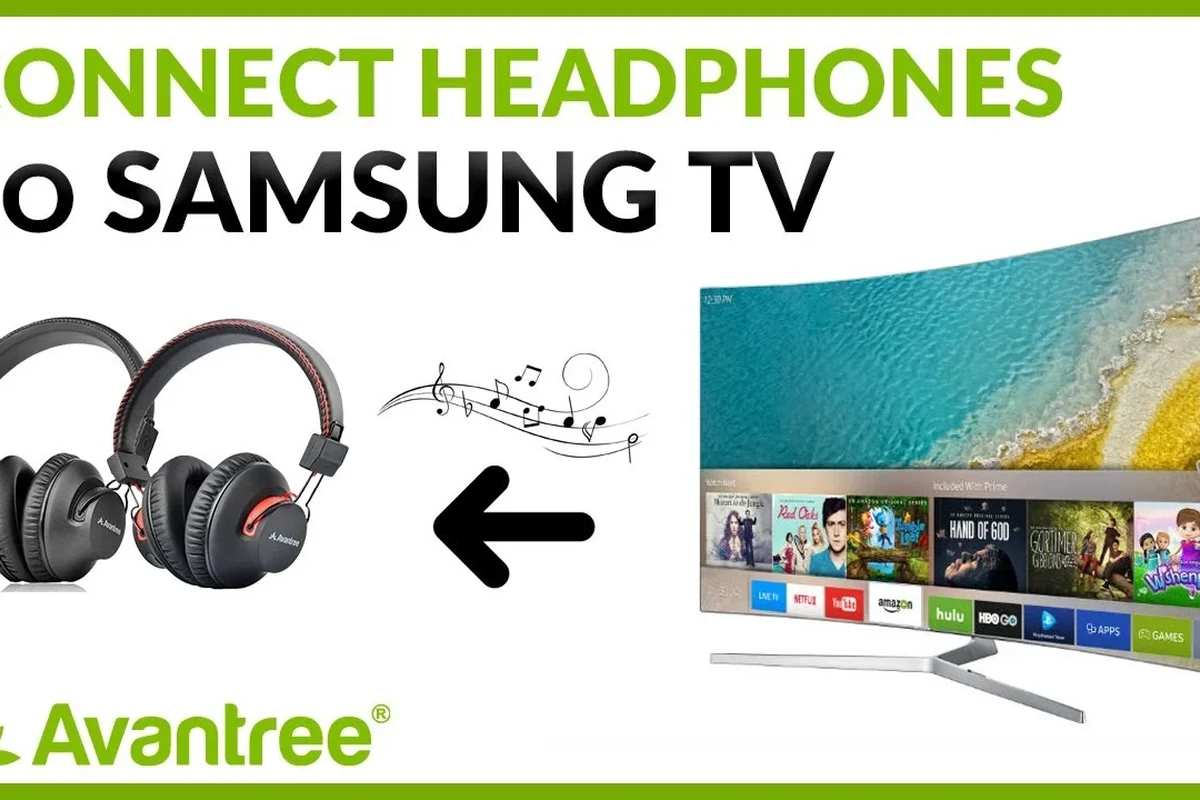
The “best” wireless TV headphone setup in 2025 is usually the one that balances convenience, sound quality, and low delay. For casual viewing, Bluetooth is often enough, but for gaming or fast-paced action, you may want a transmitter or an RF headset that keeps audio tightly synced.
Modern smart TVs often include Bluetooth in the audio menu, which makes setup simple. Older TVs can still work well with the right adapter, and many users can get a better result by pairing a dedicated transmitter with their preferred headphones instead of relying on the TV alone.
Why Wireless TV Headphones Are Worth It for Movies, Gaming, and Late-Night Viewing
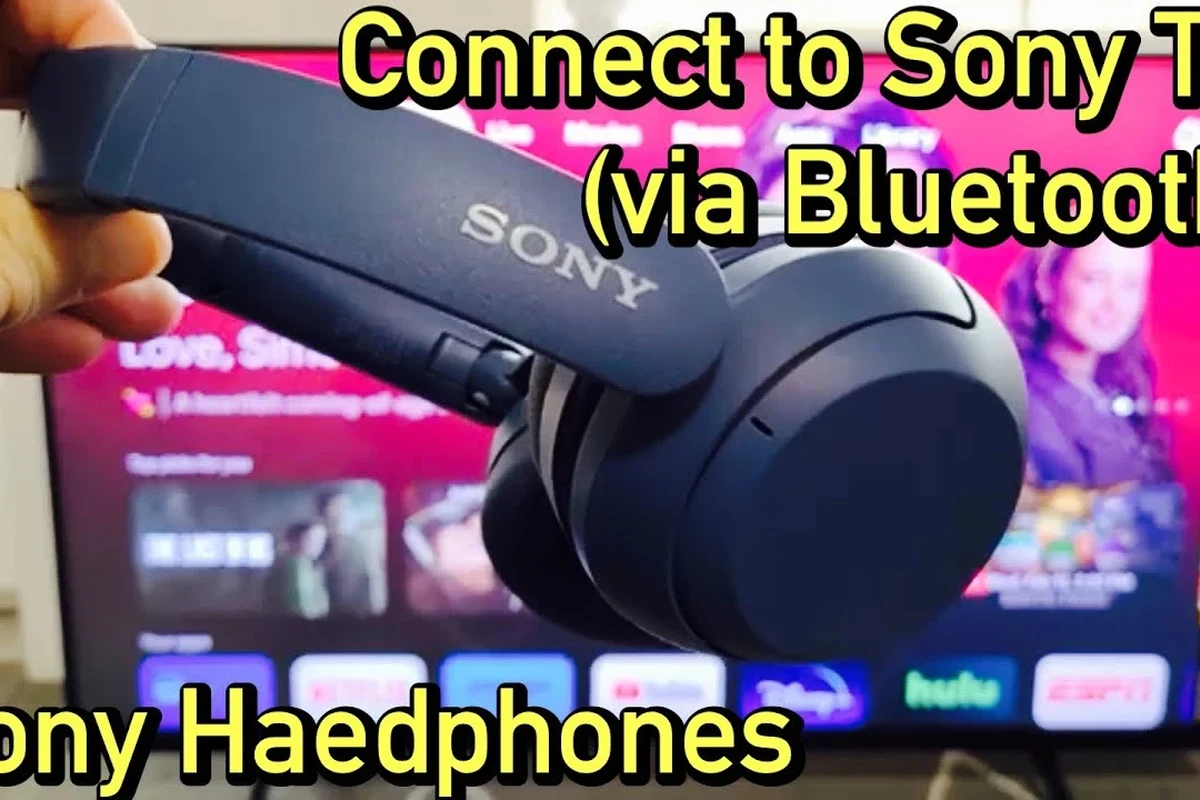
Wireless headphones are popular because they let you watch TV at your own volume without disturbing other people. That’s especially useful in shared homes, apartments, and late-night viewing when speakers would be too loud.
They can also improve focus. Closed-back wireless headphones can help reduce outside noise, while some noise cancelling headphones make dialogue easier to follow at lower volumes. If you’re comparing listening comfort and isolation, it helps to understand the basics of noise cancelling headphones before buying.
For gaming, wireless headphones can make a big difference in comfort because you’re not tethered to the TV or console. Just remember that not every wireless method performs the same, and some setups are better suited for movies than for competitive play.
Listening at high volumes for long periods can cause hearing damage. Keep volume at 60% or below for extended sessions.
Ways to Connect Headphones to TV Wirelessly in 2025
There are four common ways to connect headphones to a TV without a cable. The right one depends on whether your TV has Bluetooth, whether you need low latency, and whether you want to use the same headphones for other devices too.
Bluetooth from the TV’s Built-In Audio Menu
This is the simplest option if your TV supports Bluetooth audio output. You put your headphones in pairing mode, open the TV’s sound or Bluetooth menu, and connect them like you would with a phone or laptop.
The upside is convenience. The downside is that some TVs handle Bluetooth audio better than others, and a few models may have noticeable delay or limited codec support. If you already know how to connect Bluetooth headphones to devices, the process will feel familiar.
TV Bluetooth menus vary a lot by brand and model, so the exact steps may look different even when the connection method is the same.
Using a Bluetooth Transmitter for TVs Without Native Support
If your TV does not support Bluetooth audio, a Bluetooth transmitter is usually the most practical fix. It plugs into an output like optical, AUX, or RCA and sends the audio signal to your wireless headphones.
This can be a smart upgrade for older TVs, projectors, or budget models. It also gives you more control over the connection quality, because you can choose a transmitter with better range or lower latency than the TV’s built-in wireless system.
Connecting via RF Wireless Headphones for Longer Range and Lower Lag
RF wireless headphones use a dedicated base station instead of standard Bluetooth. In many cases, they offer a more stable connection and lower delay, which makes them attractive for TV watching in larger rooms.
They are especially useful if you want to walk around the room or keep a stronger connection through walls and furniture. The tradeoff is that RF systems are usually more tied to the included transmitter, so they may be less flexible than Bluetooth headphones for everyday use with phones and tablets.
Many TV viewers notice lip-sync issues more easily with dialogue-heavy shows than with music-heavy content, even when the delay is technically small.
Using Wi-Fi or Streaming-Device Audio Workarounds
Some streaming devices and smart TV ecosystems offer their own audio routing options, including companion apps, private listening features, or wireless speaker/headphone workarounds. These are less universal than Bluetooth, but they can be useful in specific setups.
This approach is usually best if you already use a streaming box or app-based TV platform and want to keep everything in one ecosystem. It is not the first choice for most beginners, but it can be a good solution when TV Bluetooth is missing or unreliable.
Step-by-Step Setup Guide for the Most Common TV Types
Before you start, check what outputs your TV has and what wireless standard your headphones support. That small step can save a lot of frustration, especially if your TV only has optical out or if your headphones are optimized for Bluetooth rather than RF.
- Does your TV support Bluetooth audio output?
- Does it have optical, AUX, or RCA outputs?
- Do your headphones support pairing mode or a transmitter base?
- Is low latency important for your use case?
Smart TVs with Native Bluetooth
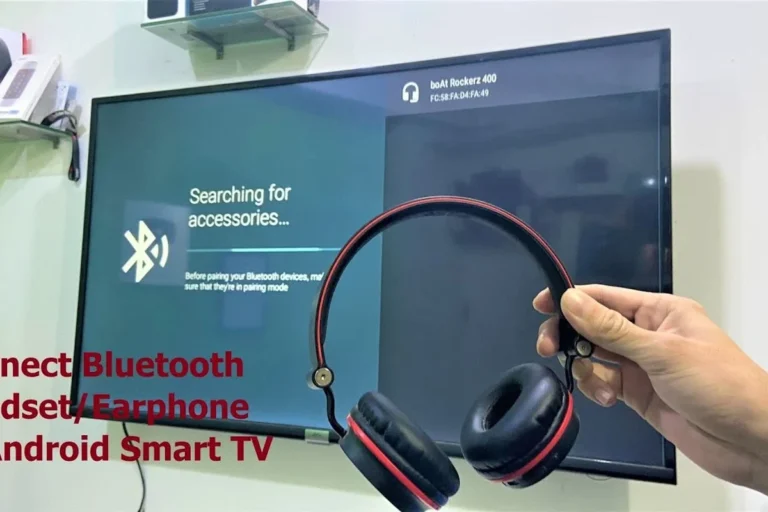
On a smart TV, open the settings menu and look for sound, audio output, or Bluetooth device options. Put your headphones into pairing mode, then select them from the TV’s available devices list.
Once connected, test the volume and lip-sync. If dialogue feels delayed, check whether the TV has an audio delay setting, a game mode, or a lip-sync adjustment. Some TVs also remember paired devices and reconnect automatically the next time you turn them on.
Find Bluetooth or audio output options in the menu.
Follow the headset’s pairing instructions until the LED flashes or the voice prompt confirms pairing mode.
Choose the headset from the TV list and confirm the connection.
Older TVs with Optical, AUX, or RCA Outputs
Older TVs often need a transmitter because they may not include native Bluetooth audio. Optical output is usually the cleanest option if your TV has it, while AUX and RCA are common on many older sets and simpler sound systems.
Connect the transmitter to the TV output, power it on, and pair your headphones to the transmitter. If the transmitter supports dual-link or multiple devices, you may be able to share audio with another listener, though performance can vary by model.
If your TV has both optical and RCA outputs, optical is often the cleaner modern choice, but the best option still depends on your transmitter and headphone support.
Gaming TVs and Consoles Where Audio Delay Matters
For gaming, audio delay matters more than it does for casual TV watching. Even a small lag can make footsteps, gunshots, or dialogue feel off, especially in competitive games or rhythm titles.
If your TV has a game mode or low-latency audio setting, turn it on. For the best results, use a transmitter or headset designed for low delay, and avoid routing audio through extra devices unless you need to.
If you notice persistent audio delay, crackling, or connection drops even after basic troubleshooting, a TV repair shop or audio specialist may be able to identify an output or compatibility issue quickly.
How to Avoid Audio Lag, Dropouts, and Unstable Connections
Wireless TV audio problems usually come down to latency, range, or interference. The good news is that most of these issues can be reduced by choosing the right wireless method and placing the transmitter correctly.
Latency Differences Between Bluetooth, RF, and Wi-Fi
Bluetooth is convenient, but it can introduce more delay than RF in some setups. RF systems often feel more immediate for TV use, while Wi-Fi-based workarounds may be stable in the right ecosystem but are less consistent from one product to another.
If you care about lip-sync, prioritize low-latency support over extra features. For movie watching, a little delay may be tolerable, but for gaming or live sports, it becomes much more noticeable.
Range, Interference, and Wall Obstructions
Wireless range depends on the room layout as much as the product itself. Thick walls, metal furniture, routers, and other wireless devices can all interfere with the signal.
Keep the transmitter in a clear line of sight when possible, and avoid placing it behind the TV if that blocks the signal too much. If your connection is unstable, moving the base station a few feet can sometimes help more than changing headphones.
Choosing aptX Low Latency or Similar Codec Support
Some Bluetooth systems support low-latency codecs such as aptX Low Latency or similar modes, depending on the brand and device pairing. This can help reduce the delay between what you see and what you hear.
Codec support is not universal, though, so both the transmitter and the headphones need to be compatible for the feature to matter. If you are shopping for a new pair, check the compatibility details carefully rather than assuming all Bluetooth models behave the same.
If you mainly watch dialogue-heavy content, test the connection with a news channel or talk show first. It is one of the fastest ways to spot lip-sync problems before movie night.
Best Headphone and Transmitter Features to Look for Before Buying
When choosing a wireless TV setup, the best features are usually the ones that make daily use easier. Comfort, battery life, auto-reconnect, and low-latency support often matter more than flashy marketing claims.
TV Volume Sync, Multipoint, and Auto-Reconnect
TV volume sync can make a wireless setup feel much smoother because you can control sound from the TV or headset without constant adjustments. Auto-reconnect is also valuable if you use your headphones every night and want them to pair quickly.
Multipoint can be useful if you want the same headphones to work with a phone and a TV, but it is not essential for everyone. If your main goal is TV listening, prioritize stable reconnection and easy volume control first.
Do I need special headphones for TV use?
Not always. Many Bluetooth headphones work fine, but a TV-focused headset or low-latency transmitter setup can give you better sync and easier daily use.
Battery Life, Charging Docks, and Comfort for Long Sessions
For TV use, battery life matters because you may wear headphones for entire movies or several episodes at a time. Charging docks are especially convenient if you want a simple place to store and recharge the headset between uses.
Comfort is just as important as battery life. Over-ear designs with soft ear cushions are often better for long sessions, but fit still depends on head shape, clamp force, and whether you prefer lighter headphones or more isolation.
Price Ranges: Budget vs Mid-Range vs Premium Wireless Solutions
Budget wireless TV setups usually rely on basic Bluetooth or simple transmitters. Mid-range options often improve range, comfort, and codec support, while premium systems may focus on stronger low-latency performance, better build quality, or more polished charging docks.
There is no single best price point for everyone. If you only watch shows occasionally, a budget setup may be enough, but daily users and gamers often get more value from a better transmitter or a more comfortable headset.
Common Mistakes People Make When Setting Up Wireless TV Headphones
One common mistake is buying headphones first and checking TV compatibility later. That can lead to a headset that works well on phones but poorly on a TV because the TV lacks the right output or codec support.
Another mistake is assuming Bluetooth delay will be the same across every device. TV software, transmitter quality, and headphone codec support can all change the result, which is why a setup that works on one TV may feel worse on another.
People also forget about comfort. A headset that sounds good on paper may still be tiring after an hour if the ear cups are too shallow, the clamp is too strong, or the battery dies before the end of a long movie marathon.
- Easy private listening
- Less cable clutter
- Better late-night viewing
- Possible audio delay
- Compatibility varies
- Some setups need extra hardware
Final Recap: The Easiest Way to Connect Headphones to TV Wirelessly in 2025
If you want the simplest answer to how to connect headphones to TV wirelessly, start with your TV’s built-in Bluetooth menu. If your TV does not support Bluetooth well, use a Bluetooth transmitter or an RF wireless headset for a more dependable experience.
For movies and casual TV, convenience may matter most. For gaming and lip-sync-sensitive viewing, low latency should be your top priority, and that usually means checking codec support, transmitter quality, and how your TV handles audio output before you buy.
- Bluetooth is easiest when your TV supports it.
- Transmitters help older TVs and can improve compatibility.
- RF systems often offer stronger range and lower delay.
- Comfort and battery life matter for long viewing sessions.
Frequently Asked Questions
Wireless headphones are more convenient for private TV listening and late-night viewing. Wired headphones can still be better if you want the simplest possible connection with no battery or latency concerns.
Noise cancelling headphones can make dialogue easier to hear at lower volumes by reducing background noise. They are especially useful in shared homes, but results vary by model and fit.
Closed-back headphones are usually better for TV because they block more outside sound and keep audio from leaking out. Open-back headphones can sound more spacious, but they are less private and usually not ideal for shared living rooms.
Over-ear wireless headphones or a low-latency gaming headset are usually the best choices for TV gaming. They tend to be more comfortable for long sessions and can reduce the chance of noticeable audio delay.
Check Bluetooth version, codec support, battery life, comfort, and whether the headphones support low latency or easy auto-reconnect. If you use an older TV, also check whether you need a transmitter with optical, AUX, or RCA input.
Start by adjusting the TV’s audio settings and using a codec or transmitter that supports lower delay when possible. A small EQ boost for dialogue can help, but exact results depend on the headphones, TV, and your hearing preference.