Do PS5 Controllers Have a Headphone Jack Explained

Yes, PS5 controllers have a 3.5mm headphone jack built into the DualSense controller. It works with many wired headphones and headsets for game audio and voice chat.
If you’ve been wondering do PS5 controllers have a headphone jack, the short answer is yes. The DualSense controller includes a 3.5mm audio port that supports wired headphones and many gaming headsets.
That makes it an easy option for private gaming, voice chat, and low-latency audio without needing Bluetooth. In this guide, the Top Headphone Reviews Editorial Team explains where the jack is, what works with it, and when a dedicated headset may be the better choice.
- Yes, it has a jack: The DualSense includes a standard 3.5mm audio port.
- Wired is simple: It usually offers easy setup and low-latency audio.
- Check mic support: Not every headphone can handle chat the same way.
- Settings matter: PS5 audio and input options can affect results.
Do PS5 Controllers Have a Headphone Jack? Quick Answer for 2025
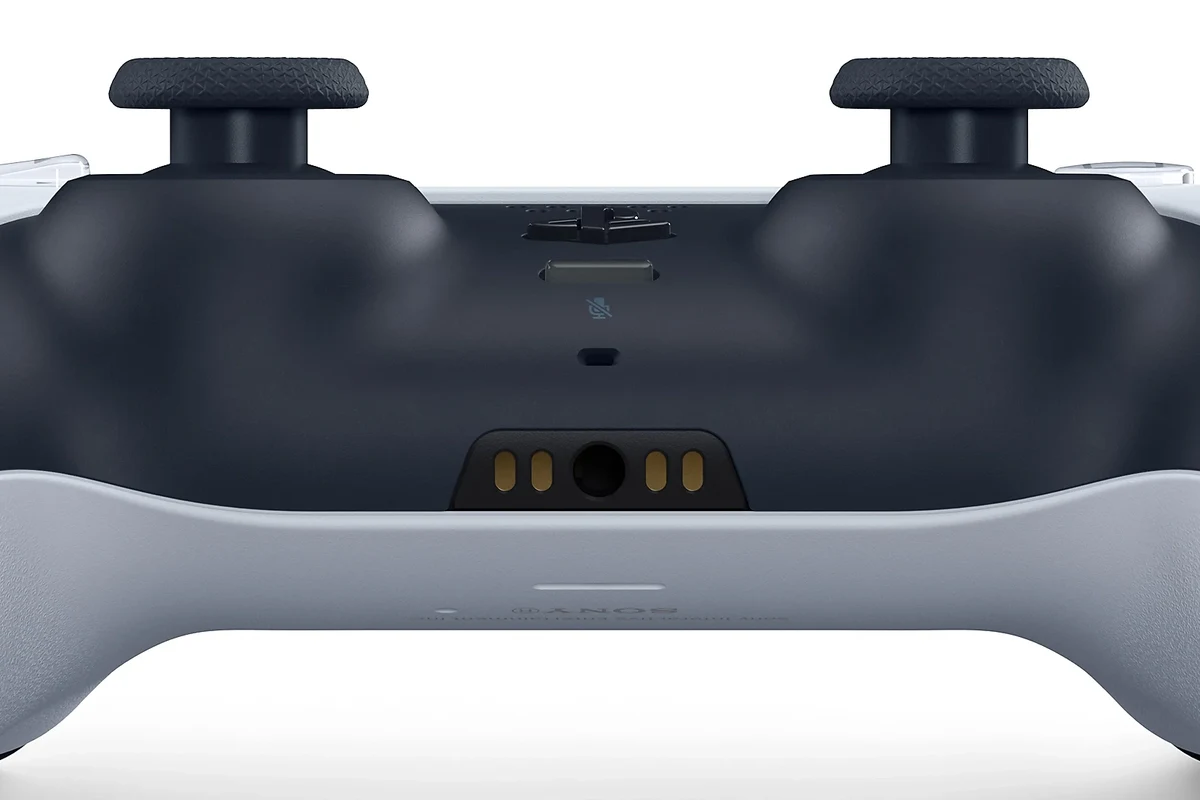
Yes, PS5 controllers do have a headphone jack. The DualSense controller includes a standard 3.5mm combo audio port, which means you can plug in many wired headphones and headsets directly.
This is still one of the simplest ways to get game audio and voice chat on PS5. For players who want a quick plug-and-play setup, it remains a very practical feature in 2025.
Where the PS5 Controller Headphone Jack Is and How It Works
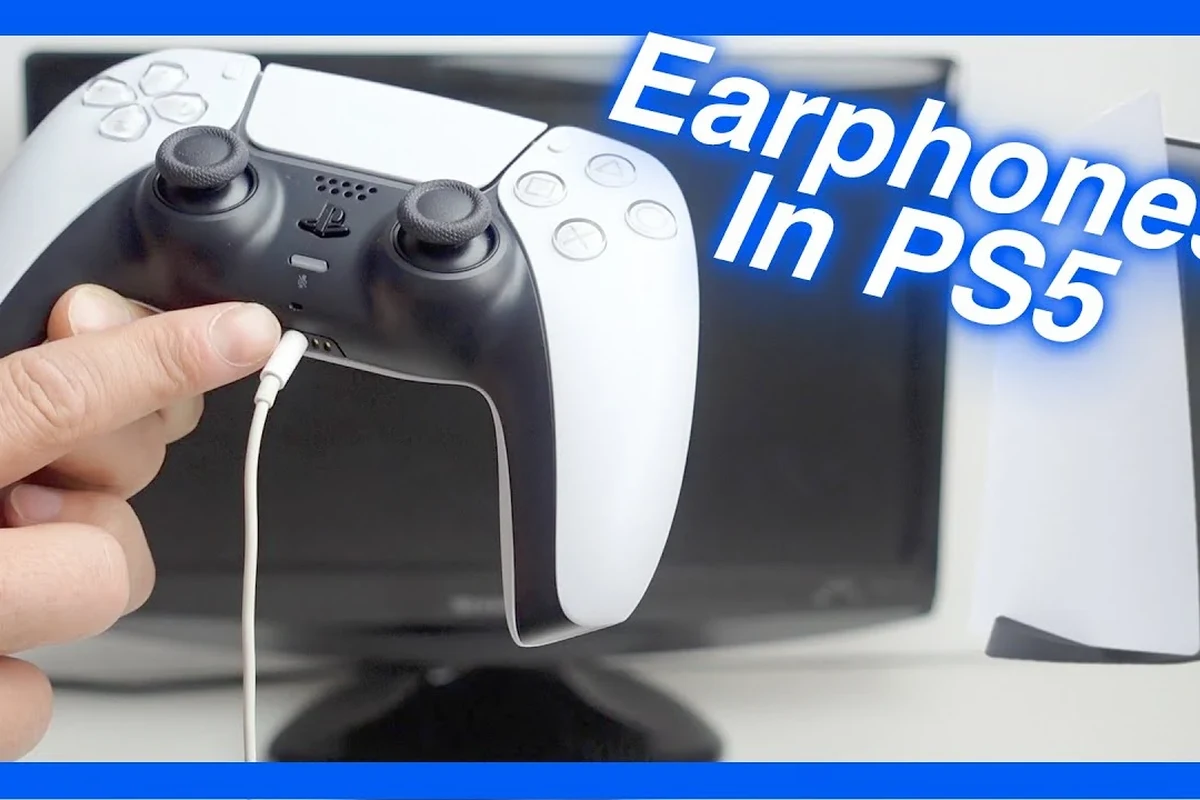
The headphone jack is built into the bottom edge of the DualSense controller. It accepts a standard 3.5mm plug, so you can connect compatible wired headphones without any adapter in most cases.
Once plugged in, the PS5 can route audio through the controller instead of your TV or monitor. You can usually choose whether the headset is used for all audio or just chat, depending on your console settings.
Compatibility can vary by headset design, inline controls, and microphone wiring. If your headset has a special connector or extra adapter, check the manufacturer’s instructions first.
Using the DualSense 3.5mm Audio Port for Wired Headphones
Using the port is simple: plug in your headset, then open the PS5 sound settings if you want to adjust output or microphone behavior. Many wired gaming headsets will work immediately for both listening and chatting.
If you use regular headphones without a mic, you’ll still get game audio, but voice chat may require a separate microphone. This is why combo headset models are often the most convenient choice for PS5 players.
What Devices Actually Fit the PS5 Controller Jack
Most headphones and headsets with a standard 3.5mm TRRS plug should fit the controller jack. That includes many gaming headsets, wired earbuds, and some phone-style headsets with a built-in mic.
However, not every plug format behaves the same way. Some headphones are audio-only, some use different wiring standards, and some require adapters to make the microphone work correctly.
- Does the plug have a standard 3.5mm connector?
- Does the headset include a microphone if you want chat?
- Does the cable use a compatible wiring standard?
Best Use Cases for the PS5 Controller Headphone Jack
The controller jack is best when you want something fast, simple, and wired. It’s especially useful for players who do not want to deal with pairing, charging, or wireless interference.
It’s also a smart option for people who already own a good wired headset. If you want a deeper look at how wired and wireless options compare, our guide on types of headphones explained can help you choose the right style.
Gaming at Night, Voice Chat, and Low-Latency Audio
Wired headphones are a strong choice for late-night gaming because they let you keep the volume lower and avoid disturbing others. They also make voice chat easy, since the mic is already close to your mouth on many headsets.
Another advantage is low latency. When audio is going straight through a cable, there is usually less delay than you might notice with some wireless setups.
Listening at high volumes for long periods can cause hearing damage. Keep volume at 60% or below for extended sessions.
When a Controller Connection Beats Bluetooth
A controller connection can be better than Bluetooth when you want a stable link and fewer pairing issues. It also avoids the battery drain that comes with many wireless headphones.
For players who are sensitive to audio delay, the wired route is often the safer bet. If you have ever dealt with laggy wireless sound, our Bluetooth headphone lag fix guide explains why that happens and what to do about it.
Many gamers prefer wired audio for competitive play because it can feel more immediate and predictable than wireless sound.
Common Mistakes Gamers Make With PS5 Headphone Connections
Most PS5 headphone problems are not caused by the controller jack itself. They usually come from headset compatibility, wrong settings, or assuming every plug-and-play device works the same way.
Taking a minute to check the basics can save a lot of frustration. A headset that works on a phone or laptop may still need different settings on the PS5.
Assuming Every Headset Works the Same Way
One common mistake is assuming any 3.5mm headset will behave exactly the same. Some models are tuned for music, some are designed for gaming chat, and some only support audio output.
If the mic does not work, the problem may be the plug type, not the PS5. That is why it helps to read the headset label carefully before blaming the console.
Ignoring Mic Compatibility and In-Game Audio Settings
Another common issue is forgetting to change the PS5 input and output settings. If the console is still sending sound to the TV, or the microphone is muted in the system menu, the headset may seem broken when it is not.
Game chat settings can also override your preferred audio balance. If your voice sounds too quiet or game sound is too loud, check both the PS5 menu and the game’s own audio controls.
If you have persistent crackling, one-sided audio, or hearing discomfort, consider trying another headset or speaking with an audiologist or audio specialist. Ongoing issues may point to a fit problem, a damaged cable, or a hearing concern that should not be ignored.
PS5 Controller Headphone Jack vs Bluetooth Headsets in 2025
In 2025, both wired and wireless audio still have a place on PS5. The right choice depends on whether you care more about convenience, sound stability, battery life, or freedom of movement.
For many readers, the decision comes down to how often they play and what kind of headset they already own. If you want a broader overview of wireless behavior, our Bluetooth headphones explained article covers the basics in plain language.
Sound Quality, Latency, and Battery Trade-Offs
Wired headphones connected to the controller often provide a more consistent experience because they do not rely on a wireless signal. Bluetooth headsets can sound great too, but performance may vary by model and setup.
Latency is another major difference. Wired audio usually feels more immediate, while wireless headsets may introduce a small delay depending on the connection and codec used.
- Simple plug-and-play setup
- No headset battery to charge
- Often lower audio delay
- Cable can limit movement
- Mic quality varies by headset
- Not as convenient as wireless
Wired Budget Option vs Premium Wireless Setup
A wired controller connection is often the budget-friendly route because you may already own a headset that works. It is a good fit if you mainly want reliable chat and game audio without paying for extra features.
A premium wireless setup may make sense if you want freedom, longer comfort during long sessions, or extra features like easier controls. The best choice depends on your budget, comfort preferences, and how you use your PS5.
Expert Advice: How to Get the Best Audio From Your PS5 Controller
Small setup changes can make a big difference in how your controller audio sounds. Adjusting output, chat mix, and mic monitoring can help you get cleaner sound and better communication.
If your audio sounds muddy or unbalanced, it may be a settings issue rather than a headset issue. Our best EQ settings for headphone guide can also help you understand how tuning affects clarity and bass.
Recommended Settings for Chat Mix, Output, and Mic Monitoring
Start by checking whether the PS5 is sending audio to your headset and whether your microphone is selected as the input device. Then adjust the chat mix so game sound and voice chat feel balanced.
Mic monitoring can also help if you tend to talk too loudly or feel disconnected from your own voice. The best setting depends on your headset, your room, and how sensitive your mic is.
Choose the controller headset as the main audio output if you want all sound routed through it.
Make sure the PS5 recognizes the headset mic if you plan to use party chat or in-game voice.
Warning Signs of Loose Plugs, Static, or Audio Cutouts
If the sound cuts in and out when you move the cable, the plug may not be seated properly or the cable may be worn. Static, crackling, or one-sided audio can also point to a damaged connector or a dirty jack.
Try a different headset before assuming the controller is faulty. If more than one headset gives the same issue, the problem may be the controller port itself.
Do not force a plug into the controller jack. If the connector does not fit smoothly, stop and verify the plug type before trying again.
Final Verdict: Should You Use the PS5 Controller Headphone Jack?
For most players, the PS5 controller headphone jack is absolutely worth using. It is simple, reliable, and especially useful if you already own a good wired headset.
It may not be the most advanced audio option, but it remains one of the easiest ways to get solid gaming sound on PS5. For many households, that convenience is more valuable than extra wireless features.
Who Should Use It and Who Should Upgrade to a Dedicated Headset
Use the controller jack if you want low-latency audio, easy voice chat, and a budget-friendly setup. It is also a great fit for casual players, late-night gaming, and anyone who prefers wired gear.
Upgrade to a dedicated headset if you want better comfort, stronger wireless freedom, or more refined audio control. If your sessions are long or you care a lot about mic quality, a purpose-built gaming headset may be the better investment.
- The PS5 DualSense controller does have a 3.5mm headphone jack.
- Most standard wired headsets and earbuds can plug in directly.
- Wired audio is simple and low-latency, but wireless can be more convenient.
- Check mic support and PS5 sound settings for the best results.
Frequently Asked Questions
Wired headphones can feel more consistent because they do not depend on a wireless signal. Wireless headsets can still sound great, but results vary by model and connection type.
Closed-back headphones usually block more outside noise and are better for shared spaces. Open-back headphones can feel more spacious, but they leak sound and are less private.
Look at comfort, mic support, plug type, and whether the headset is designed for gaming or general listening. Sound tuning, bass level, and clarity matter too, but personal preference plays a big role.
Keep the headset charged, stay close to the console, and reduce interference from other wireless devices. If delay is still a problem, wired audio is usually the simplest fix.
Over-ear headsets are often more comfortable for long sessions, but fit depends on head shape and clamp force. In-ear models can be lighter, while on-ear designs may feel less comfortable over time for some users.
Check the plug fit, the cable condition, and the PS5 audio output settings first. If the sound is still muffled, try another headset or look at EQ and game audio settings.