How to Connect Sony Headphones to PS5 Easily and Fast

The easiest way to connect Sony headphones to PS5 is usually with a USB wireless adapter or a 3.5mm cable through the DualSense controller. Standard Bluetooth is limited on PS5, so it often needs a transmitter or workaround.
If you want to know how to connect Sony headphones to PS5 quickly, the easiest path is usually a USB wireless adapter or a wired 3.5mm cable. Bluetooth can work in some setups, but the PS5’s native Bluetooth support is limited, so not every Sony headphone model pairs the same way.
- Fastest setup: Use the Sony USB wireless dongle if your model includes one.
- Best fallback: Plug a 3.5mm cable into the DualSense controller.
- Bluetooth limits: PS5 does not handle every Sony Bluetooth headset directly.
- Sound settings matter: Check output, mic input, and 3D Audio after pairing.
How to Connect Sony Headphones to PS5: What Works Best in 2026
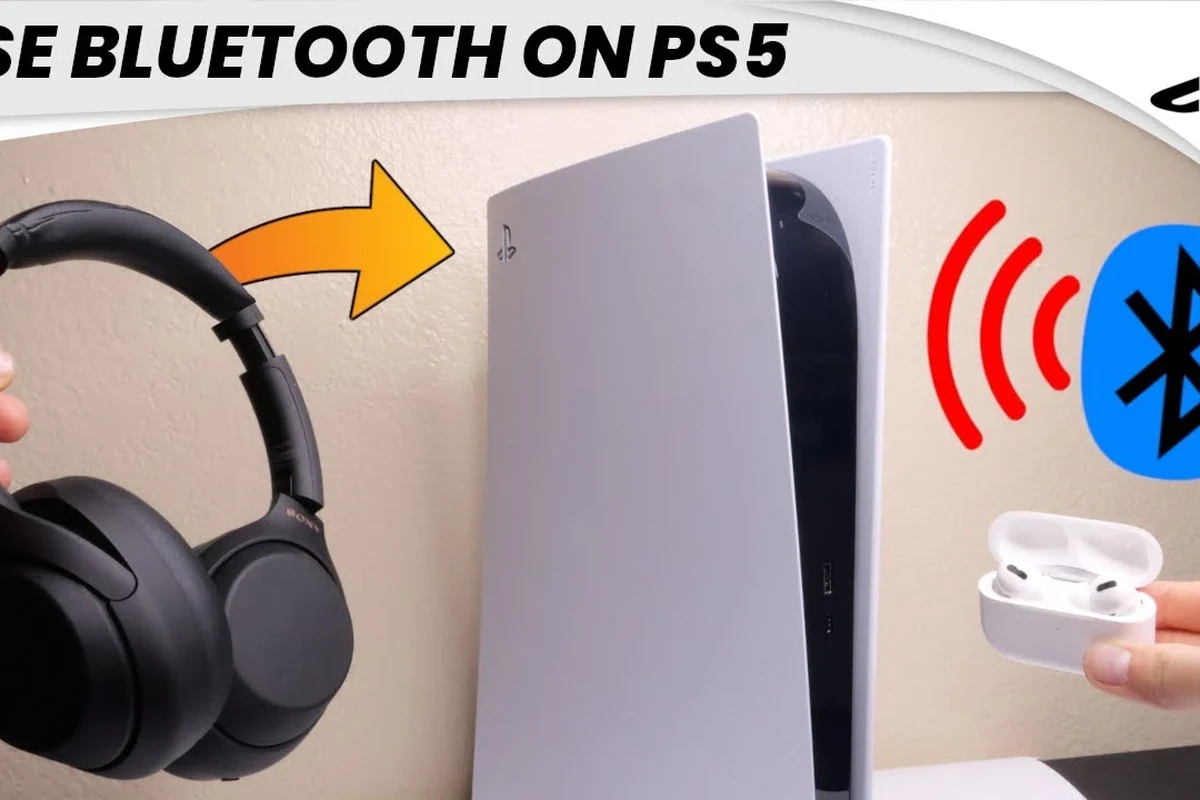
In 2026, the best connection method still depends on the Sony headphones you own and how you plan to use them. For most gamers, a USB dongle or a wired connection gives the most reliable audio, while Bluetooth is better treated as a workaround rather than the first choice.
Sony makes everything from over-ear noise-cancelling headphones to gaming-focused wireless models, and that variety matters. A pair that sounds excellent for music may need an adapter or cable to work smoothly on PS5, especially if you want low-latency gameplay and clear voice chat.
Before You Start: PS5 Compatibility, Sony Headphone Models, and Connection Types
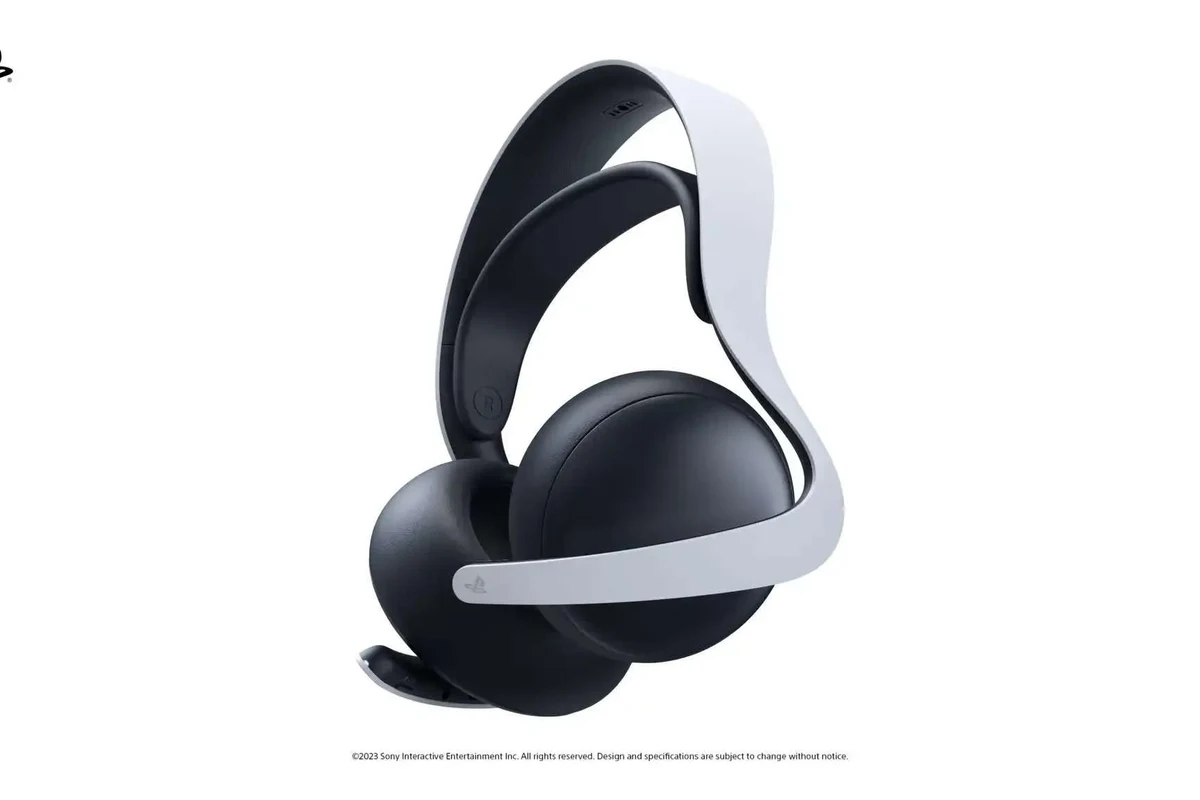
Before you connect anything, it helps to know what kind of Sony headphones you have. Some models are designed for gaming and include a USB wireless transmitter, while others are regular Bluetooth headphones that may need a cable or extra adapter.
If you are comparing models or trying to decide what to buy, it can help to understand the basics of Bluetooth headphones and how different connection methods affect sound, latency, and convenience. That context makes PS5 setup much easier.
Wireless USB dongle vs Bluetooth vs 3.5mm cable
A USB wireless dongle is usually the simplest route for Sony gaming headphones. It creates a direct wireless link to the PS5, often with lower delay than standard Bluetooth and fewer compatibility issues.
Bluetooth is convenient, but PS5 does not support every Bluetooth headset in a straightforward way. A 3.5mm cable is the most universal option if your Sony headphones have a headphone jack, and it avoids wireless interference entirely.
Connection quality can vary by headphone model, firmware version, and whether your Sony headphones were built for gaming or general listening.
Which Sony headphones are easiest to pair with PS5
The easiest Sony headphones to pair are usually gaming models that come with a USB wireless adapter or are explicitly made for console use. These tend to offer the smoothest setup for audio and chat without extra accessories.
Popular over-ear Sony headphones with a 3.5mm port can also be easy to use if you are fine with a wired connection. Standard Bluetooth-only models can still work, but they often need a transmitter or cable-based workaround.
- Does the headphone include a USB dongle?
- Does it have a 3.5mm audio port?
- Is firmware up to date?
- Does the model support mic input over cable or adapter?
Fastest Method: Connect Sony Headphones to PS5 Using a USB Wireless Adapter
For most Sony gaming headphones, the fastest and most reliable method is the USB wireless adapter. This is often the best choice if you want simple setup, stable audio, and low-latency performance for games and party chat.
If your Sony headphones came with a receiver, use that first. If you are shopping for a setup and want a deeper look at low-latency audio behavior, our guide to Bluetooth headphone lag fix explains why wireless delay matters so much in gaming.
Step-by-step pairing process for Pulse, WH, and WH-1000XM models
Exact steps vary by model, but the general process is similar. Gaming-focused Sony models and some WH-series headphones may need a dongle, a pairing button, or a USB connection to get started.
Insert the Sony wireless dongle into a free USB port on the PS5. Try the rear port first if the front port is already in use.
Power on the headphones and put them into pairing mode if the model requires it. Check the manual or on-device indicators for the correct light pattern.
Give the PS5 a moment to detect the headset. Once connected, audio should route through the headphones automatically.
Open PS5 sound settings and check that the output and microphone input are set correctly. Test game audio and voice chat before you start playing.
If the headset does not connect right away, unplug the dongle, restart the headphones, and try a different USB port before changing settings.
Best use cases for gaming, chat, and low-latency audio
USB wireless is the strongest all-around option for gaming because it usually balances convenience and responsiveness well. That makes it a smart choice for shooters, action games, and any title where audio timing matters.
It is also the easiest setup for voice chat if your Sony headset includes a mic over the wireless link. For players who want a cleaner desk setup without a cable running to the controller, this is often the most practical solution.
Wired Option: How to Use a 3.5mm Cable with Sony Headphones on PS5
If your Sony headphones include a 3.5mm cable, you can connect them directly to the DualSense controller. This is one of the simplest ways to get sound from the PS5, and it works well even when wireless pairing is being difficult.
Wired listening can also be a good fallback for people who want to avoid battery life concerns. If you are deciding between a headset and another style of personal audio gear, our general guide on types of headphones explained can help you compare comfort and use cases.
Direct connection through the DualSense controller
To use this method, plug one end of the 3.5mm cable into your Sony headphones and the other into the headphone jack on the DualSense controller. The PS5 should route audio through the controller automatically in most cases.
After connecting, check the console’s sound menu to make sure the output device is set correctly. If your headphones have an inline mic or support microphone input through the cable, test that as well, because mic behavior can vary by model.
When wired is better than wireless for sound quality and latency
Wired is often better when you want the most stable connection and the least delay. That can matter in competitive games, but it also helps if you simply want fewer dropouts and no pairing issues.
Sound quality preferences are more personal. Some listeners prefer wired because it avoids compression and wireless interference, while others notice little difference in casual play; your result may depend on the specific Sony model and how sensitive you are to latency or tonal changes.
Listening at high volumes for long periods can cause hearing damage. Keep volume at 60% or below for extended sessions.
Bluetooth on PS5: Why It’s Limited and How to Work Around It Safely
Many people expect Sony Bluetooth headphones to pair directly with PS5 the same way they do with a phone, but that is not always the case. The console’s Bluetooth support is limited, so direct pairing may fail, lag, or create unstable audio.
If you want to understand why wireless audio can act differently across devices, it helps to read about how noise cancelling headphones work and how processing can affect the listening experience. Features like ANC are useful, but they do not solve PS5 pairing limits by themselves.
Common Bluetooth pairing issues with Sony headphones
Common problems include the PS5 not seeing the headset, audio cutting out, or the microphone not working correctly. In some cases, the headphones pair to another device instead of the console, which can make setup confusing.
Firmware, saved pairings, and nearby wireless devices can all affect the result. If your Sony headphones keep failing to connect, resetting the headset and removing old pairings can help, but not every Bluetooth model is a clean fit for PS5.
Using a Bluetooth transmitter for PS5 and what to expect
A Bluetooth transmitter can be a useful workaround if you only have Bluetooth Sony headphones and want wireless convenience. You connect the transmitter to the PS5’s USB port or optical-compatible setup, then pair the headphones to the transmitter instead of the console.
That said, this is still a compromise. Audio delay, mic limitations, and occasional connection drops can happen, so it is usually better for casual play than for competitive gaming or chat-heavy sessions.
Some Bluetooth transmitters support audio only, which means your headphones may play game sound but still not send microphone input back to the PS5.
Best Audio Settings After Connecting Sony Headphones to PS5
Once your Sony headphones are connected, the next step is to tune PS5 audio settings. Small changes here can improve clarity, chat balance, and overall comfort during long gaming sessions.
If you often switch between devices, it may also help to understand how to select headphones in Windows 11, since the same basic habit of checking output devices prevents a lot of audio confusion across platforms.
Adjusting output device, mic input, and 3D Audio settings
Go to the PS5 sound settings and confirm that the output device is your Sony headphones. Then check the input device if your headset includes a microphone, especially after switching between wired and wireless modes.
You can also test 3D Audio to see whether it improves positioning in your favorite games. Some players like the extra spatial effect, while others prefer a more direct stereo sound; the best choice depends on the game and your own hearing preference.
Game/chat balance, volume control, and EQ tips for Sony sound profiles
Use the game/chat balance controls if your Sony headset supports them, because that can make voice chat easier to hear without turning everything up too high. Keep the main volume moderate and raise it only as needed.
If your Sony headphones have a companion app or built-in EQ options, start with subtle changes. A small bass reduction can improve dialogue clarity, while a slight midrange boost can help footsteps and voices stand out in games.
If you notice ringing, discomfort, or persistent hearing fatigue after gaming, consider speaking with an audiologist or hearing specialist. Long sessions at loud volume can be harmful even when the sound seems “not that loud.”
Common Mistakes That Stop Sony Headphones from Working on PS5
Most connection problems come from a few simple mistakes rather than a broken headset. The good news is that these issues are usually easy to fix once you know what to check.
For readers who also use Sony headphones on other devices, it can help to review general Bluetooth troubleshooting habits. A reset or fresh pairing often solves more than one device issue at once.
Forgotten firmware updates, wrong USB port, and adapter conflicts
One of the most common problems is outdated firmware on the headphones or dongle. If the manufacturer offers an update tool, install it before assuming the headset is incompatible.
Wrong USB port choice can also matter, especially if another accessory is already occupying the port or causing a conflict. If the adapter is not detected, try a different USB port and disconnect other wireless accessories temporarily.
How to fix no sound, disconnects, or microphone problems
If there is no sound, confirm the PS5 output device and volume settings first. Then check whether the headphones are in the correct mode, because some Sony models switch between listening modes, pairing modes, and power-saving behavior.
For disconnects, move closer to the console and remove nearby interference where possible. For microphone issues, confirm that the mic is not muted on the headset itself and that the PS5 input device is set to the correct source.
- USB wireless is usually the easiest and most reliable way to connect Sony headphones to PS5.
- Wired 3.5mm connection through the DualSense controller is the simplest fallback.
- Standard Bluetooth is limited on PS5, so a transmitter may be needed.
- Always check output, input, and firmware before troubleshooting deeper problems.
Expert Advice: Which Connection Method Gives the Best Value in 2026
The best value depends on whether you care more about convenience, latency, or price. In 2026, wired remains the cheapest and most universal option, while USB wireless usually gives the best balance of performance and ease of use for gaming.
Bluetooth is the least predictable on PS5, so it is usually only the best value if you already own the headphones and are willing to add a transmitter. For buyers comparing different setups, the right choice often comes down to how often you play, whether you use chat, and how much cable management you want to avoid.
Price and performance comparison of wired, dongle-based, and Bluetooth solutions
Wired setups tend to cost the least because you may only need the cable you already own. They are dependable, but they can feel less flexible if you move around while gaming.
USB dongle-based setups usually cost more, but they often deliver the smoothest overall experience for Sony headphones on PS5. Bluetooth solutions can range from inexpensive to more expensive once you add a transmitter, and performance can vary a lot by brand and model.
Final Recap: The Easiest Way to Connect Sony Headphones to PS5
If you want the easiest answer to how to connect Sony headphones to PS5, start with the method your model was built for. USB wireless is usually the best overall choice, wired 3.5mm is the easiest fallback, and Bluetooth should be treated as a limited workaround.
Once connected, check output, input, and volume settings so the headset performs the way you expect. That small setup step can make a big difference in game audio, chat clarity, and long-session comfort.
Frequently Asked Questions
Wireless USB models are usually better for convenience and low latency. Wired 3.5mm connections can be more universal and dependable, especially if you want a simple fallback.
They can work well for game audio, but PS5 compatibility depends on the exact model and connection type. Noise cancellation helps block outside sound, but it does not replace a proper PS5 audio connection.
Closed-back headphones are usually better for gaming because they isolate sound and keep game audio focused. Open-back models can sound wider and more natural, but they leak sound and offer less isolation.
There is no single best driver type for every player, because tuning matters as much as size or design. Look for clear mids, controlled bass, and a sound signature that matches your games and comfort preferences.
Budget depends on whether you need wireless, a microphone, or noise cancellation. A wired model is usually the cheapest path, while a wireless gaming headset or premium ANC headphone may cost more depending on brand and features.
Check connection type, microphone support, battery life if wireless, and whether the headset includes a USB dongle or 3.5mm cable. Comfort, weight, and ear cushion material also matter for long gaming sessions.