How to Pair Wireless Headphones to PS4 Easily and Fast

Most wireless headphones do not pair directly with PS4, so the easiest fix is usually a USB dongle, a supported gaming headset, or a transmitter. Check PS4 audio settings and mic support to make sure the connection actually works for gaming and chat.
If you want to know how to pair wireless headphones to PS4, the short version is this: most standard Bluetooth headphones do not connect directly, but USB dongles, supported gaming headsets, and a few transmitter-based setups usually work well. The easiest method depends on the type of headphones you already own and whether you need game audio, chat audio, or both.
For Top Headphone Reviews readers, the goal is usually simple: get clean sound, low lag, and a setup that does not turn into a troubleshooting project. Below, the Top Headphone Reviews Editorial Team breaks down what works in 2025, what usually fails, and the fastest ways to get wireless audio on PS4 without wasting time.
- Best method: Use a USB wireless dongle or supported PS4 headset.
- Bluetooth limit: Standard Bluetooth often needs a workaround.
- Audio settings: PS4 output and input menus matter a lot.
- Gaming choice: Low-latency wireless is better for fast games.
How to Pair Wireless Headphones to PS4: What Works in 2025 and What Doesn’t
PS4 is still a little picky about wireless audio. That means the answer to “how to pair wireless headphones to PS4” is not as simple as opening Bluetooth settings and tapping connect.
In practice, the PS4 works best with accessories that are designed for gaming audio. That includes USB wireless dongles, officially supported headsets, and some transmitter setups that plug into the controller or console. Standard Bluetooth headphones may power on fine, but that does not mean the PS4 will accept them as an audio device.
Compatibility can vary by headset brand, firmware version, and the exact PS4 model you own. If a headset is not listed as PS4-compatible, assume you may need a dongle or transmitter.
PS4 Wireless Headphone Compatibility Explained: Bluetooth, USB Dongles, and Official Support
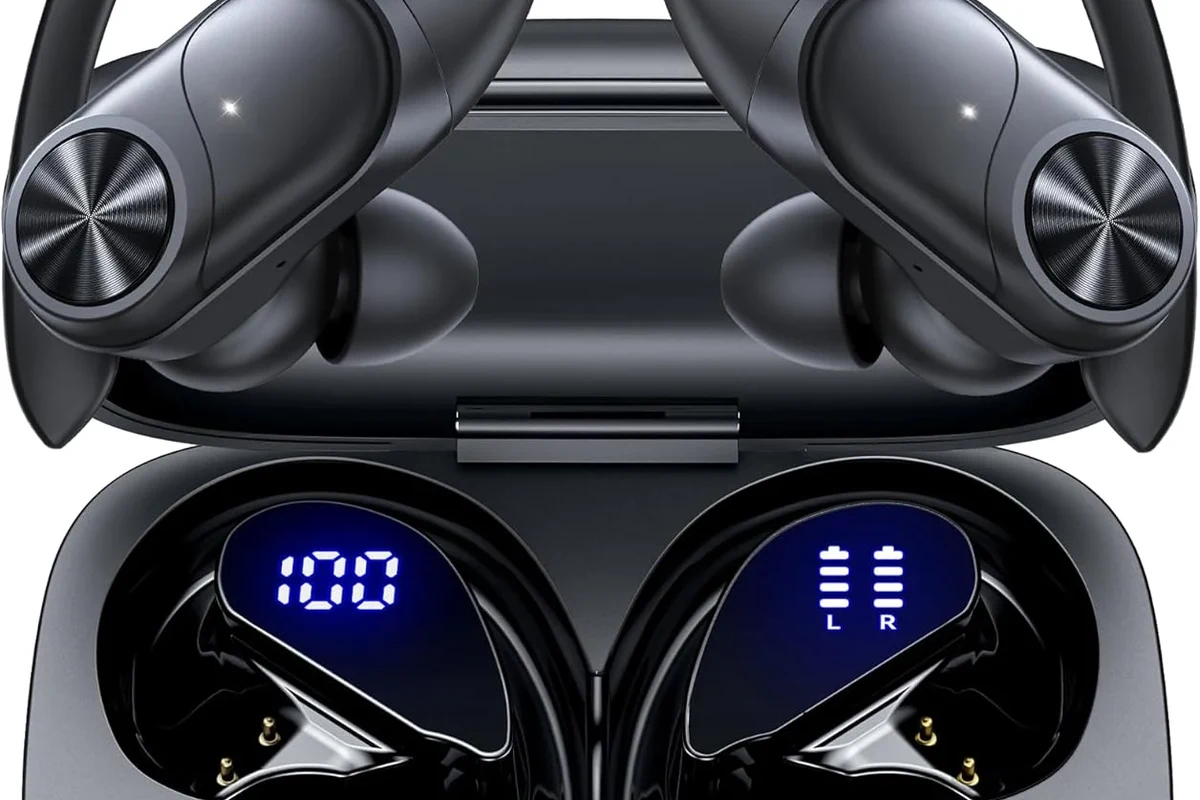
PS4 supports some wireless audio devices, but not all of them in the same way. The main thing to understand is the difference between Bluetooth pairing and gaming-headset wireless connections.
Bluetooth headphones are built for phones, laptops, and tablets first. PS4, on the other hand, often expects a USB receiver or a headset made for console use. That is why some users can connect audio successfully while others cannot get past the pairing screen.
Why most Bluetooth headphones won’t connect directly to PS4
Most Bluetooth headphones are not recognized by PS4 as a standard audio output device. Even if they appear during a scan, the console may reject them or connect only partially.
Another issue is that PS4 Bluetooth support is limited compared with a phone or PC. Some headsets may connect for system sounds but fail to pass voice chat, and others may have noticeable delay that makes games feel off.
If you are expecting the same easy pairing process you get on a phone, PS4 can be frustrating. Many Bluetooth models need a workaround, and some simply will not work at all.
Which wireless headset types are easiest to use with PS4
The easiest options are usually USB wireless gaming headsets and PS4-supported wireless headsets that include their own receiver. These are designed to work with the console’s audio system instead of relying on generic Bluetooth pairing.
Wireless headphones with a low-latency USB transmitter are also a practical choice. If you already own a good pair of over-ear Bluetooth headphones, a transmitter can be the simplest way to make them useful for gaming.
If you care about game timing, footsteps, and voice chat clarity, look for low-latency wireless rather than standard Bluetooth whenever possible.
Fastest Ways to Connect Wireless Headphones to PS4 Step by Step
There are three realistic ways to get wireless audio working on PS4 quickly. The best method depends on whether your headphones came with a dongle, whether you are using a transmitter, or whether your headset is officially supported.
Before you start, it helps to check the console’s sound settings and confirm that your headset is charged. A lot of pairing problems are really setup problems, not hardware failures.
Using a USB wireless dongle
This is usually the easiest and most reliable method. Plug the USB dongle into the PS4, turn on the headphones, and wait for the headset and receiver to link automatically.
Insert the USB wireless dongle into an open PS4 USB port.
Turn on the headphones and wait for the receiver light or pairing indicator to stabilize.
Go to Sound and Screen settings and choose the USB headset or wireless device as the audio output.
If the headset supports chat audio, go into the sound device settings and confirm the input device too. Some headsets send game audio immediately but still need a manual mic selection.
Connecting through the PS4 controller’s 3.5mm jack with a wireless transmitter
This method is useful when your headphones do not have a USB receiver but you still want a wireless link. A small transmitter can connect to the controller’s headphone jack or another supported audio output, depending on the model.
The transmitter then sends audio to your wireless headphones. This can be a practical workaround for users who want to keep using favorite Bluetooth over-ear headphones without replacing them.
- Whether the transmitter supports low-latency audio
- Whether it works with game audio only or also mic input
- Whether the controller battery drains faster during use
For a deeper look at wireless behavior across devices, our guide on wired vs wireless headphones explains the trade-offs in latency, convenience, and sound consistency.
Pairing an officially supported PS4 gaming headset
Some headsets are built specifically for PS4 and come with a USB adapter or wireless base unit. These are often the least stressful option because the headset and console are designed to work together.
In most cases, you just plug in the adapter, power on the headset, and select it in the PS4 audio menu. If the headset includes a companion app or sound profile, you may also be able to fine-tune bass, chat balance, or EQ later.
Many gaming headsets use their own 2.4GHz wireless system instead of Bluetooth because it usually offers lower delay and more stable game audio.
Best Practical Setup Examples for Popular Headphone Types
Different headphone styles need different connection strategies. The best setup is the one that matches your gear, your budget, and how often you play.
Below are the most practical real-world combinations for PS4 users who want wireless sound without unnecessary trial and error.
Over-ear Bluetooth headphones with a USB transmitter
If you already own over-ear Bluetooth headphones, a USB transmitter is often the most flexible solution. It can give you a more console-friendly connection than trying to force a direct Bluetooth pair.
This setup is especially useful for casual gaming, single-player titles, and couch play. It may not be perfect for competitive chat-heavy games, but it is often good enough for most players.
Gaming headsets with included USB sound cards
These are often the simplest plug-and-play choice. The included USB sound card or dongle handles the wireless link, and the PS4 sees it as an audio device more easily than a standard Bluetooth headset.
If you want a clean setup with fewer compatibility headaches, this is usually the safest route. It also tends to be better for microphone support than generic Bluetooth headphones.
- Easy setup
- Usually low latency
- Better mic support
- Depends on headset compatibility
- May cost more than basic Bluetooth options
TV-connected wireless headphones for couch gaming
If your PS4 is connected to a TV, some players prefer to route audio through the television instead of the console. This can work well for living-room gaming, especially when the TV already supports wireless audio accessories.
The main trade-off is that audio latency may vary more than with a direct USB gaming headset. For story games and relaxed play, that is often fine. For fast multiplayer games, it may be less ideal.
If you want to compare how wireless behavior changes in other environments, our article on wireless headphones on an airplane covers another common wireless-audio use case where compatibility and delay also matter.
Common Mistakes That Stop PS4 Wireless Headphones from Working
When PS4 wireless headphones fail, the problem is often not the headset itself. It is usually a settings issue, a compatibility assumption, or a missing audio step.
Forgetting PS4 audio output settings
Even if the headset is connected, PS4 may still send audio to the wrong output. You often need to manually choose the USB headset, transmitter, or controller output in the sound menu.
It is also worth checking volume levels, chat output, and whether audio is set to all sound or only chat audio. A headset can appear “connected” while still sounding silent if these settings are wrong.
Expecting phone-style Bluetooth pairing to work
This is one of the biggest mistakes. A headset that pairs instantly with a phone may still fail on PS4 because the console handles Bluetooth differently.
If your headphones are not officially supported, do not assume a simple scan-and-connect process will succeed. In many cases, you will need a dongle or transmitter to make the setup work properly.
Ignoring mic compatibility and chat audio limits
Some wireless headphones can play game audio but cannot handle voice chat the way you expect. Others may need a separate mic path or controller connection to support chat fully.
If multiplayer chat matters to you, check microphone support before buying. A headset that sounds good but cannot handle chat cleanly may be frustrating for party play.
If you rely on voice chat for competitive gaming or use headphones for long daily sessions, it may be worth asking an audiologist or audio specialist about comfort, fit, and safe listening habits if you notice ear fatigue or ringing.
Expert Advice: Latency, Audio Quality, and Mic Performance Tips
Wireless gaming is a balance between convenience and performance. The right setup should give you enough speed for gameplay without making the sound feel delayed or thin.
Audio quality, bass response, and mic clarity can all vary by model. Personal preference matters too, especially if you like strong bass, a wider soundstage, or a more neutral sound profile.
How to reduce lag in games and voice chat
Use low-latency wireless whenever possible. USB dongles and gaming-specific wireless systems usually perform better than generic Bluetooth for delay-sensitive games.
Keep the receiver close to the console, avoid unnecessary interference, and make sure headset firmware is updated if the brand supports it. Simple placement changes can sometimes improve stability more than people expect.
When to choose low-latency wireless over standard Bluetooth
Choose low-latency wireless if you play shooters, rhythm games, or anything where sound timing matters. Standard Bluetooth can be fine for casual play, but it is not usually the best choice for competitive gaming.
If your main goal is comfort and convenience rather than precision, standard Bluetooth may still be acceptable with the right transmitter. The key is to match the connection type to the game type.
Listening at high volumes for long periods can cause hearing damage. Keep volume at 60% or below for extended sessions.
Price Comparison: Budget vs Mid-Range vs Premium Wireless PS4 Audio Solutions
Wireless PS4 audio can be affordable or expensive depending on whether you buy a simple transmitter or a full gaming headset. Prices vary widely by brand, build quality, mic support, and wireless technology.
Instead of focusing only on the lowest price, think about the kind of gaming you do most. A cheap setup can be enough for casual play, while a better headset may be worth it for frequent multiplayer use.
Cheapest reliable options for casual players
Budget-friendly choices usually include basic USB wireless dongles or simple transmitters. These are best for players who want decent game audio without spending much on features they may never use.
The downside is that budget options can be more limited in mic quality, battery life, and range. They are fine for casual use, but not always the most polished experience.
Best value picks for balanced sound and comfort
Mid-range wireless gaming headsets often hit the sweet spot. They can offer better comfort, more stable connectivity, and clearer voice chat without reaching premium pricing.
For many PS4 players, this is the most sensible category because it balances convenience and performance. You get fewer setup problems and usually better everyday usability.
When premium headsets are worth the extra cost
Premium models make the most sense if you play often, care about long-session comfort, or want stronger build quality and more refined sound tuning. They may also include better mic monitoring, stronger battery life, or more flexible connection options.
That said, premium does not automatically mean better for everyone. If you mostly play single-player games once in a while, a simpler setup may be all you need.
- USB dongles and PS4-supported headsets are usually the easiest options.
- Standard Bluetooth headphones often need a transmitter to work well.
- Check audio output settings and mic support before assuming the headset is broken.
- Low-latency wireless is the safest pick for gaming performance.
Final Recap: The Easiest Way to Pair Wireless Headphones to PS4
If you want the simplest answer to how to pair wireless headphones to PS4, start with a USB wireless dongle or an officially supported PS4 gaming headset. Those options are usually the most reliable and least frustrating.
If you already own Bluetooth headphones, a transmitter is often the best workaround. Just remember to check output settings, mic compatibility, and latency before deciding on a permanent setup.
For most readers, the winning formula is simple: choose low-latency wireless, confirm PS4 compatibility, and keep the setup practical rather than overly complicated. That approach gives you better sound, fewer connection problems, and a much smoother gaming experience.
Frequently Asked Questions
Not always. Wired headphones can offer simpler setup and no wireless lag, while wireless headsets provide more freedom and comfort. Sound quality depends on the model, tuning, and connection type.
They can be, especially if you play in a noisy room. Noise cancelling helps block distractions, but it does not automatically improve game audio quality or microphone performance.
Closed-back headphones are usually better for PS4 because they isolate outside noise and keep game sound from leaking. Open-back headphones can sound wider and more natural, but they are less private and less immersive in noisy rooms.
Look at wireless type, latency, comfort, mic support, and how the headset is tuned rather than focusing only on driver size. Frequency response and EQ can affect bass and clarity, but real-world sound also depends on design and fit.
Start with a compatible USB dongle or a mid-range gaming headset instead of buying the cheapest Bluetooth option. Budget choices are best when they are low-latency, comfortable, and clearly supported by PS4.
Focus on lightweight build, soft ear cushions, stable clamping force, and battery life that fits your playtime. If you feel pressure, heat, or ear fatigue, a different fit or a more breathable design may be better.