How Do You Connect Headphones to PS4 Easily and Fast

The easiest way to connect headphones to PS4 is with a wired 3.5mm headset through the DualShock 4 controller. Bluetooth headphones usually need a PS4-compatible adapter, while USB wireless headsets work best with their own dongle.
If you’re asking how do you connect headphones to PS4, the fastest answer is usually through the DualShock 4 controller’s 3.5mm jack. If your headset is Bluetooth or USB wireless, you may need a compatible adapter or dongle because the PS4 does not support every wireless headphone directly.
- Fastest method: Use the controller’s 3.5mm headphone jack.
- Wireless reality: Most Bluetooth headphones need an adapter.
- Best stability: USB wireless headsets are often the easiest wireless option.
- Main fix: Check PS4 audio output settings if sound is missing.
- Safety: Keep long listening sessions at moderate volume.
How Do You Connect Headphones to PS4? What Gamers Want to Know in 2026
Contents
- 1 How Do You Connect Headphones to PS4? What Gamers Want to Know in 2026
- 2 PS4 Headphone Connection Methods: Wired, Wireless, and Controller Jack Options
- 3 Step-by-Step Setup for the Fastest PS4 Headphone Connection
- 4 Best Headphone Types for PS4: What Works, What Doesn’t, and Why
- 5 Common Mistakes When Connecting Headphones to PS4
- 6 Expert Advice: Audio Quality, Latency, and Chat Balance on PS4
- 7 Cost Comparison: Cheapest Ways to Use Headphones on PS4 in 2026
- 8 Final Recap: The Fastest and Easiest Way to Connect Headphones to PS4
- 9 Frequently Asked Questions
- 10 Author
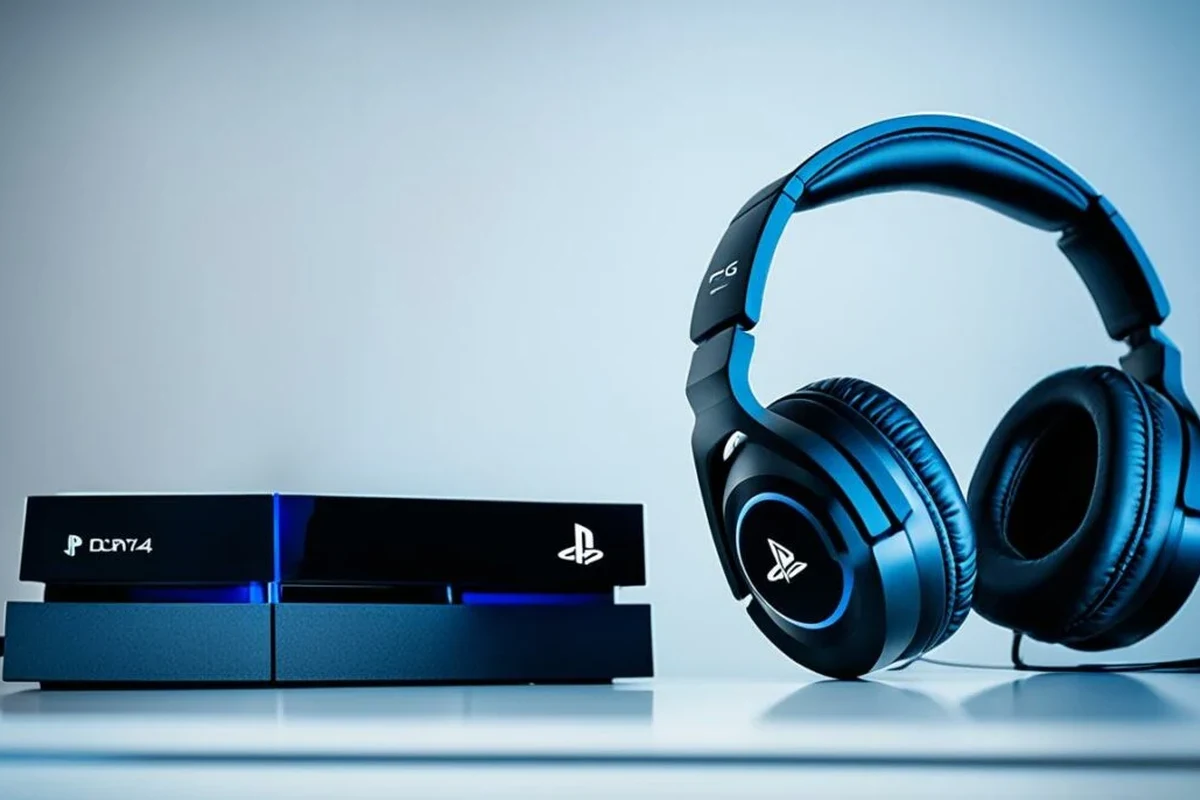
Most PS4 players want a simple setup: plug in, hear game audio, and start chatting. That’s why the controller jack remains the easiest option for many people, while wireless setups are more about convenience than simplicity.
The good news is that PS4 headphone connection is still straightforward once you know what type of headset you own. The main difference is whether your headphones are wired, USB wireless, or Bluetooth-based, since each path has different compatibility limits.
Compatibility can vary by headset brand, PS4 system settings, and whether your headset is designed for console gaming or general mobile use.
PS4 Headphone Connection Methods: Wired, Wireless, and Controller Jack Options
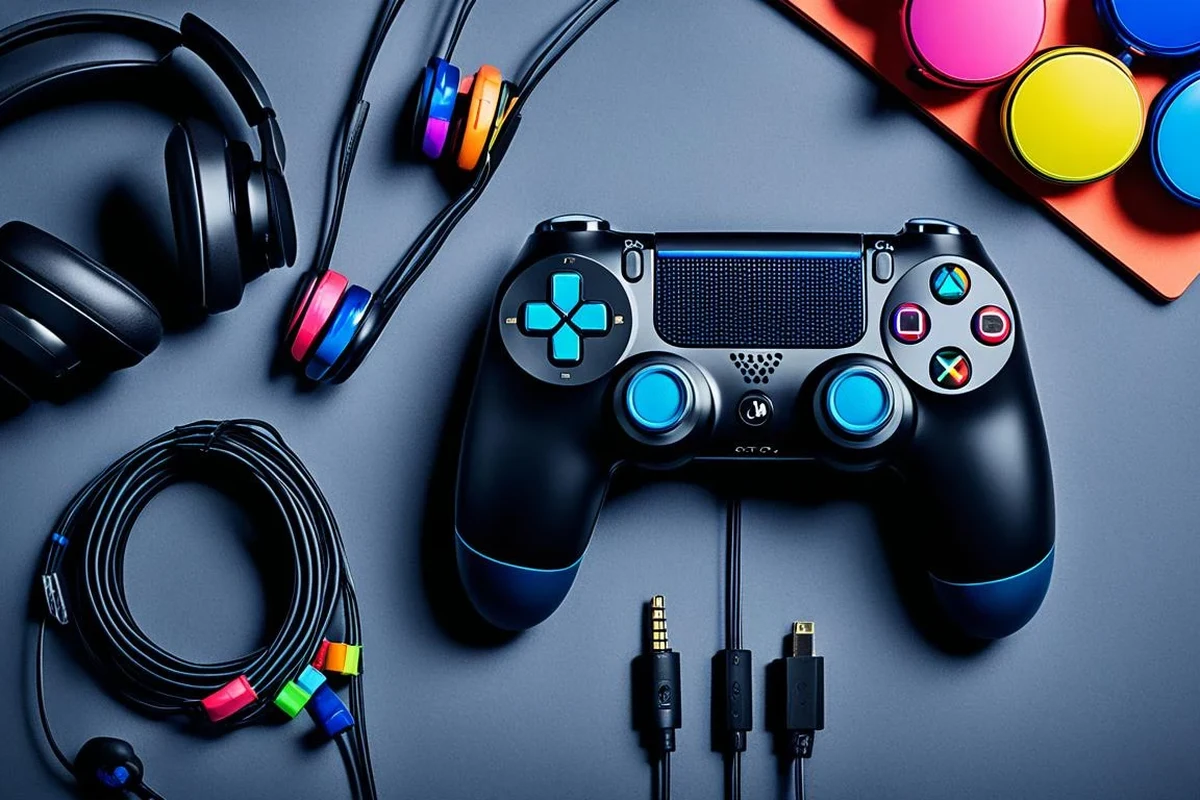
There are three common ways to use headphones on PS4: a wired 3.5mm connection, a Bluetooth-style setup with an adapter, or a USB wireless headset with a dongle. For most players, the controller jack is the least complicated and usually the most reliable.
Using a 3.5mm wired headset with the DualShock 4
This is the easiest method if your headset has a standard 3.5mm plug. Just connect it to the headphone port on the DualShock 4 controller, then set the PS4 audio output to send sound to the controller or headset.
Wired headsets are also a smart choice if you want low delay, clear voice chat, and fewer pairing issues. If you already own a good wired model, this is often the cheapest and fastest answer to how do you connect headphones to PS4.
If your headset has an inline mic and volume control, check whether the mic mute switch is turned off before troubleshooting sound issues.
Connecting Bluetooth headphones with a PS4-compatible adapter
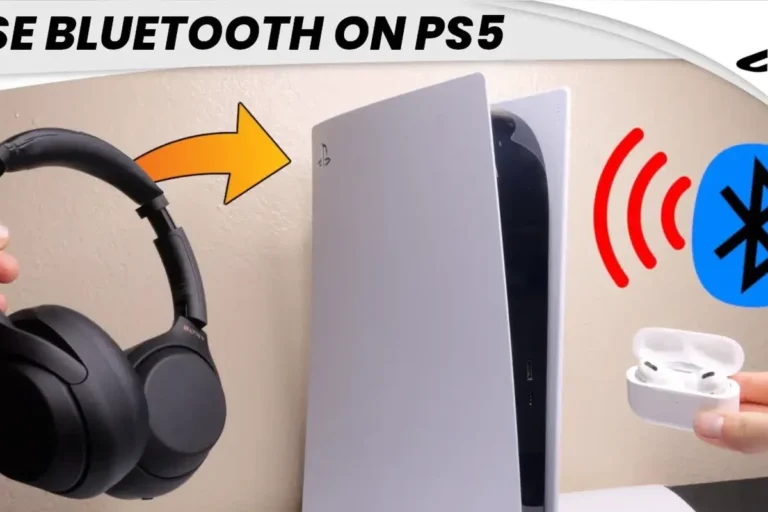
Most standard Bluetooth headphones do not pair directly with PS4 in the same smooth way they do with phones or laptops. In many cases, you’ll need a PS4-compatible Bluetooth adapter that plugs into USB or the controller port, depending on the model.
This can be a useful option if you prefer going wireless, but results vary by adapter quality and headset compatibility. For readers who also use headphones on other devices, our guide on how to connect Bluetooth headphones can help explain the basics of pairing and settings.
Using USB wireless headsets and dongles
USB wireless gaming headsets are often the cleanest wireless option for PS4 because the included dongle is usually designed for console use. You plug the USB transmitter into the PS4, turn on the headset, and let the devices connect automatically or through a quick pairing process.
This approach is usually more stable than generic Bluetooth for gaming, especially if you care about chat clarity and lower audio delay. Still, the exact behavior depends on the headset and whether the dongle is made for PS4 compatibility.
Step-by-Step Setup for the Fastest PS4 Headphone Connection
If speed is your priority, start with the simplest physical connection first. The less extra hardware you use, the fewer problems you’re likely to run into.
Quick setup through the controller audio jack
Plug the headset into the 3.5mm port on your DualShock 4 controller. Then press the PS button, go to the sound/device settings, and make sure output is routed to the headset or controller.
If the headset has a microphone, confirm that the input device is also set correctly. Many “it’s connected, but I can’t hear anything” problems come from the PS4 sending audio to the wrong output.
Connect the 3.5mm jack firmly into the controller until it clicks into place.
Go to the PS4 settings menu and check audio output and device selection.
Launch a game or party chat to confirm both listening and microphone function.
Pairing via USB dongle or USB audio adapter
For USB wireless headsets, insert the dongle into an open USB port on the PS4. Then power on the headset and wait for the indicator light or pairing signal to confirm the connection.
If you’re using a USB audio adapter instead, the process may involve selecting the adapter as the output device in the PS4 audio menu. That extra step is normal and helps route sound and mic input correctly.
Some USB adapters support audio only, while others support both audio and microphone input. Check the packaging or product instructions before buying.
Adjusting PS4 audio output settings for game and chat sound
Once the headset is connected, the PS4 settings matter just as much as the hardware. Go to Sound and Screen settings, then Audio Output Settings, and confirm the correct output device is selected.
You may also need to adjust “Output to Headphones” so sound goes to all audio instead of only chat audio. That setting is especially important if you want full game sound in both ears.
On many consoles, “chat audio only” is a common default for headset output, which is why some users think their headphones are broken when they are not.
Best Headphone Types for PS4: What Works, What Doesn’t, and Why
Not every headphone type is equally convenient on PS4. The best choice depends on whether you care most about simplicity, sound quality, chat, or wireless freedom.
Why most standard Bluetooth headphones need extra hardware
Many everyday Bluetooth headphones are built for phones, tablets, and laptops, not console gaming. That means the PS4 may not recognize them directly, or it may limit the connection in a way that affects chat or sound quality.
That’s why Bluetooth headphones often need a compatible adapter. If you want a broader explanation of wireless audio behavior, our guide on Bluetooth headphones explained simply can help you understand why some pairings are easier than others.
Wired gaming headsets vs. wireless gaming headsets
Wired gaming headsets usually win for simplicity, low latency, and consistent audio. Wireless gaming headsets win for convenience, desk freedom, and fewer cables, but they may cost more and require charging.
For competitive play, wired can still be the safer choice because audio delay is less of a concern. For casual gaming or long sessions on the couch, a good wireless headset can feel more comfortable to live with.
Budget-friendly options versus premium models in 2026
Budget setups often use a headset you already own, which keeps costs low. Premium setups may include a console-ready wireless headset, better mic monitoring, stronger build quality, and more comfortable ear cushions.
Price is not the only factor, though. The best value depends on how often you play, whether you need chat, and how sensitive you are to sound delay or pressure on your ears.
Common Mistakes When Connecting Headphones to PS4
Most PS4 headphone problems are not caused by the headset itself. They usually come from settings, unsupported wireless gear, or a loose connection.
Wrong audio output settings in the PS4 menu
If you hear nothing, the PS4 may be sending audio to the TV instead of the headset. Check the output device and make sure headphone output is enabled for the correct sound mode.
It also helps to test the headset after restarting the console, especially if you recently changed adapters or moved the USB dongle.
Mic not working, sound only in one ear, or low volume issues
A mic problem can come from a mute switch, a loose plug, or a headset that only supports audio and not voice input. Sound in one ear may point to a damaged cable, an unseated connector, or a headset that is not fully compatible with the controller jack.
Low volume can be caused by the PS4 output level, the headset’s own volume wheel, or a weak adapter. If the sound is thin or unbalanced, try another cable or another USB port before assuming the headset is defective.
Using unsupported Bluetooth headphones without an adapter
This is one of the most common mistakes. A pair of Bluetooth headphones may work perfectly with a phone but still fail to connect properly to PS4 without extra hardware.
If you want wireless simplicity, choose a headset or adapter that clearly states PS4 support. Otherwise, you may spend more time troubleshooting than gaming.
Listening at high volumes for long periods can cause hearing damage. Keep volume at 60% or below for extended sessions.
Expert Advice: Audio Quality, Latency, and Chat Balance on PS4
For gaming, connection method matters as much as headphone style. A headset that sounds great on paper may still feel frustrating if the delay is too high or the chat mix is off.
When to choose low-latency wired audio over wireless convenience
Choose wired if you want the most dependable audio path, especially for competitive shooters, rhythm games, or long multiplayer sessions. Wired connections usually avoid battery concerns and reduce the chance of pairing glitches.
Wireless is still a good choice if you value comfort and movement more than absolute simplicity. Just remember that wireless performance can vary by headset, adapter, and room interference.
How to balance game audio and voice chat for multiplayer
PS4 lets you manage how much sound goes to the headphones versus the TV, and some headsets also include a chat/game mix control. That balance matters because too much game audio can bury voices, while too much chat can make the game feel flat.
If you play team-based games often, look for a headset with easy sidetone or chat balance controls. That makes it easier to hear your own voice naturally and avoid shouting during matches.
Warning signs of cheap adapters and poor sound performance
Very cheap adapters may introduce hiss, dropouts, weak microphone pickup, or unstable pairing. They can also make a good headset sound worse than it should.
If an adapter feels unreliable from the start, it is often better to replace it than keep troubleshooting. A slightly better accessory can save time and improve the whole experience.
If you notice persistent ear pain, ringing, or unusual sensitivity to sound after gaming, consider speaking with an audiologist or hearing professional.
Cost Comparison: Cheapest Ways to Use Headphones on PS4 in 2026
The cheapest solution is usually the one you already own. From there, the price rises as you add wireless convenience, better chat support, and more polished console compatibility.
No-cost setup with a wired headset you already own
If your current headset has a 3.5mm plug, you may not need to buy anything at all. This is the easiest low-cost route for PS4 owners who just want working audio quickly.
It is also the best way to avoid compatibility surprises. A wired headset that works on your controller is often more dependable than a cheap wireless add-on.
Mid-range USB or Bluetooth adapter options
Adapters usually sit in the middle of the price range because they add wireless support without forcing you to buy a brand-new headset. That said, the final cost can vary a lot by brand and feature set.
For many users, a good USB dongle headset offers the cleanest balance of convenience and simplicity. Bluetooth adapters can work too, but they are more likely to require extra setup.
When upgrading to a PS4 gaming headset is worth the price
Upgrading makes sense if you play often, use voice chat regularly, or want a more comfortable fit for long sessions. A dedicated gaming headset can also make setup easier because it is more likely to be built for console use.
If you only play occasionally, a basic wired headset may be enough. But if you want the best mix of sound, comfort, and reliability, a PS4-ready gaming headset is usually the safer long-term buy.
Final Recap: The Fastest and Easiest Way to Connect Headphones to PS4
The fastest way to connect headphones to PS4 is usually the controller’s 3.5mm jack, because it needs no extra hardware and works with many wired headsets. If you want wireless, a PS4-compatible USB headset or adapter is the next best route, but compatibility and audio settings matter more.
In short, start wired if you want the easiest setup, use USB wireless if you want convenience, and only rely on Bluetooth if you know the adapter supports your headset properly. That approach gives you the smoothest PS4 audio experience with the fewest surprises.
Frequently Asked Questions
Wired headphones are usually simpler and lower latency, which helps with fast-paced games and voice chat. Wireless can be more comfortable, but compatibility and battery life may vary by model.
Yes, many noise cancelling headphones can work on PS4 if they connect through the controller, USB, or a compatible adapter. Noise cancelling helps reduce background noise, but game audio and mic quality still depend on the headset design.
Closed-back headphones are usually better for PS4 because they block more outside noise and keep game audio focused. Open-back models can sound wider, but they leak sound and are less private for chat or shared spaces.
Look at connection type, mic support, comfort, and whether the headset is designed for gaming use. Driver type, frequency response, and EQ options can affect bass and clarity, but the real result depends on the full headset design.
Start with a wired 3.5mm headset if you already own one, since that is often the cheapest working option. If you need wireless, compare PS4-compatible USB headsets and adapters before paying extra for features you may not use.
Lightweight designs, soft ear cushions, and a secure but gentle headband usually feel best during long sessions. Materials and fit matter a lot, so comfort can vary by head shape, ear size, and personal preference.