How to Connect Wireless Headphones PS4 Easily and Fast

The easiest way to connect wireless headphones to a PS4 is to use a PS4-compatible USB wireless headset or dongle. If you have Bluetooth headphones, a supported Bluetooth transmitter is usually the best workaround.
Wireless audio on PS4 is possible, but the easiest path depends on the headset you own. If you want the smoothest setup, use a PS4-compatible USB wireless headset or a supported wireless dongle; if you already own Bluetooth headphones, you’ll usually need a transmitter instead of a direct pairing.
- Best method: USB wireless dongles are usually the simplest PS4 option.
- Bluetooth fix: Most Bluetooth headphones need a transmitter, not direct pairing.
- Settings matter: Check PS4 audio output and mic input after connecting.
- Gaming performance: Low-latency wireless is better for fast-paced play.
How to Connect Wireless Headphones PS4: What Works in 2025
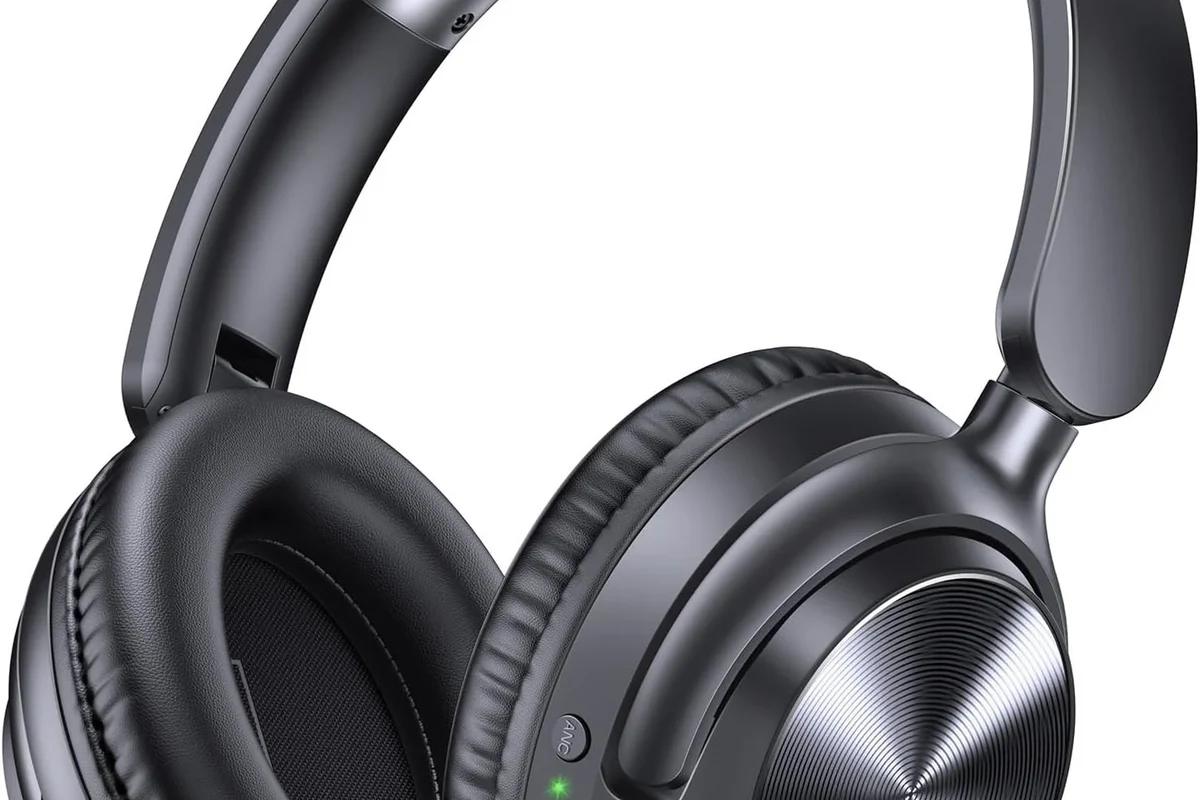
When people search for how to connect wireless headphones ps4, the main surprise is that the PS4 does not treat every wireless headset the same way. Some models connect easily through a USB dongle, while many standard Bluetooth headphones need a workaround because the console’s native Bluetooth support is limited.
That means the “best” method is not always the cheapest one. It depends on whether you want simple game audio, voice chat, low-latency performance, or a headset that also works on other devices.
Compatibility can vary by headset brand, PS4 firmware, and adapter model. Always check the headset’s PS4 support before buying if you want the least hassle.
Quick Answer: The Easiest Ways to Pair Wireless Headphones with a PS4
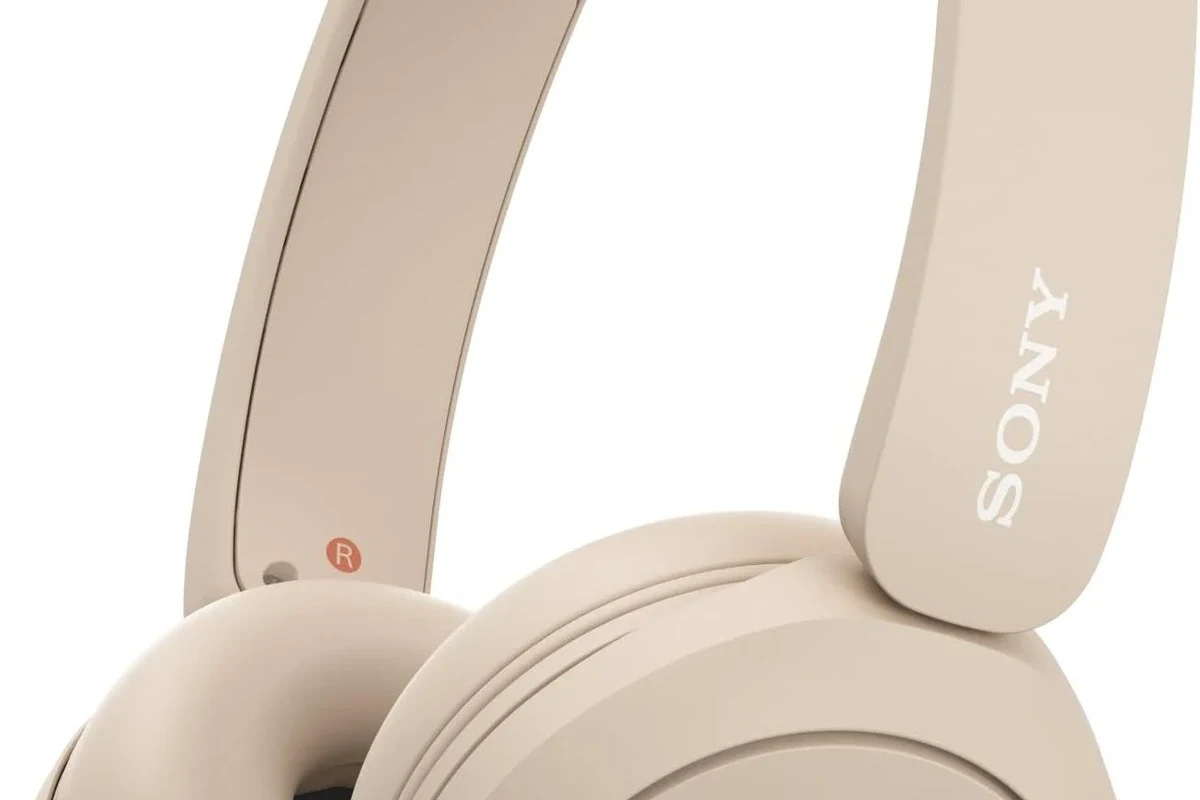
The fastest way to get wireless sound on PS4 is to use a headset that includes a USB wireless dongle or is explicitly listed as PS4-compatible. If you already own Bluetooth headphones, a PS4-supported Bluetooth transmitter is usually the most practical workaround.
Using a USB wireless dongle
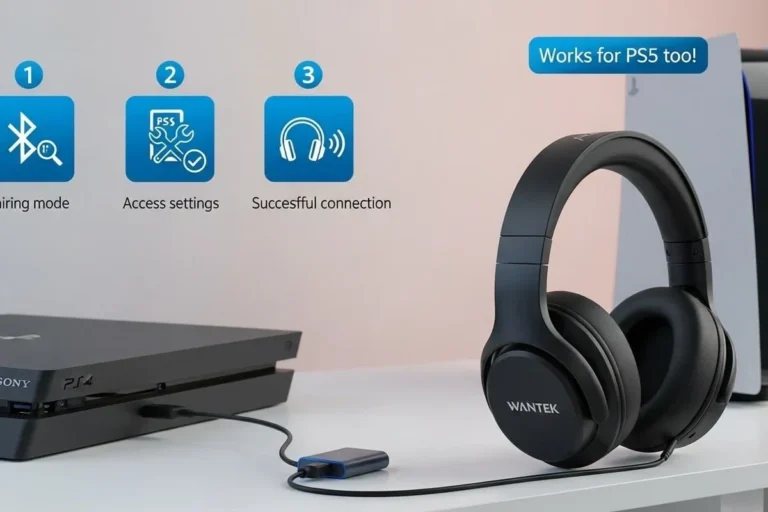
This is the simplest option for most gamers. Plug the dongle into the PS4, power on the headset, and the console usually handles the connection automatically.
Connecting through a Bluetooth transmitter
A transmitter can bridge the gap between the PS4 and standard Bluetooth headphones. This method is useful, but the final sound quality and latency depend on the adapter and headphone model.
Using a headset with PS4-compatible wireless support
Some wireless headsets are made to work with PS4 out of the box. These are often the easiest choice for players who want fewer setup steps and more reliable game audio.
Step-by-Step Setup for USB Wireless Headphones on PS4
If your headset includes a USB wireless receiver, the setup is usually straightforward. This is often the best route for players who want a simple plug-and-play experience without dealing with pairing menus.
Insert the dongle and power on the headset
Plug the USB dongle into the PS4’s USB port, then turn on the headset. In many cases, the headset and receiver will connect automatically within a few seconds.
If nothing happens right away, wait briefly and make sure the headset battery is charged. A low battery can make wireless pairing unreliable or cause random cutouts.
Insert the USB wireless dongle into the PS4 and confirm it is seated properly.
Turn on the headset and let it finish pairing with the dongle.
Adjust PS4 audio output settings
After pairing, go to the PS4 sound settings and select the headset for output if needed. Make sure game audio is routed to the headset and not still playing through the TV speakers.
If you use voice chat, check whether the headset is set as the input device too. This is one of the most common reasons people think their wireless headset is “not working” when the audio is actually only half configured.
If your headset sounds too quiet, first check the PS4 output volume and the headset’s own volume wheel before changing anything else.
Test game audio and chat balance
Launch a game with clear sound effects or a menu screen and listen for left-right balance, voice clarity, and delay. If you hear a noticeable lag between controller actions and sound, the headset or dongle may not be ideal for gaming.
For chat, join a party or use a voice test feature if available. Good wireless gaming audio should keep both game sound and microphone communication stable enough for normal play.
Wireless gaming headsets often use a dedicated 2.4GHz connection through a dongle, which can feel more responsive than standard Bluetooth for fast-paced games.
How to Use Bluetooth Headphones with PS4 Without Frustration
Bluetooth is the option many players expect to work instantly, but PS4 can be picky. That is why connecting regular Bluetooth headphones directly often leads to confusion, failed pairing, or missing microphone support.
Why most Bluetooth headphones do not connect directly
Many Bluetooth headphones are designed for phones, tablets, and laptops, not consoles. The PS4’s built-in Bluetooth support is limited, so even if the headset appears in a scan list, it may not connect properly or may only support partial audio features.
This is especially frustrating if you want both game sound and chat. Some headphones may play audio but not support the mic the way you expect, which makes them a poor fit for multiplayer gaming.
Do not assume that any Bluetooth headset will work fully with PS4. “Bluetooth compatible” on the box does not always mean “PS4 friendly.”
Best workaround: PS4-supported Bluetooth transmitter setup
If you already own Bluetooth headphones, a transmitter can be the cleanest workaround. Plug the transmitter into the PS4’s USB port or audio output, pair the headphones to the transmitter, and use the adapter to handle the wireless link.
This setup is often better than fighting the PS4’s native Bluetooth menu. It may still introduce some delay, so it is best for casual gaming, story games, and TV use rather than ultra-competitive play.
Common pairing delays and how to fix them
If pairing takes too long, restart both the headset and the transmitter, then try again from a short distance. Low battery, interference from nearby devices, and outdated firmware can all slow the process.
Also make sure the headset is not already connected to another device. Many Bluetooth headphones try to reconnect to a phone or laptop first, which can block the PS4 setup.
- Works with headphones you already own
- Can be a flexible option for casual gaming
- May add latency
- Mic support can be inconsistent
Best Headphone and Adapter Options for Different Budgets
Your budget matters, but so does the type of gaming you do. A low-cost setup can be fine for single-player use, while multiplayer players often benefit from better latency control and clearer voice chat.
Budget-friendly wireless setups for casual players
For casual gaming, a basic Bluetooth transmitter plus an existing headset can be enough. This is the least expensive way to get wireless audio, especially if you mainly play slower-paced games or use the PS4 for TV and streaming too.
Still, budget setups can vary widely in quality. Some are perfectly usable, while others may create hiss, dropouts, or delayed sound that becomes annoying over time.
Mid-range options for better latency and mic performance
Mid-range PS4 wireless headsets often offer better stability because they are built for console use. They usually provide a more reliable mic and a more balanced connection than generic Bluetooth-only headphones.
This is often the sweet spot for players who want better performance without going all the way to premium pricing. If you play online regularly, this category is usually worth considering first.
Premium headsets for low-lag gaming and voice chat
Premium wireless gaming headsets may offer stronger wireless stability, more comfortable ear cushions, and better chat performance. They are usually the best fit for long sessions, party chat, and players who care about consistent sound.
Just remember that premium does not automatically mean perfect. Sound signature, clamp force, and battery life can still differ by model, so personal comfort matters as much as feature lists.
Common Mistakes When Connecting Wireless Headphones to PS4
Most setup problems are not caused by the headset itself. They usually come from compatibility assumptions, wrong settings, or simple battery and firmware issues.
Assuming all Bluetooth headsets are compatible
This is the biggest mistake. A headset can be excellent for phones and still be a poor match for PS4 because the console handles Bluetooth differently.
If you want fewer headaches, look for PS4 compatibility in the product description or choose a USB wireless model made for consoles.
Ignoring audio output and chat settings
Even a working headset can seem broken if the PS4 output is still set to TV speakers or the wrong audio device. Always check both output and input settings after pairing.
For party chat, confirm the microphone is enabled and the headset is selected as the communication device. Small settings mistakes can make a good headset sound like a bad one.
Overlooking firmware updates and battery issues
Some wireless headsets and adapters need firmware updates to work properly. If you skip updates, you may run into pairing failures, audio dropouts, or unstable mic behavior.
Battery level also matters more than many people realize. Wireless audio can become glitchy when the headset is nearly empty, so charge it fully before troubleshooting deeper problems.
- Headset compatibility with PS4
- Correct audio output and mic settings
- Battery level and firmware updates
Expert Advice: Avoid Latency, Sound Drops, and Mic Problems
For gaming, wireless convenience is only worth it if the connection stays responsive. That is why the best PS4 wireless setup is usually the one that balances comfort, stability, and low delay.
Why low-latency wireless matters for gaming
Latency is the small delay between what happens on screen and when you hear it. In action games, shooters, and rhythm-based titles, too much delay can make audio feel disconnected from the game.
Low-latency wireless matters less for streaming or casual play, but it becomes much more important when timing and reaction speed matter.
When to choose USB over Bluetooth
Choose USB wireless if you want the simplest setup and the most console-friendly experience. USB dongles often provide a more stable connection than generic Bluetooth headphones.
Bluetooth can still work well with a transmitter, but USB is usually the safer choice if your top priorities are ease, lower lag, and predictable behavior.
Warning signs of poor-quality adapters
Be cautious if an adapter promises universal compatibility without clearly explaining how it works. Weak adapters may introduce static, random disconnects, weak mic support, or noticeable delay.
If a product has vague instructions or no PS4-specific guidance, that is usually a sign to keep looking. Clear compatibility notes are a good sign in the headphone and adapter market.
If you have hearing discomfort, ringing in the ears, or trouble understanding game audio even at moderate volume, consider speaking with an audiologist or hearing professional. Safe listening habits matter just as much as gear quality.
Listening at high volumes for long periods can cause hearing damage. Keep volume at 60% or below for extended sessions.
Final Recap: The Fastest Way to Get Wireless Audio on PS4
If you want the fastest answer to how to connect wireless headphones ps4, start with a PS4-compatible USB wireless headset or a headset that includes its own dongle. That is usually the easiest and most reliable route for both audio and chat.
If you already own Bluetooth headphones, use a PS4-supported Bluetooth transmitter instead of expecting direct pairing to work smoothly. That simple choice can save time, reduce frustration, and give you a better gaming experience overall.
Frequently Asked Questions
Wireless headphones are more convenient, but wired headsets usually offer simpler setup and no wireless lag. For PS4 gaming, the best choice depends on whether you value freedom of movement or the most direct connection.
Noise cancelling is a headphone feature, so it can still work if the headset supports it. However, PS4 compatibility depends on how the headphones connect, and some Bluetooth models may not pair properly without a transmitter.
Closed-back headphones are usually better for PS4 gaming because they block more outside noise and keep game sound contained. Open-back models can sound more spacious, but they leak sound and are less ideal for shared rooms.
Over-ear headsets are often the most comfortable for long sessions because they spread pressure across a larger area. On-ear and in-ear options can work well too, but comfort depends on fit, weight, and ear cushion materials.
Check PS4 compatibility, wireless method, mic support, battery life, latency, and whether the headset uses a USB dongle or Bluetooth transmitter. Sound quality can also vary by driver type, tuning, and your own hearing preference.
Start with the PS4 audio settings and any headset EQ options, then adjust bass and treble carefully. Small EQ changes often improve clarity more than large boosts, especially for gaming and voice chat.