Can I Connect My Headphones to My TV Easily and Fast

Yes, you can usually connect headphones to your TV with Bluetooth, a headphone jack, or a wireless transmitter. The easiest method depends on your TV’s output ports and how much audio delay you can tolerate.
Yes, in most cases you can connect your headphones to a TV, but the easiest method depends on your TV model and the type of headphones you own. Some TVs support Bluetooth directly, while others need a wired connection or a wireless transmitter for the best results.
- Fastest option: Use built-in Bluetooth if your TV supports headphone pairing.
- Most stable option: Wired connections usually give the best sync.
- Best for gaming: Low-latency transmitters can reduce delay.
- Compatibility matters: Check TV ports and audio format support first.
Can I Connect My Headphones to My TV? Quick Answer for 2025
The short answer is yes, you usually can. Modern smart TVs often support Bluetooth headphones, while older TVs may need a 3.5mm jack, RCA adapter, optical audio transmitter, or another external workaround.
If you want the fastest setup, check your TV’s audio output options first. If your TV already supports Bluetooth pairing, that is often the simplest route; if not, a wired adapter or dedicated transmitter can solve the problem without much hassle.
Why People Want TV Headphone Connections: Late-Night Viewing, Gaming, and Hearing Support
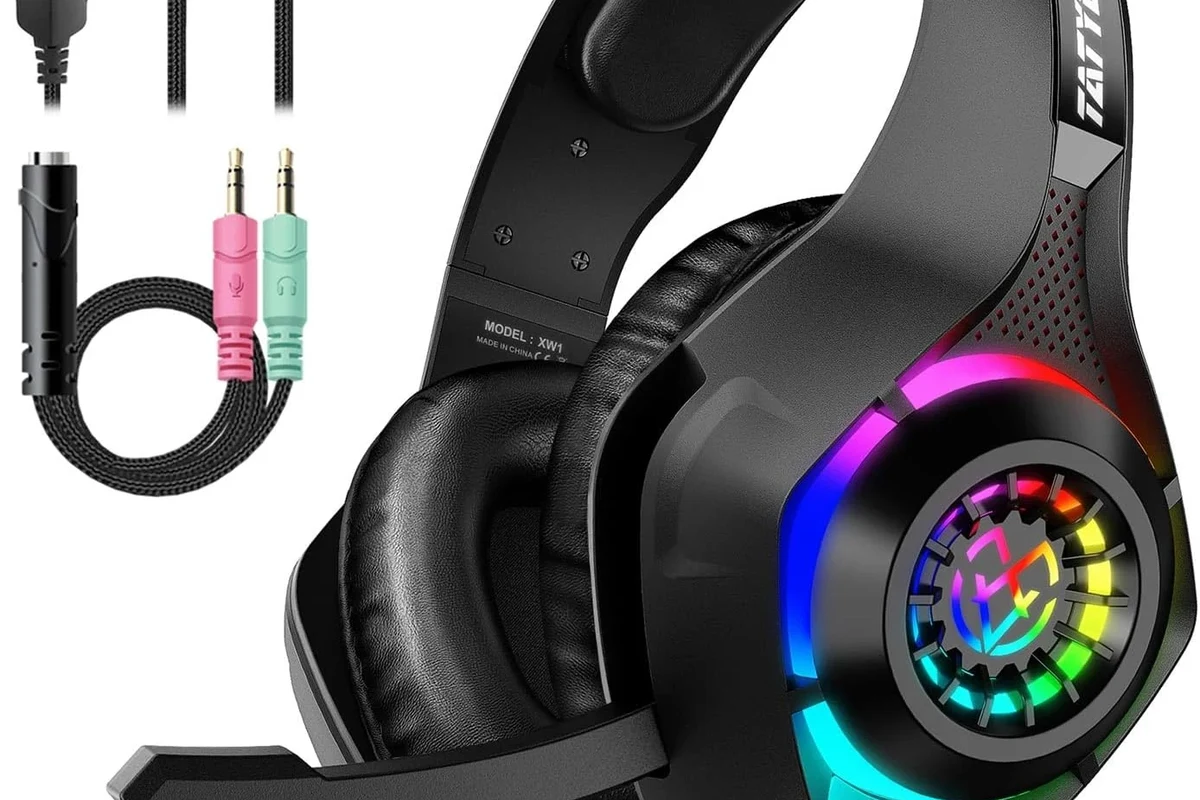
TV headphone connections are popular for a few practical reasons. Many people want to watch movies late at night without disturbing family members, roommates, or neighbors.
Gamers also use headphones for clearer dialogue, stronger directional sound, and less room noise. For some viewers, headphones make TV easier to enjoy at a lower, more comfortable volume, which can be helpful for hearing support or shared living spaces.
If you watch TV often at night, closed-back headphones or comfortable wireless headphones can help reduce outside noise and keep the experience private.
Ways to Connect Headphones to a TV: Bluetooth, Wired, and TV-Compatible Wireless Options
There are three main ways to connect headphones to a TV: Bluetooth, wired audio, and TV-compatible wireless systems. The best option depends on whether you care most about convenience, sound sync, range, or compatibility.
- Bluetooth is convenient when your TV supports it well.
- Wired connections are often the simplest and most stable.
- Wireless transmitters can improve compatibility and reduce lag.
Bluetooth TVs and built-in pairing
If your TV has built-in Bluetooth audio, you may be able to pair your headphones directly from the TV settings menu. This is usually the cleanest setup because it does not require extra cables or accessories.
The main downside is that Bluetooth can sometimes introduce delay, especially with movies, sports, and gaming. Sound quality and stability can also vary by TV brand, headphone model, and Bluetooth codec support.
Some TVs only support Bluetooth for remotes or keyboards, not headphone audio, so the Bluetooth menu alone does not always mean headphone pairing is available.
Using a 3.5mm headphone jack or RCA adapter
A wired connection is often the easiest fallback if your TV has a headphone jack. You simply plug in your wired headphones or use a 3.5mm cable, and the TV sends audio straight to the headset.
If your TV only has RCA audio outputs, you can use an RCA-to-3.5mm adapter or a small DAC-style converter, depending on the TV and headphone setup. Wired options usually offer very low delay, which is great for lip-sync and gaming.
Many TVs disable their internal speakers when a headphone jack is used, but some models let you control both outputs or adjust the audio output mode in settings.
Optical audio, USB, and wireless transmitter setups
For TVs without a headphone jack, an optical audio transmitter can be a strong option. These systems take sound from the TV’s optical output and send it wirelessly to compatible headphones or a base station.
USB audio support is less common on TVs, but some models allow USB playback or accessory support. A dedicated wireless transmitter is often the best choice if you want better range, lower lag, or a more reliable TV headphone experience than standard Bluetooth.
Not every optical or wireless transmitter works with every TV audio format. Always check whether your TV outputs stereo PCM, Dolby, or another format that your adapter can handle.
Step-by-Step Setup Examples for Popular TV Brands and Devices
Setup steps vary a little by brand, but the general process is similar across most TVs. The key is to find the audio output menu, select the right output mode, and then pair or plug in your headphones correctly.
Samsung, LG, Sony, and Roku TV connection basics
On Samsung, LG, and Sony smart TVs, Bluetooth headphones are often paired through the Sound or Device Connection settings. You may need to put the headphones into pairing mode first, then select them from the TV’s available devices list.
On Roku TV models, the process may depend on the TV brand or the Roku-enabled system built into it. Some Roku TVs support Bluetooth through the Roku mobile app, while others work better with a wired connection or a separate transmitter.
Open the TV settings and look for Sound, Audio, or Bluetooth device menus before buying any adapter.
For wireless models, follow the headphone instructions so the TV can detect them during setup.
Choose Bluetooth, headphone jack, optical output, or external speaker mode based on your setup.
Connecting headphones to a smart TV, streaming device, or gaming console
Smart TVs are usually the easiest because they may support direct Bluetooth or simple audio output settings. Streaming devices can be trickier, since some send audio through the TV rather than directly to headphones.
Gaming consoles often work best with headphones connected to the controller, console, or TV depending on the game and latency needs. If you play fast-paced games, a low-lag wired solution or a transmitter designed for TV audio is usually safer than standard Bluetooth.
What to Check Before You Buy: Compatibility, Latency, Range, and Sound Quality
Before buying headphones or an adapter for TV use, check compatibility first. A great pair of headphones can still be frustrating if the TV cannot pair with them, the transmitter is unsupported, or the audio delay is too noticeable.
Bluetooth delay and lip-sync issues for movies and gaming
Bluetooth delay is one of the biggest reasons TV audio can feel “off.” Even a small delay may be fine for talk shows, but it can become distracting during movies, sports, or games where lips and sound should line up closely.
If lip-sync matters to you, look for low-latency wireless support or use wired headphones instead. You may also need to adjust the TV’s audio delay or lip-sync setting, if available.
Listening at high volumes for long periods can cause hearing damage. Keep volume at 60% or below for extended sessions.
Battery life, comfort, and microphone support for TV use
For long movie nights, battery life matters more than many people expect. Comfortable ear cushions, a lightweight design, and stable headband pressure can make a bigger difference than extra features you may never use.
If you plan to use the headphones for gaming or voice chat, check whether the microphone works properly with your TV or console setup. Some TV headphone connections only carry audio out, not mic input, so headset chat features may not work the way they do on a phone or PC.
If you experience ringing, ear pain, or persistent difficulty hearing dialogue even at moderate volume, consider speaking with an audiologist or hearing specialist before increasing volume further.
Cost Comparison: Free Built-In Options vs Budget Adapters vs Premium Wireless Systems
The cost of connecting headphones to a TV can range from free to fairly expensive. Your final price depends on whether your TV already has the right output and whether you want basic audio or a more polished wireless setup.
Low-cost wired solutions
If your TV has a headphone jack, the cheapest solution is often a simple cable. If it has RCA outputs, an adapter is still usually affordable and easy to use.
Wired setups tend to be the most reliable for sync and do not require charging. The tradeoff is less freedom of movement, which may matter if you sit far from the TV.
Mid-range Bluetooth transmitters
A mid-range Bluetooth transmitter can be a smart upgrade if your TV lacks Bluetooth or if the built-in Bluetooth is unreliable. These devices can improve compatibility and may offer a better balance of convenience and performance.
However, quality varies a lot between brands, so it is worth checking whether the transmitter supports low-latency audio and the right TV input type. This is also a good moment to review how Bluetooth headphones are explained in practical use, especially if you are new to wireless audio and want a simple setup.
Higher-end TV headphone systems for better audio sync
Premium TV headphone systems are usually aimed at users who care about comfort, range, and stable audio timing. They can be a better fit for regular movie watching or shared-home listening where delay and reliability matter.
These systems may cost more, but they often reduce the frustration of pairing issues and audio lag. If you watch TV every day, the extra convenience can be worth it, depending on your budget and listening habits.
Common Mistakes People Make When Connecting Headphones to a TV
Many TV headphone problems come from simple setup mistakes, not broken equipment. A quick check of the TV menu and ports can save a lot of time.
Confusing TV output ports with input ports
One common mistake is plugging headphones into the wrong jack. TV input ports are designed to receive audio or video signals, while output ports send sound out to headphones or speakers.
If a port is labeled audio out, headphone, optical out, or line out, that is usually the right direction. If it says in, aux in, or component input, it is not meant for headphones.
Ignoring volume control and audio format settings
Sometimes the headphones are connected correctly, but the TV volume is too low or the output format is incompatible. You may need to raise the TV volume, adjust the headphone volume, or change the audio output setting in the menu.
If your TV sends a surround format that your adapter cannot decode, the sound may be silent or distorted. Switching to PCM or stereo output is often a useful troubleshooting step, depending on the TV.
Using incompatible Bluetooth codecs or outdated adapters
Not all Bluetooth devices handle TV audio equally well. An older adapter or mismatched codec support can cause lag, dropouts, or poor sound quality.
If you already own wireless headphones, check whether they are compatible with the TV’s Bluetooth version and audio profile. If not, a newer transmitter or a wired option may be the better long-term fix.
Expert Advice: Best Practices and Warning Signs Before You Set It Up
The best TV headphone setup is the one that matches your room, your habits, and your tolerance for delay. A simple cable may be better for one person, while a dedicated wireless system makes more sense for another.
When to avoid Bluetooth and choose a transmitter instead
Skip Bluetooth if you mainly watch action movies, sports, or games where timing matters. In those cases, a low-latency transmitter or wired connection will usually feel more natural.
Bluetooth is still fine for casual viewing, but it may not be the best choice if you are sensitive to lip-sync delay or want the most stable connection possible. If you already use wireless headphones for other devices, it is worth checking whether they pair cleanly with the TV before settling on Bluetooth alone.
Signs your TV may need an external audio workaround
If your TV has no headphone jack, no usable Bluetooth audio, or only limited output options, you will probably need an external workaround. Optical transmitters, adapters, and DAC-based solutions are common fixes.
Another warning sign is inconsistent sound when switching between apps, consoles, and live TV. That usually means the TV’s built-in audio handling is limited, and a dedicated headphone setup may be more dependable.
- Does your TV support Bluetooth headphone pairing?
- Does it have a headphone jack, optical out, or RCA output?
- Do you need low latency for gaming or lip-sync?
- Will your headphones be comfortable for long sessions?
Final Recap: The Fastest and Easiest Way to Connect Headphones to Your TV
If you are asking, “can i connect my headphones to my tv,” the answer is usually yes. The fastest method is built-in Bluetooth if your TV supports it well, but the easiest reliable option is often a simple wired connection or a dedicated transmitter.
For everyday TV watching, choose the method that gives you clear sound, comfortable wear, and the least delay. If you are unsure, start by checking your TV’s audio outputs, then match them to the headphones or adapter that best fits your viewing habits.
Frequently Asked Questions
Wireless headphones are more convenient, but wired headphones usually give you less delay and more reliable sync. If you watch movies or play games, wired or low-latency wireless can be the better choice.
Yes, noise cancelling headphones can reduce background noise and make dialogue easier to hear. They are especially useful in shared homes or noisy rooms, though comfort and sound balance still matter.
Closed-back headphones are usually better for TV because they block more outside sound and keep audio private. Open-back models can sound wider, but they leak sound and are less ideal for shared spaces.
Over-ear gaming headsets or low-latency wireless headphones are usually the best fit for TV gaming. They offer better comfort for long sessions and can improve directional sound, depending on the game and setup.
Check connection type, latency, battery life, comfort, and whether the headphones support the TV or transmitter you plan to use. If sound quality matters, also review driver size, codec support, and EQ options.
Look for lightweight designs, soft ear cushions, and a headband that does not clamp too tightly. If you listen for hours, keep volume moderate and take breaks to protect your hearing.